Setting up · Chapter 17
Your team and who can do what
Inviting colleagues, choosing the right role for each, changing or removing them, and protecting everyone's sign-in with a second step.
In this chapter you will
- invite a colleague, and know what they meet when they accept
- choose the role that gives each person what they need and no more
- change somebody's role, and remove somebody who has left
- know who approves changes to the method, and who marks them
- know what stays behind when a person is removed
- require two-factor authentication, and set it up for yourself
- help a colleague who cannot sign in
Where your team is kept
Open Settings in the bar at the top of any page and click Team. Only admins and hiring managers see it.
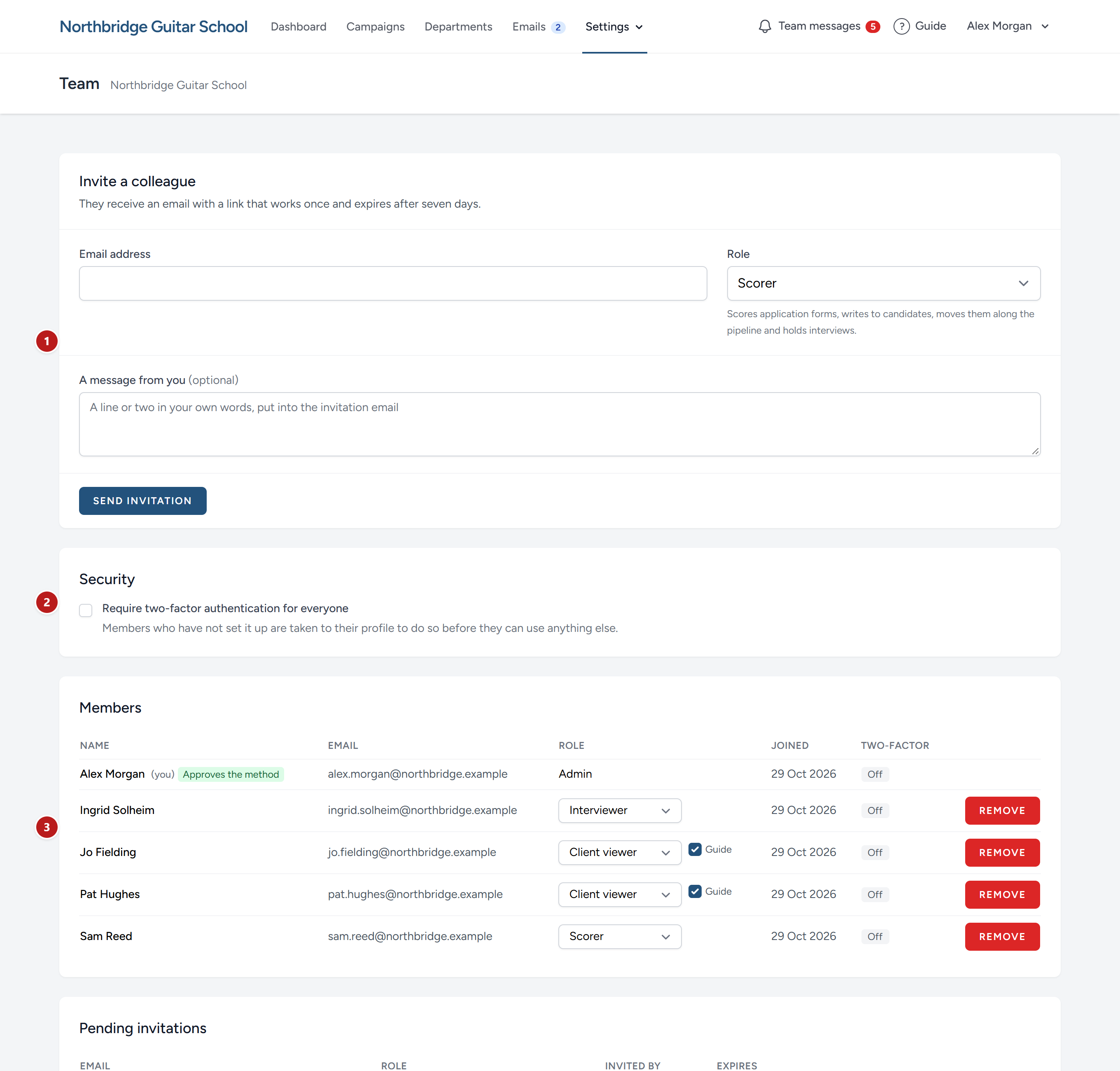
- Invite a colleague.
- Security. One switch, for the whole organisation.
- Members. Everyone who can sign in, with their role and whether their sign-in has a second step.
- Pending invitations. People who have been invited and have not yet accepted.
The five roles
Everybody in your team has one role. Give each person the role that lets them do their part, and no more than that: Candidates have trusted you with their details.
| Role | Who it is for |
|---|---|
| Admin | Whoever runs HiMatcher for your organisation. Manages the team, the settings and every campaign |
| Hiring manager | The person running a campaign, from the briefing to the candidates suggested to the client. Manages the team, the settings and every campaign, as an admin does: The two differ in name only |
| Scorer | Somebody who reads and bands application forms, writes to candidates, and may hold interviews |
| Interviewer | Somebody who only holds interviews, such as a colleague who helps with the telephone calls |
| Client viewer | A guest: The client, or a manager elsewhere in your company, who says yes or no to the candidates you suggest |
Whoever asked for your HiMatcher address on the website is its first hiring manager: The invitation they were emailed made them one. They can make anyone else an admin or a hiring manager from here.
What each role can do
| Admin | Hiring manager | Scorer | Interviewer | Client viewer | |
|---|---|---|---|---|---|
| See campaigns, candidates, applications and CVs | Yes | Yes | Yes | Yes | No |
| Create a campaign, and run the briefing, the specification, the form and the pipeline's stages | Yes | Yes | No | No | No |
| Band application forms, ask Digital Nancy, and ask follow-up questions | Yes | Yes | Yes | No | No |
| Write to candidates and read their replies | Yes | Yes | Yes | No | No |
| Move candidates along the pipeline, and write team notes | Yes | Yes | Yes | No | No |
| Read and write team messages | Yes | Yes | Yes | Yes | No |
| Archive a candidate, and bring one back | Yes | Yes | No | No | No |
| Set up interviews and offer times | Yes | Yes | No | No | No |
| Invite candidates to interview, and cancel a booking | Yes | Yes | Yes | No | No |
| Hold an interview: Record it, write notes, band what was heard, record the outcome | Any | Any | Any | Their own | No |
| Suggest candidates to a client, and manage the review | Yes | Yes | No | No | No |
| Read the suggested candidates | Yes | Yes | Yes | Yes | Those they are named on |
| Decide on the suggested candidates | Yes | Yes | No | No | Those they are named on |
| Change email templates and pipelines | Yes | Yes | No | No | No |
| Delete a campaign | Yes | Yes | No | No | No |
| Config, Team, House notes and AI runs under Settings | Yes | Yes | No | No | No |
The Admin and Hiring manager columns are the same in every row. Give each person whichever of the two names says better what they do.
Two of the roles deserve a word more.
An interviewer sees campaigns and applications, because they need to read a candidate's form before they ring. They change nothing, with one exception: The interviews they are named on. When you offer times and choose somebody as the interviewer, those interviews become theirs. They can open them, record, write their notes, band the criteria that interview is there to test, and record the outcome by moving the candidate to one of the stages that follow it. Every other interview, and everything else, is closed to them. See Interviews.
A client viewer is a guest, not a colleague. They see no campaign, no candidate and no email. They see the suggested candidates you have named them on, the scoresheets you let them read, and their own dashboard of the campaigns being run for them, with the parts of each campaign page you have chosen for them, and nothing else. See Suggesting candidates to your client. Their Guide link opens the guide written for clients, at /guide/for-clients, not this one. Untick Guide in their row on the Team page to take the link off their pages.
Inviting a colleague
- Type their email address.
- Choose their role. A line under the box reminds you what that role does.
- For a client viewer, if you recruit for clients, choose their client, so that they are offered first when you suggest candidates on that client's campaigns. You can leave it for now and set it later in their row.
- For a client viewer, choose under What they are shown the parts of their campaign pages they are shown: Your briefing, Person Specification, Questions we have for you, What we agreed and Scoresheet. Your briefing and Scoresheet start unticked and the rest ticked; tick Your briefing for the person who briefs you on the role, and Scoresheet for someone who should read every candidate's answers and scores on each campaign they see. What is ticked becomes theirs when they accept, and you can change it later on their client's page. See Your clients.
- For a client viewer with a client chosen, choose under Campaigns they see: All of their client's campaigns, now and to come, or Only the ones I tick, and tick them. They see these from the moment they accept, and the email names them. You can change them later on their client's page. See Client viewers and their client.
- If you like, write a message from you: A line or two in your own words, for anyone you invite. It is put into the invitation email, above the button, with your name.
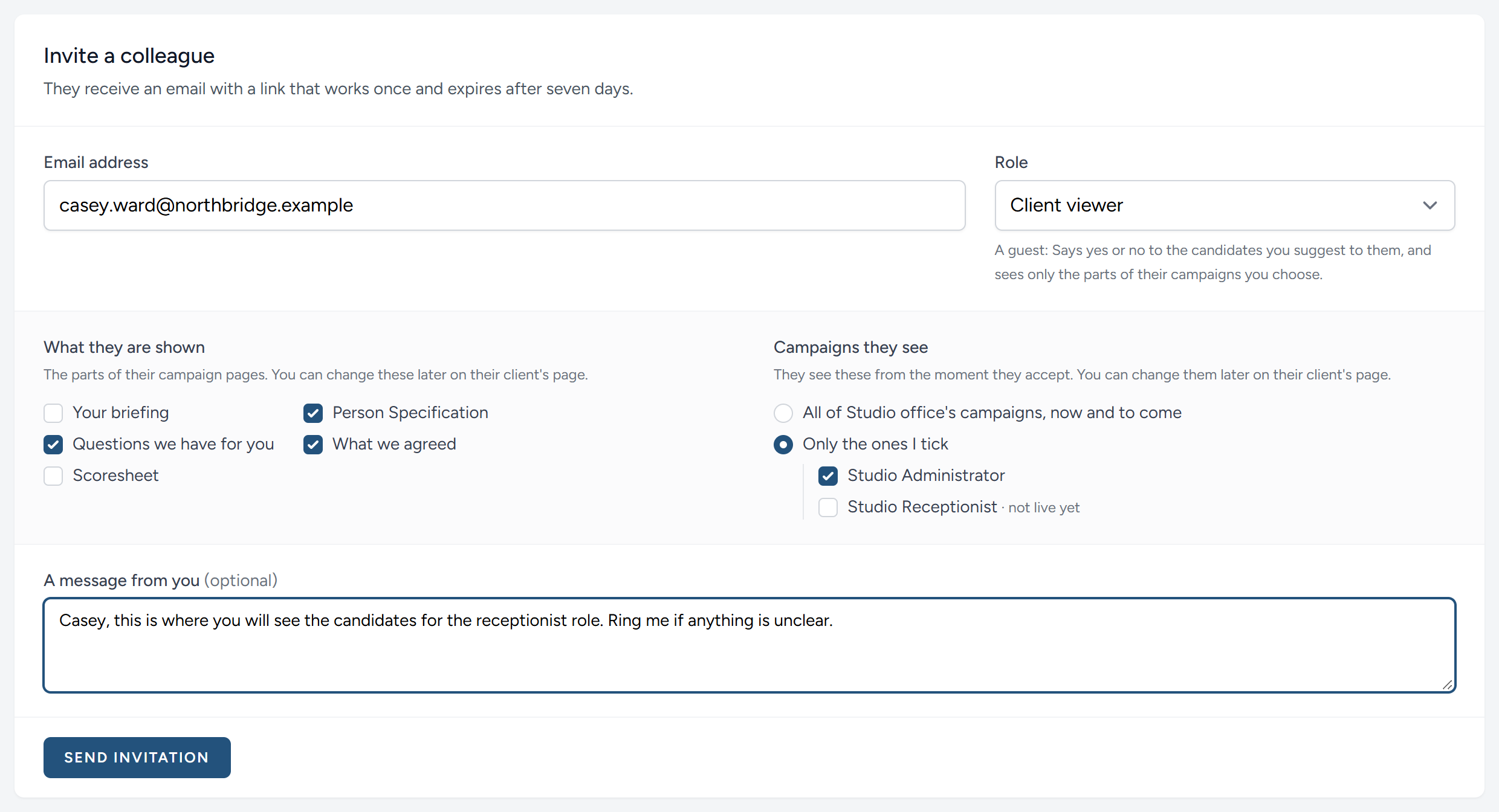
- Click Send invitation.
They are sent an email with a private link. The link works once, and for seven days.
If the email cannot be sent, the invitation is still made. An amber panel at the top of the page shows you the link, with the reason the email failed, so that you can pass the link on yourself. It is shown only then, so copy it before you leave the page.
You cannot invite somebody who is already in your team. Inviting an address that already has an invitation waiting replaces the first invitation with the new one, role and all.
What your colleague sees
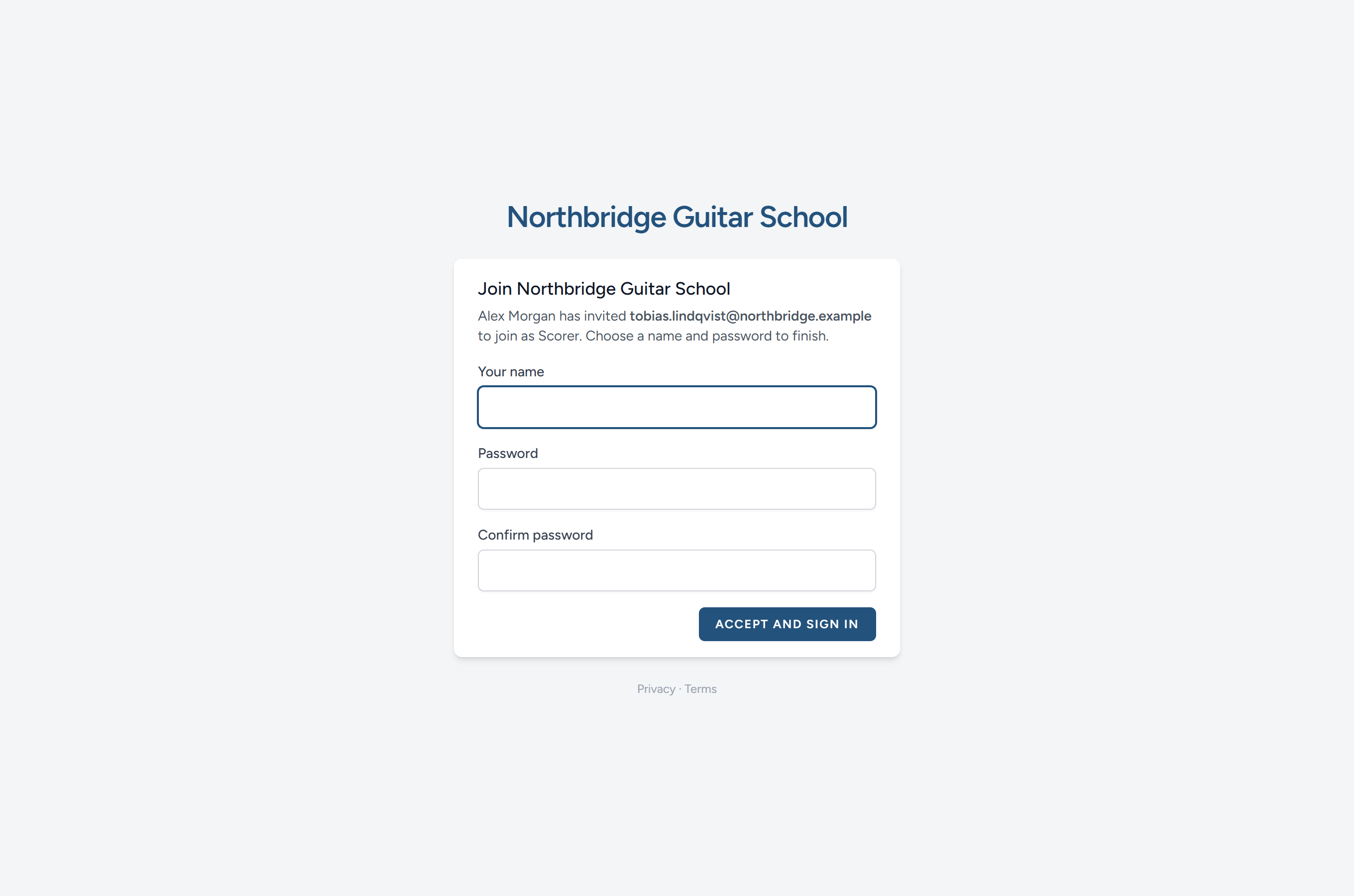
They choose the name their colleagues and candidates will see, and a password, and click Accept and sign in. They are in. There is nothing to install and nothing for you to approve.
If your organisation requires two-factor authentication, they are taken straight to their profile to set it up, and can use nothing else until they have.
Invitations that are still waiting
Under Pending invitations, a client viewer's invitation says which campaigns they will see. Resend sends the email again, with your message, a fresh link and a fresh seven days. Revoke cancels an invitation, and its link stops working.
You need not watch the list. Two days before a link stops working, the person invited is reminded by email, politely, with the link again; where that day would be a Saturday or a Sunday, the reminder goes on the Friday before. If the link stops without being used, whoever sent the invitation is emailed to say so, with a link that lands on the invitation to send it again, and a word about ringing them first. Each is sent once. An invitation whose link has stopped stays on the list, marked in amber, until it is resent or revoked, so nothing is lost by a missed week.
Changing somebody's role
Choose a new role from the list beside their name under Members. It takes effect at once, and a message at the top of the page confirms it.
You cannot change your own role. Ask another admin or hiring manager.
The only admin or hiring manager left can be moved from one of those two roles to the other, and to nothing else: The page says "You cannot change the role of the only admin or hiring manager." Make a colleague an admin or a hiring manager first.
Who approves changes to the method
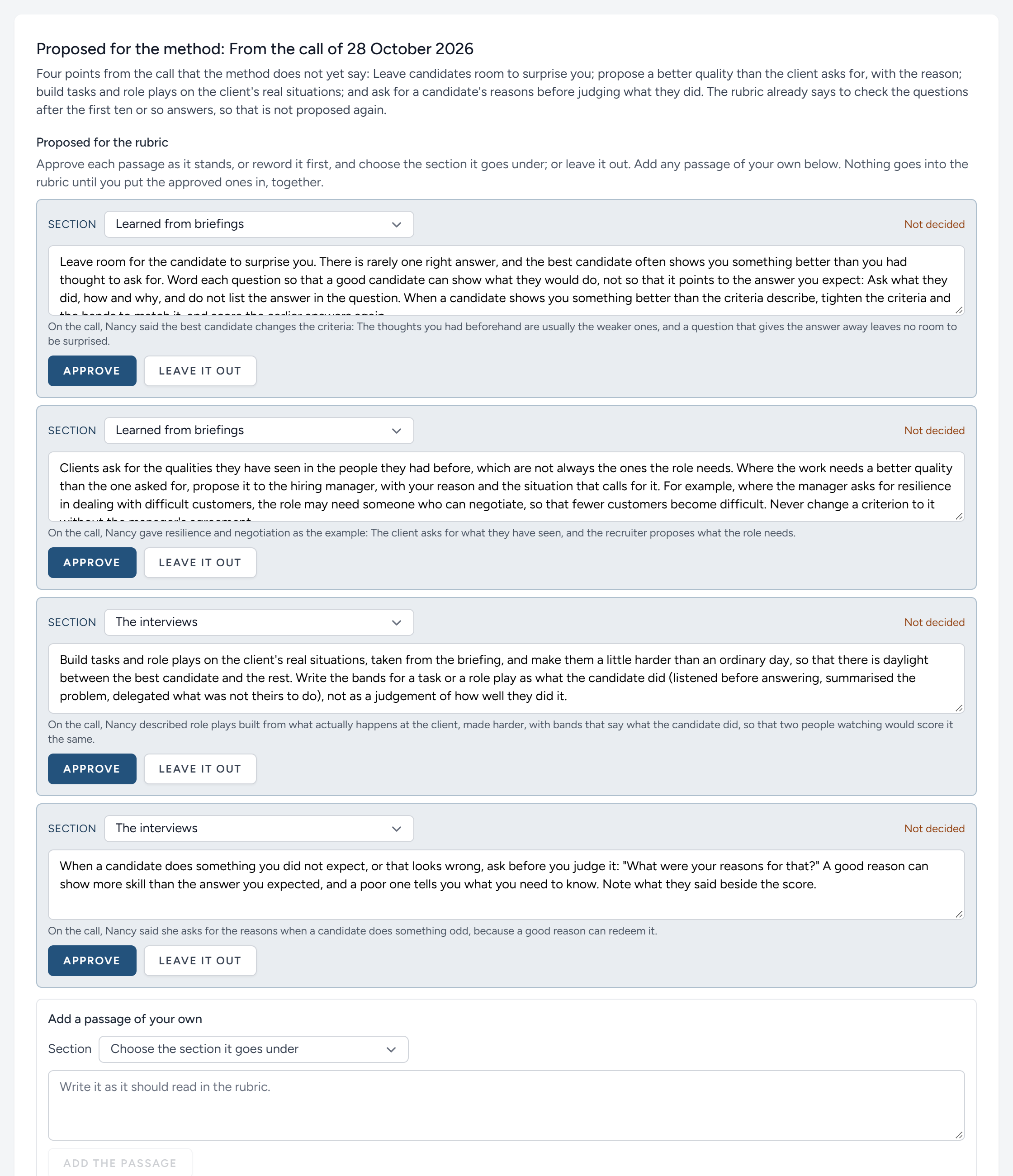
In an organisation that helps to teach the method, a lesson on a briefing proposes passages for the rubric, the written method every organisation's drafts follow (see When your corrections teach the method). Only the people marked Approves the method beside their name under Members may approve, reword or leave out those passages, add their own, put them into the rubric, answer the lesson's questions, and comment on anything the lesson says, or ask what it means (see When your corrections teach the method). Everyone else reads what they decided, and what they wrote.
Passages can also be proposed from somewhere other than a briefing, such as a conversation with Nancy. They wait on the Rubric page, under Proposed for the method, and are decided there in the same way, with any questions for her beneath them.
Because the rubric is every organisation's method, the mark is given and taken away by HiMatcher's system operators, not by the organisation's own admins: A system operator sees an Approves the method tick box beside each admin and hiring manager. A client viewer can never have it. System operators may always approve.
Removing somebody
Click Remove beside their name, and confirm. They can no longer sign in, from that moment.
Their work stays. A band is your organisation's judgement, not the scorer's property, so every band they gave remains, still carrying their name. Their notes, the emails they sent and the moves they made all remain too, though a few of those will no longer say who made them.
If they suggested candidates to a client, the email about the client's decisions goes to your admins and hiring managers from then on.
You cannot remove yourself, and nobody can remove the only admin or hiring manager left. Anybody can delete their own account from their Profile, except the only admin or hiring manager: They are asked to make a colleague one of those on the Team page first.
Two-factor authentication
A password can be guessed, reused from another site, or tricked out of somebody. Two-factor authentication adds a second step to signing in: After the password, a six-digit code from an app on the person's own telephone, which changes every half minute. Somebody who has stolen a password still cannot get in.
HiMatcher holds CVs, addresses and telephone numbers. We recommend that you require the second step of everybody.
Requiring it
Under Security, tick Require two-factor authentication for everyone. It applies at once. Anybody who has not set it up is taken to their profile the next time they open a page, and can do nothing else until they have. The Two-factor column under Members shows who has it On.
Setting it up
Everybody does this for themselves, once. It needs an authenticator app on a telephone. Microsoft Authenticator, Google Authenticator and 1Password all work, and so does any other.
- Click your name at the top right, then Profile.
- Under Two-factor authentication, click Set up two-factor authentication.
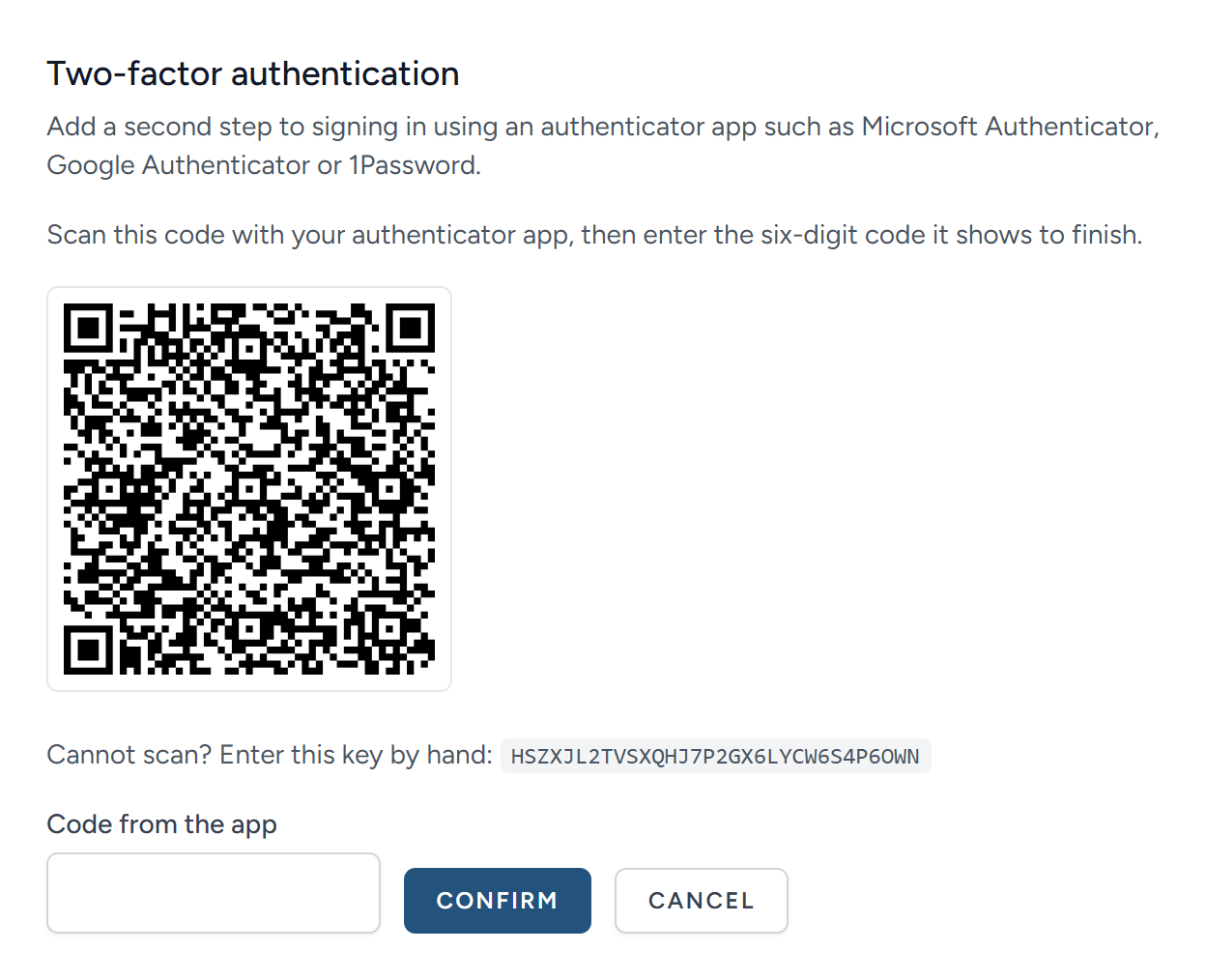
- In the app on your telephone, add an account, and point the camera at the square code on the screen. If you cannot scan it, type in the key printed under it instead.
- The app now shows a six-digit code. Type it into Code from the app, and click Confirm.
You are then shown eight recovery codes. Each one works once, in place of the code from the app, on a day when you do not have your telephone. Keep them somewhere safe that is not your telephone: A password manager, or a printed page in a locked drawer.
From then on, signing in asks for your password and then for the code the app is showing.
Regenerate recovery codes gives you eight new ones and cancels the old. Turn off removes the second step, and is not offered while your organisation requires it.
When a colleague cannot sign in
| They say | What to do |
|---|---|
| "I have forgotten my password" | They click Forgot your password? on the sign-in page, and are emailed a link to choose a new one. You do not need to do anything |
| "I have a new telephone" | They sign in with one of their recovery codes, and then, on their Profile, click Turn off and set the second step up again with the new telephone. While your organisation requires the second step, Turn off is not offered. Untick the requirement under Security for the few minutes it takes them, and tick it again afterwards |
| "I have lost my telephone and my recovery codes" | Nobody can switch off another person's second step, an admin or a hiring manager included. Remove them and invite them again. They choose a new password and set up the second step from the start. Nothing they did is lost |
| "The invitation link says it is no longer valid" | It has been used, or is more than seven days old, or has been replaced. Click Resend under Pending invitations. If they are not listed there, invite them again |
This chapter was last revised on 30 October 2026.