Running a campaign · Chapter 7
The person specification
Checking the specification Digital Nancy drafts under the method, criterion by criterion, saying where each is tested, and creating the version the campaign runs on.
In this chapter you will
- check the draft under its section headings, and settle where Digital Nancy had to guess
- say which criteria are tested on the form, at the short interview, as a task, at the long (online) interview and at the client interview
- read the criteria and the feedback line on each criterion, and create the specification
- write the bands once the client has agreed the specification, and tighten the criteria from the first answers
- know which version you work from, and choose another, so a newer draft never takes over by being newer
- publish the specification, and build the application form from it, without leaving the briefing
- take the specification out as a spreadsheet in the method's layout, and bring a changed one back in
- share each draft with the client, and see who agreed which rows and who said what
- know who at the client reads a comment, read every comment under the row it is about, and see who agreed with it
- follow a client's comment to its row, and change the row with what they wrote beside it
Drafting it
The specification is drafted by itself the moment the meeting with the hiring manager is written out, and is waiting in the Person specification part when you open it. To draft it again, or to draft it from the client's documents alone before the conversation, click Draft with Digital Nancy, at the top right. She works through everything gathered, under the method, and drafts a criterion for each thing the person must be able to do: The question that tests it, the first criteria a good answer meets, and the feedback a candidate is sent who falls short on it. She writes no bands: The way we do it, the bands are written once the client has agreed the specification, and they are clearest once you have read the first answers (see The bands, once the client has agreed).
The draft is laid out as the method's own specification sheet is. Every criterion is one line, under its section: The opening question it grew out of. Coloured labels at the end of the line say where it is assessed, with its number there. Click a line, and the whole criterion opens beside the list to be read and changed. Where a briefing sheet was prepared, its sections, areas and feedback lines carry through, and the answers to its questions are what the criteria and the bands are written from.
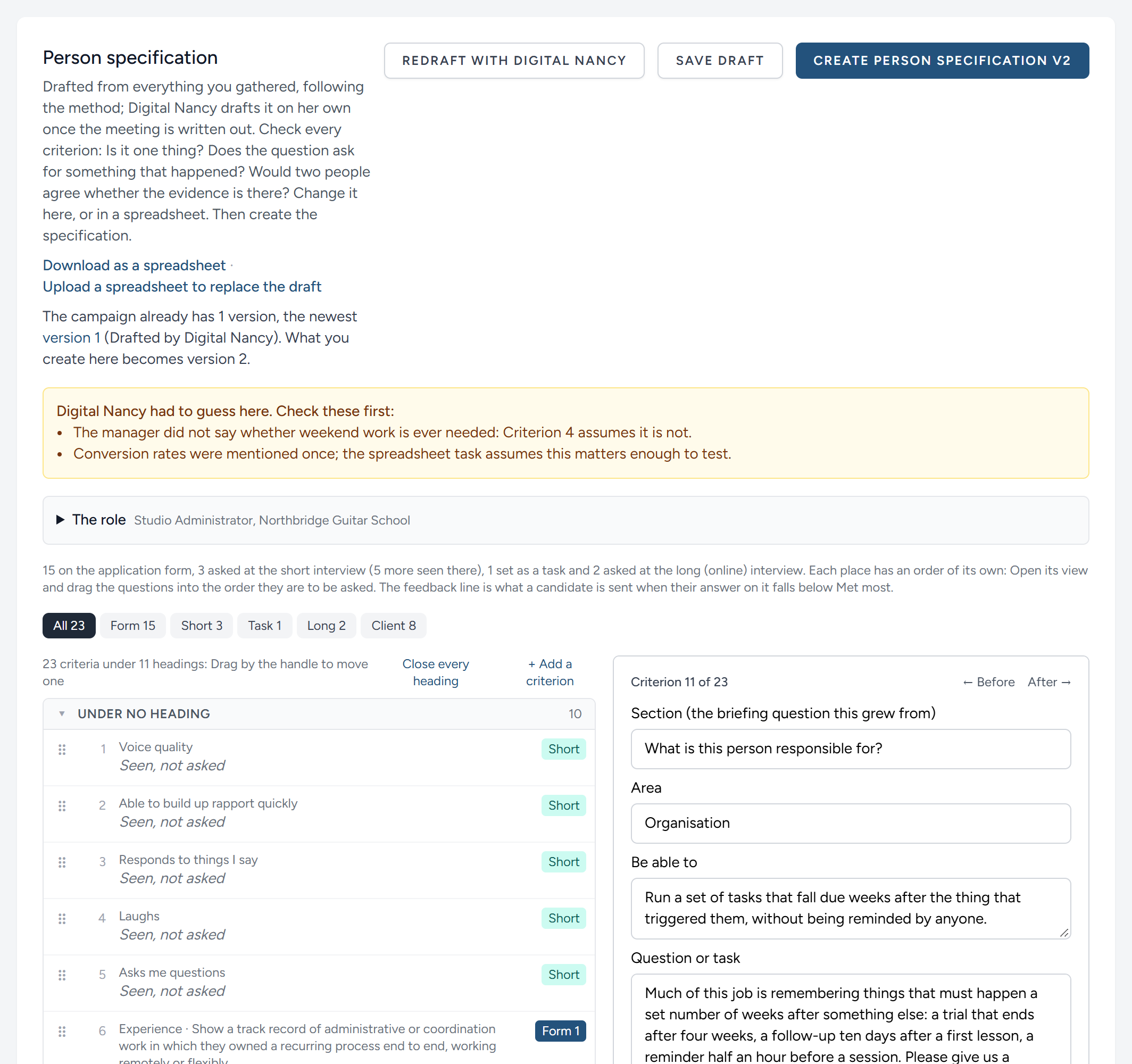
Every criterion is a line in the list: The area and the "be able to" small above, the question itself in full beneath, and on the right the places it is tested, each with its number. The question is the thing to read at this stage, so it is the thing on screen.
Checking it
Check it in this order.
- Where Digital Nancy had to guess. These are listed at the top. Settle each one: Ask the manager if you need to.
- Each criterion. Is it one thing, in words the manager would use? Is the question asking for a particular past example, and does it say exactly what to include?
- The criteria. Could two people read the same answer and agree whether it meets them? They are a first go, for you and not the client: You tighten them once the first answers are in.
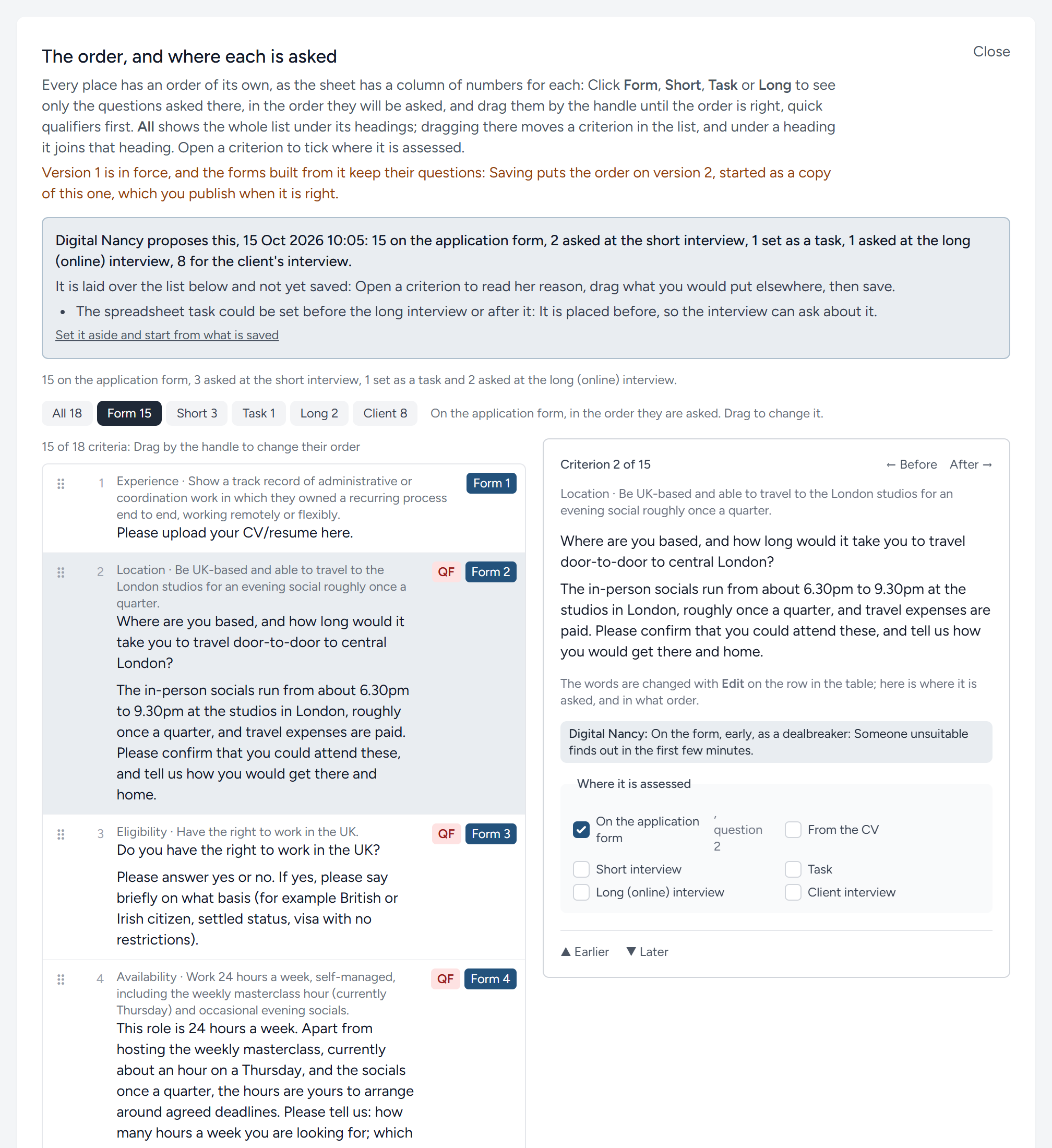
- Where it is assessed, and in what order. Nothing yet, and that is as it should be: Digital Nancy places nothing. Until the specification is agreed, by you and then by the client, its rows stand in alphabetical order of area, with the five things noticed on the telephone at the top, and no question has a number. Where each criterion is tested, and in what order, is decided on the version's own page once it is published: See The specification's own page. If you already know where some belong, you can tick the places here, and the coloured labels on the line say what they add up to, with the question's number in that place. See the table below. Each place has an order of its own, as the sheet has a column of numbers for each: Click Form, Short, Task or Long above the list to see only the questions asked there, in the order they will be asked, and drag them by the handle (or use Earlier and Later under the open criterion) until the order is right, quick qualifiers first. All shows the whole list; dragging there moves a criterion in the list, and under a heading it joins that heading, without changing any place's order. When you save, the rows are put in the order the numbers give, the form first where the orders cross, as the method's sheet runs.
- Dealbreakers. A requirement that nothing else makes up for, such as the right to work or living within three hours of London, is ticked Dealbreaker under its criterion. Check that each one the manager gave you is ticked, that its criteria state the line itself as a fact, with the number, and that there are only a few. Every dealbreaker turns away people who might have been good. If the manager would bend on it for the right person, it is not one. Where your organisation calls these something else, such as a quick fail, the tick box says that word: See Settings, Words.
- The bands. Not yet. What Met all, Met most, Met some and Failed look like is written after the client has agreed the specification, on the version's own page (see The bands, once the client has agreed). A workbook you upload with its bands keeps them.
- The feedback. Every criterion has a feedback line: The sentence a candidate is sent when their answer on it falls below Met most. Read each as the candidate will.
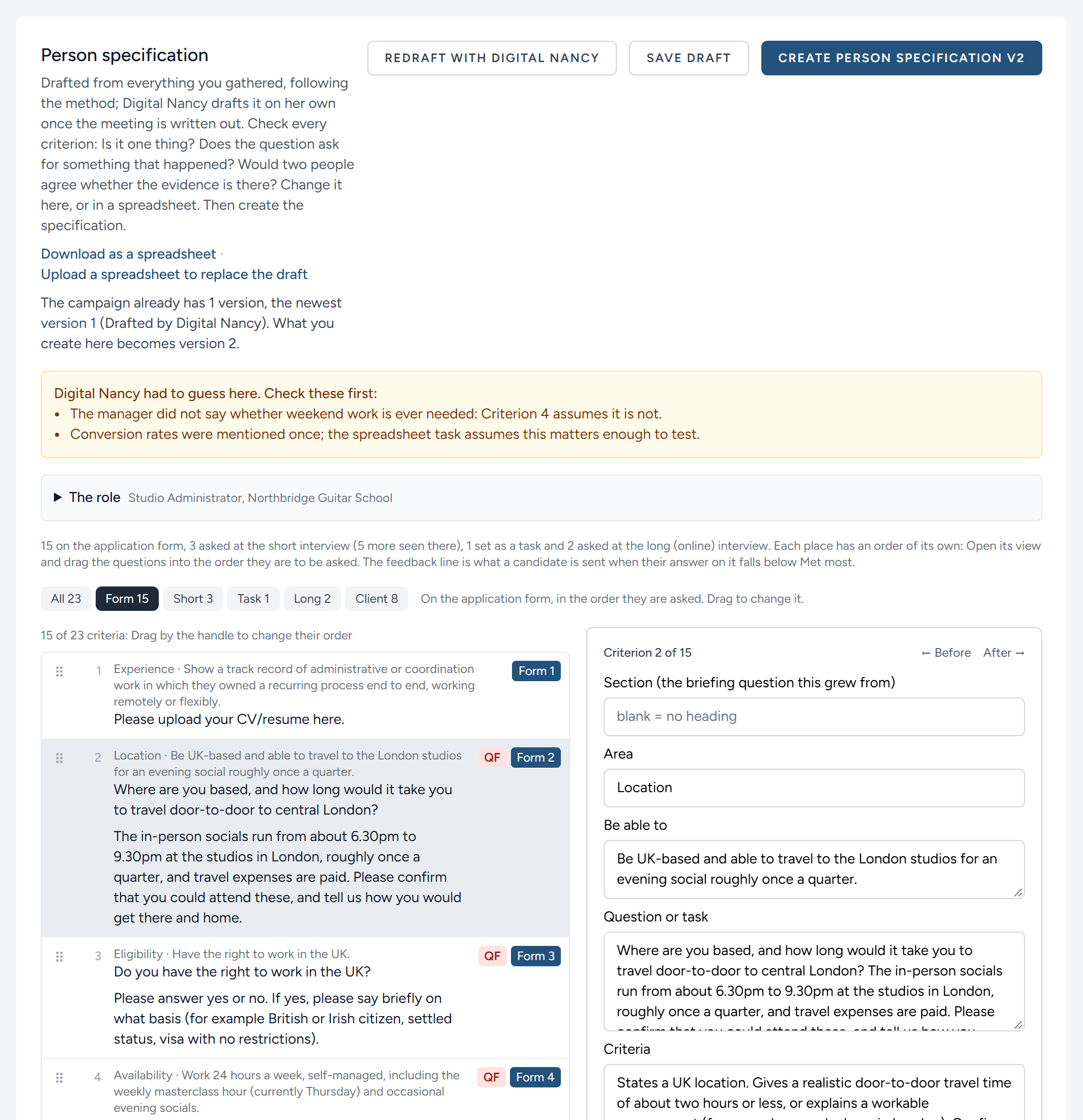
Before and After, at the top of the open criterion, step through the draft one criterion at a time, which is the quickest way to check all of them. A heading can be closed to put its criteria out of the way.
| Tick | Use it for | What it becomes |
|---|---|---|
| On the application form | What can be judged in writing | A numbered question on the form |
| From the CV | What the CV shows | Nothing is asked |
| Short interview | The values the manager described, and how the person's work style fits the team and the role | A numbered question for the short interview |
| Task | A skill best shown in a piece of work set to the candidate | A numbered task, scored with bands like a form answer |
| Long (online) interview | Skills and experience that need a conversation, and follow-ups to the form | A numbered question for the long interview, which is held online |
| Client interview | What the manager will settle in person | A criterion for the client's own interview |
A criterion can have more than one tick. One with a tick for an interview and no question is something to be seen there, such as rapport, and not asked: It is given to the interviewer, and has no number. Every draft begins with five of these, the things noticed on the telephone at the short interview: Voice quality, building rapport quickly, responding to what you say, laughing, and asking you questions. A criterion with no tick at all is marked Not assessed anywhere, in amber. Tick where it will be tested, or remove it.
Click Save draft, at the top right, as often as you like. When you are satisfied, click Create person specification. That makes version 1, which you review once more on its own page and then publish.
Or check it in a spreadsheet
If you would rather read and correct the draft as a sheet, click Download as a spreadsheet, under the description of this part. Anything not yet saved is saved first, so the file is what is on screen, with each place's numbers as you have set them. The workbook is the method's own layout (see The specification as a spreadsheet below): The role, the profile, the five things noticed on the telephone, then the table with a column for each place a criterion is assessed, and the bands on a second sheet. Change what you like, save it, and click Upload a spreadsheet to replace the draft. Everything on the page is replaced by the file, so do the download, the changes and the upload in one sitting; Digital Nancy's list of guesses is kept, because the sheet does not settle those.
The file's own conventions decide what comes back. The number in the Application form, Short interview, Task and Long interview columns is the question's place in that order, and a blank takes it off the form or the task; "QF" at the start of the criteria makes a dealbreaker; the headings the rows sit under must be the opening questions, as the page offers them. When the upload has been read, a line says what it found: How many criteria, how many for the form and each interview, and how many bands. Read it; a wrong number in a column is the one mistake nothing else will catch.
After a later meeting
The client comes back with more, and the specification is already settled. Nothing redrafts it. On the briefing, a part called Later meetings lists what was sorted to this role at the client's page (see Your clients, or your departments) and what was added from the briefing itself, for a meeting about this role alone (see The briefing: The conversation). Beside each meeting, click What does it change in the specification?
A meeting that arrives while the specification is still a draft, before version 1 is created, is a different case: There is nothing to change yet, and the draft does not read it by itself. The meeting says so, and Draft with Digital Nancy again under Person specification reads it with everything else.
Digital Nancy reads the meeting against the version in force and proposes only what it changes: A row to change, with the new wording beside the old; a criterion to add, in the method's form; a row to drop. Each change carries the passage of the meeting it rests on, word for word, and a line on why. Nothing is proposed that the meeting did not say, and nothing the meeting does not touch is restyled.
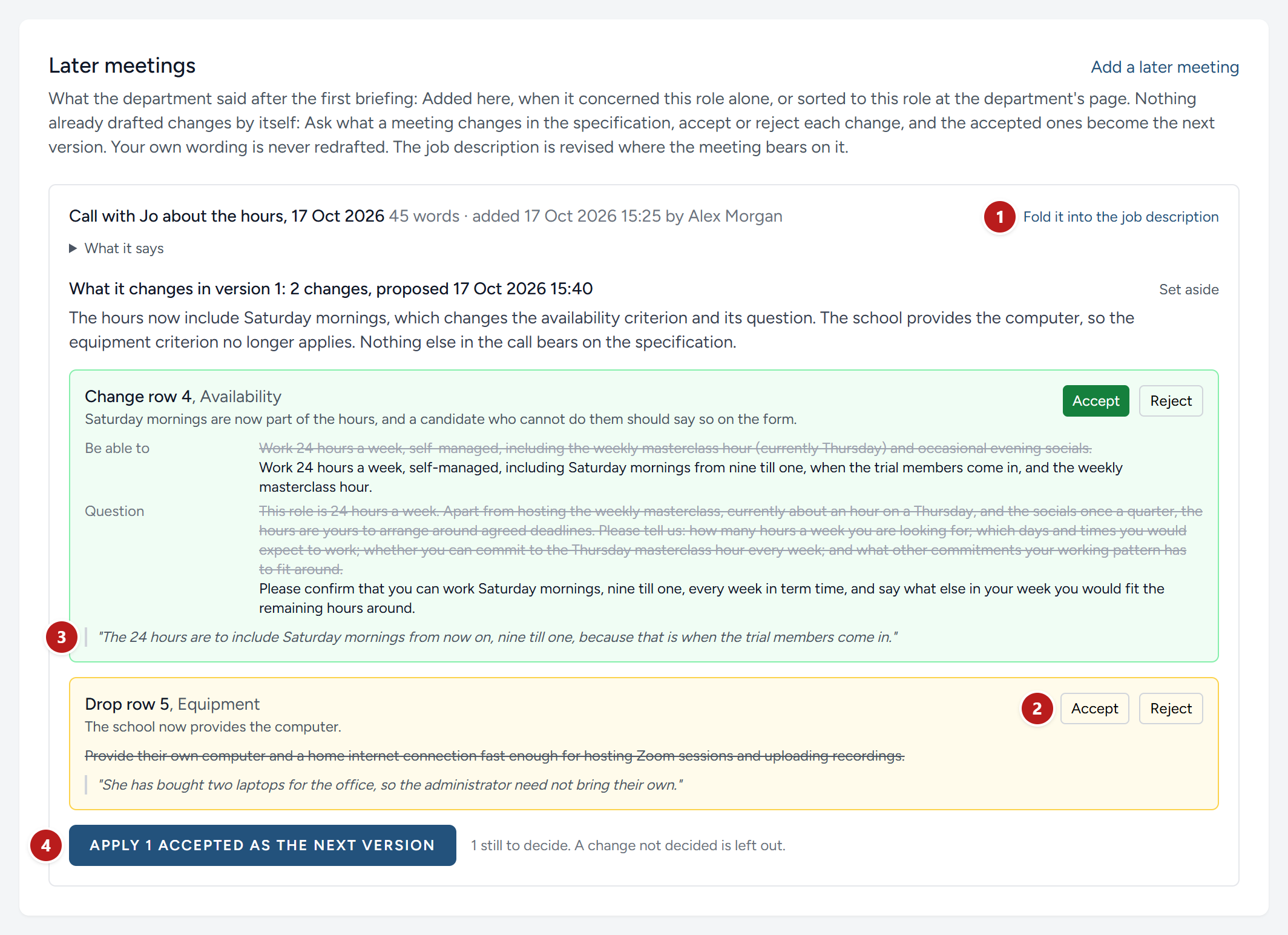
- Fold it into the job description, beside the meeting.
- Accept or Reject, change by change.
- The passage each change rests on.
- Apply the accepted changes as the next version.
Accept or reject each change, then click Apply as the next version. The version in force is copied into a draft, or the draft already there is used, and only the accepted changes touch it: Your own wording on every other line stands. A criterion that was added is off the application form until you put it on, and the new version is published when you say. A change you did not decide is left out, and Set aside keeps the specification as it was.
The job description has Fold it into the job description beside the same meeting: It is revised where the meeting bears on it, and if it had been approved it needs approving again. A published advert keeps the approved words as its own wording meanwhile, so nothing changes for candidates until you have read the revision.
Drafting the next version with Digital Nancy
The method moves on, and so does the briefing: The rubric gains a version, a later meeting arrives, a second transcript is added. Once a version of the specification exists, the briefing's Person specification part no longer drafts over it. It names the version you are working from instead, says why, and Open it opens it. Where a newer version exists, the line under it says so, with Work from version 7 (or whichever) beside it. Where the version worked from is a draft and an earlier one is in force, the line under it says which, with a link to that one too.
Under it, Every version lists them all, newest first: Each with its number, which links to it, Draft, In force or Replaced, where it came from, when it was made, The client has this one beside the version shared with the client, and Worked from beside the version worked from. Hold the pointer over where it came from for the file's name.
At the bottom, Draft version 3 with Digital Nancy (or whichever number comes next) has her draft the specification afresh, under the rubric in force, from everything the briefing has gathered, and makes the result the next draft version. The same button is on the version's own page, beside Start version 3, which copies the version instead.
The version in force stays in force, and the forms built from it keep their questions, until you publish the new draft. Open it, read every criterion as you did the first draft, add the bands if they came separately, and publish it when it is right. Where the newest version is a draft Digital Nancy wrote, the button says Write the draft of version 3 again with Digital Nancy and asks first: The draft's rows are replaced, and any change made to them by hand goes. A draft she did not write, such as a workbook or Nancy's own, is never written over: The button offers the next number instead, and her draft sits beside it.
The version you work from
The job description is written from one version, the form step asks you to publish one, a later meeting's changes go onto one, and the card opens one. That is the version you work from, and a newer version never takes over just by being newer. It is, in this order:
- The one a person chose: Work from this version, beside any version in the list, chooses it. The card says who chose it, and when.
- Otherwise, the version in force, once one is published.
- Otherwise, the version the client has now: The newest one shared with them.
- Otherwise, Nancy's own, where one is marked.
- Otherwise, the newest.
Sharing a version with the client, publishing one, or beginning one from the version in force (for a later meeting's changes, or a new order) are choices too, made later, and the newest of them decides. So a draft Digital Nancy writes to compare with Nancy's own, where your organisation helps to teach the method, stays in the list for the lesson and is not worked from unless someone chooses it, shares it or publishes it.
Where the job description was written from another version than the one worked from now, the Job description part says so: "Written from version 2 of the person specification; the working version is now 6." Redraft it with Digital Nancy to describe the version worked from.
The specification's own page
Every version has a page of its own, reached from the campaign. Until where each criterion is asked has been decided, the rows stand in alphabetical order of area, the work patterns are folded away at the top under Work patterns (click it to open them), and only the criterion's own columns show: Its area and what the person must be able to do, the question or task, and the criteria. A question made of several questions, or followed by what to include, reads one to a line, split after each question mark. The five things noticed on the telephone fold into one line, Noticed on the telephone, never asked, which names them; click it to show them. Tick Show the scoring levels to read the bands beside each row. Once the questions have been placed and numbered, the rows take the sheet's order under their section headings, with a column for each place a criterion is assessed: The number of its question on the form, at the short interview and at the long interview, the number of its task, and a tick for the CV and the client interview. The table scrolls like a sheet, both ways, with its headings kept in view. Edit on any row changes its wording, its section, its numbers and its bands; a draft version can also have criteria added and removed. Publish makes the version the agreed one: The one the job description is written from, and the application form is built from once its questions are placed.
The sheet's order and Area, A to Z, above the table, choose how the rows are shown. By area, the rows of one area stand together, so you can work through them one after another rather than darting about the sheet; within an area they go by what the person must be able to do. Only the showing changes: Each row keeps its number, which is the one the client's comments and the form go by, its comments go with it, and the specification is saved in the sheet's order as ever. The choice is remembered for that version on your computer.
Decide where each is asked, and in what order, above the table (Change the order and where each is asked, once it has been decided), opens the same view the briefing's draft has (see Where it is assessed, and in what order above): All, Form, Short, Task and Long, each place in the order its questions are asked, dragged by the handle, and under each criterion the ticks for where it is tested. Save the order writes the numbers into the columns. On a version in force the order is not changed in place, because the forms built from it keep their questions: Saving starts the next version as a copy, or puts the order on the draft already there, and you publish that when it is right. The briefing's Person specification part and the campaign's list of versions both link straight to the view.
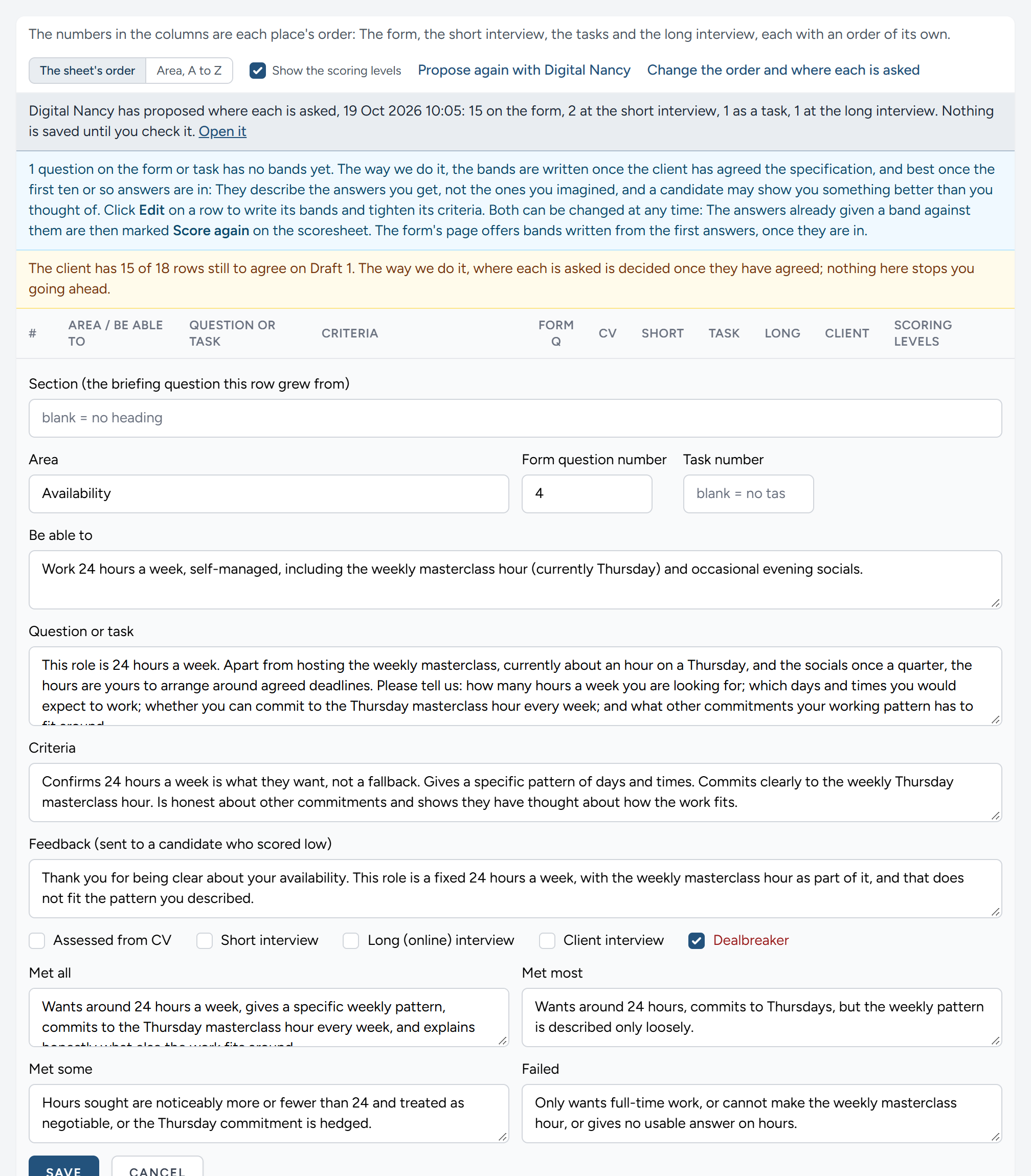
Where each is asked, proposed for you
Once the specification is agreed, Propose where each is asked with Digital Nancy, above the table, has her propose the placing: Which criteria go on the application form and in what order, with the CV first, the dealbreakers next and where they saw the advertisement last; which are asked at the short interview, which are set as a task, which need the long interview, and which the client settles in person. It takes a minute or two. Reload, and the page says the proposal is waiting: Open it lays it over the order view, not yet saved, with her reason under each criterion you open and her notes at the top. Drag what you would put elsewhere, tick and untick as you like, then save as you would any order. Set it aside and start from what is saved takes the proposal off the list if you would rather place them yourself. Nothing is placed until you save.
Where the draft is still shared with the client and some rows are not yet agreed, the page says so above the table. The way we do it, the placing waits for the client's agreement; the page does not stop you, because sometimes you know.
The bands, once the client has agreed
The bands are what your scorers compare every answer with: What Met all, Met most, Met some and Failed look like for each question on the form, and each task. The way we do it, they are written after the client has agreed the specification, never before, and the client never sees them, nor the criteria.
They are clearest once the first ten or so answers are in. A band written before anyone has answered describes the answer you imagined; one written from real answers describes the ones you get, and a good candidate may show you something better than you thought of. Read the first answers, then tighten the question where people keep missing something ("Please include…"), tighten the criteria, and write the bands.
On the version's own page, once where each criterion is asked has been decided, a line above the table says how many questions on the form, and tasks, have no bands yet. Click Edit on a row to write its bands and change its criteria. Both can be changed at any time, on any version, published or not. When they change, the answers already given a band against them are marked Score again on the scoresheet, so that every candidate is judged against the same bands (see Scoring again). Once the first answers are in, Digital Nancy reads them and proposes bands written from them, on the form's page (see The first answers).
Which version is published
The campaign's page lists every version under Person Specification versions, newest first, and each says where it came from: Drafted by Digital Nancy, with the version of the method it was drafted under; Uploaded workbook, for one imported on the campaign, or uploaded on the briefing in place of the draft; The client's changes, uploaded, for one imported as the client's; Nancy's own, uploaded, for the workbook marked as hers to teach the method; v1 with a later meeting's changes, or v1 with where each is asked changed, for one begun from the version in force to take them; or Copy of v1, for one started from an earlier version by hand. Hold the pointer over it for the file's name. The briefing's Person specification part lists the same versions.
The same list says what the client has. With the client names the draft shared from each version: Draft 2, theirs now for the one on the client's page, with how many of its rows they have agreed, and Was Draft 1 for one a later draft took the place of. Share beside any version shares it with the client from here, in place of the draft they have, with nobody emailed; agreements to rows that are word for word the same carry across. To email the client's viewers about it, or to close it to comment, open it again or withdraw it, use Shared with the client on the briefing, which the line above the list links to. Comments counts the conversations about the version's rows and how many are still waiting; click it to open the version with those comments beside it, to work through row by row (see Going through the comments row by row below).
One version is published at a time: The one the application form is built from, and once it is, the client's briefing answers stand. The rest are drafts, to be changed and published, or superseded, published once and replaced since. Beside each version:
- Publish makes a draft the published version. The version published until then is superseded, and the forms built from it keep their questions.
- Publish again does the same for a superseded version: It is published in place of the one published now, exactly as it was.
- Unpublish takes the published version back to a draft, and nothing is published until you publish one. Do this to add criteria to it or take criteria from it, which only a draft allows, or before publishing a different version. A form already built from it stays live and keeps its questions; close it on its own page if it should stop taking applications.
A superseded version is not changed in place, because the forms built from it hold on to its criteria: Publish again brings it back as it was, or Start version on the page of the published version begins a new draft as a copy of that one.
From the specification to the application form
The last part of the briefing, Application form, is what the briefing is for. It has three steps, and each says whether it is done.
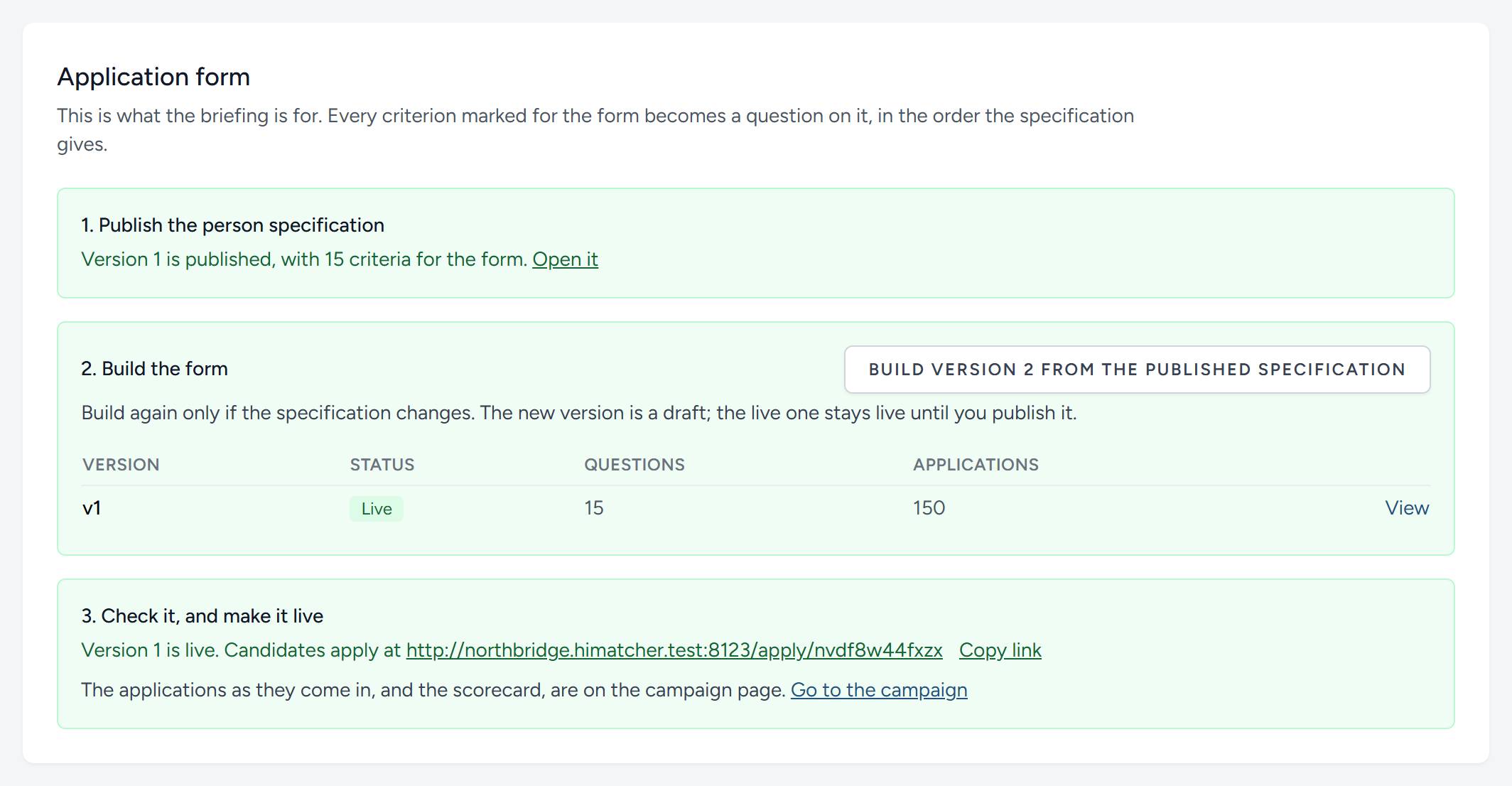
- Publish the person specification. Review and publish opens the version made from the briefing. When you publish it, HiMatcher brings you back here.
- Build the form. Build the application form turns every criterion marked for the form into a question, as a draft.
- Check it, and make it live. Check and publish opens the draft form, to be read as a candidate will read it. Once it is published, the part gives the address candidates apply at.
What you can change on the form, and how, is the next chapter: See The application form.
The specification as a spreadsheet
Every version of a specification can be taken out as a spreadsheet. Open the specification and click Download version, beside As a spreadsheet.
The workbook has two sheets. Person specification is laid out as the method's own sheet is: The role, the date and the company at the top, the work patterns block (headed LAB profile on the sheet, as the method names it) with the pattern the role wants under each trait, the five things noticed on the telephone, and then the table, its rows grouped under the opening questions they grew from, with a column for each place a criterion is assessed. Scoring criteria has the bands, a column to a question or task.
| Column | What to put in it |
|---|---|
| Resume/CV | "Yes", where the CV shows it |
| Application form | The number of the question on the form |
| Short interview | The number of the question at the short interview, or "Yes" for something seen there and not asked |
| Task | The number of the task |
| Long interview | The same as the short interview, for the long (online) interview |
| Client interview | "Yes" |
| Feedback | The sentence sent to a candidate whose answer on it fell below Met most |
Change whatever you wish in the spreadsheet, then upload it on the campaign page under Or import the Person Specification, and say whose it is under Whose is it?: Ours, for the team's own; The client's changes, for a workbook the client sent back; or, where your organisation trains the method, Nancy's own (see When your corrections teach the method below). It comes in as the next version, a draft, with its bands read from the second sheet. The version in force is not touched until you publish the new one.
A workbook already uploaded for the campaign is recognised, whatever it is called: You are taken to the version made from it, the line at the top says so, and nothing new is made. A workbook changed and saved again is a different file, and comes in as the next version.
Sharing it with the client
The specification is the client's as much as yours, and it is cheaper to settle a row now than to find out at the final interview that the client meant something else. While you refine it, share it with them: They read it row by row, agree each row or comment on any part of it, and agree the whole when they are content.
Under the specification on the briefing page is a part called Shared with the client. Click Share the latest version with the client to share the newest version on the campaign, draft or published: The workbook you have just imported on the campaign's page, say, so it need not be uploaded twice. A version imported from a workbook is read again from that workbook, so the client sees every row as it was written. To share a spreadsheet that is not a version, click Or share a spreadsheet and choose a workbook in the method's layout. The client is shown three columns from the header row down, Area, Be able to or is and Question/task, every row in the sheet's order, including a row whose question is not written yet; there it reads Not written yet, which invites the client's view. The Criteria and the bands are never shown, from a version or from a spreadsheet: They are yours, and you tighten them once the client has agreed and the first answers are in. Nothing above the header row, such as the work patterns, and nothing beside the three columns, such as where and in what order each row is tested, is shown. The copyright line at the foot is left out.
Either way, a panel says what is about to be shared and lists the client's viewers, those ticked for Person Specification on the client's page, under Email to tell them, none ticked. Tick those who should be emailed the link, or nobody, and click Share it. Every one of them can read the draft on their own page whether or not they are emailed. On their campaign page, under Person Specification, each of them can:
- Agree a row, and take it back.
- Comment on a row: On the area, on what the person must be able to do, on the question, on the criteria, or on the row as a whole; or, beneath the sheet, on the specification as a whole. A comment is a conversation with your admins and hiring managers, in the name of the person who began it, which their colleagues read too unless they keep it to you (see below).
- Agree the whole, with I agree with this specification. You are emailed when they do.
Each of them reads who else at the client agreed each row, Agreed by and their names beneath the row's Agree, or Also agreed by where they agreed it too, and under the sheet Agreed as a whole by. Nobody need ask a colleague whether they have read it.
Who at the client reads a comment
A comment a client's person makes on the shared specification is read by everyone at that client who is shown it, those ticked for Person Specification on the client's page, as well as by your admins and hiring managers. Several people at a client usually read the same sheet, and it saves the second of them making the point the first has made already. It is never read by another client's people, never by your scorers or interviewers, and never by a candidate.
The client can keep a comment to you. As they begin one, a tick reads Only to with the first names of the people it is addressed to, Only to Alex say, or Only to the people recruiting for you if they picked nobody. Ticked, it stays between them and your admins and hiring managers, as every client conversation did before. The line beside Send tells them which it is, and the panel's heading tells them that their colleagues read what they write unless they keep it to the recruiter.
Only the people addressed are emailed. A comment written to everyone reaches your admins and hiring managers in their next summary rather than at once, unless it names them (see Team messages: What a client writes). A tick, Email my colleagues at Northbridge Guitar School too with the client's own name in it, emails the client's other readers of the specification as well, when a shared comment is begun or answered; otherwise they find it on their page, under its row.
Some things are not shared. A comment made before comments were shared stays between the person who wrote it and your team. A client's conversations about anything else, such as the scoresheet or the briefing, are never shared, and keep to the person who began them.
What the client has said
Several people at the client may read the same sheet, and you hear each of them by name. The part shows, under At the client, each person with how many rows they have agreed, whether they have agreed the whole, and how many comments they have made; under What the client has said, every comment, newest first, with who made it, what on the sheet it is about, and whether it is settled.
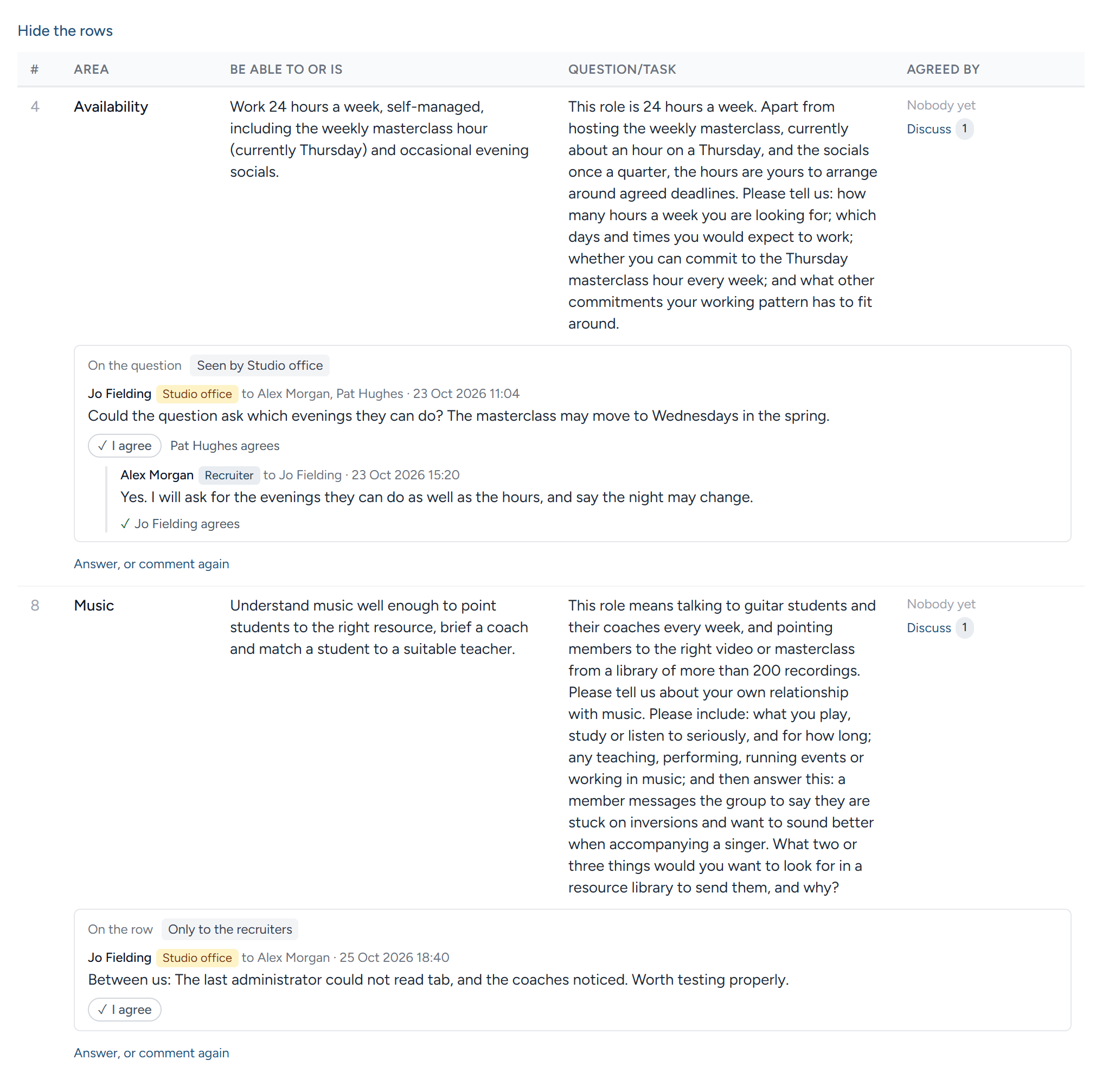
Show the rows as the client reads them, with who agreed each and what was said lists each row with the names of those who agreed it, Discuss beside it, and under it every comment on the row as it went: The part it is about, the draft it was made on where that was an earlier one, and each message with who wrote it, on which side, to whom and when. Each comment is tagged with who reads it: Seen by and the client's name for one that is shared, Only to the recruiters for one the client kept to you, and Team only for a conversation within your team about the row. Under each message, the line beside I agree names who agrees with it, Pat Hughes agrees say: A colleague at the client backing a comment in one click rather than writing it again, or one of your team. Click I agree yourself to agree with what the client wrote without writing a reply. Nobody is emailed when somebody agrees (see Team messages: Agreeing without a reply). A settled one folds to its outcome, with Show to open it. Comments on the sheet as a whole follow the rows, under On the specification as a whole. The panel comes in from the left of the screen, so the row you are writing about stays readable on the right. Settle a conversation once you have acted on it.
A new draft, and closing it
When the specification changes, import the new version on the campaign's page and share it again with Share the latest version with the client. Once the version the client has is the latest, the part says so instead. It takes the place of the last on the client's page. A row that is word for word the same keeps everyone's agreement; a row that has been reworded loses it, and is marked Changed since you agreed for each person who had agreed it, so they read it again. Comments follow their row from draft to draft, found by its area and what the person must be able to do. Comments on a row that has gone are still listed, for you, for the person who made them, and, where they were shared, for everyone at the client who reads the specification; on the client's page they are under Comments on rows no longer in the draft. Agreeing the whole is asked again of each new draft.
Close to comment stops agreeing and commenting while leaving the draft for the client to read; Open again undoes it. Nothing else closes it, not the job description being approved nor the campaign advertising: A specification can still be refined with the client while the campaign runs. Withdraw takes the draft off the client's page altogether, for one shared by mistake; what was said about it stays in your messages.
Following a comment to its row
A client's comment reaches your team as a conversation in Team messages, and the link in it leads to that criterion on the specification's own page, in the newest version. The page opens the criterion for editing, marks the part the client wrote about, whether the area, what the person must be able to do, the question, the criteria or the whole row, and puts the cursor in it, so you can make the change there and then. The link holds the criterion itself, so it keeps leading to the right row, with the part marked, after you have reworded the row's area or what the person must be able to do.
The conversation comes with you. An amber panel down the left of the window, headed What the client wrote with the conversation's subject beneath, shows each message: Who wrote it, to whom and when, and the words. The page narrows beside it, so nothing is covered, and you can read what was said while you change the row. Hide folds the panel away, and Show what the client wrote, at the bottom left, brings it back. Beneath the conversation, under Other comments on this row, are the rest of the comments made on the same row, so you change it once with all of them in view. Open the conversation to answer, at the foot of the panel, takes you to the conversation's own page. A conversation within your team about a row, begun from Show the rows as the client reads them, with who agreed each and what was said, leads to the row in the same way, and its panel is headed What was written. On a narrow screen the panel sits along the bottom of the window instead.
You need not arrive from a link to read what the client said. On the specification's own page, a criterion the client has commented on has Client comments, with how many, beneath Discuss at the end of its row. Click it and the comments open under the criterion, each tagged with who reads it as they are on the briefing, with Open the conversation to answer beside each; Hide the client comments closes them again.
Going through the comments row by row
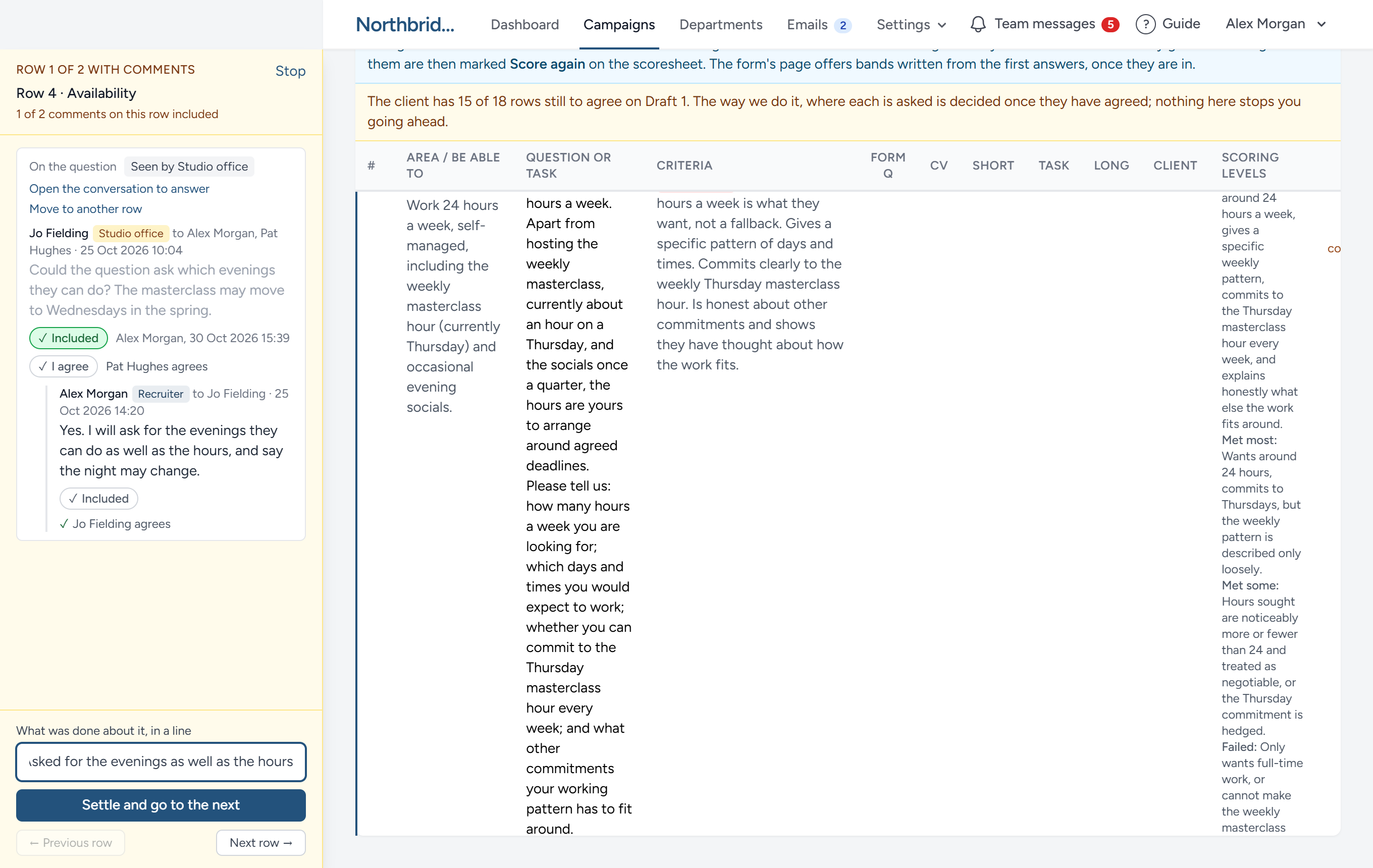
When rows have open comments, a line at the top of the specification's page says how many rows have them, beside Work through them row by row. Work through them on the Person Specification, on Team messages ordered by row, brings you to the same place.
It begins at the first row with an open comment, in the order the rows are shown, and goes through the rows that had something open when you began:
- The row opens for editing, and the amber panel down the left shows every comment on it, with its answers, and the settled ones folded to their outcome. The panel's heading says where you are, Row 1 of 2 with comments say, and names the row.
- Change the row and click Save, as you would any other time.
- Under What was done about it, in a line, say what you did, and click Settle and go to the next. Every open comment on the row is settled with that line as its outcome, and the next row with open comments opens. On the last, the button reads Settle.
Previous row and Next row move between the rows without settling anything. A row you settle on the way stays among them, ticked Settled, so Previous row takes you back to it, and the heading counts how many you have settled. The rows follow the order on show: With Area, A to Z chosen, you go through one area's rows before the next. Stop closes the panel. If you move on with changes to the row that are not saved, the page asks first: They stay in the form until you leave the page, but they are not saved until you click Save.
The page remembers where you are. If you reload it, or it reloads itself after HiMatcher has been updated, the panel opens again at the row you were on, with the rows you settled still ticked. If a row has changes that are not saved, the browser asks before reloading or leaving, because a reload clears the form.
Marking a comment as included
Once you have taken a comment into the specification, or found that it is there already, click Included under it. The comment is greyed so it no longer stands out, with your name and the time beside it, and the panel's heading counts how many of the row's comments are included. Click Included again to make it stand out once more. The mark is the team's: Everyone on the team sees it, in the panel, under the row and in the conversation, and the client never does. It settles nothing; settling the row is still the line under What was done about it.
Moving a comment to the row it belongs on
A client sometimes comments on one row when the comment belongs on another, perhaps because they had not reached that row when they wrote. Click Move to another row on the comment, choose the row from the list, where the rows stand under their areas from A to Z, and click Move it. A row the client has not been shown, one added since, is marked not on the client's sheet. The whole conversation moves, with its replies: It is on the new row on this page, and on the client's sheet too, and it says where it came from, who moved it and when. What it said about a part of the old row, its question say, becomes about the new row as a whole. Moved to a row not on their sheet, it reaches the client with the specification as a whole.
Putting back what a row said
Every change you save to a row is kept. When you open a row to edit it, each part that differs from how it was when the version began has a line under it: Was, with what it said, and Put it back. A part changed more than once has Every wording, which lists each with who wrote it and when, and any of them can be put back. Above the fields, the row says how many of its parts have changed, with Put the whole row back. Putting back only fills the field: Nothing is saved until you click Save, so the earlier wording goes on the record as one more change, and a click in the wrong place costs nothing. The history begins with the version: A new version starts afresh from the wording it was copied with. Only what is changed in this form is kept, not bands read from a workbook or an order set by dragging.
When your corrections teach the method
This part applies only to an organisation that HiMatcher's operators have asked to help teach the method. Such an organisation has an eighth part on the briefing, What the method learned, and the method learns from it in four ways.
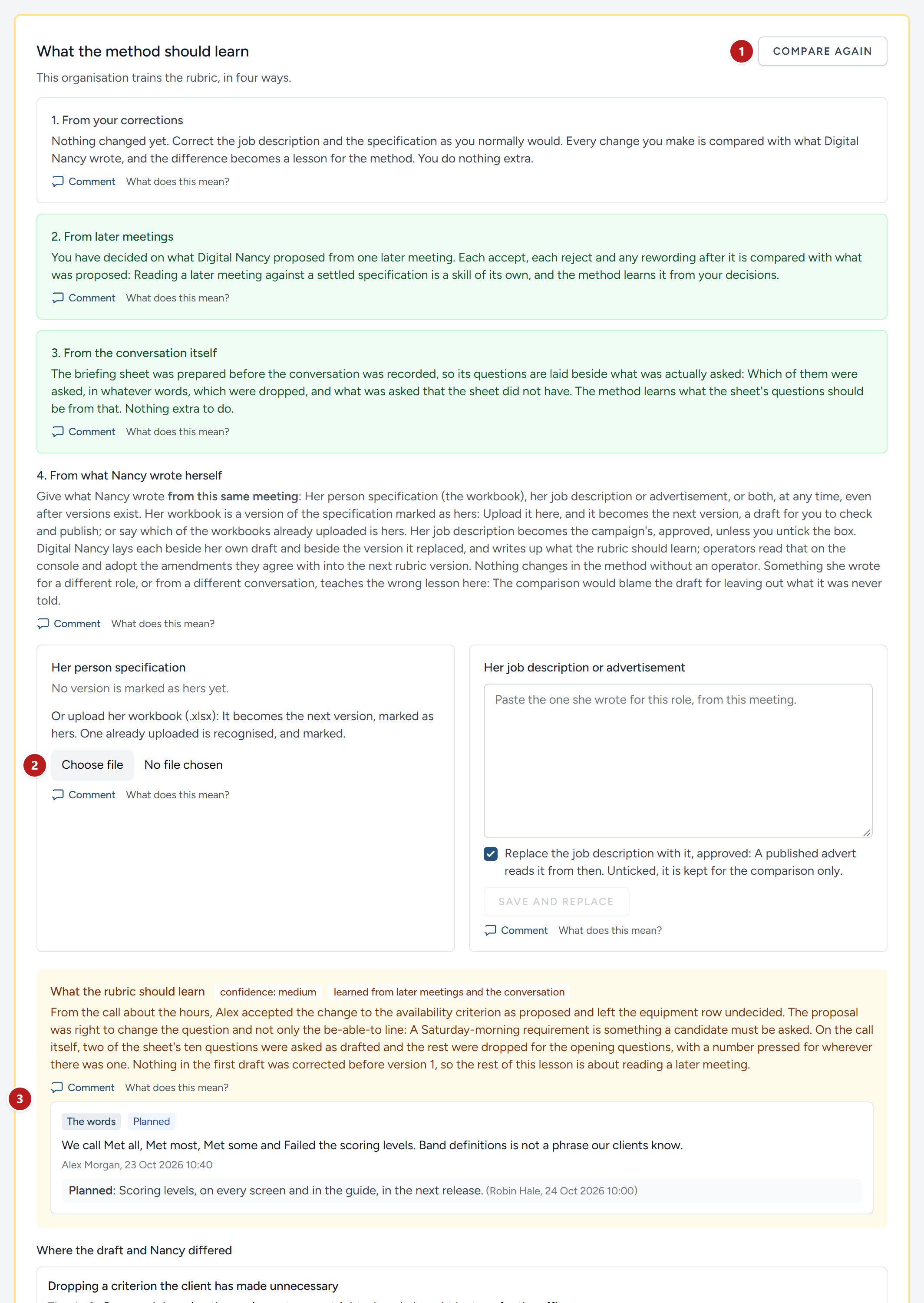
- Compare with the draft writes the lesson now.
- Her workbook: Upload it here, or choose one already uploaded, and it is the version marked as hers.
- The lesson, as an operator reads it.
From your corrections. Digital Nancy drafts to a written method. Wherever you change one of her drafts, the method got something wrong, or did not say enough. So the changes you make are kept, and compared with what was drafted. You do nothing extra: Correct the job description and approve it, correct the specification and publish it. When you publish, HiMatcher lays Digital Nancy's draft beside what you made of it, and writes up what the method should learn: What you reworded, what you added or took out, and what you moved between the form, the tasks and the interviews.
From later meetings. When a later meeting's changes are proposed (see After a later meeting), every change you accept, reject or reword is compared with what was proposed. Reading new material against a specification that is already right is a skill of its own, and a change you rejected teaches it as surely as one you accepted. Nothing extra to do here either.
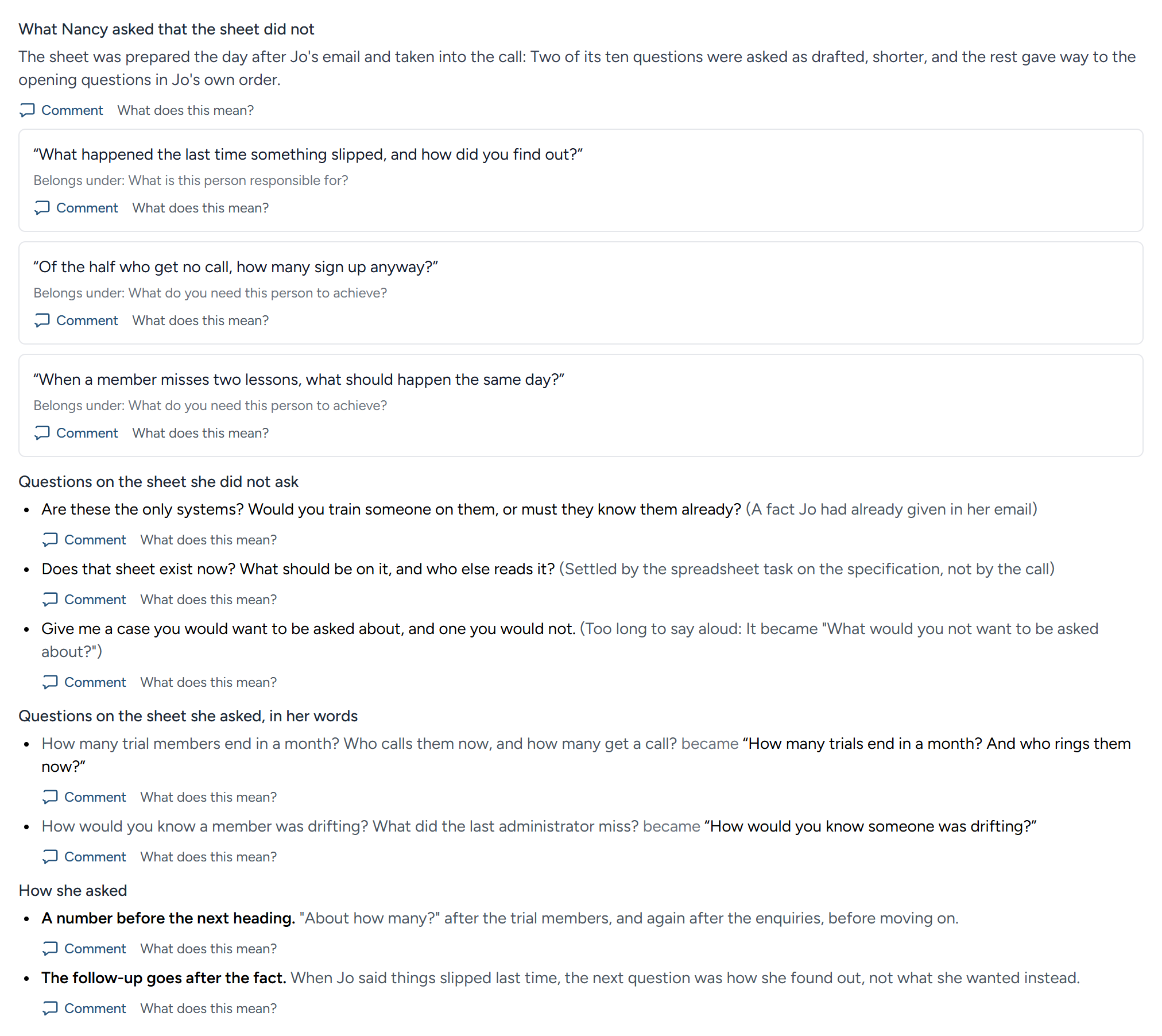
From the conversation itself. The briefing sheet gives you a question to ask under each thing the client wrote (see Prepare the briefing sheet). When the conversation is recorded, the lesson lays those questions beside what was actually asked: Which of the sheet's questions were put, in whatever words; which were dropped, and what kind of thing they were; what was asked that the sheet did not have, quoted as it was said, under the heading it belongs to; and how it was asked, the follow-up after a fact, the number pressed for, the order the headings were taken in. That is the part headed What Nancy asked that the sheet did not, and it is where the method learns what the sheet's questions should be. Nothing extra to do, with one condition: The sheet must have been prepared before the conversation was recorded. A sheet prepared afterwards could have been written from what was said, so its questions are left out of the lesson, and the part says so. Operators can take any question quoted there and make it a sample of the voice, so that Digital Nancy asks as she does.
From what Nancy wrote herself. Give what she wrote from this same meeting: Her person specification as a workbook, her job description or advertisement, or both. You can do this at any time, before the first draft or long after the versions exist and the briefing is complete.
- Her workbook is a version of the specification marked as hers. Under Her person specification, either choose which of the workbooks already uploaded for the campaign is hers, under Which version is hers?, and click Mark it as hers; or upload it there, and it becomes the next version, a draft, with her bands read from its second sheet. A workbook the campaign already has is recognised and marked, and nothing new is made. Only one version is hers at a time: Marking another takes the mark off the first, and None takes it off altogether. The version in force stays in force until you check hers on its own page and publish it.
- Her rows are read as they are. Before the client has agreed the specification, she has not yet decided where each criterion is asked, and nothing is numbered for her; once she has, the numbers come with the rows. Her scoring bands can be added below, or on her version's own page, and the lesson reads them either way.
- Her job description becomes the campaign's, approved in her words, and a published advert reads it from then, unless you untick the box beside it, which keeps it for the comparison only. If it still asks the hiring manager something, it is not approved until that is answered.
The lesson sets hers beside Digital Nancy's draft: The newest she wrote, kept exactly as she wrote it, so the lesson is about the method as it stands. A draft never reads Nancy's workbook, so one written after hers came in is as good as one written before: To have the method as it stands now set beside hers, click Draft version 7 with Digital Nancy (or whichever number comes next) under Person specification, then Compare again here. Each draft says which version of the method it was written under, and the lesson proposes nothing the method already says. Where Digital Nancy has no draft kept whole, it is the first one.
Where the version in force when hers came in was made from that same draft, the lesson sets hers beside it too: What a person working to her method had already corrected, and what she still changed beyond that. Any other version, another workbook or her own file again, is left out.
Where each criterion is asked is compared only when every specification set side by side has been placed. Until the client has agreed it, Nancy's is not, so the lesson says nothing about the form, the interviews, the tasks or their order, and learns only from what the criteria say.
Nothing in the method changes by itself. Under Proposed for the rubric, each passage the lesson proposes sits in a box of its own, with the section of the rubric it goes under and the reason for it. If you approve the method (see Who approves changes to the method), you decide on each:
- Choose the Section it goes under, from the rubric's own headings, and reword it in the box if you would put it differently. As Digital Nancy proposed it, under the box, shows the wording you started from.
- Click Approve (Approve as reworded, once you have changed it), or Leave it out. The box turns green or grey and says who decided, and when; Undo puts it back to not decided.
- To add something the lesson did not propose, use Add a passage of your own: Choose its section, write it as it should read in the rubric, and click Add the passage. Take it out removes it again.
- When you are ready, click Put 3 passages into the rubric (or however many). The approved passages and your own go in together, as the next version of the rubric, which every organisation drafts with from then. Anything not decided is left out.
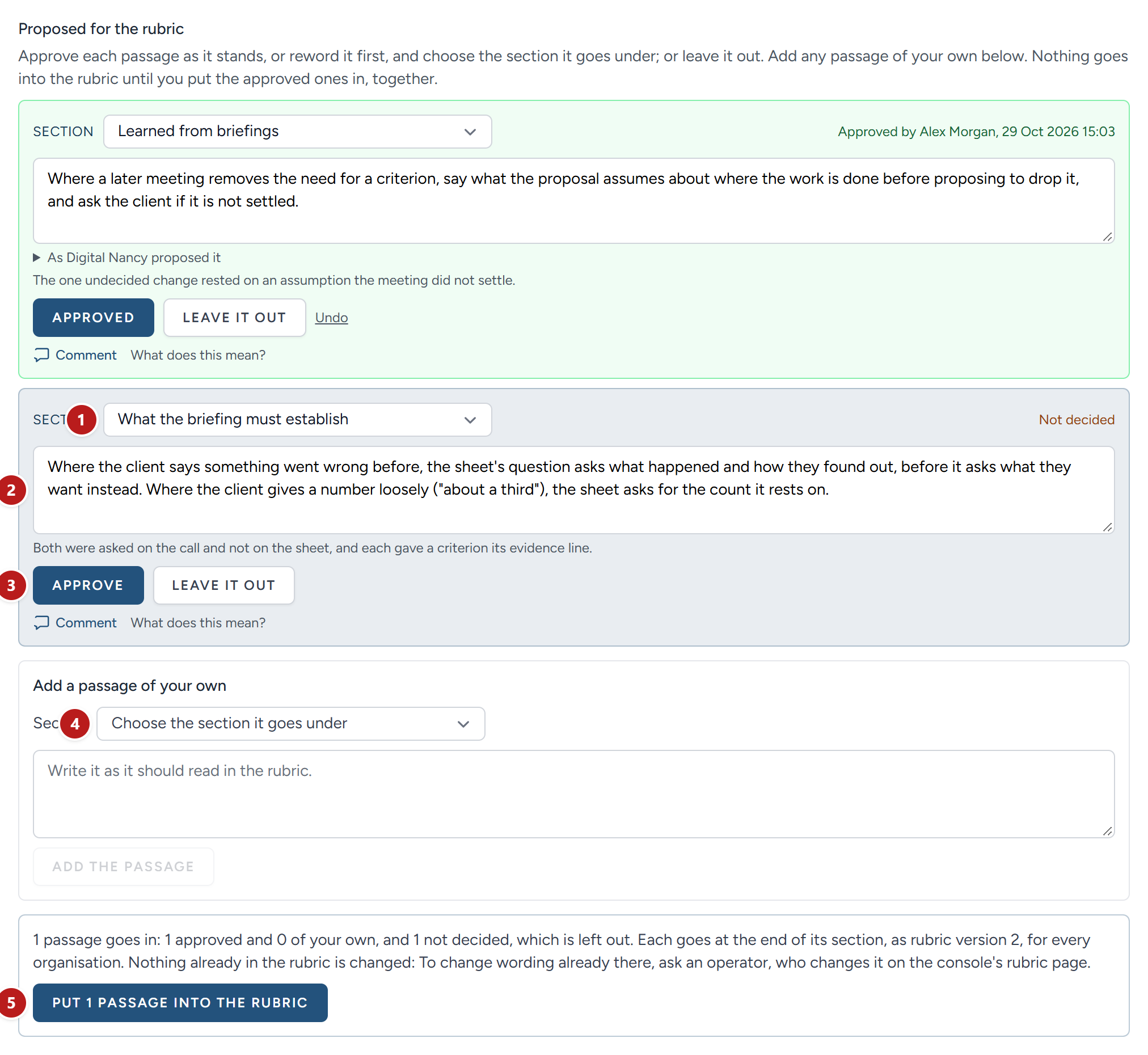
- The section it goes under.
- The wording, to change before you approve it.
- Approve, or Leave it out beside it.
- A passage of your own, under the section you choose.
- Put them into the rubric, together.
Each passage goes at the end of its section, and nothing already in the rubric is changed: To change wording that is already there, ask an operator, who changes it on the console's rubric page. A passage under Learned from briefings goes under that heading at the end of the rubric. Once a lesson is in the rubric, it says so, with the version, and nothing more is decided on it. Until then, the list of parts says how many are approved but not yet in, because approving is not enough by itself; and Compare again asks first, since the new lesson takes this one's place on the page. This one stays in the list of lessons, with what was decided.
Everyone else reads the decisions as they are made. If you are a system operator, the lesson also carries a link to its page on the console, where an operator can adopt it instead: What you approved starts ticked there, your wording goes in, and so do your own passages. A lesson goes into the rubric once, whichever way.
Under Questions for Nancy, each question the lesson asks has a box for the answer, one line until you write more. Click Save under each; the page says who saved it, and when. Everyone who opens the briefing reads the answers, and the next lesson for the briefing is given them as her own reasons, so it builds on them and does not ask again what she has answered.
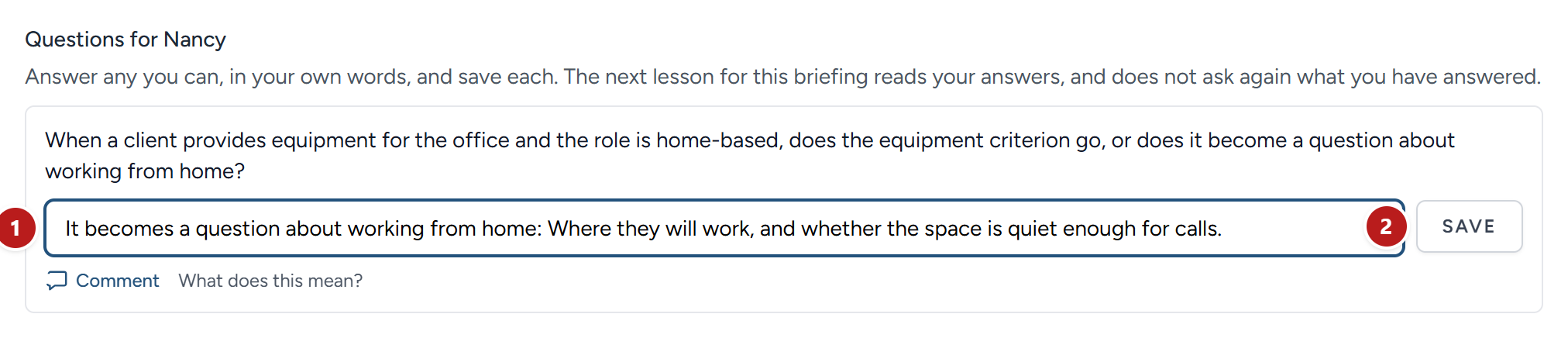
- Her answer, one line until she writes more.
- Save, under each question.
Comments and questions on what the method learned
If you approve the method, you can comment on anything on this part: Each of the four ways it learns, her person specification and her job description, the lesson's summary, each difference, each principle, each passage proposed for the rubric, each question for Nancy, each line about the sheet's questions, and each lesson in the list. Under each is Comment, with What does this mean? beside it. Everyone else who opens the briefing reads the comments, and the answers, under what they are about.
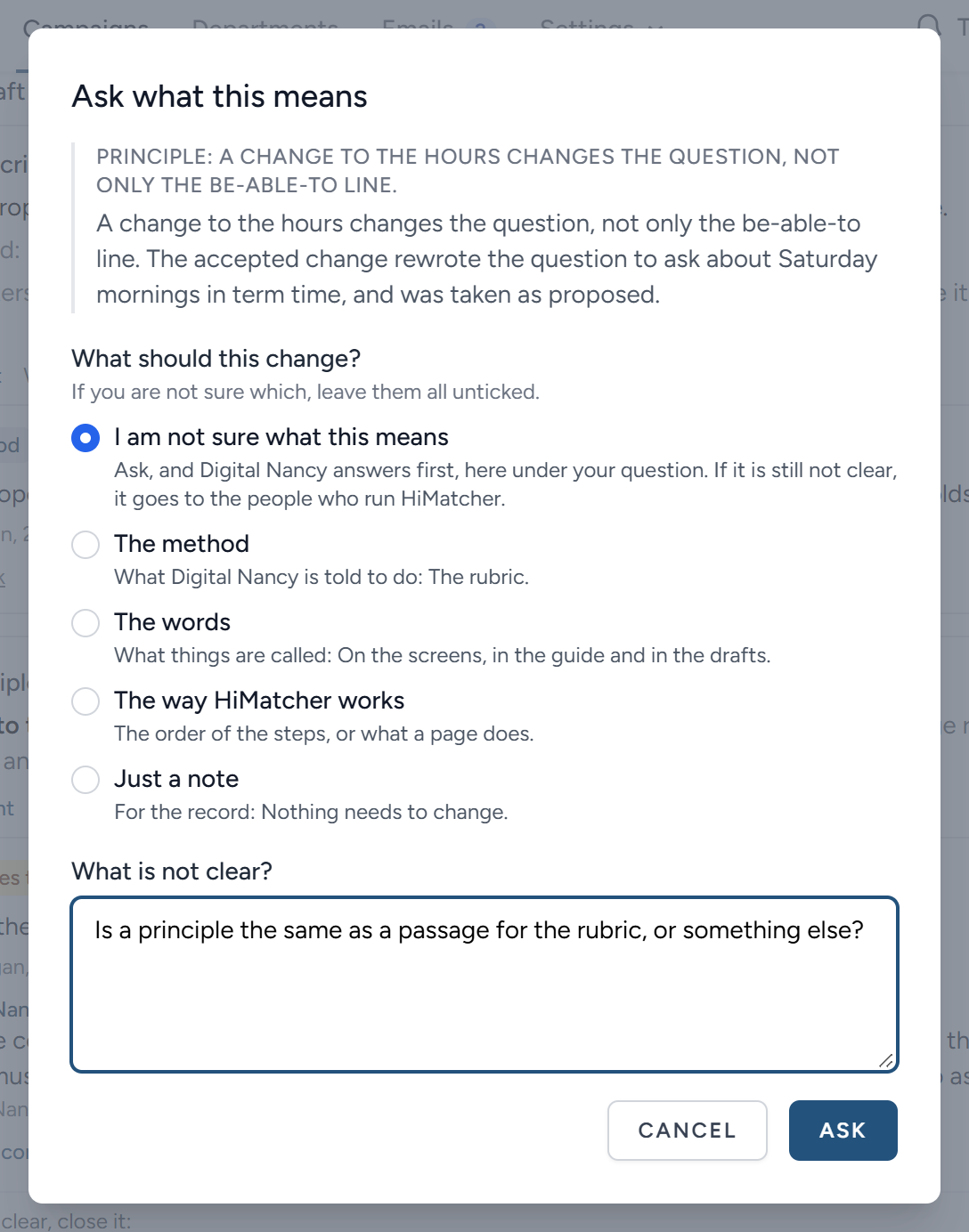
Comment opens a box for what you want to say, and asks what it should change:
- I am not sure what this means: A question. Ask before you approve, or change, something you are not sure of.
- The method: What Digital Nancy is told to do, the rubric.
- The words: What things are called, on the screens, in the guide and in the drafts.
- The way HiMatcher works: The order of the steps, or what a page does.
- Just a note: For the record, with nothing to change.
If you are not sure which, leave them all unticked, and choose later under the comment. The comment keeps the words it was about, so it still makes sense once a later lesson takes this one's place: The comments on an earlier lesson are listed with it, under Every lesson from this briefing.
A question is a conversation with the team, and Digital Nancy answers it first, under your question and in the conversation: What the line means, and what in the documents it rests on. Where she cannot see the reason in what the lesson was given, she says so rather than guess. You are told by name when the answer is there. If it is still not clear, click Still not clear, add what is still not clear if you like, and click Send it to them: The question goes by name to the people who run HiMatcher, whose link leads straight to it, and their answer shows under it too. Open the conversation takes you there to say more. Where Digital Nancy cannot answer at all, the question goes to them at once. Once it is clear, close it:
- It is right as it stands: It says so under the thing, so nobody needs to ask again.
- It should change: Choose what should change, and click Close it. The question becomes a comment of that kind, with the conversation kept under it.
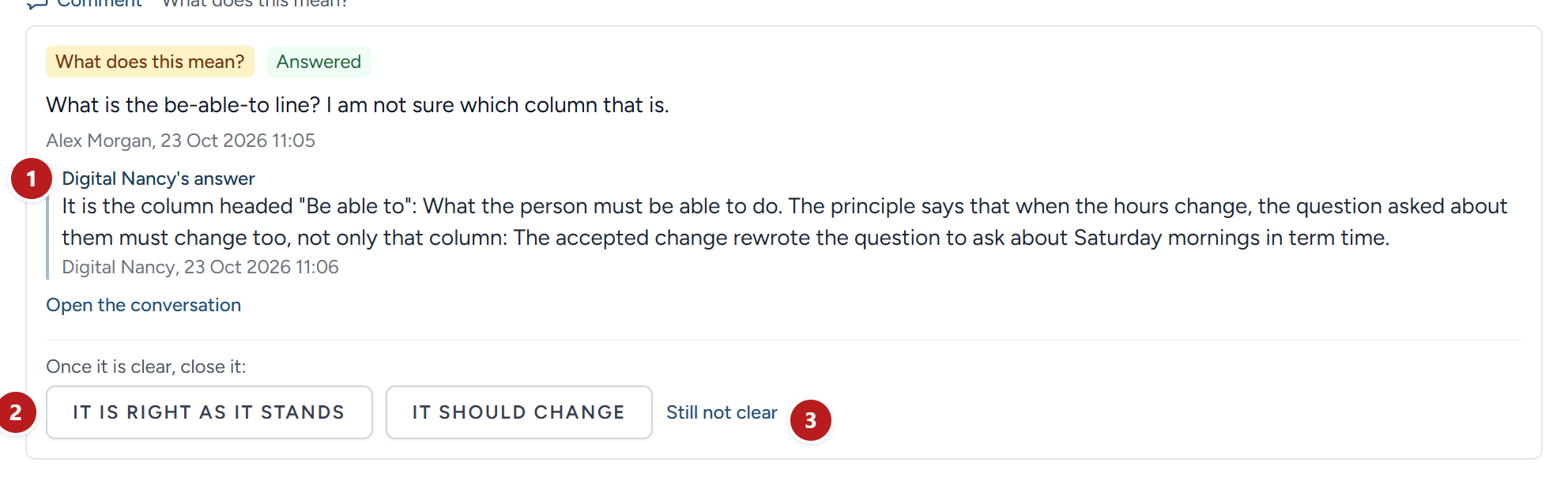
- Digital Nancy's answer, in the conversation.
- The two ways to close it, once it is clear.
- Still not clear, to send it to the people who run HiMatcher.
Every other comment goes to the people who run HiMatcher, who say what becomes of it: Planned, Done or Not doing, with a line on what, or why. That shows under your comment. A change to the words, or to the way HiMatcher works, is made to HiMatcher itself. Until something has become of a comment of yours, Take it back removes it.
A comment about the method becomes a passage for the rubric. Under the lesson, Your comments about the method says how many comments about the method, or not yet sorted, are not drafted yet. Click Turn my comments into passages, and Digital Nancy drafts them, each under the section of the rubric it belongs to, and proposes them on the Rubric page, as passages from a call are (see Who approves changes to the method). There you approve, reword or leave out each one, and put them into the rubric. The passages name nobody, since every organisation that trains the method reads them.

Each comment a passage came from then says Proposed for the rubric, with a link to the proposal; once it is decided, In the rubric with the version, or Left out of the rubric. For a comment you left unsorted, Digital Nancy suggests what it is about, beside What should this change?; it stays unsorted until you choose. A comment about the words, or about the way HiMatcher works, is never drafted as a passage.
The next lesson for the briefing reads every comment and what became of it: It builds on what you said about the method, uses the words you asked for, writes more plainly where you had to ask what something meant, and proposes nothing already proposed, in the rubric, or turned down.
Every lesson is kept. The newest is shown in full; once there is more than one, Every lesson from this briefing, under it, lists them all, newest first, each with what it learned from, which of Nancy's versions and which draft it set side by side, and Adopted into rubric v11 (or whichever version) where an operator adopted it. Open one to read its summary and the amendments it proposed. Marking another version as hers, or giving her job description, leaves the lessons as they are: The one shown then says it was written before her version was marked, and Compare again writes a new one.
In the list of parts, What the method learned says where it stands: Nothing to compare yet, Ready to compare, Waiting for an operator once a lesson proposes amendments, Adopted into rubric v11 once it is adopted, or that Nancy's version is newer than the lesson and it is time to compare again.
What happens next
With the specification published, the job description is drafted from it: The advertisement for the role the specification tests. On to the job description, in the green box, takes you there: See The job description.
The published specification is the source for everything that follows. The next step is to build the application form from it: See The application form.
This chapter was last revised on 30 October 2026.