Running a campaign · Chapter 12
Suggesting candidates to your client
Choosing who the client sees and how much, sending them a private link, and letting their decisions move candidates along the pipeline.
In this chapter you will
- decide when it is worth suggesting candidates to the client, and which ones
- choose what the client may see, and what they never see
- write a summary of each candidate, or have Digital Nancy draft one for you to correct
- send the client a private link, or name the client viewers who may sign in to it
- know what the client meets when they open it
- follow their decisions, and understand what each decision does to the pipeline
- close a review when it has done its work, and withdraw its link when nobody should read it any more
What a client review is for
Sooner or later somebody outside your team has to say yes. It may be a client you are recruiting for, or the hiring manager in another department. Either way, they have not read a hundred and fifty application forms and do not want to.
A client review is a set of suggested candidates, made for that person. You choose the candidates, you choose how much of each one is shown, and you add a few lines of your own about each. The client opens one page, reads, and clicks Approve, Reject or Unsure beside each name. Their decisions are recorded under their name, and the approved and rejected candidates move along the pipeline by themselves.
The standard pipeline expects this more than once: After the application forms, after the short interview, after the online interview and after any paid task. A campaign can have as many reviews as it needs.
Making a review
- Open the campaign.
- Click Client reviews, in the row of links under the campaign's name. Until the campaign has a review, the list at the top reads None yet. Choose the candidates to suggest below.
- Fill in New review, as described below.
- Click Create review and get the link.
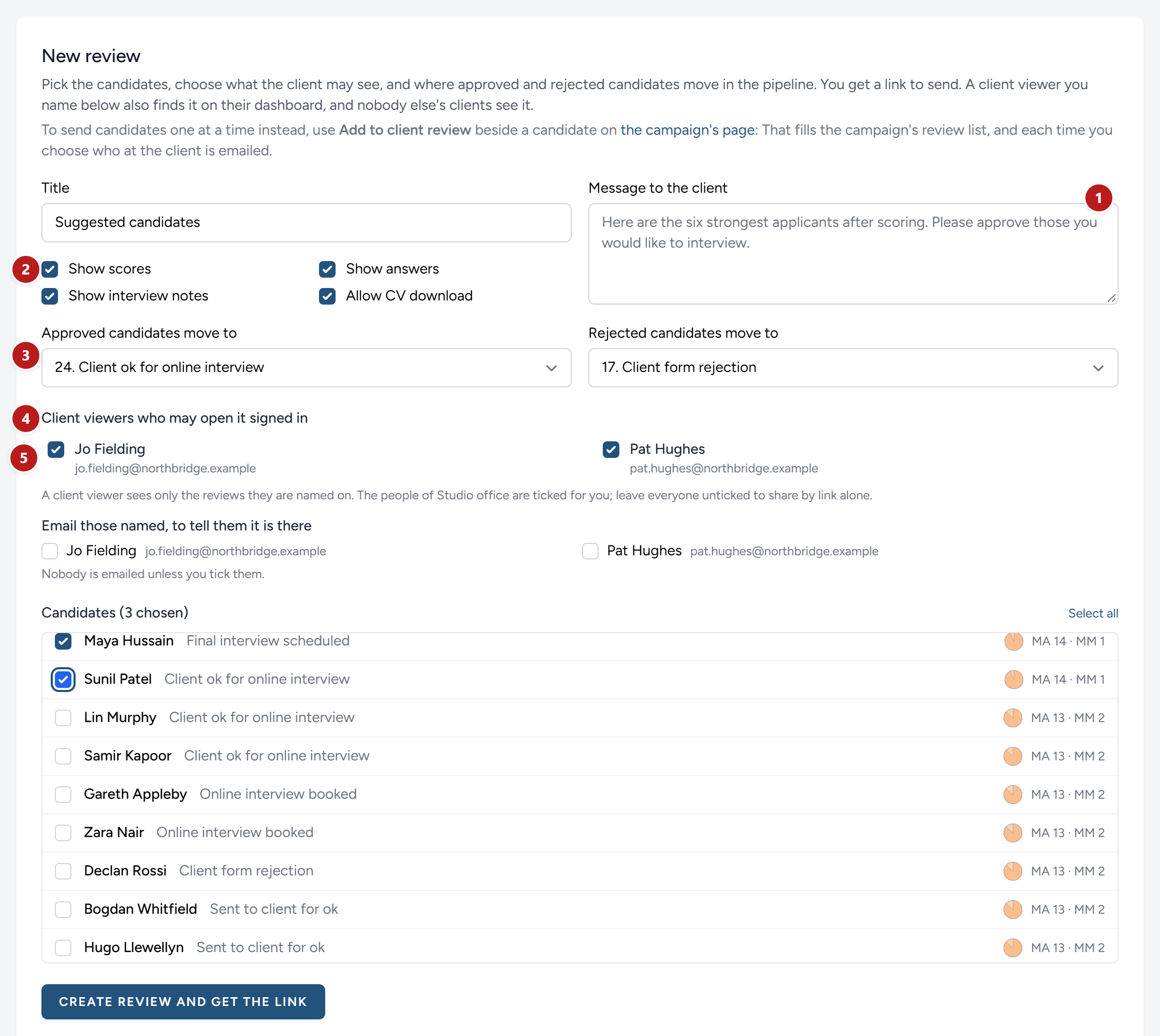
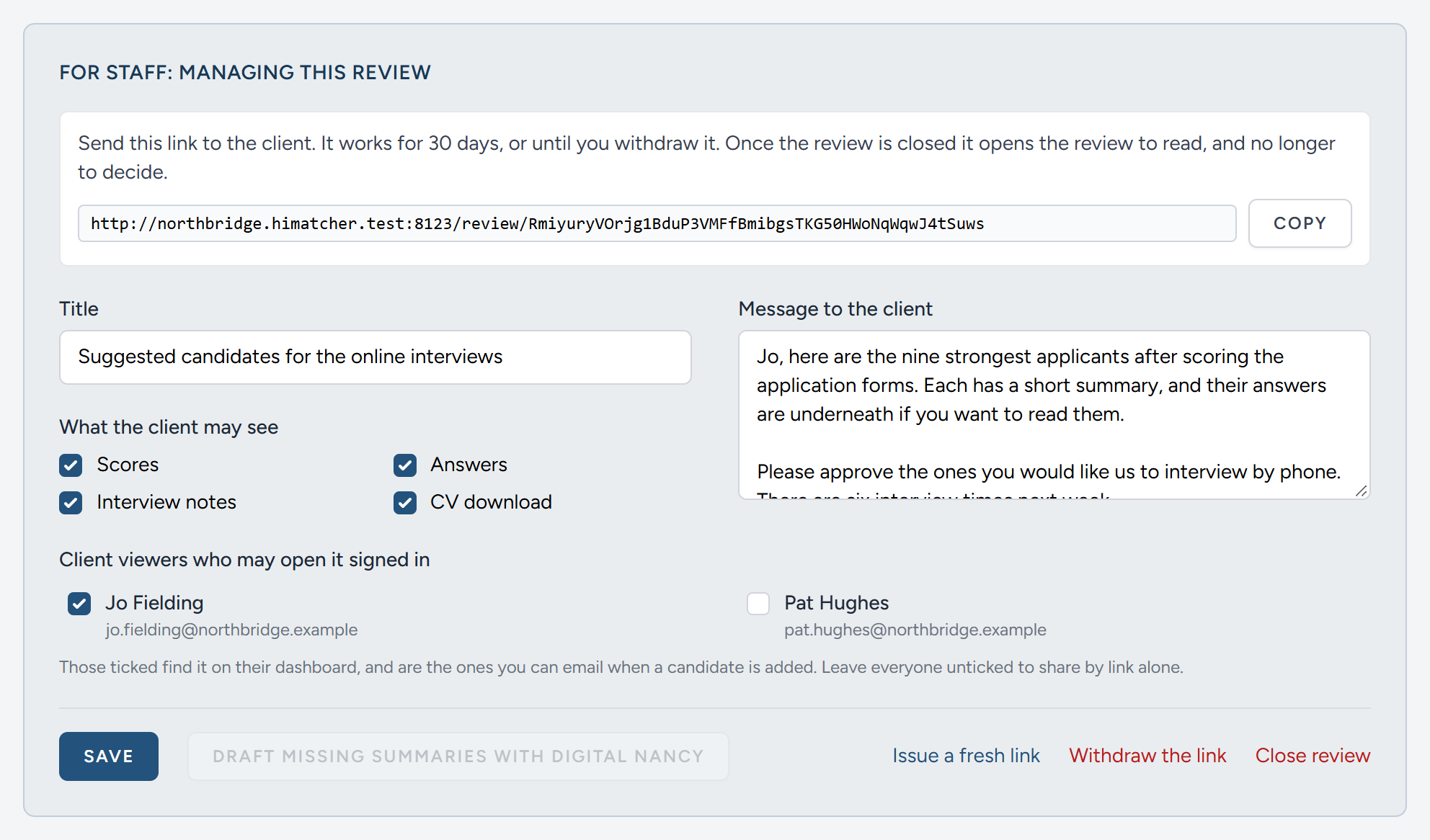
- The title, Suggested candidates until you change it, and the message to the client. Both are the first thing the client reads, so say what you want from them and by when. Both can be changed later.
- What the client may see. Four switches, described in the next section.
- Where a decision sends a candidate. HiMatcher offers the first stage in your pipeline whose name begins "Client ok", and a stage that is a client's rejection. Change either, or choose Do not move to have decisions recorded and nothing else.
- The client viewers who may open it by signing in, if your team has any. See Sending it to the client.
- The candidates. Everyone who has submitted a form and has not been archived, strongest first, each with their stage and their bands. Tick the ones to include.
Candidates appear to the client in the order you tick them. If you want your strongest candidate read first, tick them first.
As soon as the review is made, each candidate on it moves to the stage that marks them as with the client, Sent to client for ok in the standard pipeline. A candidate who is already further along than that stays where they are. Either way, HiMatcher notes the stage each of them is now at. It matters later, when the client decides.
The review list: One candidate at a time
Suggested candidates usually go to the client as a batch. When candidates come through one or two at a time and you want the client to see each as it does, use the campaign's review list instead: One standing review, filled from the campaign's own candidate list.
Beside each candidate on the campaign's page, under their name, is Add to client review. Click it and the candidate is on the list; select several and the bar above the list has the same button for all of them. The first click makes the list, titled For your review, with every switch on, the usual stages for a decision, and the client viewers who belong to the campaign's client named on it. Open it from Client's list in the row of links under the campaign's name, or from Client reviews, where it is marked Review list, and change any of that as you would on any review.
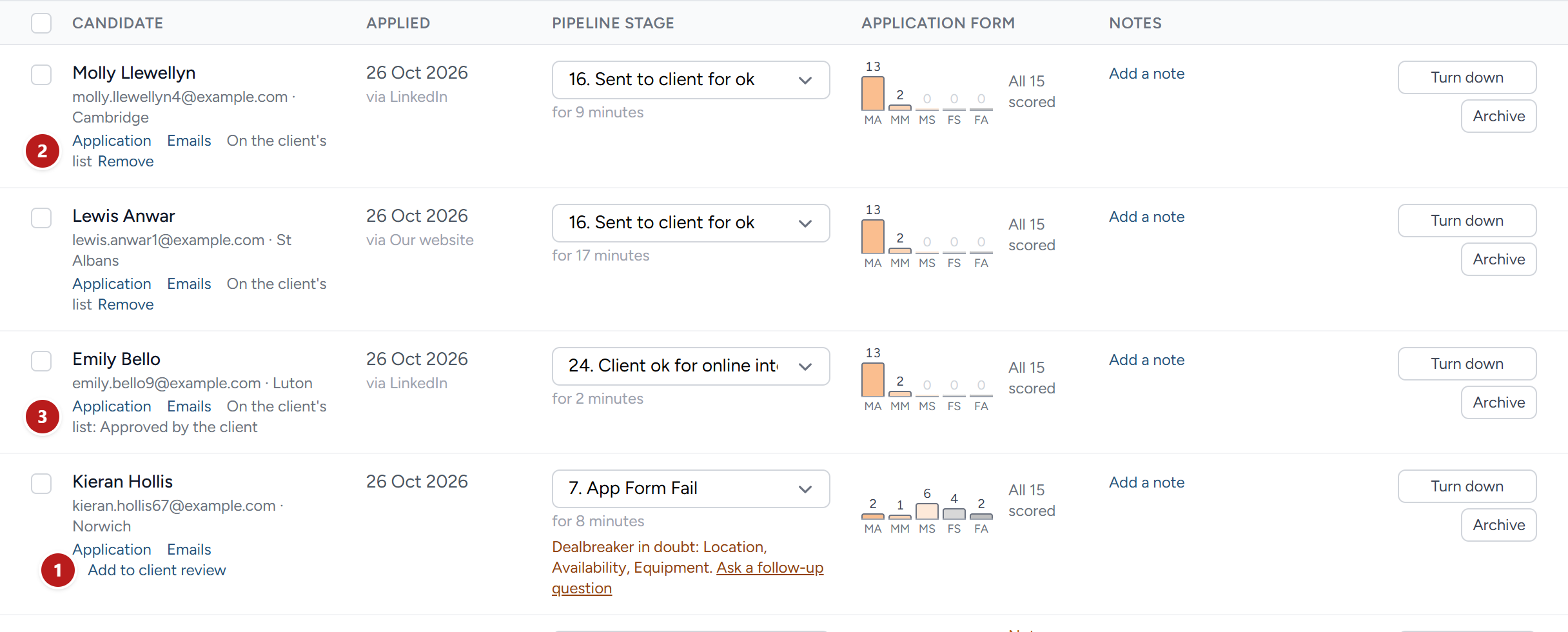
Each click opens a small panel first: It says who is going on the list, and lists the viewers named on it under Email to tell them, none ticked. Tick those who should hear, or nobody, and click Add to the list; only those ticked are emailed, with the link. See Who at the client is emailed. A client viewer finds the list on their dashboard and on their campaign's page under Candidates for your review, and reads and decides on it exactly as on a batch of suggested candidates. Candidates move to Sent to client for ok as they are added, as they do when you suggest a batch.

While the client has not decided on a candidate, the link beside them reads On the client's list · Remove, and Remove takes them off again. Once the client has decided, the decision is the record and the candidate stays, with the decision shown beside them. Closing the list stops decisions as on any review; the next candidate added opens it again.
What the client may see, and what they never see
Each switch can be changed for as long as the review is open, and the client's page changes at once.
| Switch | With it on, the client sees |
|---|---|
| Show scores | A pie of each candidate's bands for the application form, and one for each interview your team has scored; the band beside each answer; and under each interview, the band your team gave for each criterion |
| Show answers | Every question on the form with the candidate's answer, one fold each, and the files they uploaded listed as links |
| Show interview notes | For each interview that has been held, the interviewer's notes and the notes Digital Nancy wrote from the recording |
| Allow CV download | Links to display and to download the CV |
Whatever you choose, the client never sees the candidate's email address or telephone number, the team's notes about the candidate, the emails you have exchanged, files the candidate sent by email, or the notes scorers wrote beside their bands. A client review is a view of the application, and nothing more.
The candidate's name, and when the client sees it
Until the client has approved a candidate for the final interview, they do not see the candidate's name either. The candidate is Candidate 7: A number given in the order people applied and kept for the whole campaign, so the same person is Candidate 7 on every review. The name, the email address, the telephone number, any web address and the postcode are taken out of everything the client reads about them: Your summary, their answers, the interviewer's notes, the notes Digital Nancy wrote, and the PDF. The decision rests on what the person did, which is the point of the method.
Their CV is read out, not shown. While the name is withheld, Display and Download give the words of the CV with the name and the ways of reaching the candidate removed, on a plain page, never the file itself. The layout and any photograph are lost, which is intended. The names of employers and schools stay. A name hidden inside a picture, or in a header the reader cannot see, is not caught, and nor is a name a candidate wrote into an answer in a way that is not theirs: Read what you share.
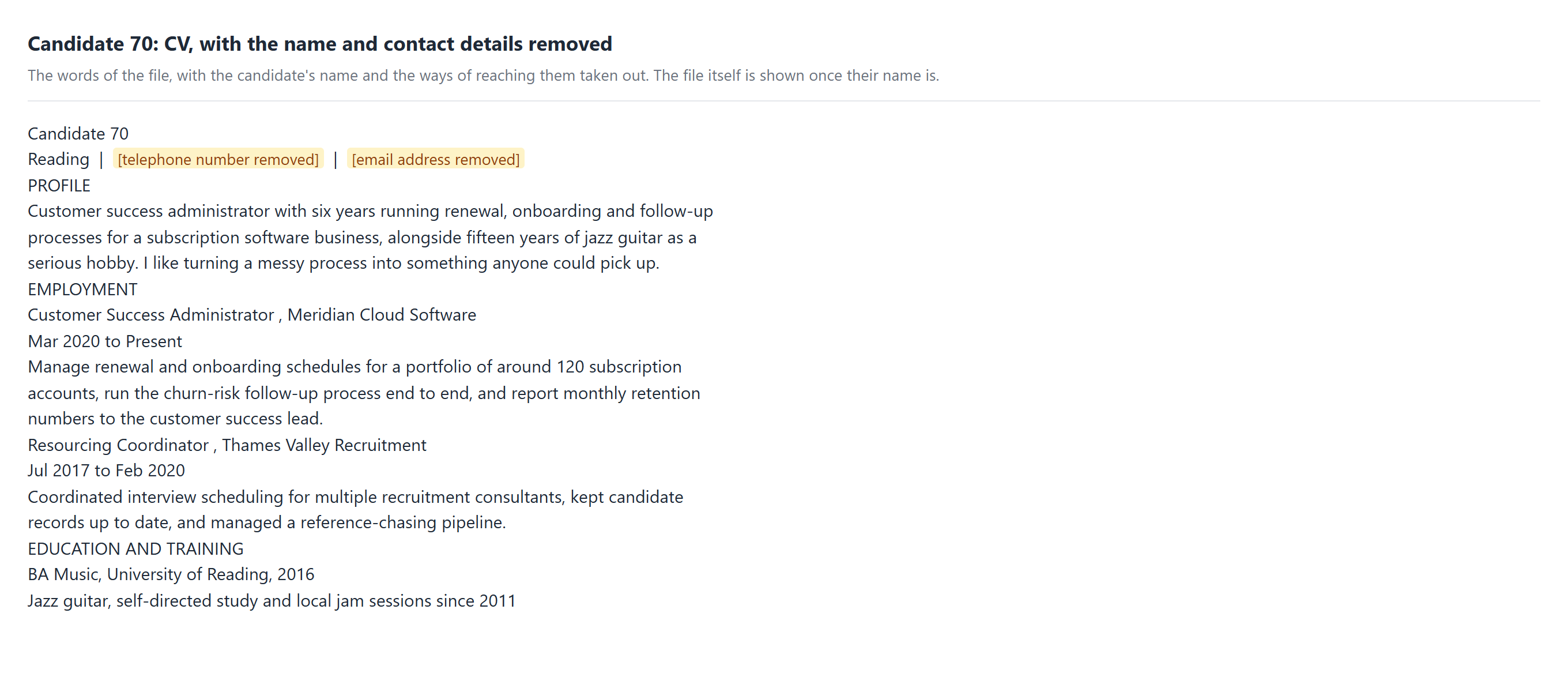
When the name is shown. The rule is set per campaign, on the campaign's page under When the client sees candidates' names:

- Once the client has approved them for the final interview, the usual rule. The name is shown from the stage you choose, Client ok for final interview in the standard pipeline. A candidate at that stage or past it is named; one before it is a number.
- From the start, for a client who should see every name.
Your team always sees the names. On the review's page, under each candidate, the staff panel says what the client sees and why. Show their name to the client now shows one candidate's name sooner than the rule would, on this review and everywhere else the client reads about them, and is recorded with who did it. Hide it again takes that back.
Letting a client read the scoresheet
A client who wants more than the candidates you suggest can be let read the whole scoresheet: Every candidate who applied, with the bands your team gave, to read and not to score. It is let per campaign and per person, on the campaign's page under Client viewers who may read the scoresheet: Tick the client viewers it applies to and click Save. As on a review, the list is the people of this campaign's client, and nobody else's. From then the campaign is listed on their dashboard under Scoresheets you may read. For someone who should read it on every campaign of their client's that they see, tick Scoresheet beside them on the client's page instead (see Your clients). Their tick on the campaign's page is then fixed, and says where it was set.
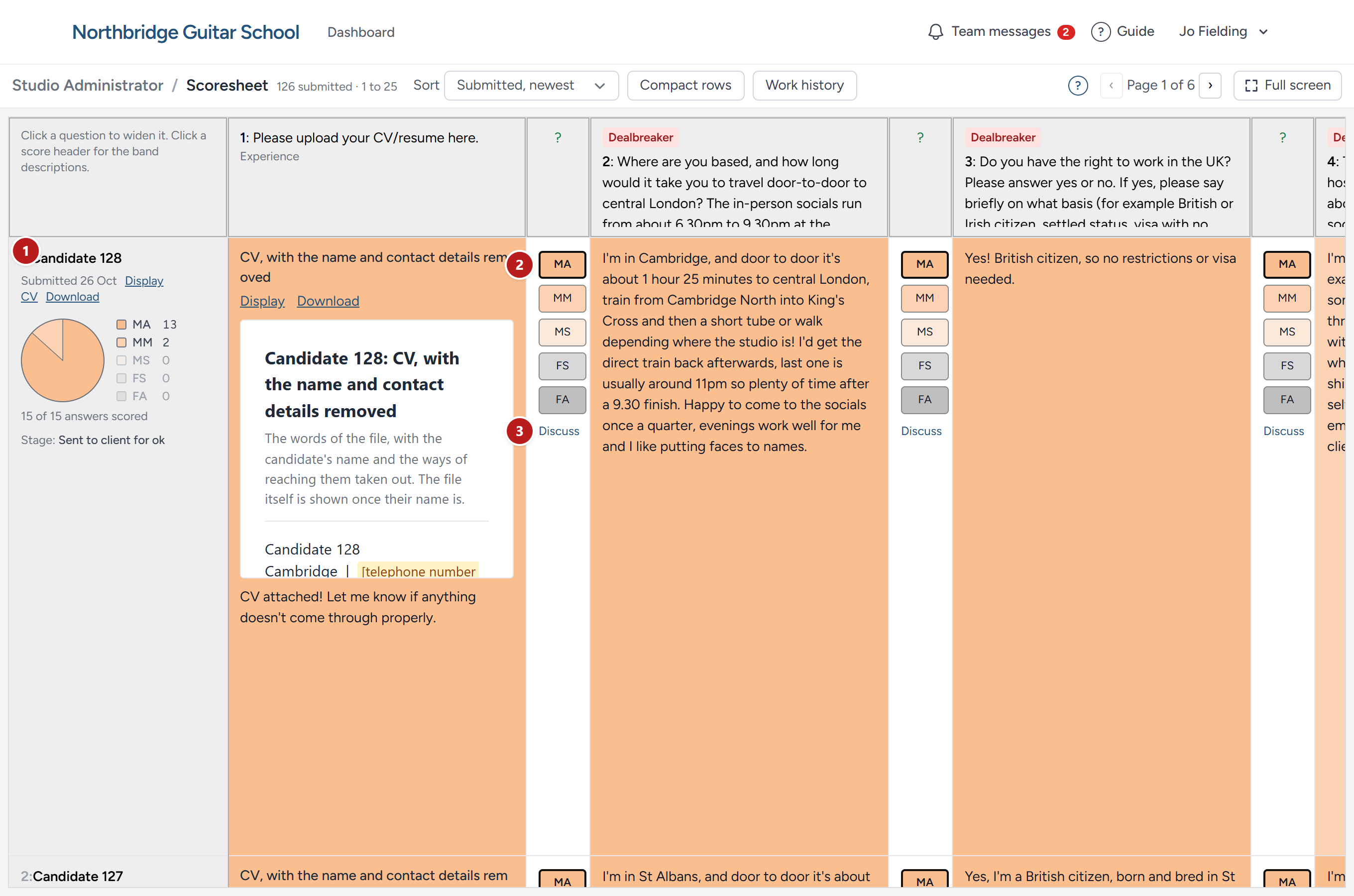
What they read is the grid your team scores on, with these differences:
- Candidates are veiled as the rule above has them: A number for a name until the name is shown, no email address, no link to the candidate's page, and their answers and files with the name and the ways of reaching them taken out.
- The bands are shown and cannot be pressed. The list can be sorted, by when people applied or by their bands, but not by surname.
- There is no scorer's note, no proposal from Digital Nancy, no Ask Digital Nancy, and no stage to move anybody to.
Discuss, beside an answer, works for them, with one difference: A client writes to your admins and hiring managers only. The conversation a client begins is the client's: It is seen by the client, the admins and the hiring managers, and never by a scorer or an interviewer, and it carries With the client wherever it is shown. Your admins and hiring managers answer in it as they would any other, and may settle it; the client may not. Your team's own conversations about the same answer are never shown to the client.
Writing the summaries
When the review is made you are taken to its page. The panel at the top, For staff, is seen only by admins and hiring managers. Below it is the review as the client will see it, with one difference: Under each candidate's name you have a box for a summary.
A summary is what you would say if the client rang and asked, "What about this one?", set out so they can take it in at a glance: One opening line, then a few points, each on a line of its own beginning with a hyphen and a space. The client sees the points as a list. Put any caution last, beginning Worth weighing:.
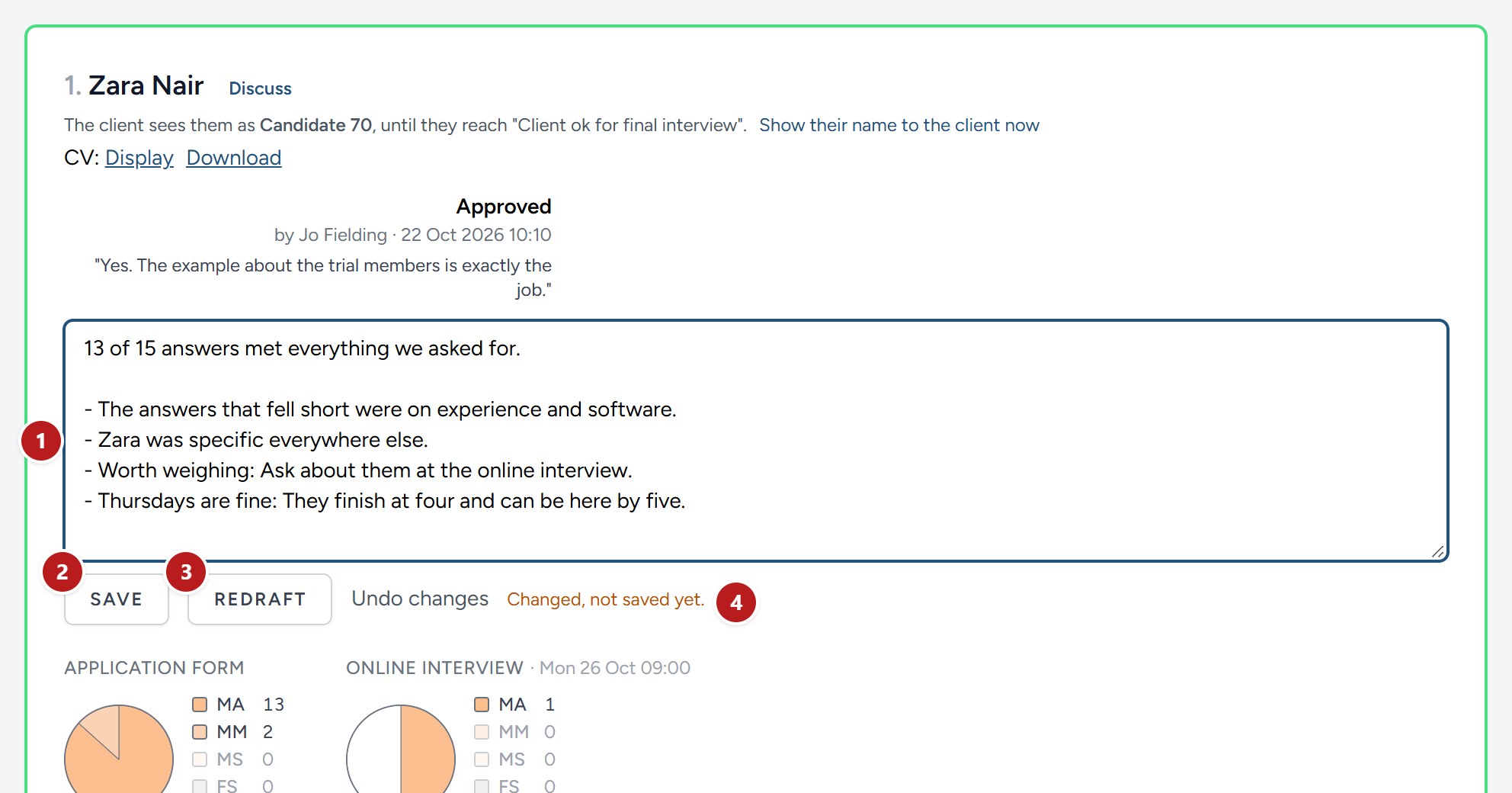
- The box: Type the summary here, or change the one that is there.
- Save stores what is in the box. It is the only thing that does: Save in the panel at the top is for the review's title, message and switches, not the summaries. Empty the box and save, and the candidate has no summary again.
- Draft, where there is no summary, has Digital Nancy write one for this candidate. Where there is one, it reads Redraft, and her draft replaces it; if your team wrote or saved that summary, you are asked first.
- The line beside the buttons says where the summary stands: Her draft, saved by your team, changed and not saved yet, or being drafted. Undo changes puts the box back as last saved.
Draft missing summaries with Digital Nancy, in the panel at the top, writes a first draft for every candidate who has no summary yet, from their answers, their bands and any interview notes, in the same shape: The opening line, then three to five points, the cautions last. It never touches a summary that is there, whoever wrote it, so anything you have saved stands; to have Digital Nancy write one again, use Redraft beside it. When every candidate has a summary, the button cannot be pressed.
A draft takes a minute or so. While it is being written the box is greyed and says so, and the draft appears in it by itself when it is ready. If you save the summary while a redraft is on its way, what you saved is kept and the draft is not used. If a draft does not finish, the line beside the buttons says so in amber and we are told: Draft again in a few minutes, or write your own.
If Digital Nancy is not switched on for your organisation, the button records the request and drafts nothing, and the message at the top of the page says so. See Digital Nancy and your own key.
Sending it to the client
There are two ways for a client to reach a review. You can use both.
By link
The link is shown in the staff panel when the review is made. Click Copy and send it to the client in an email of your own.
- Anyone who has the link can open the review and decide. There is no password. Send it only to the person who is to decide, and ask them not to forward it.
- The link works for 30 days, or until you withdraw it.
- HiMatcher keeps no copy of the link that it can show you again. If it is lost, or has gone to the wrong person, click Issue a fresh link. The old link stops working at once, and the new one is shown for you to copy.
By signing in
A client you work with often can be given a sign-in of their own. Invite them from the Team page with the role Client viewer. See Your team and who can do what.
A client viewer is a guest. They see nothing of your campaigns, your candidates or your emails. They see the reviews they are named on, and no others, so if you recruit for several clients, none of them can see the candidates suggested to another.
To name someone, tick them under Client viewers who may open it signed in, either as you make the review or later in its staff panel, and click Save. The list is the people of this campaign's client (see Your clients), already ticked as you make the review; untick anyone who should not have this one. Another client's viewers are not offered, so nobody is named on a review by mistake; the only other person you will see listed is one named on it earlier, marked with the client they belong to, so that you can take them off. If the client has no viewer yet, the panel says so, and the review goes by link alone. From that moment the review is listed on their Dashboard for as long as it is open, and their decisions are recorded under their own name without their having to type it. Untick them and it disappears from their dashboard at once.
Who at the client is emailed
Whenever you share something with the client, a draft of the specification, candidates on the review list or a new batch of suggested candidates, HiMatcher asks who at the client to email about it before it does it. Beneath Email to tell them is everyone at the client who can see what you are sharing, each with a tick box. Nobody is ticked to begin with, so nobody is emailed unless you tick them, and the message once it is done says who was. What you share reaches their pages whether or not they are emailed: The email only tells them it is there.
What the client sees
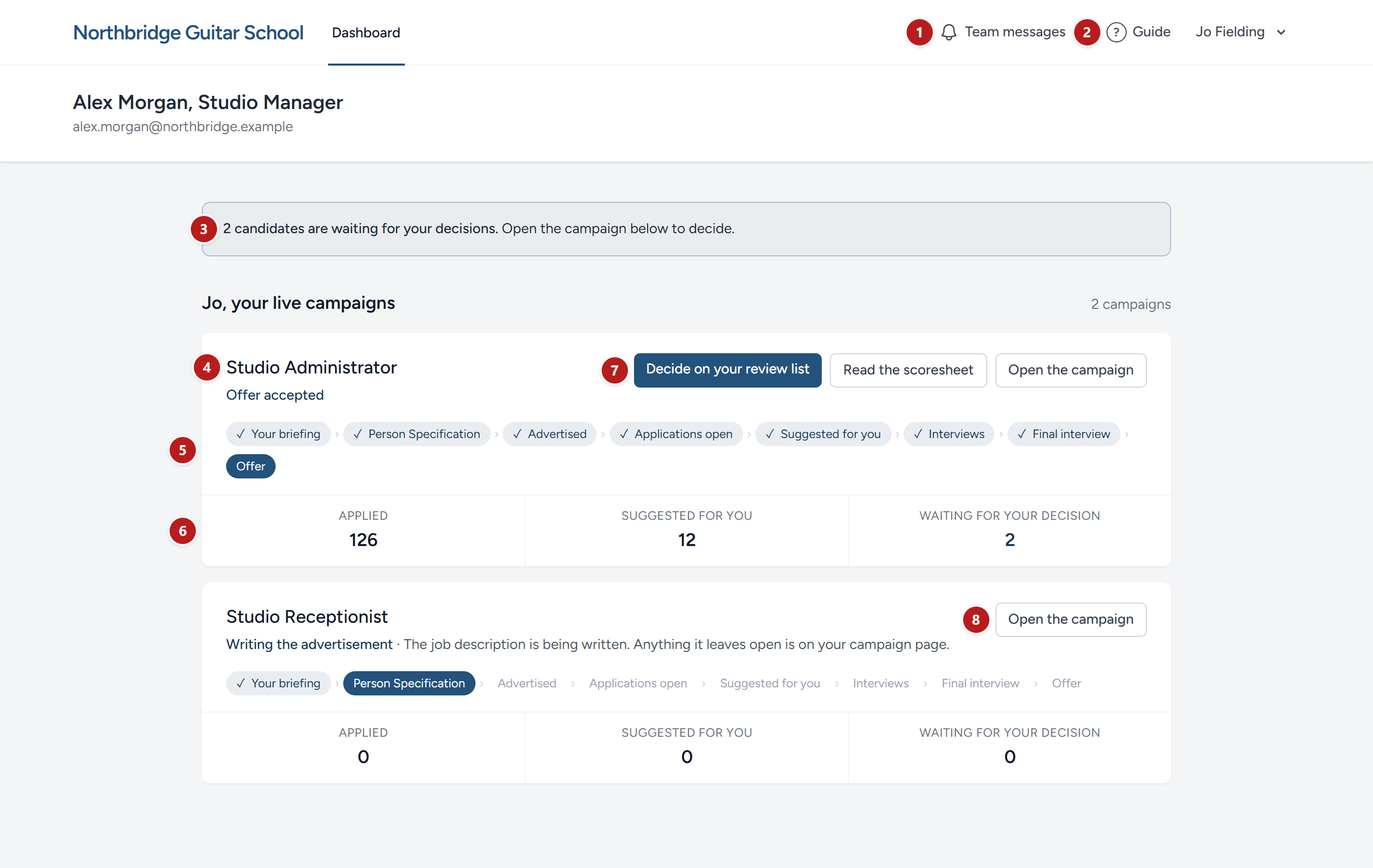
A client viewer who signs in arrives at a dashboard of their own: The campaigns being run for them, each saying where it has got to in their words, from the briefing to the offer, with how many have applied, how many are Suggested for you and how many wait for their decision, and the ways in: Decide on your suggested candidates while any wait for them, Open your suggested candidates once they are all decided, or Read your suggested candidates once the review is closed; and the scoresheet where the campaign lets them read it. Completed campaigns sit below, folded. Beneath your organisation's name they read the name you set under How clients see you in Settings.
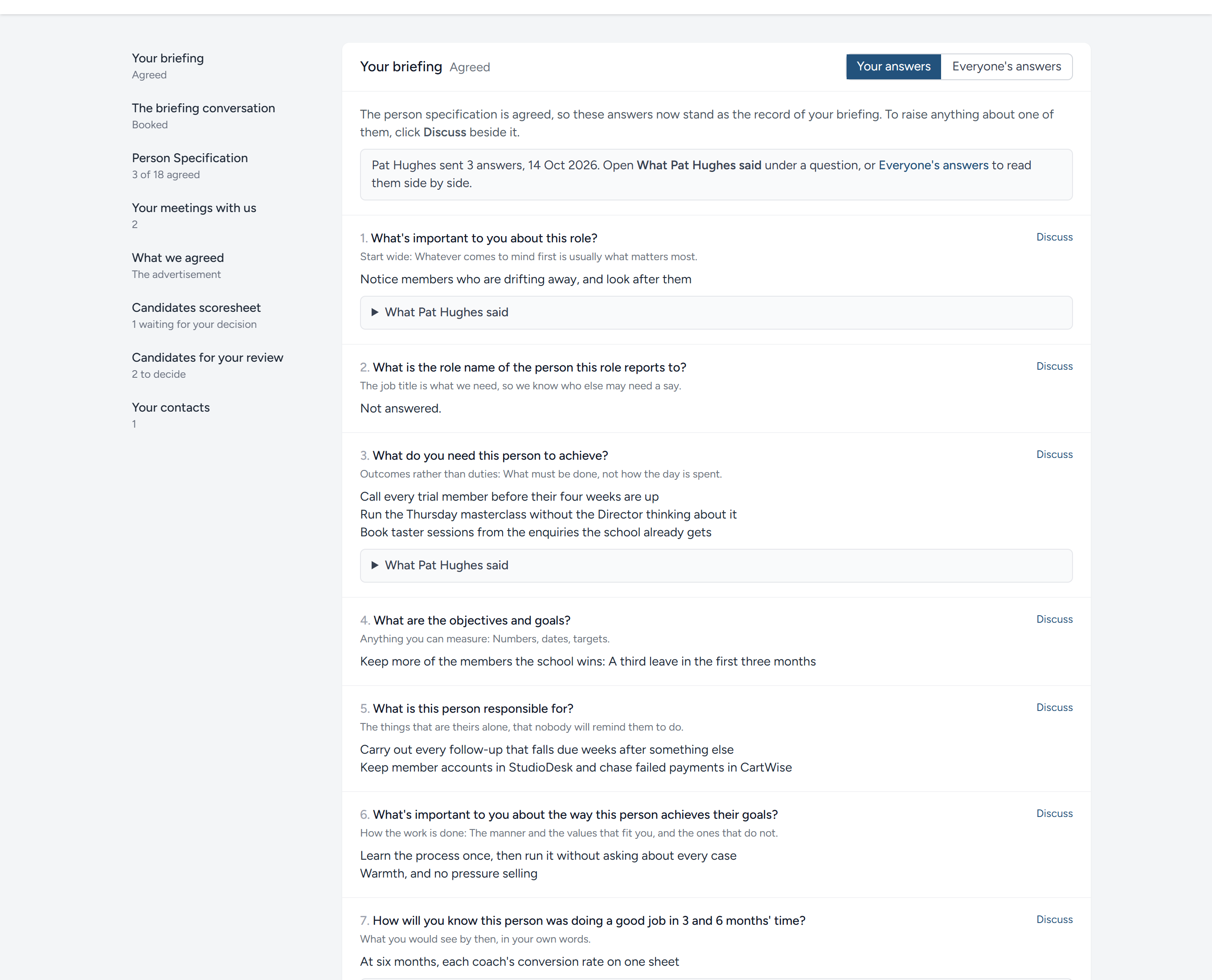
Each campaign opens on a page of its own, with the parts in a fixed order and a list of them down the left:
- Your briefing. The questions the briefing rests on, numbered: The method's nine, or your own list where you have set one (see Settings), adjusted for the campaign where its briefing has. The client answers them on the page, a few words or a few paragraphs each, saving as they go and sending when ready; or sends a document with the answers in it. Either reaches the briefing at once as something the client sent, under The client's answers, and your hiring managers are emailed, or your admins where the campaign has no hiring manager. Where the client has already answered in a document, the words the briefing sheet drew under each question are filled in, for them to put right. Once the person specification is published the answers stand, to be read and discussed but not changed. Discuss beside every question opens the same panel as on the scoresheet, to your admins and hiring managers only, and the link in the message leads back to that question: On their page for the client, on the briefing for your team. The part is shown only to a viewer ticked for Your briefing on the client's page, so tick it for the person who briefs you on the role. See Your clients.
- Person Specification. The draft person specification you share during the briefing, to agree row by row and comment on, for a viewer ticked for Person Specification. See The person specification.
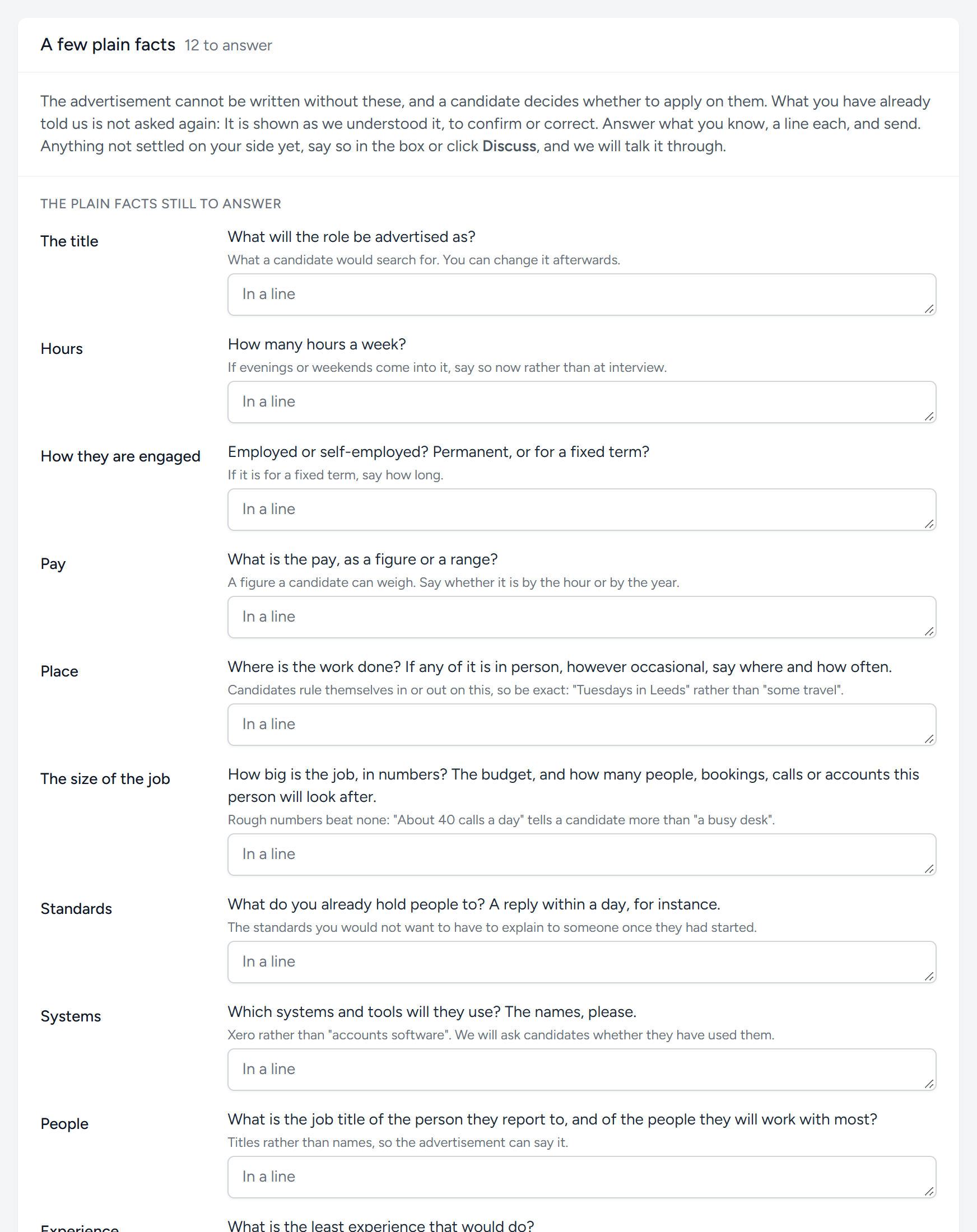
- Questions we have for you. On the client's page it sits directly under their briefing, headed A few plain facts, until the job description has questions of its own and the specification is shared. The plain facts the advertisement cannot be written without, hours, pay, place and the rest, each in a line, and the organisation chart beside them; and beneath From the job description, every question the drafted description left open, as it stands on the briefing under Questions to confirm with the hiring manager. A fact the briefing already states is not asked again: What the client sent and said is read for the facts once, and those found are shown to the client as in hand, with where they were said and Discuss beside each, for the client to confirm or correct; only the rest are asked, first. The team sees the same list on the briefing's job description part (see The job description). The client answers what they can and sends. The facts reach the briefing as a document, under The client's answers; an answer to one of the job description's questions lands beside that question, marked as the client's, ready for Fold answers into the job description. The same people are emailed. Once the job description is approved these stand too.
- Your meetings with us. The later meetings that concerned this role, read-only.
- What we agreed. The job description once it is approved, and the advertisement where it is live.
- Candidates scorecard. Each batch of candidates you have suggested to them, with how far they have got, and the scoresheet where the campaign lets them read it.
- Your contacts. Your admins and hiring managers, by name and email.
Beside each suggested candidate, in a batch or on the review list, a client viewer who signs in has Discuss: The same panel as on the scoresheet, to your admins and hiring managers only, in a conversation that is the client's own. The client knows the candidate by number until the name is shown, and the conversation keeps to that on their side; the link in it leads your team straight to the candidate's scoring page, and leads the client back to the candidate on their review. Your team has the same link beside each candidate on the review's page, and a number beside it says how many conversations there have been.
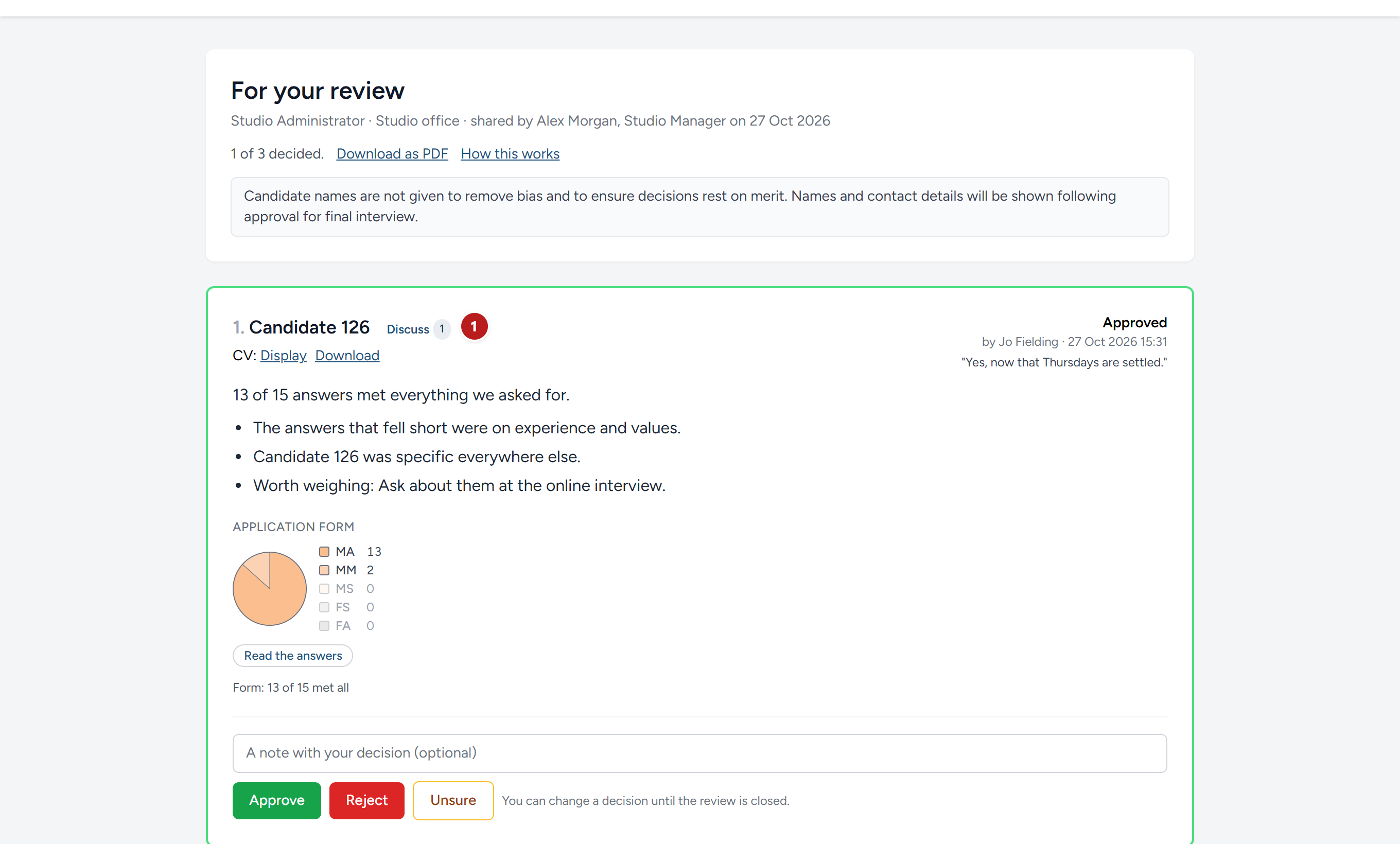
A client who comes by link sees the review alone, and has no Discuss: There is nobody signed in to write as.
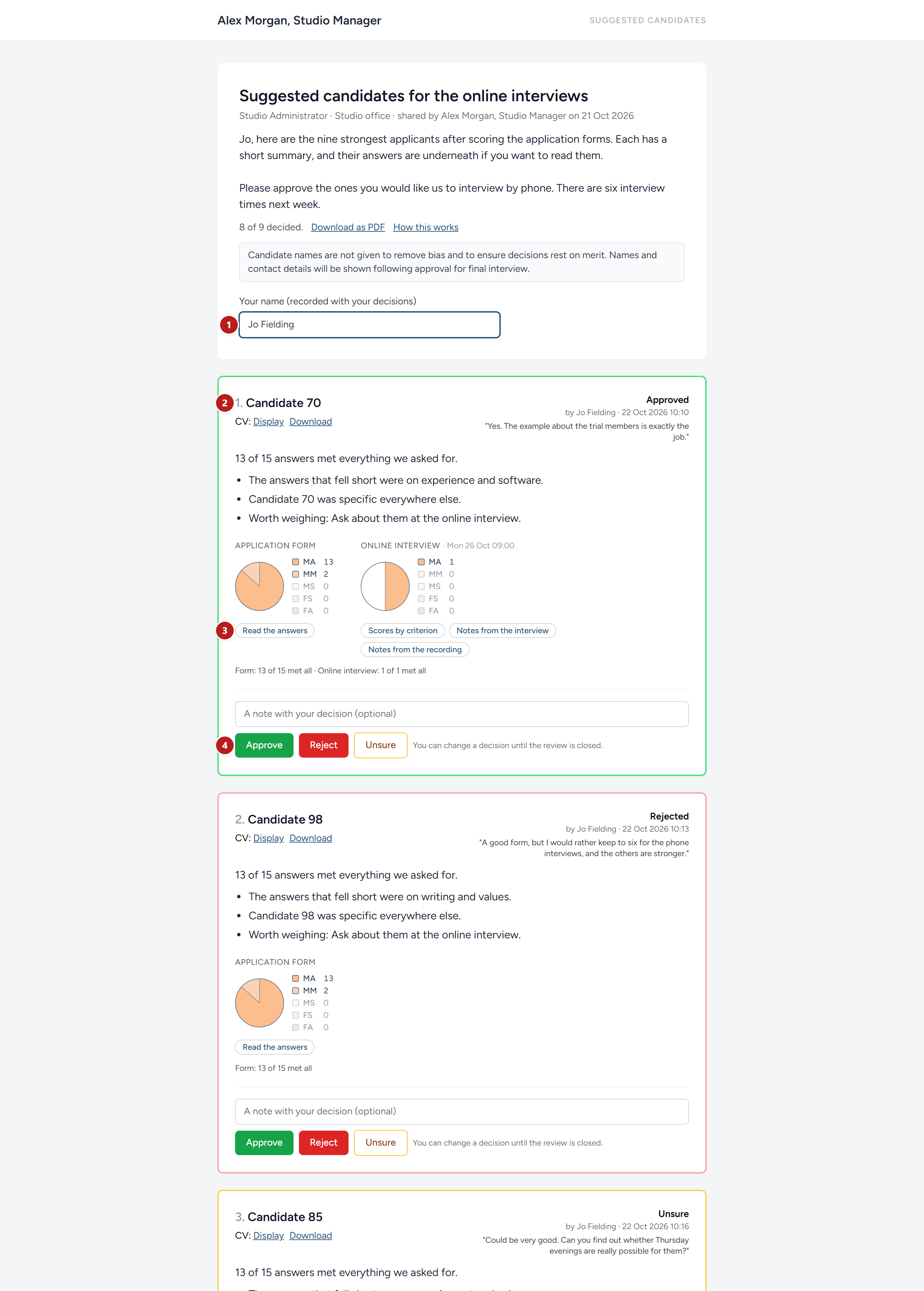
- Their name. A client who comes by link types their name once, before their first decision. It is recorded with every decision they make.
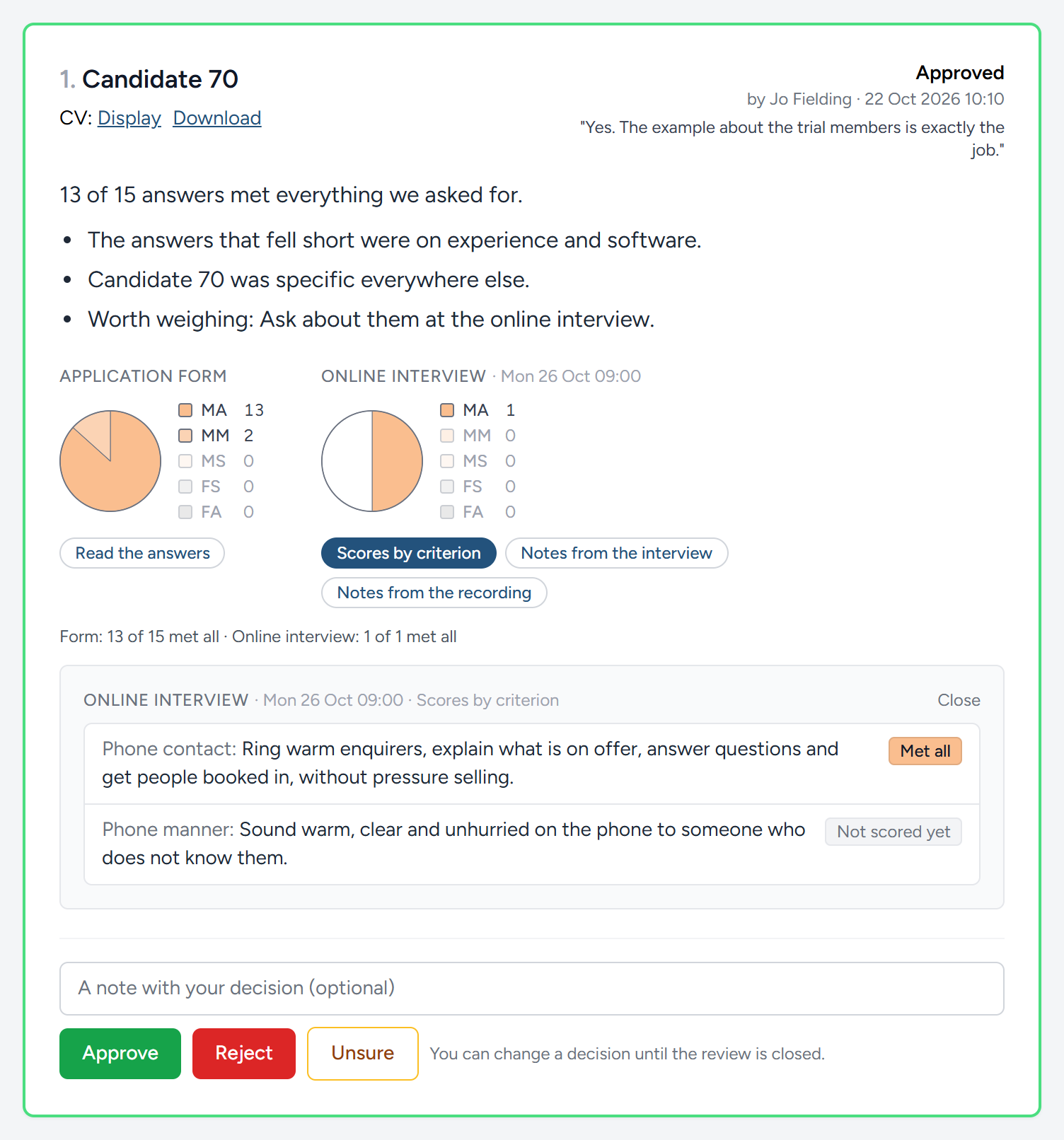
- A candidate, with the links to their CV, if you allowed them, and then your summary.
- The stages, side by side. A pie of the form's bands, and a pie for each interview your team has scored, each with its date; under the pies one line says how each went, Form: 13 of 14 met all · Online interview: 1 of 2 met all. Under each pie are the parts of that stage as buttons, and one opens at a time beneath, with Close at its corner. Under the form's pie, Read the answers opens the questions one fold each, the band as a coloured tag on each, with Open them all and Show more on a long answer, and the files in a row of links. Under an interview's pie, Scores by criterion, Notes from the interview (the interviewer's own, with the bands they gave listed beneath, since the notes often speak of them) and Notes from the recording, as the switches allow.
- Approve, Reject and Unsure, with room for a note. The note is for you, and the candidate never sees it.
The border of each candidate turns green, red or amber as the client decides, and the decision is printed at the top right with their name, the time, and their note. The count under your message, 8 of 9 decided in the picture, tells them how far they have got.
A client can change a decision for as long as the review is open.
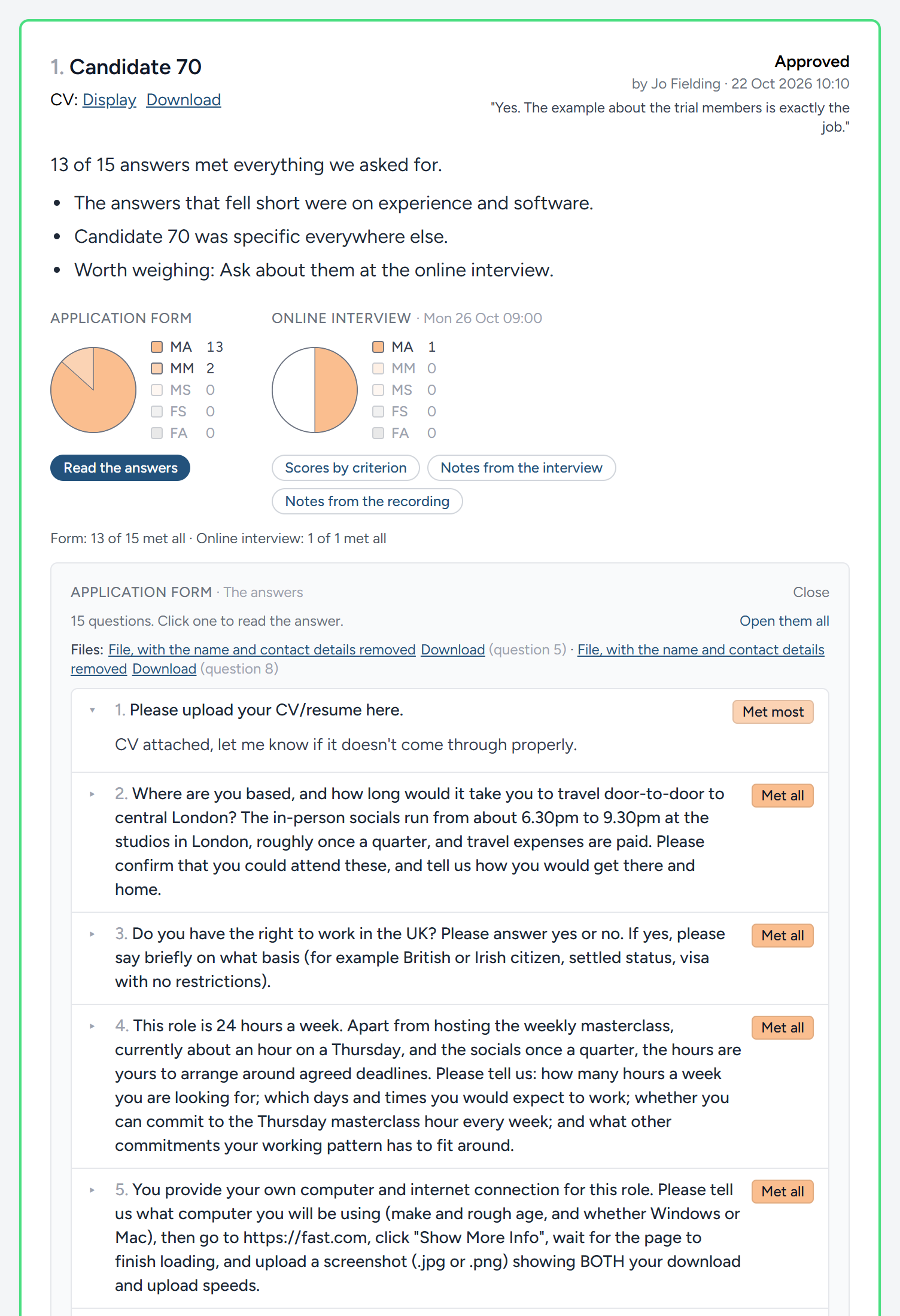
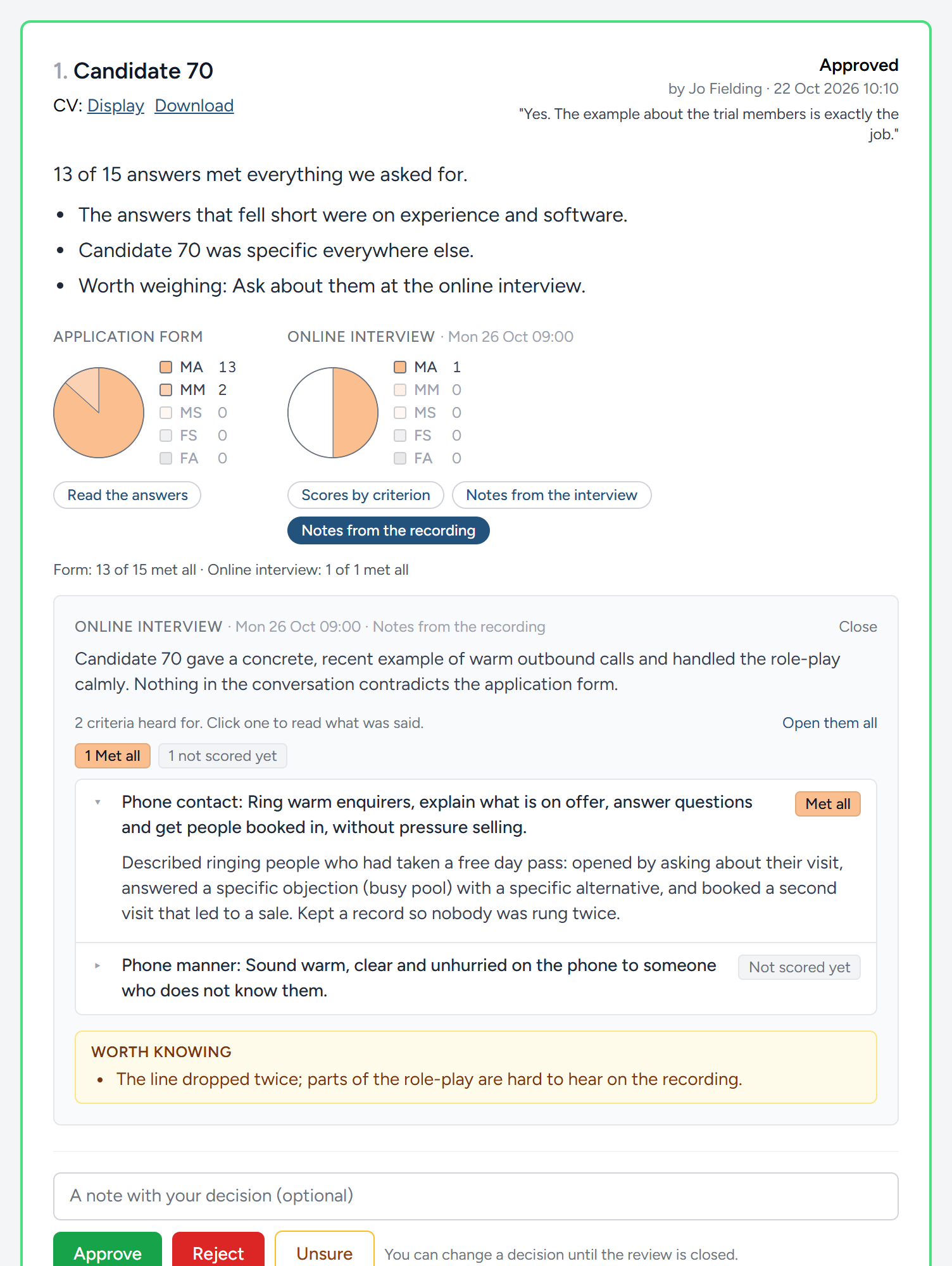
Notes from the recording are what Digital Nancy drew from the transcript, set out so a client can find their way round them: her short overview first; then one line of counts in the band colours, 1 Met all · 1 not scored yet, saying how your team scored what was heard; then one fold per criterion, headed by the criterion with your team's band as its tag, and what the candidate said folded away until it is clicked, with Open them all to read straight through. Anything worth knowing, a line that dropped or a claim to check, sits apart at the end under Worth knowing.
Download as PDF, under your message, gives the client the whole review as a document, with the same pies, the bands by criterion and the decisions made so far. It is the way to keep a record outside HiMatcher, or to take the suggested candidates into a meeting.
Following the decisions
You are told by email
Whoever made the review is emailed the client's decisions. It is one email and not one for each click: It is sent as soon as every candidate has been decided, or, if the client stops part-way, once twenty minutes have passed with nothing new. The email lists who was approved, rejected and left as unsure, with the client's notes, and has a button that opens the review. If the client changes their mind later, you are told of the change in the same way.
If the person who made the review has since left your team, the email goes to your admins and hiring managers instead. Nobody is emailed about a decision they made themselves.
On the page
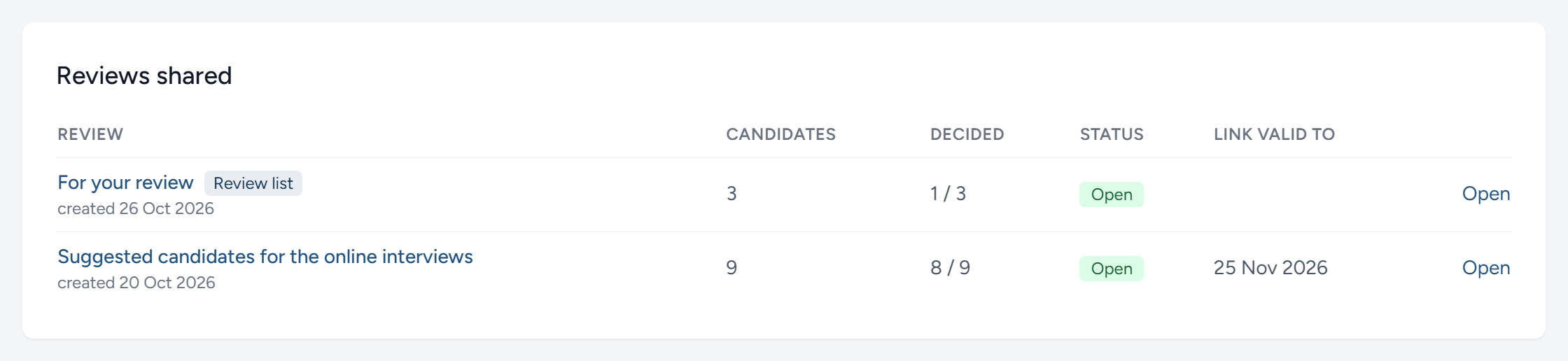
Go back to Client reviews on the campaign page.
Decided tells you how far the client has got. Open the review to read the decisions and the notes. Open reviews are also listed on your own Dashboard, under Suggested candidates awaiting decisions, with the same count.
Each decision does one thing to the pipeline.
| The client clicks | What happens to the candidate |
|---|---|
| Approve | They move to the stage you chose for approvals, Client ok for online interview in the example |
| Reject | They move to the stage you chose for rejections, Client form rejection in the example |
| Unsure | They are not moved. If an earlier decision on this review had moved them, they go back to where they were when you shared them. Read the note: It usually asks you a question |
The move is recorded in the candidate's history as the client's, with their note.
Two things are worth knowing.
- A decision sends the candidate nothing. A rejected candidate does not know until you write to them. Turn them down from the campaign page, which sends the email and offers feedback. Nothing the client wrote is ever passed on. See Turning candidates down, and feedback.
- A decision never drags a candidate backwards. It moves only someone who is still where the review left them: At the stage they were at when you shared them, or at the review's own approval or rejection stage. Suppose you have already moved an approved candidate on, to an interview invitation for instance, and the client then changes their mind. The decision is recorded, the candidate stays where they are, and an amber line beside the decision tells your team so: Not moved: Already at "Online interview invite to candidate" when this was decided. The same line is in the email. What to do about it is then your decision, not the software's.
Closing a review
When the client has finished, open the review and click Close review.
- Nobody can make or change a decision, whether by link or by signing in.
- The client can still read it. Their link opens the review as they left it, marked as closed, with the PDF to download, until the link's 30 days run out. A client viewer keeps it under its own address, though it leaves their dashboard.
- The review, with its decisions and notes, stays on the campaign for your team.
Close a review as soon as you have acted on it, so that a late change of mind cannot move anybody.
Withdrawing the link
Withdraw the link stops the link working at once, whether the review is open or closed. Anyone who follows it is told the page cannot be found. Use it when the client should no longer be able to read the review, when the campaign is over for instance, or when a link has gone to the wrong person and you do not want a new one. Client viewers you have named are not affected. Untick them to take the review away from them as well.
Issue a fresh link makes a new link and, on a closed review, opens it for decisions again. Use it if the client asks for another look.
| You want | Do this |
|---|---|
| No more decisions, but the client may look back | Close review |
| Nobody to open it by link any more | Withdraw the link |
| A lost link replaced, or a closed review opened again | Issue a fresh link |
This chapter was last revised on 30 October 2026.