Running a campaign · Chapter 8
The application form
Building the form from the person specification, checking it as a candidate will see it, putting it live, and knowing what candidates meet when they apply.
In this chapter you will
- build the form from the published specification, and know which criteria become questions
- check the wording, the answer types and the questions that ask for a file
- see the form as a candidate will, before anyone else does
- publish it, and stop taking applications when you have enough
- read the first ten answers as a trial, and tighten the questions, the criteria and the bands from them
- copy the campaign into a new one to add a question or change the order, leaving the candidates where they are
- know what publishing costs, if you set up your address yourself
- publish a public advert for the job, and have Google and the job sites list it free of charge
- see which places your applicants come from
- understand what a candidate sees, from the first page to "thank you"
- know which emails go out by themselves, and when an unfinished application is closed
Where the form comes from
You do not write the application form. You build it, in one click, from the person specification, which already holds a question for every criterion and says which of them are to be asked on the form.
That choice is made on the specification, not here. When you check the specification at the end of the briefing, each criterion has a tick, On the application form. A criterion that is ticked becomes a question. One that is not ticked is kept for the CV or for an interview, and never appears on the form. See The person specification.
So if a question is missing from the form, or one is there that should not be, the place to put it right is the specification.
Building the form
If the specification came from a briefing, build the form from the briefing's last part, Application form: Click Build the application form. See The person specification. The campaign page does the same thing, and is the way for a specification that was imported:
- Open the campaign. If candidates have already applied, click Campaign setup, at the top right of the candidates' panel, to bring the setup steps into view.
- Under Application form, click Build the application form from the published spec.

You are taken to the new form, as a draft. A message at the top tells you what was made: How many questions, from which version of the specification, and which questions were given a box for a file.
Here is what building does.
- It takes every criterion marked for the form, in the order the specification numbers them, and numbers the questions 1, 2, 3 and so on with no gaps.
- The question is the specification's question for that criterion. Where the criterion was copied from one already asked on a form, in an earlier version or in the campaign this one was copied from, the question is asked the way it was last asked on that form, rewordings included, unless you have changed the criterion's question since.
- Every question is required to begin with.
- A question that asks the candidate to upload or attach something is given a box for a file, with room for words beside it. The first one that asks for a CV becomes the question that collects the candidate's CV.
- A question written as a grid becomes a grid: Several rows, the same few choices on each, and one choice to make on every row. See Questions written as a grid below.
- The bands and the criteria of a good answer are not copied. The scoresheet reads them from the specification itself, so they cannot drift apart.
Changing the questions later
Once the form is live, there are three ways to change it, and which to use depends on how much changes:
- A clearer word, or a "Please include…": Reword the question on the form itself, or use what Digital Nancy proposes from the first answers (see The first answers). Each answer keeps the wording it was given.
- A question added, or the questions in another order: The way we do it, copy the campaign and start the copy as a campaign of its own (see Copying the campaign). The people who answered the old form stay with it, and nobody is judged on a question they were never asked.
- A lasting change to the specification within this campaign: Start a new version, as below.
The form is built from the specification, so a lasting change to a question, to what a good answer shows, or to the feedback a candidate is sent belongs in the specification.
- Open the specification that is in force and press Start version 2, or whichever number is next. It begins as a copy of the one in force.
- Change it. In a draft you can Edit any criterion, Remove one, and Add a criterion at the foot of the page.
- Publish the new version. Only now does it take the place of the old one.
- On the campaign page, build the application form again. The new form is a new version, made from the new specification.
Nothing that has already happened is disturbed. The earlier form keeps the criteria it was built from, so everybody who answered it is still scored against what they were asked. The scoresheet shows one version of the form at a time, and offers the others in its bar.
Copying the campaign
When a question must be added, or the questions put in another order, after people have applied, copy the whole campaign, change the copy, and start it as a new campaign. Admins and hiring managers can do it.
- On the campaign page, click Copy beside its title.
- Give the copy a working title. It starts as the old one with "(2)" after it.
- Click Copy it. The copy's own page opens.
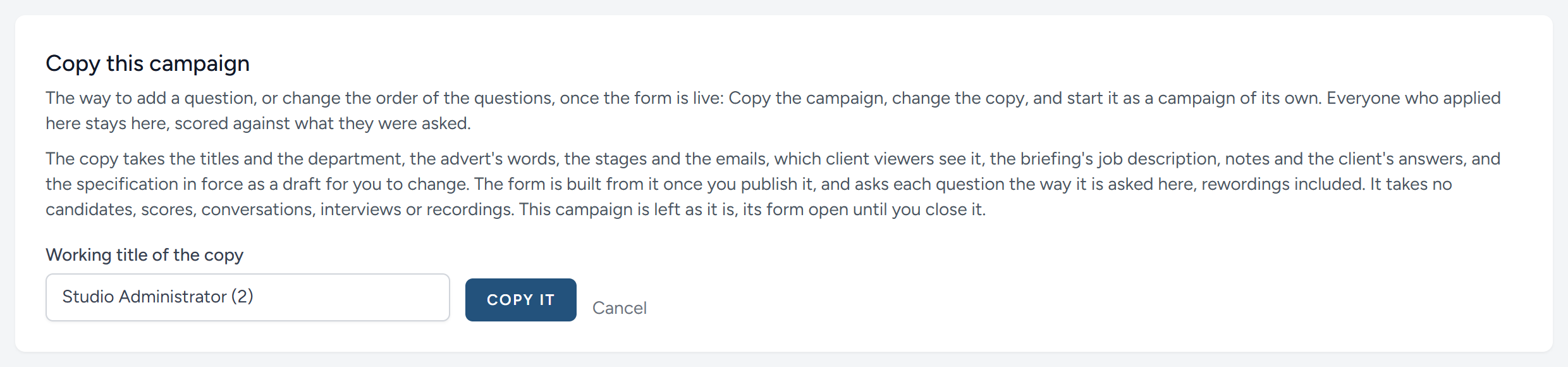
What the copy takes: The titles and the client, the advert's words (not its address, as you publish the copy's advert when it is ready), the stages and the emails, which client viewers see it, and from the briefing the job description, the notes and the client's answers. The specification in force comes as a draft, with its criteria, bands and placing.
What it leaves behind: Every candidate, with their answers, scores, notes and conversations, and the interviews, the client's reviews, the meetings and their recordings. Nothing is taken from a sheet the campaign was brought in from.
Then, in the copy:
- Open the specification, which is a draft. Add a criterion, change one, or decide again where each is asked and in what order.
- Publish it, and build the application form. Each question is asked the way it was asked on the old form, rewordings included, unless you changed that criterion's question in the copy.
- Check the form, and publish it. The copy is a new campaign, so if you pay per campaign, publishing its form uses one.
The original is left as it was. Its form keeps taking applications until you close it: The copy's page says so, with a link to the original's form, so nobody applies to both. Each campaign's page names the other.
Questions written as a grid
Some questions ask the same thing of several subjects: "Please indicate your level of experience in these areas", of jazz, of rock, of pop. Asked one at a time they make a long form. Asked as a grid they make one question, with a row for each subject and the choices across the top, and the candidate chooses one on every row.
HiMatcher makes a question a grid when the specification writes it as one. Two ways of writing it are recognised.
A row to a line, under a line that lists the choices:
Please indicate your level of experience in these areas:
Radio buttons: None, Some, Medium, Expert
Jazz
Rock
Pop
Or all on one line, the choices parted by strokes and the rows by commas:
Please indicate your level of experience with each of these: None / Some / Experienced / Expert: Google Sheets, Excel, Zoom (as host).
The message at the top of the new form names every question that was made a grid. The candidate is shown the wording alone: The line of choices and the rows are taken out of it and become the grid.
A grid is one question with one band. The scorer reads the whole of it, a line to a row, such as Jazz: Expert, and bands it against the question's criterion, so write the bands for the answer as a whole: "Expert in at least two of rock, pop and blues", not a band for each row.
Checking the form
The form's own page is where you read it through. Reach it at any time from the campaign page: Edit beside a draft, View beside a live form.
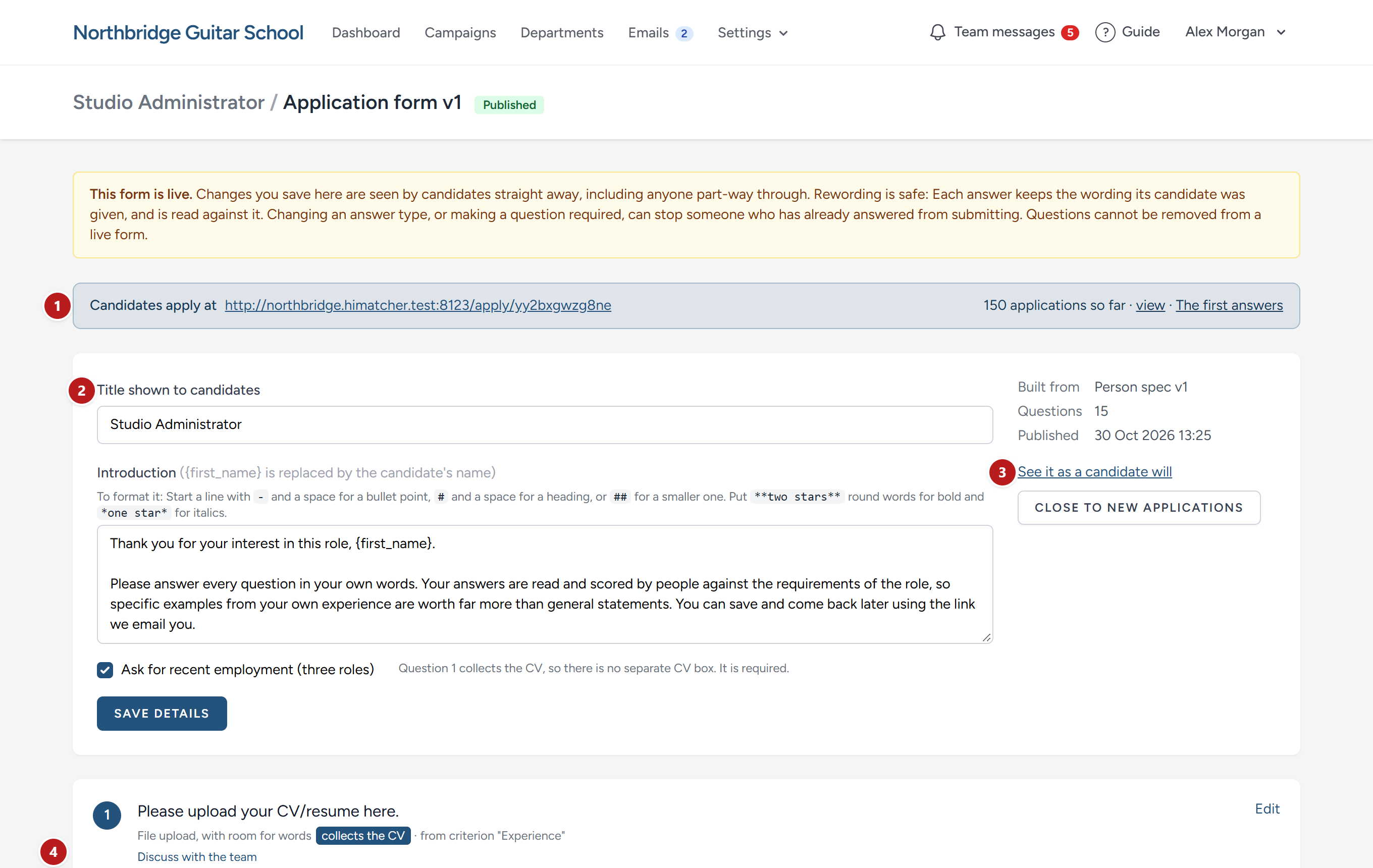
- The link candidates apply at, once the form is live, with the number of applications so far.
- The title and the introduction candidates read before the questions. Write
{first_name}wherever you want the candidate's first name to appear. The introduction can have bullet points, headings, bold and italics, described under Formatting the introduction below. - See it as a candidate will, and the buttons to publish, close and reopen.
- The questions. Under each is its answer type, the criterion it came from, and what the scorers will look for.
Two tick boxes sit under the introduction.
- Ask for recent employment (three roles) adds a section for the candidate's three most recent jobs. It is optional for the candidate, and it is shown beside their answers on the scorecard.
- CV is required applies to the separate CV box that opens the form, above the first question. With the tick, the box asks Please upload your CV, and the form cannot be sent without one. Without it, the box reads Your CV, marked optional. If one of your questions already collects the CV, that box is left off the form, and in place of the tick the page tells you which question collects the CV and whether it is required.
Click Save details after changing any of these.
Formatting the introduction
The introduction takes a little formatting, and the line above the box reminds you how.
| Type this | And the candidate sees |
|---|---|
- at the start of a line |
A bullet point. Lines one after another that start this way make one list |
# at the start of a line |
A heading |
## at the start of a line |
A smaller heading |
**two stars** round words |
Bold |
*one star* round words |
Italics |
Anything else appears exactly as you typed it, so a web address or a piece of web code shows as text, not as a link. A line break stays a line break, and a blank line starts a new paragraph. Introductions written before formatting was possible read as they did, apart from any line that starts with one of the marks above.
A list is worth it wherever you ask the candidate for several things at once, just as it is in a question. Click See it as a candidate will to check how it reads.
Changing a question
Click Edit beside a question.
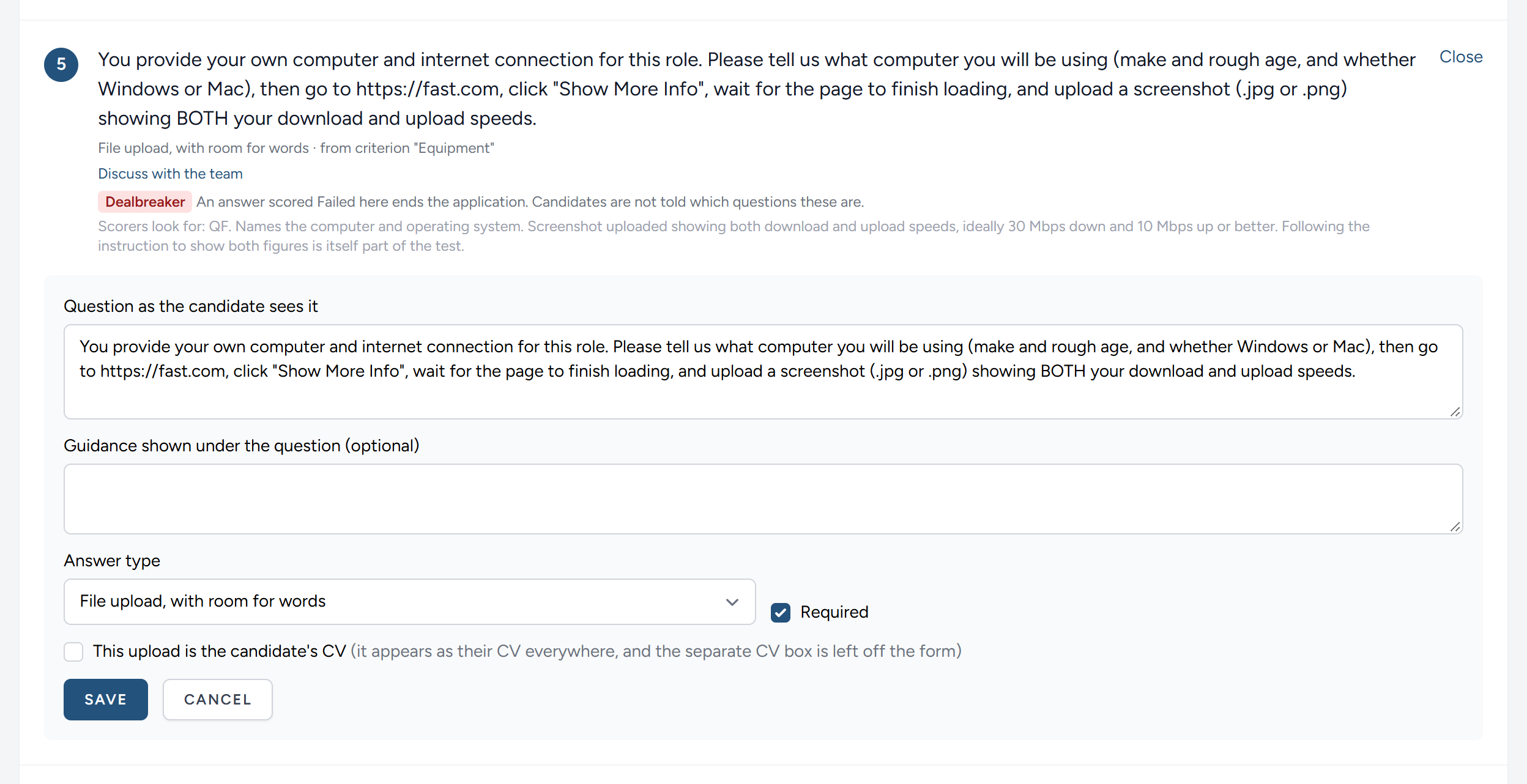
You can change:
- The question as the candidate sees it
- A line of guidance shown under it
- The answer type: A Written answer, a File upload, with room for words, a Single choice from options you list, one to a line, or a Grid, with its rows and the choices across its top, each listed one to a line
- Whether it is Required
- For a file upload, whether this upload is the candidate's CV. Only one question can be. Tick it on a second and it comes off the first.
Rewording a question here does not change the specification, and does not change how it is scored. Keep the two saying the same thing: If the meaning of a question changes, change the specification and build the form again.
Adding a question of your own
Add a question, at the foot of the page, is for anything the specification does not cover, such as where the candidate saw the advertisement. An extra question is shown to the scorers with the same band buttons as any other, but with no descriptions of the bands, because it tests no criterion. It needs a band like the rest before the candidate's form counts as fully scored, so add a question here only if you mean it to be judged.
You can add a question while the form is live. Candidates who have already sent their form in are not asked it and are not held back by it: Their scoring is complete when the questions they were asked have been scored. If you want their answer as well, ask it as a follow-up question.
Seeing it as a candidate will
Before you publish, click See it as a candidate will. The form opens in a new tab exactly as a candidate will meet it, made out to you, with your first name in the introduction.
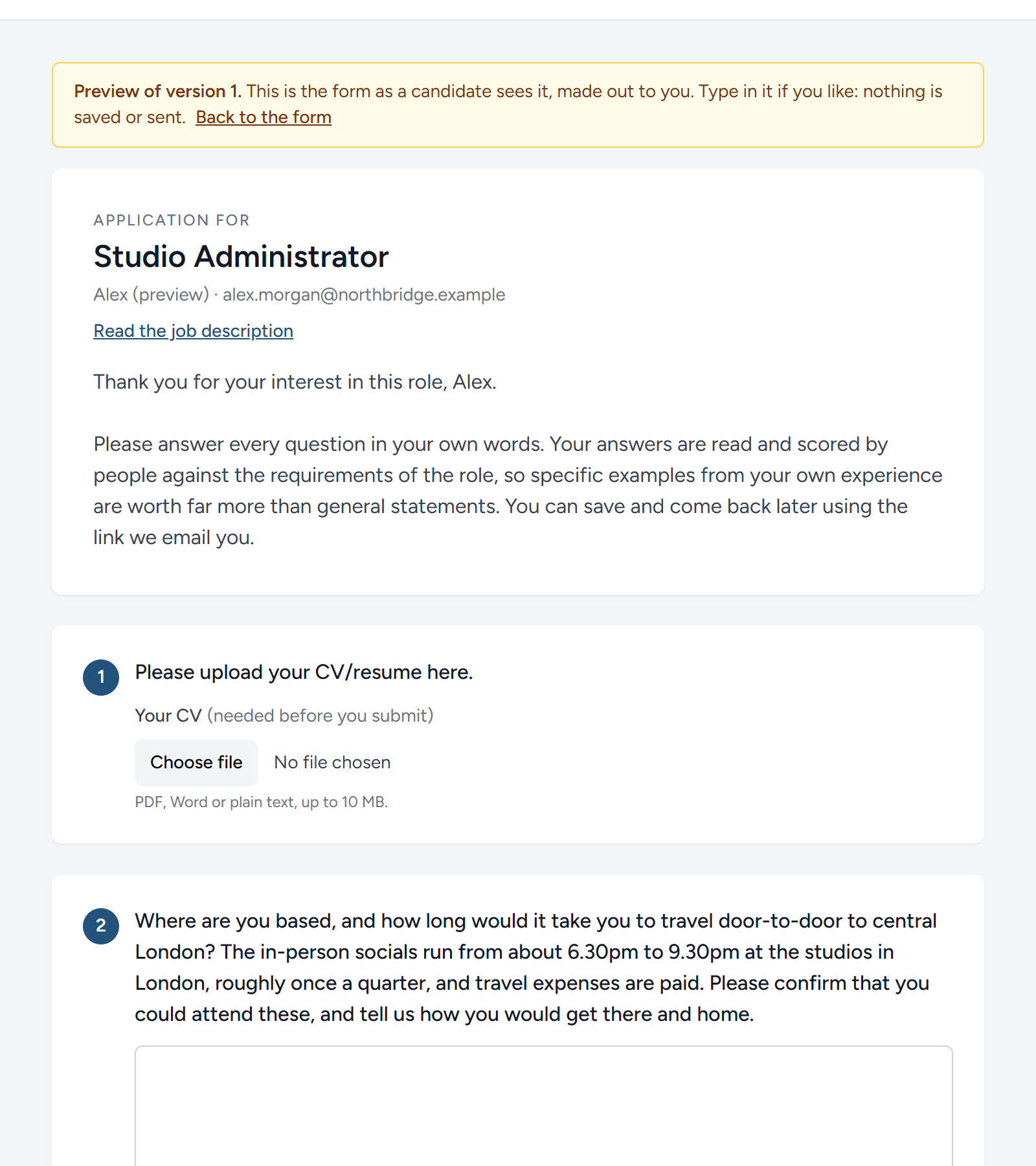
Type in it, choose a file, try leaving something out. Nothing is saved and nothing is sent; the two buttons at the foot do not work in a preview. It is the quickest way to notice a question that reads badly, a missing file box, or an introduction that promises something the form does not do.
You can preview a live form in the same way.
Putting it live
When the draft reads well, click Publish version 1. You are asked to confirm, and then the form is live. It now has a link, shown at the top of its page and on the campaign page, where Copy link puts it on your clipboard. That link goes in your advertisement, wherever you place it.
The link never changes for that version of the form.
What publishing costs
If you set up your HiMatcher address yourself, on the website, each campaign is paid for once, the first time its form goes live: £249, or $299. Your first campaign is free. Above Publish, the page says which it will use: Your free campaign, one of the campaigns you have bought, or that there are none left, with Buy a campaign beside it. Until one is bought, the form stays a draft and nothing is lost.
Publishing a new version of the form, or opening a closed form again, costs nothing more. The campaign is paid for already.
Buy a campaign opens Campaigns, under Settings, where admins and hiring managers see how many campaigns are left, everything bought and used, and the two ways to buy: One campaign, or five for the price of four. Choose pounds or dollars, then Pay with Revolut. You pay on Revolut's own page, by card, Apple Pay, Google Pay or Revolut Pay, and come straight back. The campaigns are added as soon as Revolut confirms the payment, usually before you are back, and a receipt arrives by email. Your card details never reach HiMatcher. The payment is taken by FamoRenovo, and shows on your card statement under that name.
The free campaign belongs to a person and a company, not to an address. If you, or someone else at your company, set up another HiMatcher address and used a free campaign there, this one has none, and the page says so.
If HiMatcher set up your organisation for you, you pay as agreed with us, and the page says nothing about it.
Changing a live form
A live form can still be changed, and its page warns you of it. Rewording is safe: Each answer keeps the wording its candidate was given, and is read against it. Two changes are not: Altering a question's answer type, and making a question required. Either can stop someone who has already answered from submitting. Questions cannot be removed from a live form at all.
The first answers
The way we do it, the first ten or so answers are a trial. A good candidate often shows you something you had not thought to ask for, and the first answers also show where a question is unclear: Where several people leave out the same thing, the question did not ask for it plainly. So before you score the rest, read the first answers, and tighten what needs it.
On the form's page, The first answers says how many of the first ten are in. When the tenth arrives, Digital Nancy reads them, and for each question with a criterion behind it she proposes what to change.
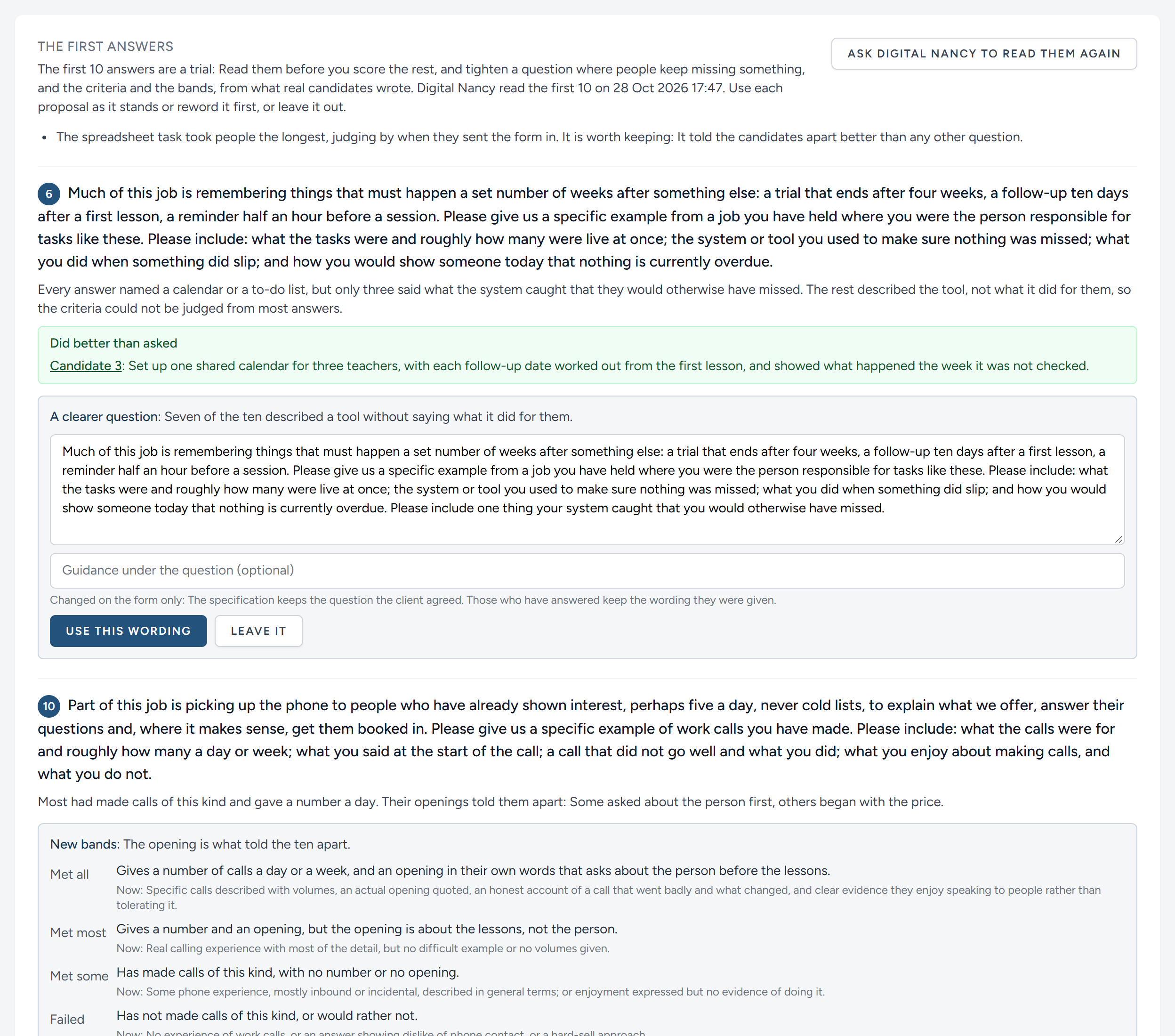
- What the answers show: What most people did, and where they fell short of the criteria.
- Did better than asked: The answers that showed something better than the question asked for, each by the candidate's number. Click the number to open their answer. The candidates are numbered for Digital Nancy, never named.
- A clearer question, where several people missed something the criteria need. Usually it adds a sentence, such as "Please include how many people it was for.", and leaves the question open enough for a good candidate to surprise you. It changes the form only: The specification keeps the question the client agreed.
- Tighter criteria, where the answers show the criteria do not tell people apart.
- Bands, written from the answers actually given. Where the bands are written already, she proposes new ones only where they do not separate the candidates.
Change the words of any proposal before you use it, then click Use this wording, Use these criteria or Use these bands, or Leave it to keep things as they are. Nothing changes until you do, and each proposal is decided once. Admins and hiring managers decide; everyone else on the campaign reads what was proposed and what was decided.
You need not wait for the tenth: From the third answer, Ask Digital Nancy to read them now. You can ask again later, once more have come in. She reads them unasked only as the tenth arrives, so a form that had many more answers before she read any is read only when you ask.
When a question is reworded, the people who have answered it keep the wording they were given. Their answer shows Answered when the question read beside it on the scoring pages, and Digital Nancy reads it against that wording when she proposes a band. When the criteria or the bands change, every answer already given a band against them is marked Score again. See Scoring again.
Advertising the job
The form's link is for people who already know about the job. For everybody else there is the advert: A public page that says what the job is, with a button into the form. It is the address to give a job board, to put on your own website, or to send in a message.
Admins and hiring managers set it up. On the campaign page, open the setup steps and click Set up the advert.
The briefing reminds you as well. Once the form is live, its last part, Advert, says what the advert still needs, and Check and publish the advert takes you to its page. The campaign page's line about the briefing says the same until the advert is published. Once it is, the part shows the advert's address, ready to copy.
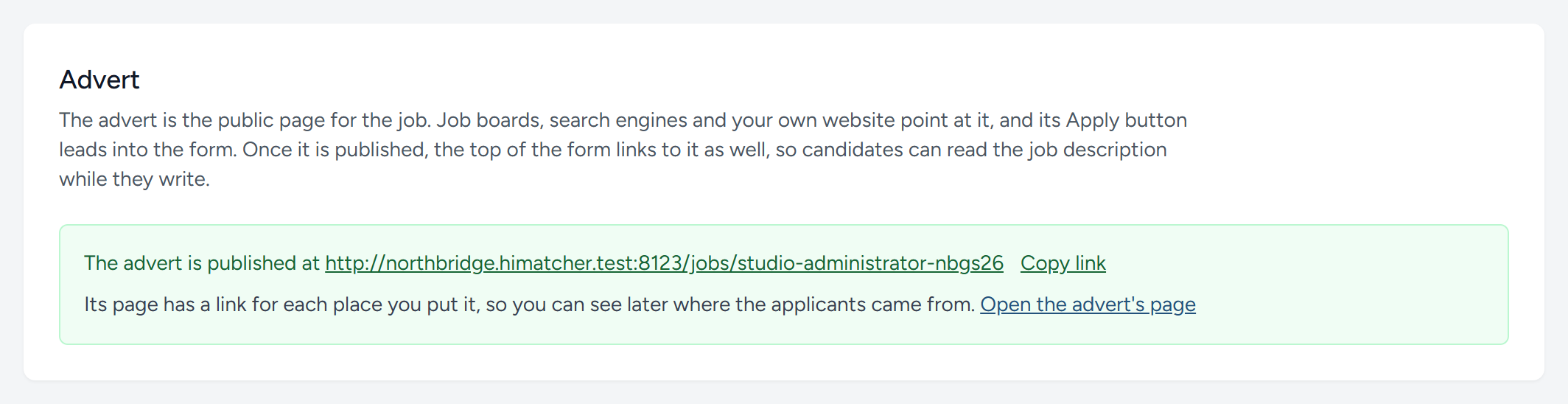
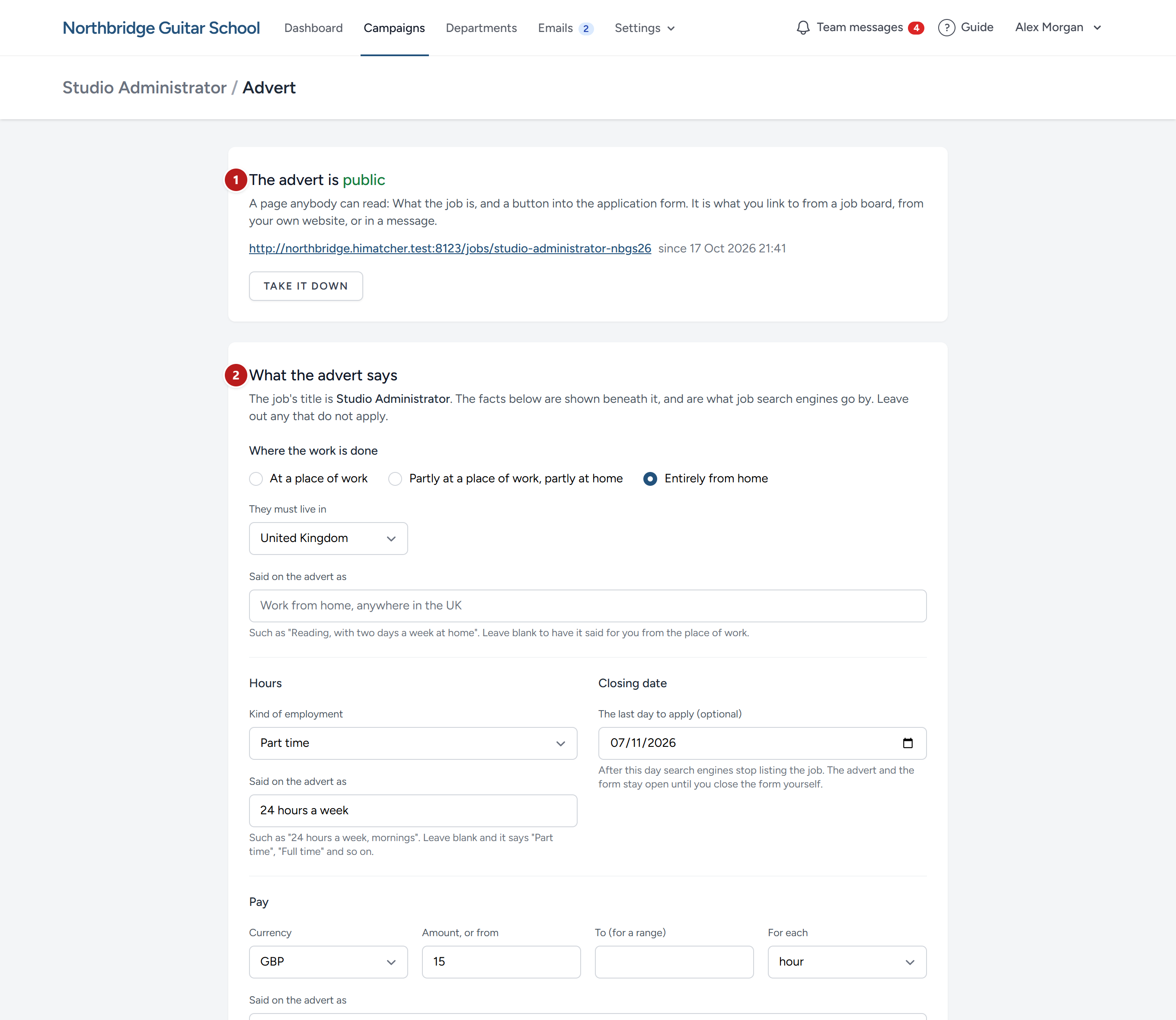
- Where it stands, with the advert's address once it is public, and the button that publishes it or takes it down.
- What the advert says.
What it says
The advert is headed with your organisation's name and the campaign's advertised title, and says who is hiring: Your organisation, or, if you recruit for clients, the client. Beneath them are up to four short facts: Location, Hours, Pay and Closing date. Fill in the ones that apply, and leave the rest.
A recruiter can keep the client's name back. Untick Name the client on the advert and the advert says you are recruiting for a client without saying which, search engines list your organisation as the hiring organisation, and emails to candidates say the job is at your organisation. Digital Nancy then writes the job description as "our client", so if it was drafted while the name was shown, draft it again or write different wording below. Your team still sees the name, and so does the client, on the candidates you suggest to them. See Your clients.
Each fact is asked for in a form that a job search engine can read, and is then put into words for you.
| Fact | What you give | How it reads, left to itself |
|---|---|---|
| Where the work is done | At a place of work, partly at home, or entirely from home. Then the town, the county and the country | "Reading, Berkshire, with part of the week at home" |
| Hours | The kind of employment: Full time, part time, a contract and so on | "Part time" |
| Pay | The currency, an amount or a range, and whether it is by the hour, the year and so on | "£28,000 to £32,000 a year" |
| Closing date | The last day to apply | "Friday 2 October 2026" |
If you would put it differently, type your own words in Said on the advert as, such as "24 hours a week, mornings". Your words are what people read. Keep them true to the figures, because the figures are what search engines are told.
Below the facts is the description. Unless you say otherwise, it is the approved job description, and it follows any change you make to that on the briefing. If you would rather the public read something else, click Write different wording for the public. The box starts with the job description in it, for you to cut down or rewrite. Go back to showing the job description undoes that.
A campaign with no approved job description, because its specification was imported, needs wording of its own before it can be published. So does one whose job description is still a draft.
Publishing it
Click Publish the advert. It needs something to say, and a live form for the button to lead to. The page tells you if either is missing.
It also refuses while the wording still holds a question for the hiring manager. Where Digital Nancy was not told a fact, she leaves a question in round brackets in its place, such as "(what is the pay?)", rather than guess. The page quotes any that remain. Settle them on the briefing, and the advert can go out.
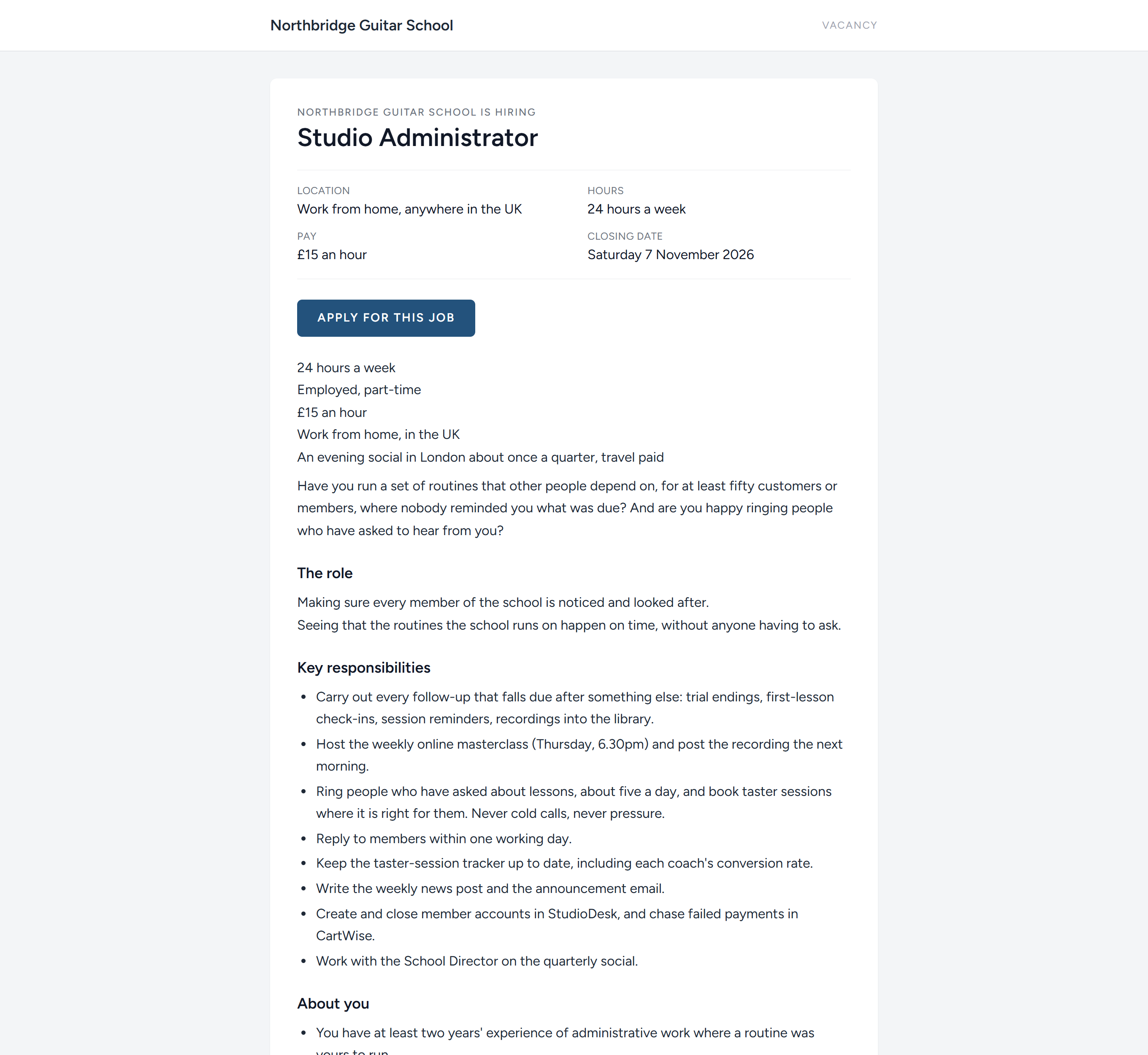
The advert's address belongs to the campaign, so it stays the same if you publish a new version of the form.
| If you | The advert |
|---|---|
| Close the form | Stays up, says that applications are closed, and has no button |
| Reopen the form | Gets its button back |
| Click Take it down | Cannot be found by anybody. The address is kept, and works again if you publish once more |
Job search engines
Google shows jobs in a panel of their own at the top of its results, free of charge. Job sites such as Adzuna, Jooble and Talent.com collect vacancies from employers' own pages. HiMatcher gives both what they need, made from the facts you have already filled in, so there is nothing to post and nothing to pay.
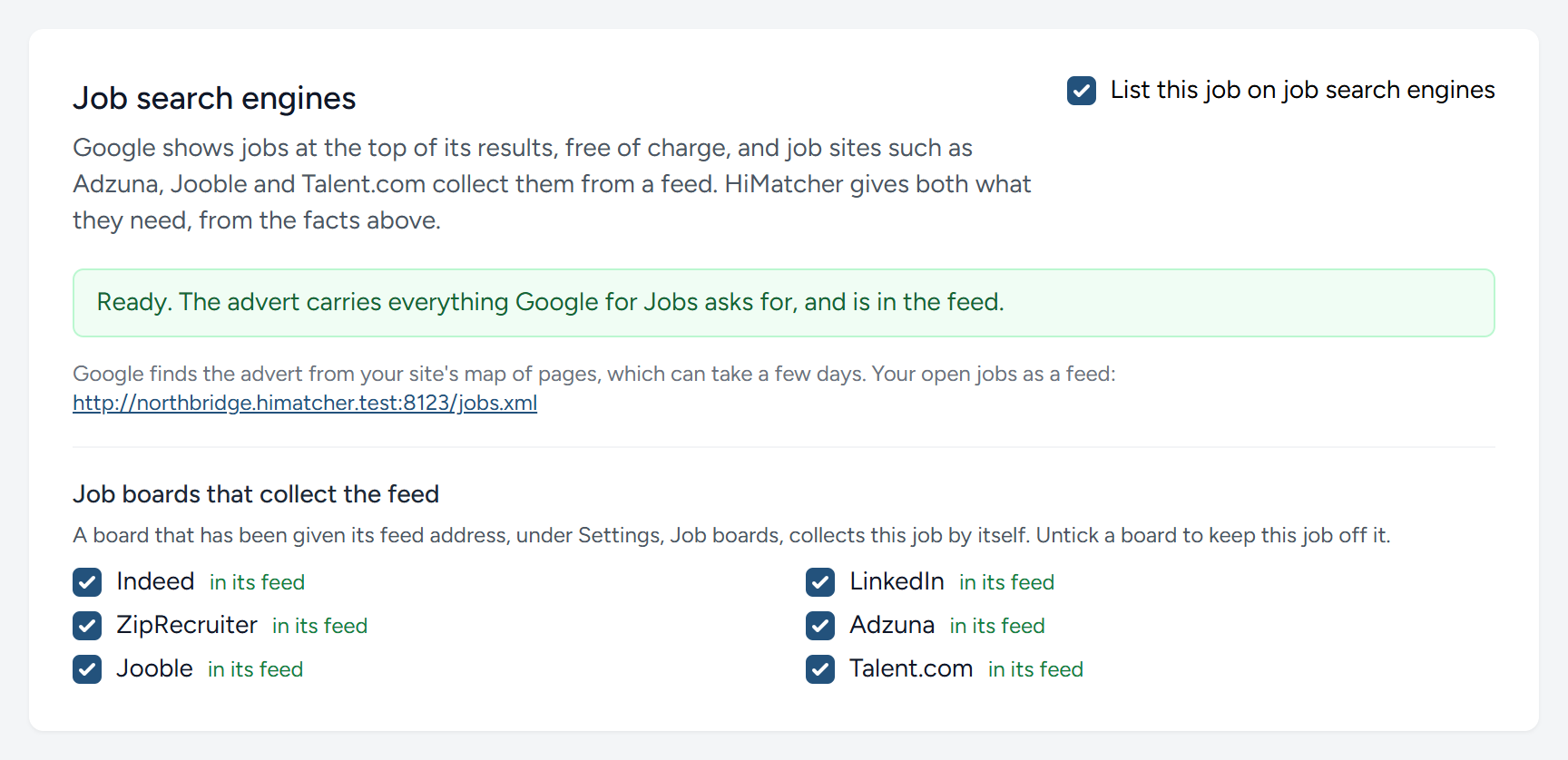
The panel says Ready when the advert has everything a search engine asks for. Until then it lists what is still needed: In practice, where the work is done, and a live form. Under Worth adding it names what is not compulsory but helps. Pay is the important one: Jobs that state it are shown to more people.
| When | Search engines |
|---|---|
| The advert is public and ready | Are given the job, marked up as Google asks |
| You change the facts or the wording | Are told to read it again |
| The closing date passes | Are told the job is no longer open. The advert and the form stay as they are until you close the form |
| You close the form, or take the advert down | Are told the job has gone |
It takes anything from a few hours to a few days for a new job to appear in Google, and Google decides for itself what it shows. HiMatcher makes the job eligible. It cannot promise a place.
To keep a job out of search engines, untick List this job on job search engines. The advert still works for anybody you give its address to, and search engines are asked to leave it out. That suits a vacancy you are filling quietly.
Job boards that collect the feed
The address under the panel is a feed: A list of your open jobs that a job board can collect by itself, in the layout the board reads. Each board has an address of its own on it, and an admin gives a board its address once, under Settings, Job boards (see Settings). From then on every public advert that is listed on search engines is on that board, unless you keep one off it here.
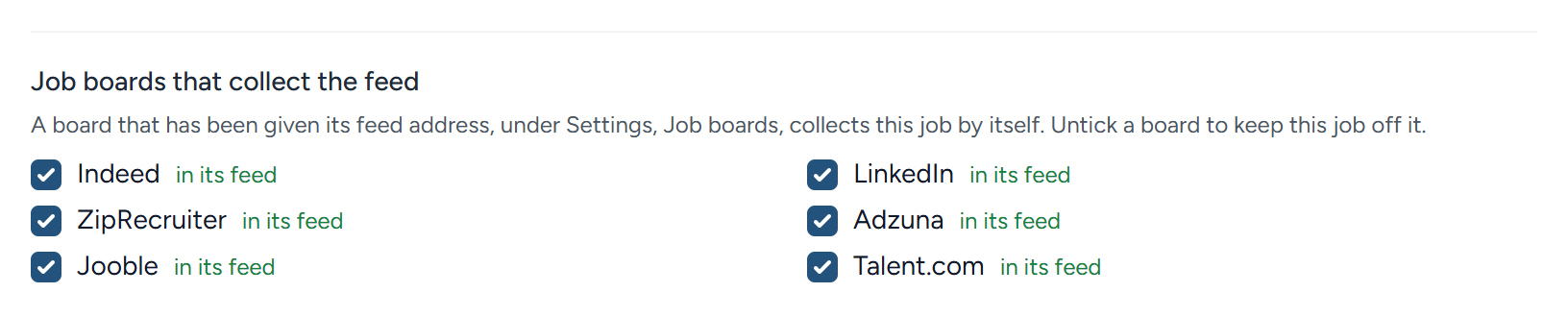
Beneath the panel is one line for each board: Indeed, LinkedIn, ZipRecruiter, Adzuna, Jooble and Talent.com. Ticked, the job is in that board's feed as soon as the advert is public and ready, and the line says so. Untick a board to keep this job off it: A job you would rather not have on LinkedIn, say, because the person who holds it does not know you are recruiting.
LinkedIn asks more than the others, and the line says what is missing when LinkedIn would refuse the job: Your organisation's company id and an email address under Settings, the employer named on the advert rather than "our client", and an organisation that has been on HiMatcher for thirty days. A confidential search is left out of its feed, because LinkedIn lists a job only under the employer's own name.
A link for each place you put it
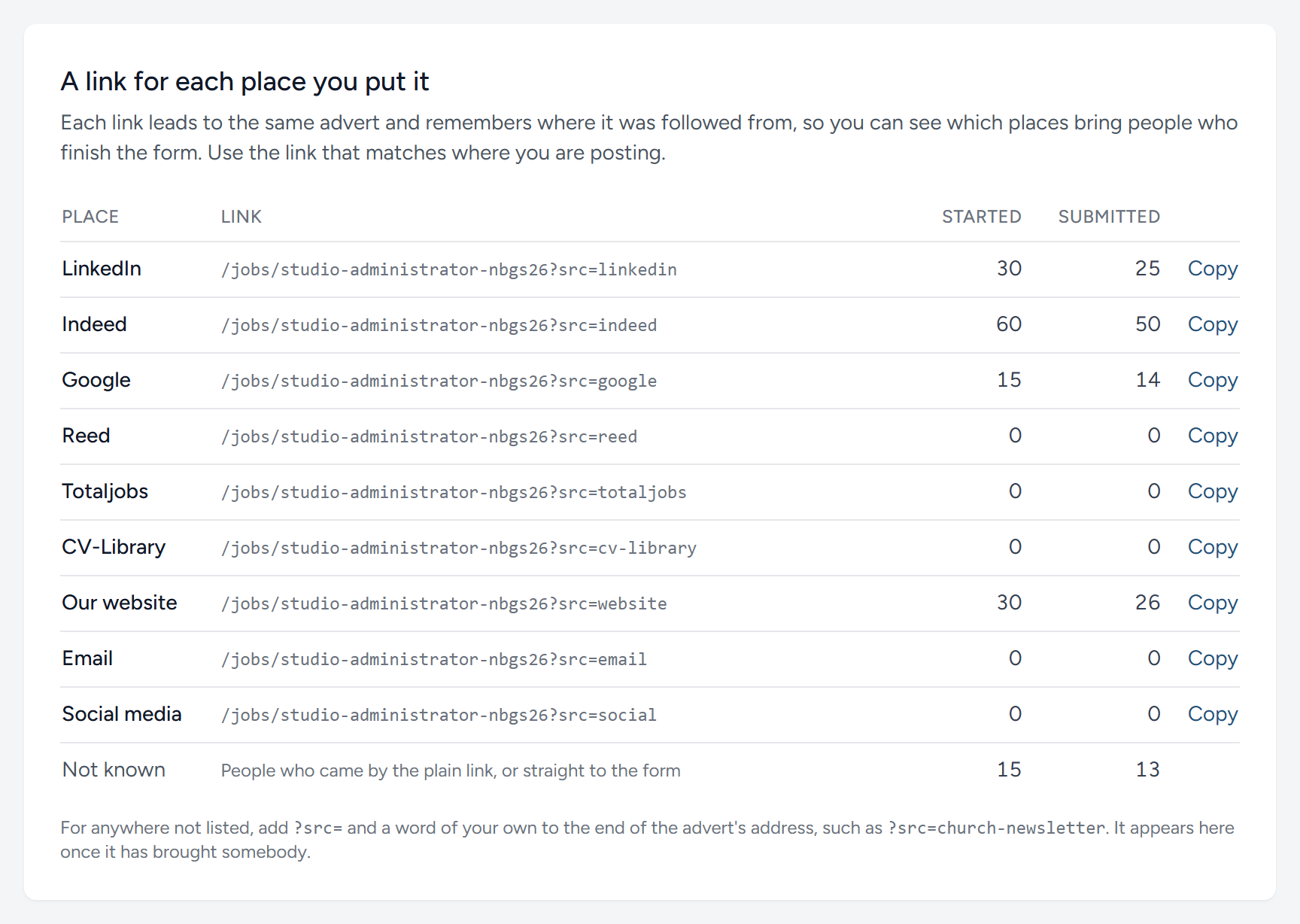
Every place you advertise has a link of its own. They all lead to the same advert, and each remembers where it was followed from. When a job board asks for the address applicants should go to, click Copy beside that board's name and paste it in.
The table then counts, for each place, how many people started the form and how many submitted it. A board that sends you a hundred people of whom five finish is worth less than one that sends twenty of whom fifteen do.
On the campaign page, a line such as via Indeed under the date a candidate applied says where that person came from. It records where they first came from, and coming back by another route later does not change it.
Closing the form to new applications
When you have enough applicants, open the form's page and click Close to new applications.
- Anyone who follows the link from then on is told, politely, that applications for the role have closed.
- Anyone who is part-way through keeps the personal link they were emailed, and can still finish and submit. The message after you close tells you how many such people there are.
- Nothing is deleted.
Open to applications again reverses it, on the same link as before.
What the candidate sees
It helps to know the candidate's side, because candidates will ask you about it.
Starting
The link opens a page with the title, your introduction, and the number of questions. Once the campaign's advertisement is published, a Read the job description link sits under the title, here and at the top of the form itself, and opens the advertisement in a new tab, so the candidate can read about the job again as they write. Until then there is no link. The candidate gives their name and email address, and optionally a phone number and where they live, then clicks Start my application.
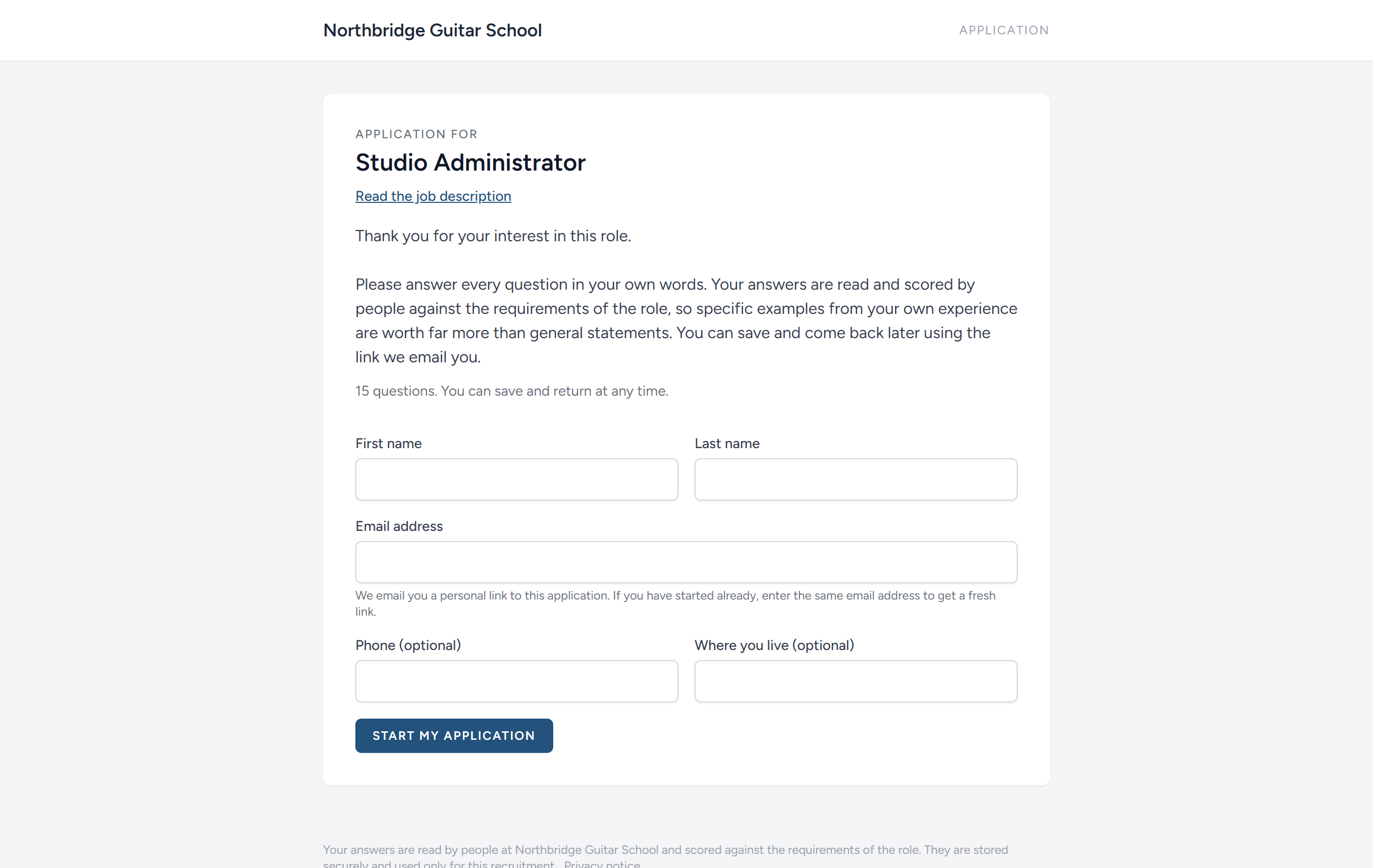
They are taken straight to the form, and at the same moment they are emailed a personal link back to it. That link is how they return: There is no password and no account. It stays valid for sixty days.
If someone enters an email address that has already started an application, they are taken back into the same application, with their answers as they left them, and sent a fresh link. Nobody can apply twice to the same form from the same address. Someone who has already submitted is simply thanked again.
Filling it in
A written answer has a box to type in. A question that asks for a file has a box for the file, and room for words beside it, because such questions usually ask for both.
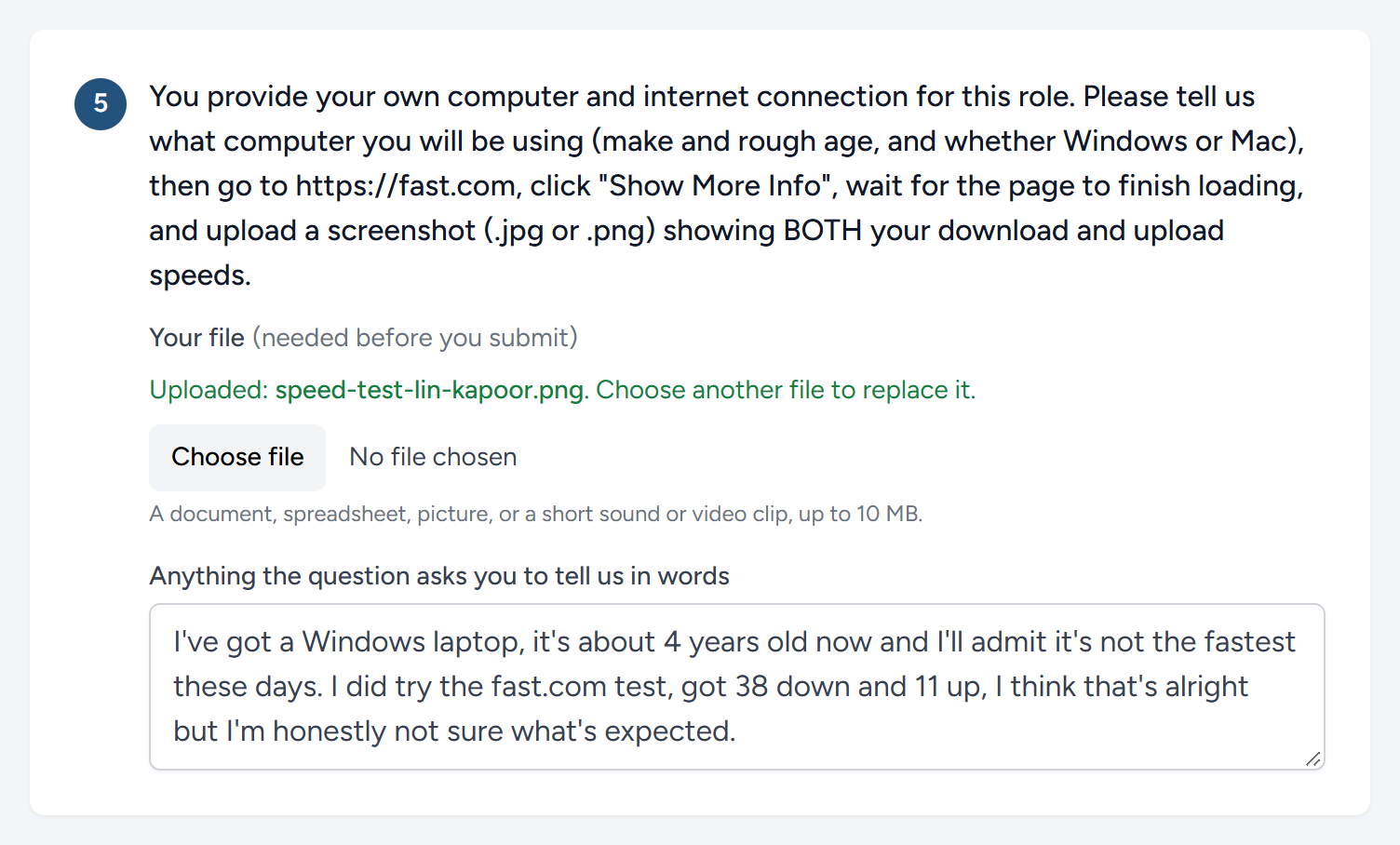
A file may be a document, a spreadsheet, a picture, or a short sound or video clip, up to 10 MB. A CV may be a PDF, a Word document or plain text. A file that has been attached is named on the page, and choosing another replaces it.
The form does not save by itself. Two buttons sit in a bar fixed to the foot of the screen, so they are always in reach however far down the form the candidate is. Beneath them, in small print, is the line saying who reads the answers and how they are kept, with a link to the privacy notice.

- Save and continue later keeps everything entered so far, files included. The line beside it says how many questions are answered and when the form was last saved.
- Submit application sends it in.
At the end of the form is a box the candidate may tick, asking whether you may keep their application on file and contact them about other roles you recruit for. It is unticked to begin with, and leaving it unticked makes no difference to their application. See Earlier candidates.
If the candidate clicks Submit application with a required answer or file missing, what they have entered is saved first, so nothing they attached is lost, and nothing is sent. The bar at the foot says the application has not been sent yet and lists what is missing, and the page brings the first of them into view, outlined in red with the reason beneath it. Each item in the list takes the candidate to its question.

When everything required is there, the application is submitted, they see a page that thanks them, and the application can no longer be changed.
What happens by itself
| When | What happens |
|---|---|
| A candidate starts | They are emailed their personal link. In the standard pipeline they enter App Form Started, and they appear on the campaign page under Still filling in the form. |
| A candidate submits | They are emailed an acknowledgement. They move to App Form Completed and appear under Candidates, ready to be scored. |
| A form is still unfinished after 48 hours | The candidate is sent one reminder. |
| It is still unfinished 5 days after the reminder | The application is archived, with no further email. |
| 30 days after that | An application that was never submitted is deleted, with any CV attached to it, as the privacy notice promises. |
The hours and days, and whether the acknowledgement and the reminder are sent at all, are yours to set: Under Emails, in Automatic emails and settings. The wording of each email can be changed there too. See Emails to candidates.
Someone whose application was archived as unfinished can still use their link while it lasts. If they then finish and submit, the application is taken out of the archive by itself and joins the Candidates, so a late but complete application is never overlooked. An application that you archived stays where you put it.
When the forms are in
As soon as the first application is submitted, the campaign page changes: The setup steps fold away and the candidates take the centre of the page. Reading and scoring their answers is the subject of Scoring the application forms.
This chapter was last revised on 30 October 2026.