Running a campaign · Chapter 14
Emails to candidates
Writing to one candidate or to many, reading what they write back, changing the wording of every email, and knowing which emails send themselves.
In this chapter you will
- find every email to and from a candidate in one place
- write to a candidate, from a blank page or from a template
- open the files a candidate sends back
- know which emails move a candidate along the pipeline
- read and answer replies, and know where to look for new ones
- send one email to many candidates at once
- change the wording of any email, for every campaign or for one
- set the emails that send themselves, and find out why an email did not arrive
How email works in HiMatcher
Every email HiMatcher sends is about one candidate's application to one campaign, and it is kept with that application. So is every reply. Nothing lives in anybody's own mailbox, and a colleague who picks the campaign up tomorrow can read all of it.
Candidates see an ordinary email. It comes from your organisation's name, at an address that belongs to the campaign, and it is signed by whoever sent it. When they click Reply in their own email program, the reply comes back into HiMatcher and is filed with their application. They never need to know HiMatcher is there.
The campaign's own address
Every campaign has an email address of its own, made from its title: administrator@northbridge.himatcher.com for Northbridge's Administrator campaign. It is shown on the campaign page. It is the sender of every email about that campaign, and it is where replies come back to. The address is fixed when the campaign is made, and renaming the campaign does not change it, so an address a candidate has already replied to keeps working.
Anyone can write to it, prompted or not. What arrives is filed by three rules, tried in turn.
- A reply to an email HiMatcher sent lands on that candidate's application, whatever address they replied from.
- An email from an address that belongs to a candidate of the campaign lands on their application.
- An email from someone new makes them a candidate. They appear on the pipeline board under Not yet in the pipeline, with the email on their Emails page and any document they attached kept as their CV. Nothing is sent to them. Choose the Invitation to application form template from their Emails page when you want them to apply.
So the address can go on an advertisement, on a website, or in a post: "Write to administrator@northbridge.himatcher.com". Whoever writes is in the campaign, ready for the form, with what they wrote in front of you.
A candidate's Emails page
Each candidate in a campaign has an Emails page. You can reach it from wherever you are working:
- On the campaign page, Emails under the candidate's name
- On the pipeline board, the envelope beside the candidate's name
- On the candidate's scoring page, and on an interview's page, the Emails link near the top
It works like a mail program. Every email is one line: A blue dot while it is unread, who it is from, the subject with the first words after it, a paperclip when files came with it, and the time (the time alone for today, the day for older ones). Newest first. Click a line to open it in place, and again to close it.
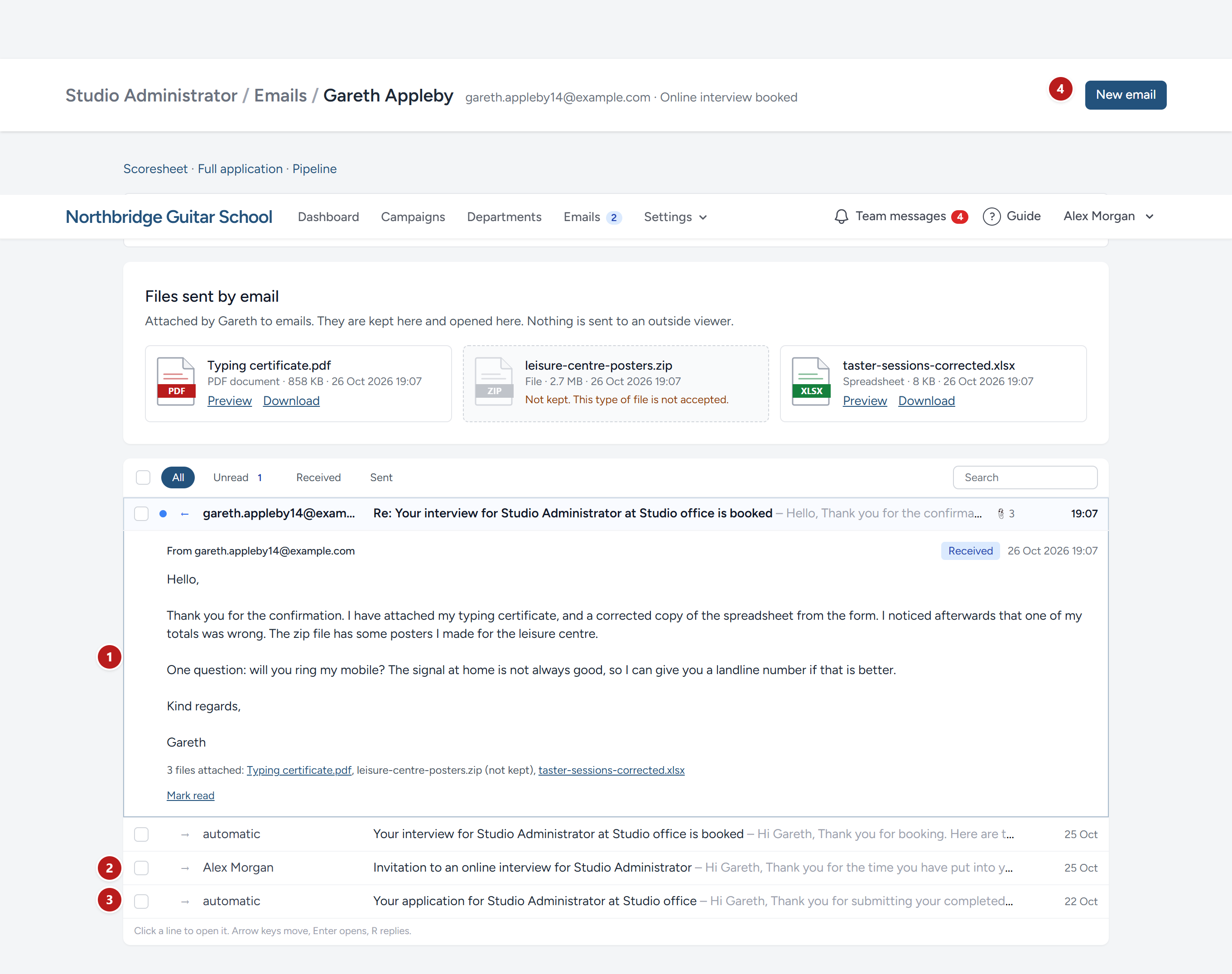
- A reply from the candidate, open. Its files are listed under the text, and Reply writes the answer right under it.
- An email a person sent, with their name. This one was the invitation to the online interview.
- An email that sent itself, marked automatic: Here, the acknowledgement of his application form.
- New email, which opens the box to write to the candidate, starting from a template if you like.
Opening an unread email marks it read, as a mail program does; Mark unread puts it back for a colleague. An email that carried a calendar file says so when open, and says whether the file added the interview to the candidate's calendar or took it out.
Each email carries a label:
| Label | What it means |
|---|---|
| Queued | It is waiting to go. This lasts a few seconds. |
| Sent | It has been handed to the mail service. |
| Failed | It did not go. The reason is printed in red under the subject. See When an email does not arrive. |
| Received | The candidate wrote it. |
Writing to a candidate
At the foot of the Emails page is New email.
- Under Start from a template, leave Blank message to write from nothing, or choose a template.
- If you chose a template, the subject and message are filled in for you, made out to this candidate: Their name, the campaign, your organisation, your own name as the signature.
- Change anything you like. What you see is what is sent.
- Click Send.
The email appears at the bottom of the page as Queued, and then Sent.
Some templates carry a personal link: To the application form, to follow-up questions, or to the page where an interview is booked. In the message these stay in their curly brackets, such as {{booking_link}}. Leave them exactly as they are. Each is turned into the candidate's own private link at the moment of sending.
When a template cannot be filled in
Sometimes HiMatcher cannot fill a field, because the thing it points to does not exist yet. The template Follow up questions needs a follow-up question to link to. An interview invitation needs an interview with free times.
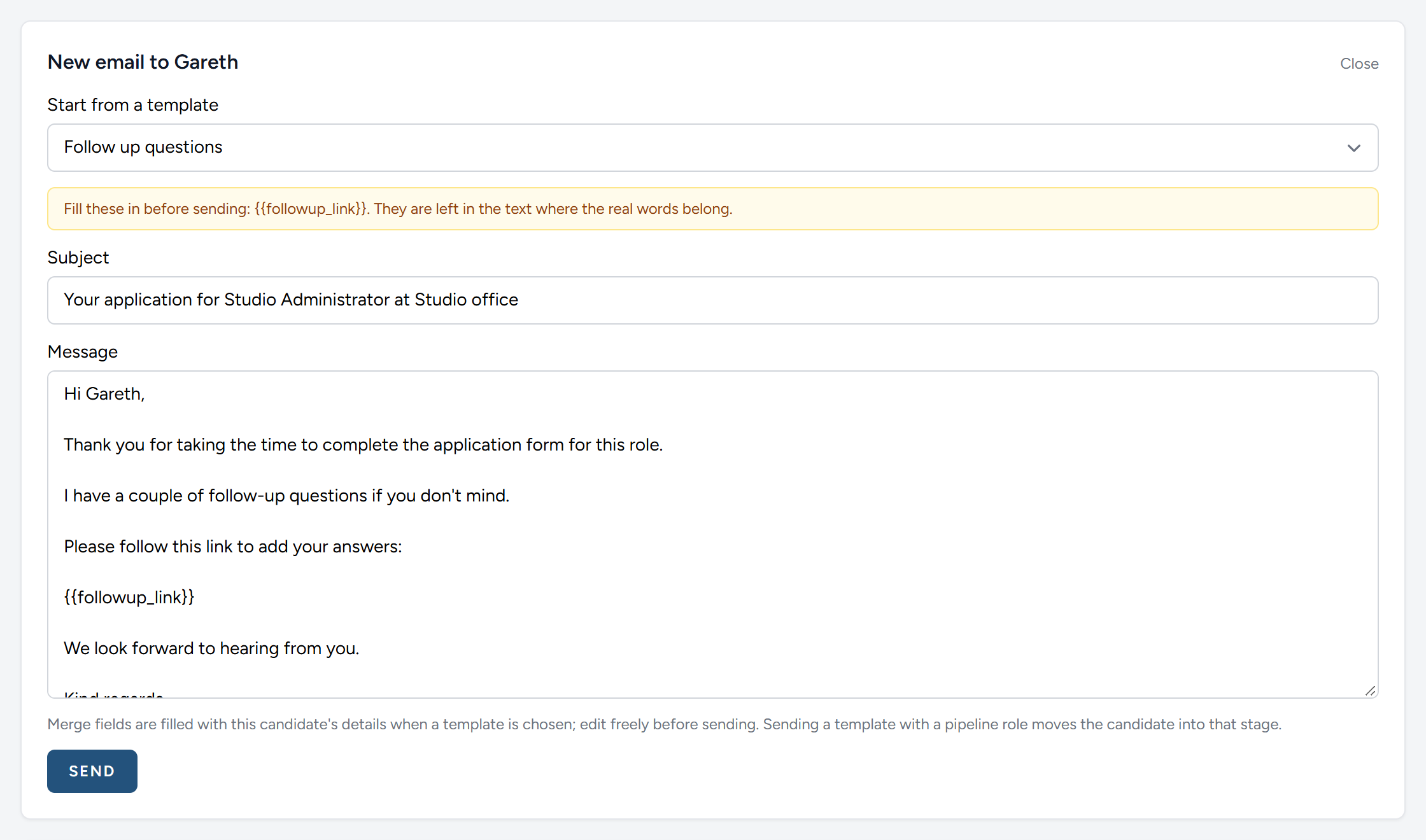
The amber line names the field. If you click Send regardless, the email is refused and nothing goes: A candidate never receives an email with a gap in it. Either put the missing thing in place first, or replace the field with your own words.
Notes in square brackets
One of the standard templates holds a note to whoever sends it, in square brackets: Job offer has a place for the terms and the start date, which only you can write. The others are ready to send as they are.
When you choose a template with a note, an amber line lists the notes that are still in the message. Replace each with the real words, brackets and all. While any note in square brackets remains, Send is refused, so a candidate never reads [Insert the terms, start date and next steps.].
Feedback for a candidate whose form fell short
A candidate who asks for feedback is best answered from the campaign's Feedback to send, where their letter is prepared for you, after the form or after an interview. See Turning candidates down, and feedback. This section is about the pieces it is made from, which you can also use in any email.
Every criterion on the person specification carries a feedback phrase, written for the candidate who scores low on it. The method's rule is that a candidate who asks is told, question by question, where their form fell short. HiMatcher gives you that in two forms.
The merge field {{feedback}} lists every answer scored Met some or lower: The question, what the candidate wrote, and the specification's feedback for that criterion. Where a criterion has no feedback phrase, the description of the band the answer was given stands in. The standard template called Feedback: Lack of detail carries the field, so choosing it for a scored candidate fills the feedback in, in question order, ready to read through. It also says how many applied, with {{applicants}}, so there is nothing for you to fill in. Until the form is scored, or if nothing fell short, the field is empty and the email is refused, so nobody is sent a list with nothing in it.
Draft feedback with Digital Nancy, beside the template list, writes the same material up as a short letter in your organisation's feedback style, the one set under House notes on the Rubric page. The button is there when the form has answers that fell short and Digital Nancy is on. The draft lands in the editor and nothing is sent: Read it, change what you like, and press Send as you would for any email. Digital Nancy is told the prescribed feedback for each answer and may not contradict it, and she never mentions bands or other candidates.
Emails that move a candidate along
A template can have a role in the pipeline. When an email made from that template has been sent, the candidate moves to the stage that belongs to the role. You do not move them yourself.
In the standard pipeline:
| Sending this | Moves the candidate to |
|---|---|
| Invitation to application form | App Form Invite |
| Reject after application form | App Form Fail |
| Follow up questions | Follow up questions sent |
| Short interview invite | Short interview invite |
| Online interview invitation with booking link | Online interview invite to candidate |
| Final interview invitation | Invited to final interview |
Your own pipeline may tie emails to different stages, or to none. The pipeline board tells you: A stage that is entered this way carries a line in red, such as Automatic: When "Final interview invitation" is sent.
Three things are worth knowing.
- The move happens when the email has been sent, not when you click the button. A failed email moves nobody.
- An email only ever moves a candidate forward. Sending an earlier email again, to someone who has gone past that stage, leaves them where they are.
- A template with no role, and a blank message, move nobody.
When a candidate replies
A reply arrives on the candidate's Emails page within a minute or so of being sent.
- Click the line to read it. Opening it marks it read, so your colleagues can see it has been seen.
- Click Reply. A box opens under the email with the subject filled in and the message started with the candidate's name.
- Write your answer and click Send.
- If it needs someone else's attention, Mark unread puts the blue dot back.
Files a candidate sends
A candidate can attach files to a reply: A certificate you asked for, a reference, a corrected copy of something from the form. Under the reply's subject, a line says how many files came with it. The files themselves are kept in one place, Files sent by email, near the top of the candidate's scoring page, of their full application and of their Emails page.
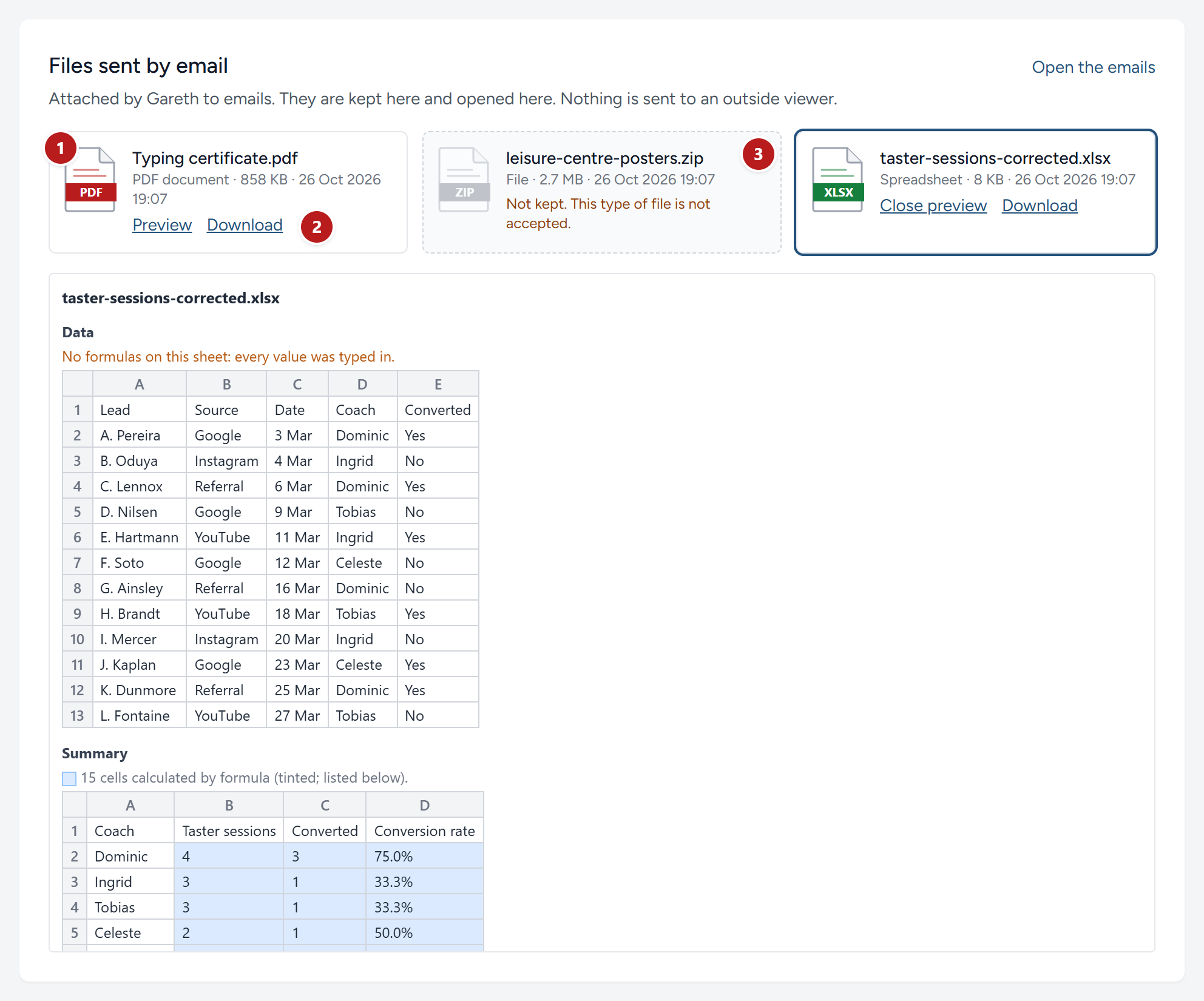
- A picture of the kind of file, with its name, what it is, its size and when it arrived. Click the picture to open the preview.
- Preview shows the file on the page, under the tiles. Download saves a copy. A file is previewed inside HiMatcher, in the same way as a file from the application form, and is never sent to an outside viewer.
- A file that was sent but not kept, with the reason. Write back and ask for it in another form.
The same files are accepted as on the application form: Documents, spreadsheets, presentations, pictures, and short sound or video clips, up to 10 MB each, and the first ten in any one email. The small pictures in an email signature are left out.
If an application is deleted, the files sent with its emails are deleted with it.
All the emails in a campaign
On the campaign page, click Emails in the row of links under the campaign's name.
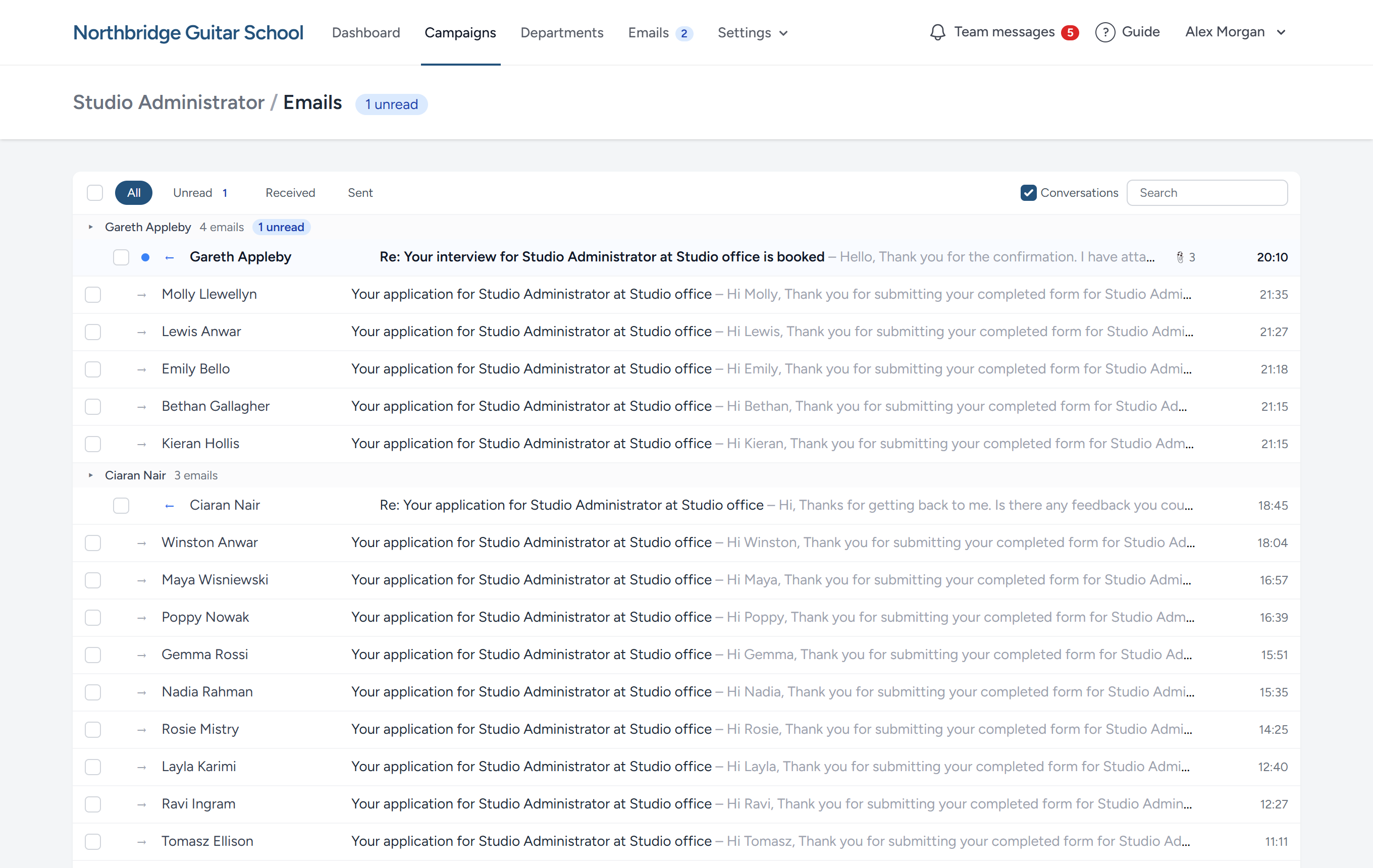
The page holds the campaign's most recent 300 emails, in both directions, and works exactly as a candidate's page does: One line each, opened in place, replied to where they are. Two things are added because there are many candidates.
- Conversations. With the box at the top right ticked, each candidate has one line, showing their newest email, with the number of emails and of unread ones beside their name. Click the grey line to open the whole conversation. Candidates with unread email float to the top. Untick the box to see every email on its own line.
- Search and filters. Unread, Received, Sent and All narrow the list, and the search box finds a candidate, a subject or a phrase as you type.
Tick the boxes on the left to mark several read or unread at once. An opened email offers Open the candidate's emails, which takes you to their own page.
Every email in your organisation
Emails in the bar at the top of every page opens the same inbox for the whole organisation: Every email to and from a candidate in every campaign, the most recent 500, newest first, with the campaign named on each line and a box to narrow the list to one campaign. Anything you can do on a campaign's page you can do here, so a morning's replies across five campaigns are cleared from one screen.
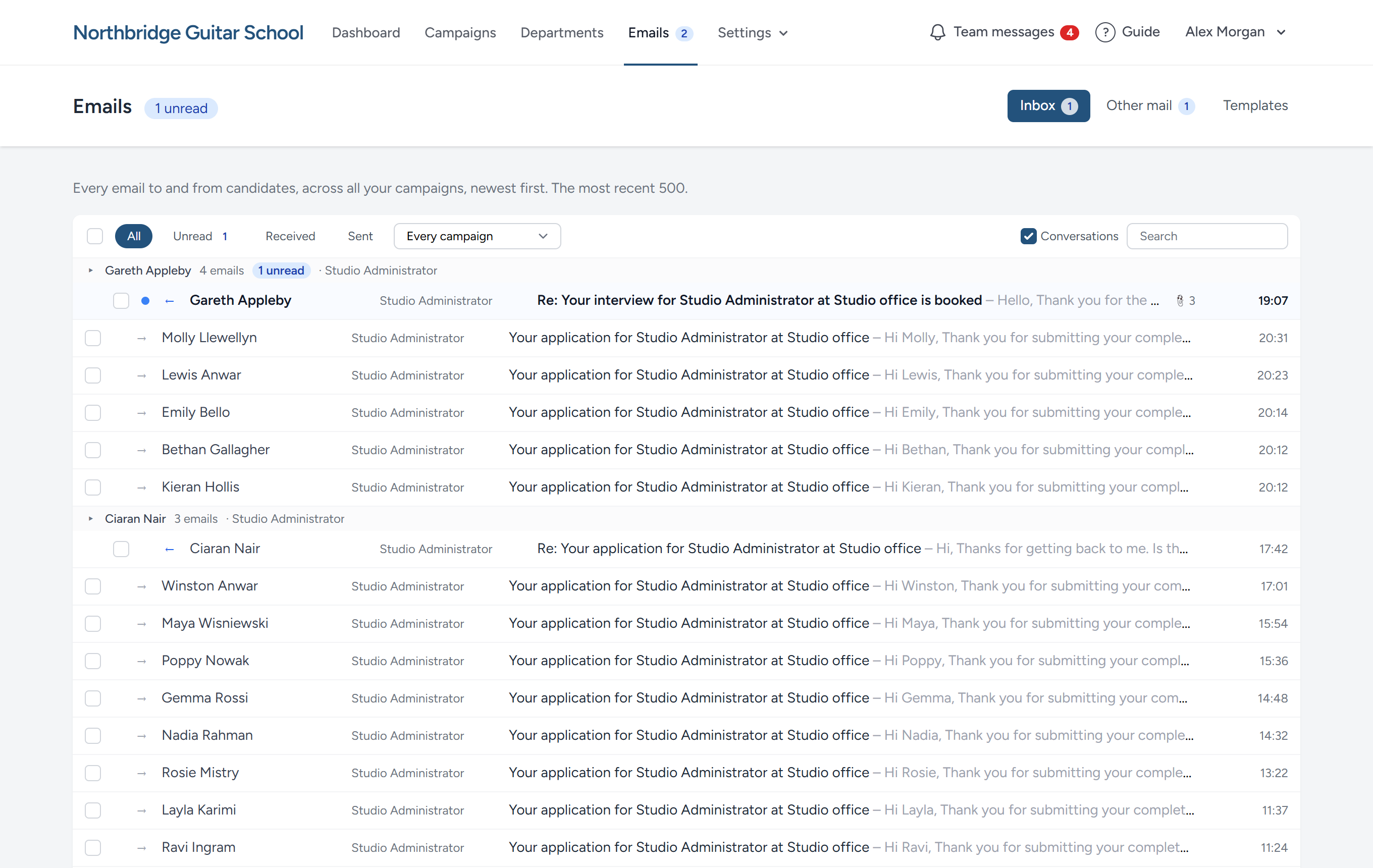
The Templates tab beside it holds the wording the emails are written from, described under Changing the wording. The Other mail tab, for admins and hiring managers, is the organisation's own post, described next.
Other mail
Not everything that arrives is from a candidate. A supplier writes to your organisation's address with an invoice, a client asks a question, somebody who saw an advert asks where to apply. None of it belongs to a campaign, and none of it is thrown away.
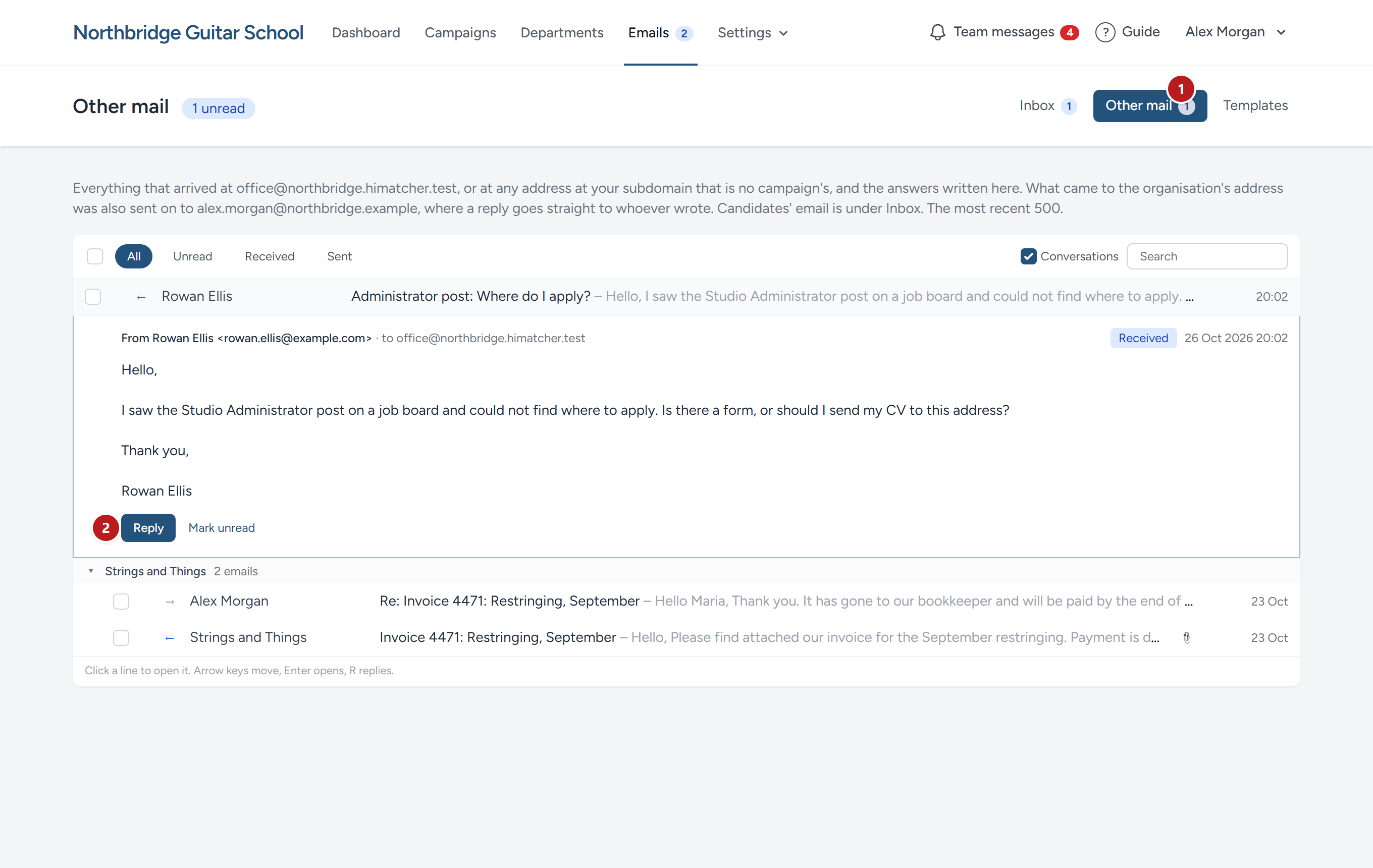
Other mail (1) holds every email that came to your organisation's own address (office@yourorganisation.himatcher.com, or the word you chose for it under Settings, Email options), or to any address at your subdomain that is no campaign's, newest first, and the answers written here. It works as the inbox does: One line per email, opened in place, Conversations grouping what one person wrote, Reply under an email (2). A reply goes from your organisation's address, under its name, and what they write back lands here again.
What came to your organisation's address is also sent on to the inbox you named under Replies and questions go to, when that inbox is outside HiMatcher, with the sender as the one a reply goes to: Answer it from your own mail program and the answer reaches them, and the email itself is still here, with a button in the forwarded copy that opens it. Files that came with it are attached to the forwarded copy, up to 10 MB together; larger ones are named, and kept here. If that inbox is an address at your HiMatcher subdomain, nothing is sent on, because it is already here: Replies to what HiMatcher sends for you land on this page, and the counts tell you. Mail to an address at your subdomain that nobody has (a slip in an address, say) is kept here but not sent on, since most of what reaches such an address is noise.
Emails in the bar carries a count of what is waiting, candidates' unread email and other mail together, and the Inbox and Other mail tabs each carry their own.
Admins and hiring managers read other mail; it is the organisation's post, not a campaign's, so a scorer sees the inbox and not this. Mail to a campaign's own address is never here: It is filed with the candidate, or makes one (see The campaign's own address).
You do not have to go looking. The Dashboard opens with Emails awaiting a reply: Every unread email from a candidate, across all your campaigns, newest first, each opening in place to be read and answered there. The Campaigns list, and the campaigns table on the Dashboard, carry an Unread emails count for each campaign, and the count opens that campaign's emails with only the unread ones showing.
Sending one email to many candidates
This is done from the pipeline board, because the people you want to write to are usually the people at one stage.
- On the campaign page, click Pipeline board.
- Tick the candidates. The box beside a stage's name ticks everyone in it.
- In the bar at the top, choose a template.
- Click Send to selected, and confirm.

Each candidate receives their own copy, made out to them, with their own private links. If the template has a role, each of them moves to its stage.
You cannot change the wording on the way through, so what is sent is the template exactly as it stands. If it could not be made out to somebody, the message at the top of the board afterwards names them and gives the reason. Everyone else's has gone.
For interview invitations, use Invite to interview instead. It checks that there are times to book and shows you the email before anything goes. See Interviews.
Changing the wording: Templates
Templates belong to your organisation, and are its voice to candidates. Admins and hiring managers can change them. Anyone who can score can send them.
Click Emails in the bar at the top of any page.
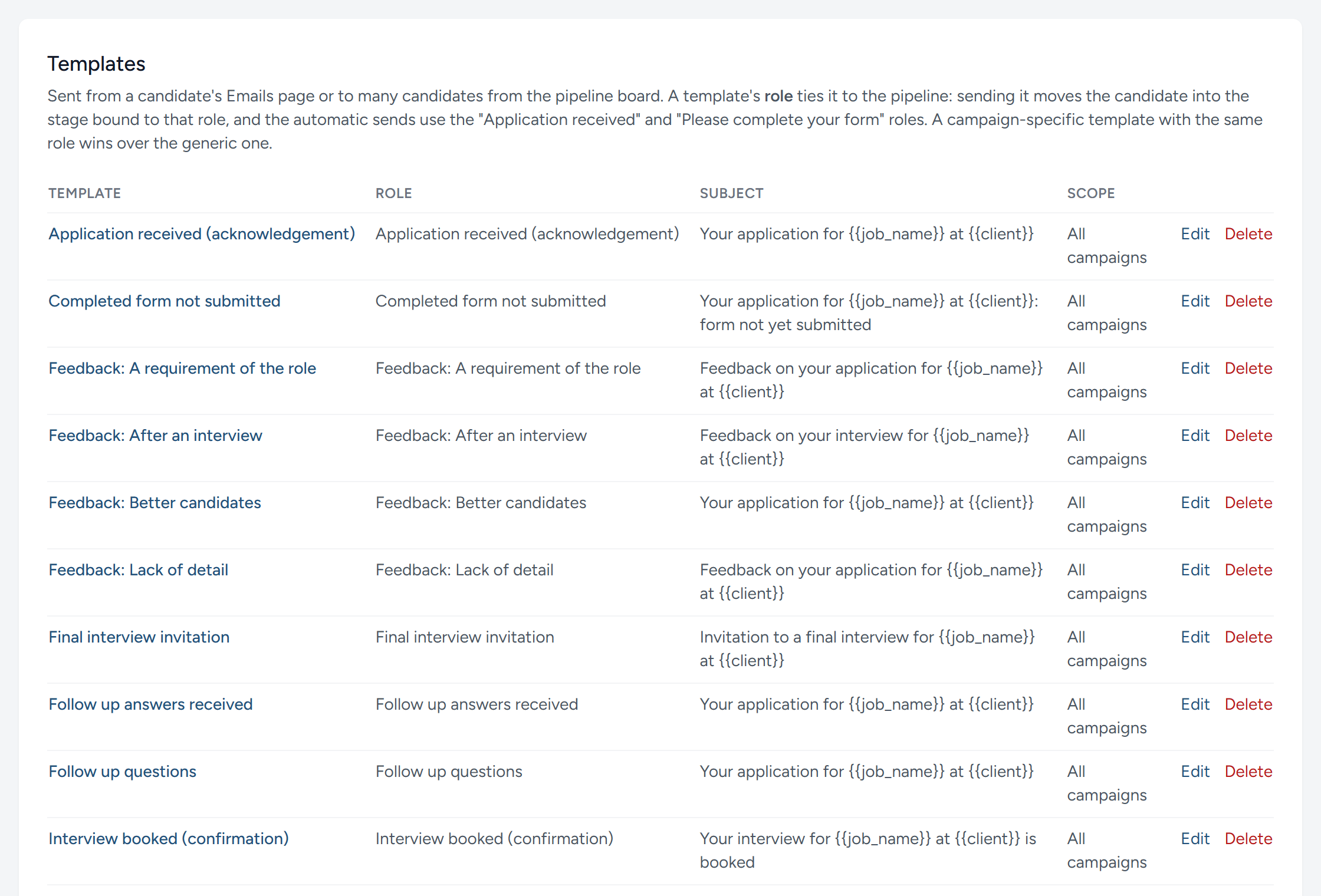
HiMatcher gives every organisation a standard set, covering each step from the acknowledgement of a form to a job offer. They are yours from then on. Change them as much as you like.
Editing a template
Click a template's name.
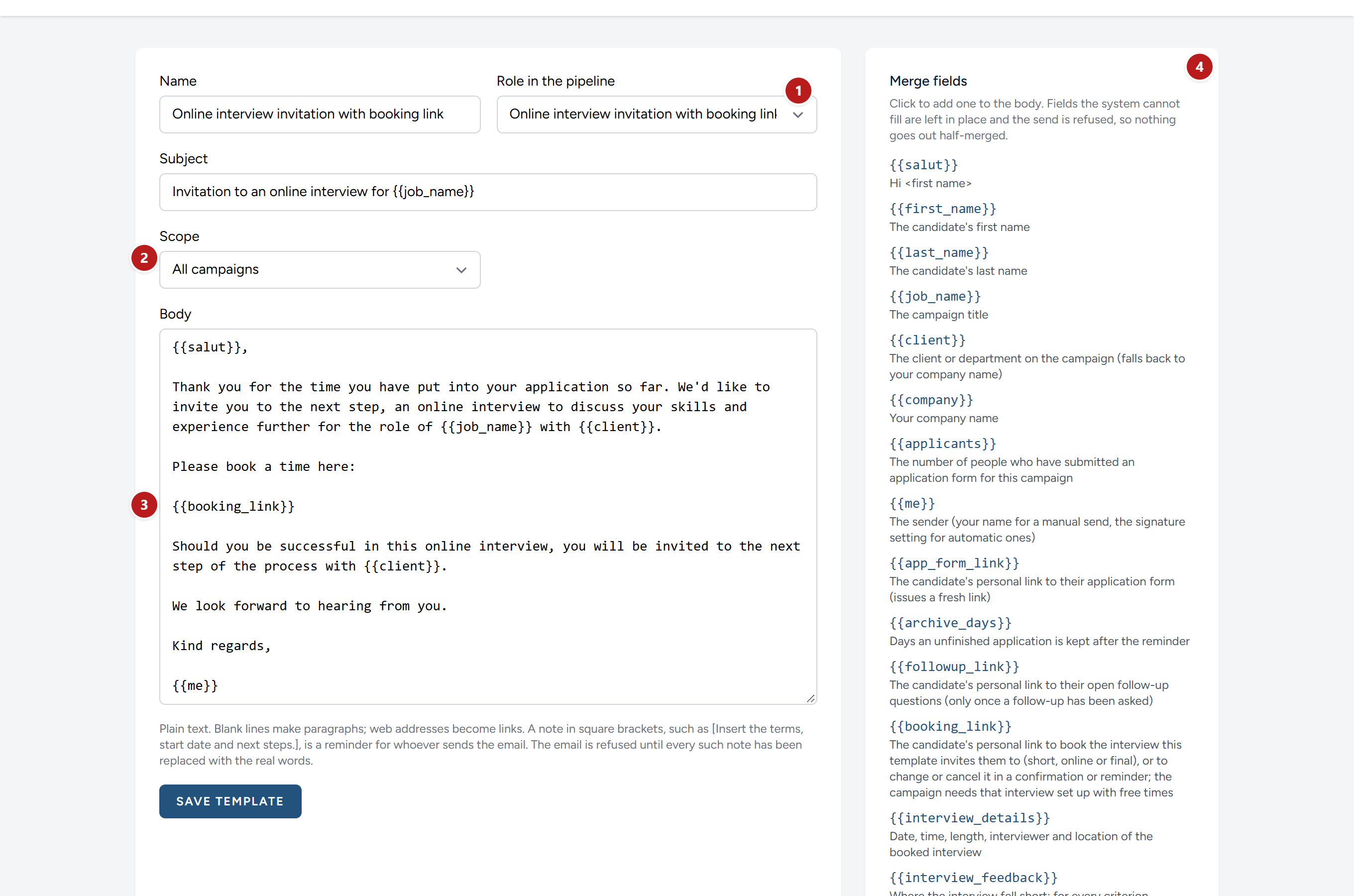
- Role in the pipeline. What this email is for. The role is how HiMatcher finds the right email to send by itself, and how it knows which stage a candidate moves to. None: A free message is for a template that is only a saving of typing.
- Scope. All campaigns, or one campaign only. See below.
- The body. It is plain text. A blank line starts a new paragraph, and a web address becomes a link the candidate can click. There is no bold, no pictures and no attachments.
- The merge fields. Click one to add it to the body.
The name is what your colleagues see when they choose a template. Candidates never see it. They see the subject, which can hold merge fields too.
Click Save template. The new wording is used from the next email on. Emails already sent are not changed.
Merge fields
A merge field is a word in double curly brackets that is replaced, for each candidate, as the email is made.
| Field | Becomes |
|---|---|
{{salut}} |
"Hi" and the candidate's first name |
{{first_name}}, {{last_name}} |
The candidate's name |
{{job_name}} |
The title the job is advertised under. Never the working title your team uses |
{{client}} |
The client or department named on the campaign. If there is none, your organisation's name |
{{company}} |
Your organisation's name |
{{interview_feedback}} |
Where the interview fell short: For every criterion kept for the interview and scored Met some or lower, the question it was asked through and the specification's feedback for it. The interviewer's notes are never included. Empty until the interview is scored, and when nothing fell short |
{{applicants}} |
How many people have submitted the application form for this campaign, so a letter can say "We had 126 applications" without you looking it up |
{{me}} |
The name of whoever sends it. In an automatic email, your organisation's signature |
{{app_form_link}} |
The candidate's private link back to their application form |
{{archive_days}} |
The number of days an unfinished application is kept after the reminder |
{{followup_link}} |
The candidate's private link to their follow-up questions |
{{booking_link}} |
The candidate's private link for booking the interview this email invites them to. In a confirmation or a reminder, their link for changing or cancelling it |
{{interview_details}} |
The date, time, length, interviewer and place of the interview they have booked |
{{feedback}} |
Where the application form fell short: For every answer scored Met some or lower, the question, what the candidate wrote, and the specification's feedback for it. Empty until the form is scored, and empty when nothing fell short, so an email holding it is refused until there is feedback to give |
One campaign's own wording
Sometimes one campaign needs different words: A client who wants a warmer rejection, or an invitation that mentions a test.
- Under New template, give it a name, and choose the same role as the template it replaces.
- Under Scope, choose the campaign.
- Write the subject and body, and click Create template.
In that campaign, the campaign's own template is now the one used for that role, by people and by HiMatcher alike. Every other campaign carries on with the general one. When you write to a candidate, the campaign's own templates are listed first, marked (this campaign).
Deleting a template
Delete removes a template for good, and HiMatcher does not put it back. If the template had a role that an automatic email depends on, that email is simply no longer sent. If it was an interview's invitation, the Interviews page marks the interview No invitation email. To put things right, make a new template and give it the same role.
Emails that send themselves
| When | What is sent | Template role |
|---|---|---|
| A candidate starts the form | Their personal link back to it | None. This one email has fixed wording, and is not listed on the Emails page |
| A candidate submits the form | An acknowledgement | Application received |
| A form is still unfinished after 48 hours | One reminder, with their link | Please complete your form |
| A candidate sends their follow-up answers | A thank-you | Follow up answers received |
| A candidate books an interview | A confirmation, with a calendar file | Interview booked |
| The day before an interview | A reminder, with the calendar file | Interview reminder |
| An interview booking is cancelled | A cancellation, with a link to choose again | Interview cancelled |
Each is sent once for each application or booking, never twice. Each is made from the template with that role, so its wording is yours to change, and a campaign can have its own.
The first two lines of that table are set at the foot of the Emails page, under Automatic emails and settings.
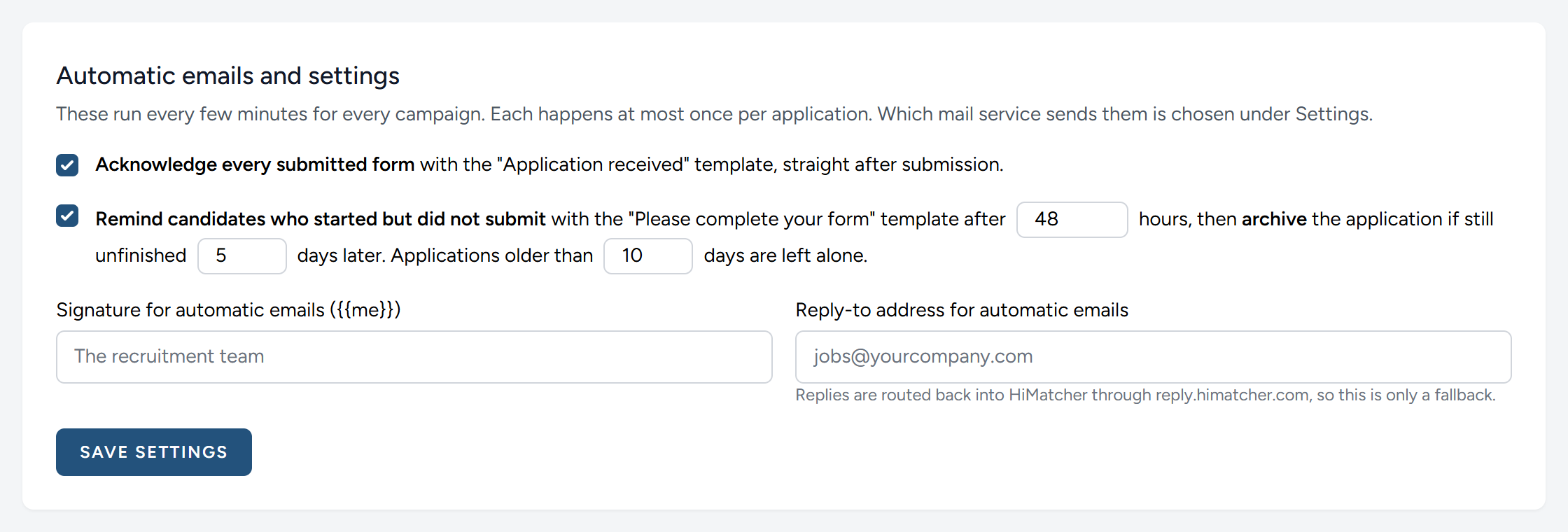
- Acknowledge every submitted form. Untick it and no acknowledgement is sent.
- Remind candidates who started but did not submit. You set the number of hours before the reminder, and the number of days after it before an unfinished application is archived. An application that is already older than the last number, 10 days to begin with, is left alone: Nobody is reminded about a form they abandoned a month ago.
- Signature for automatic emails. What
{{me}}becomes when nobody in particular is sending. If you leave it empty, it is "The", your organisation's name, and "recruitment team". - Reply-to address. Replies normally come back into HiMatcher, and this address is used only if they cannot.
Click Save settings.
The reminder before an interview is switched on and off elsewhere: Under Settings, Config, Interviews. The confirmation and the cancellation are always sent, because a candidate who has booked must be told.
When an email does not arrive
It says Failed. The reason is under the subject, on the candidate's Emails page. Most often the mail service refused it, and sending it again a little later works: Choose the same template and click Send.
It says the address bounced. If an email to an address has once come back as undeliverable, HiMatcher stops sending to that address, to protect the standing of everyone's email. The reason reads "this address bounced permanently", with the date. The candidate mistyped their address, or has closed the account. Reach them another way and ask for an address that works.
It says the email was reported as unwanted. The owner of the address marked an earlier email as spam. HiMatcher will not write to that address again.
It says Sent, but the candidate has not seen it. It has almost certainly been filed as spam or promotions. Ask them to look there. The standard acknowledgement already asks candidates to keep an eye on their spam folder, and it is worth leaving that sentence in.
A moved stage, but no email. Somebody moved the candidate by hand. Moving sends nothing.
This chapter was last revised on 30 October 2026.