Running a campaign · Chapter 10
Managing candidates and the pipeline
Finding anybody in a campaign, putting the list in the order that helps, moving people on, keeping notes for your colleagues, setting people aside and bringing them back, and shaping the pipeline itself.
In this chapter you will
- see what your dashboard shows, and what it asks of you today
- read the campaign page, and find any candidate on it
- put the list in the order that suits what you are doing
- move one candidate or many to another stage, and know which moves happen by themselves
- keep notes that your whole team can read
- archive a candidate with a reason, and bring them back
- use the pipeline board to see the whole campaign at once
- find people who applied for your other roles and did well, and invite them to apply
- change a campaign's stages, and the stages new campaigns start with
Your dashboard
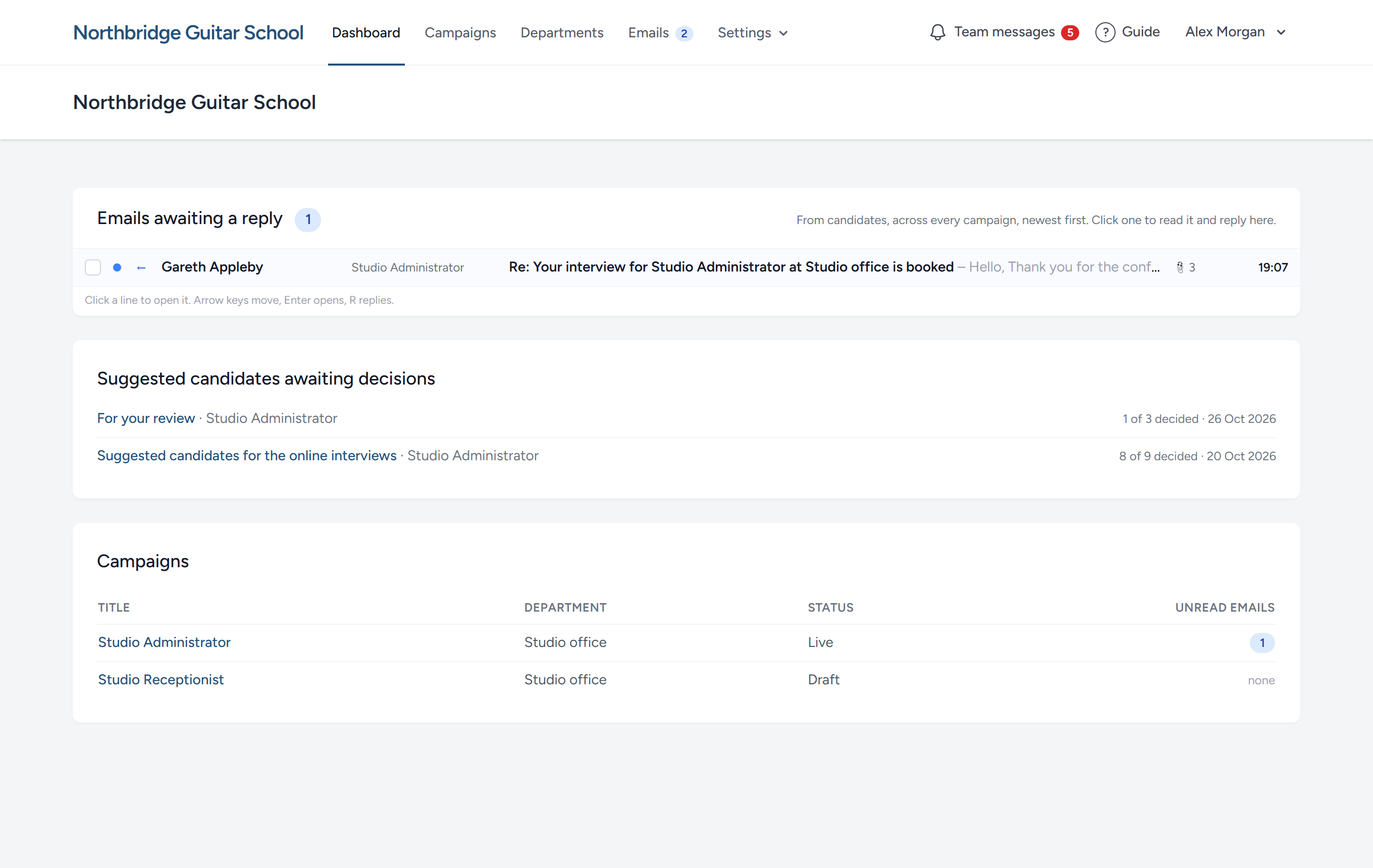
Sign in and you arrive on your dashboard. It is the one page that looks across every campaign, and it puts what needs doing today at the top.
- First steps, while your organisation has no campaign yet: Enrol two-factor authentication, add your logo and colours, invite your colleagues, and start your first campaign.
- Emails awaiting a reply: Every email from a candidate that nobody has read, across all your campaigns, newest first. Click one to read it and answer it there. See Emails to candidates.
- Suggested candidates awaiting decisions: Each list of candidates a client has not finished deciding on, with how many are decided so far.
- Campaigns: Every campaign, with its client or department, its status and how many of its emails are unread. Click the title to open the campaign page, below.
A client viewer who signs in sees a dashboard of their own: The campaigns being run for them and the candidates waiting for their decision. See Suggesting candidates to your client.
The campaign page
Once somebody has applied, the campaign page is given over to the candidates. The setup steps are still there, a click away: Campaign setup, at the top right of the candidates' panel, turns the panel over to the briefing, the specification, the form and the pipeline, and the same tab, now reading Candidates, turns it back. The page remembers which you chose if you reload it.
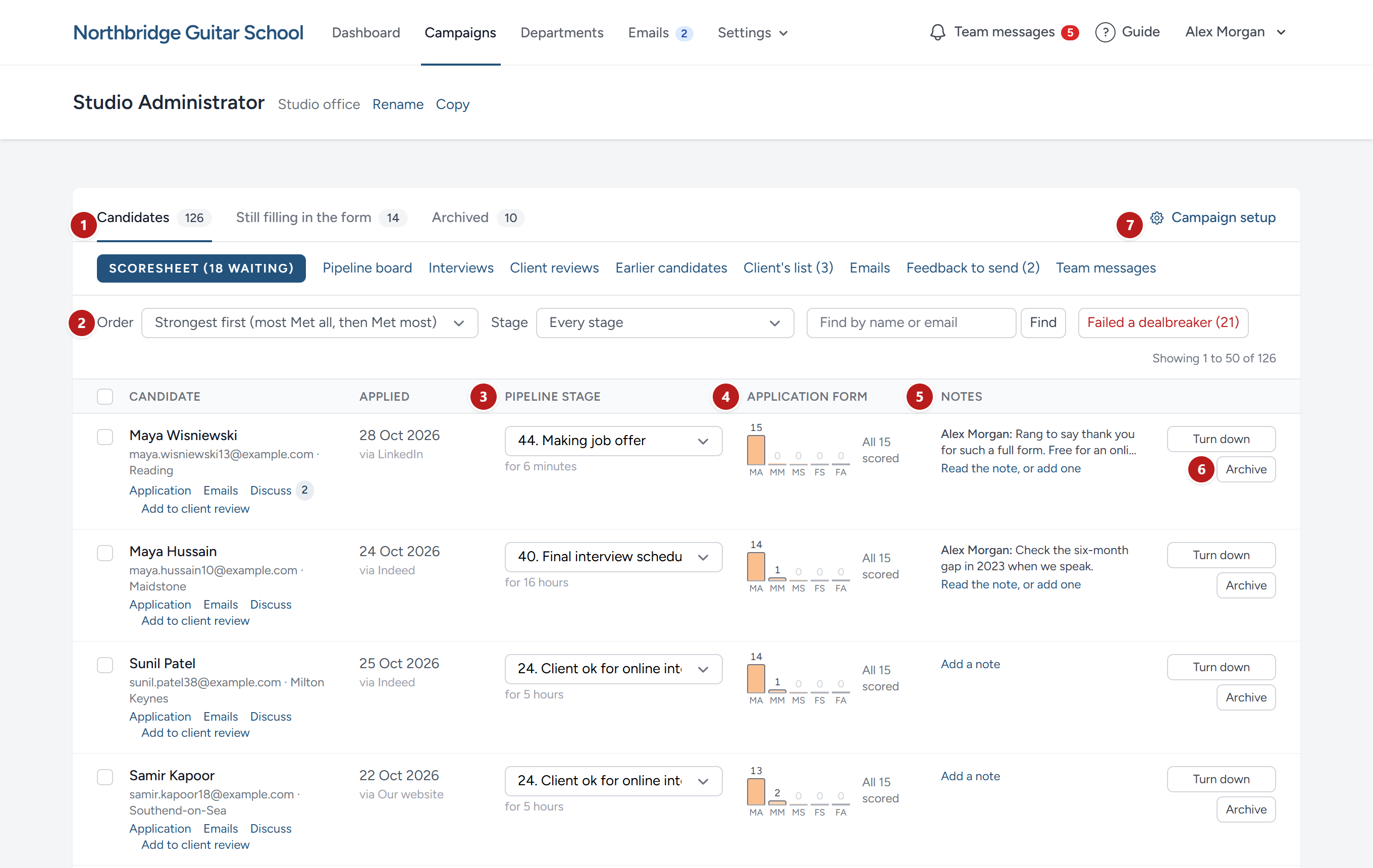
- Three lists. Everybody in the campaign is in exactly one of them.
- Order, Stage and Find, which decide who is shown and in what order. The order you choose is remembered for this campaign on the browser you chose it on, and is back when you return.
- The candidate's pipeline stage, with how long they have been there. Choose another stage here to move them.
- Their application form at a glance: One bar for each band. See Scoring the application forms.
- The latest note your team has written about them.
- Archive, to set them aside.
- Campaign setup, which turns this panel over to the briefing, the specification, the form and the pipeline. It reads Candidates while the setup is showing, to bring the list back.
| List | Who is in it |
|---|---|
| Candidates | Everyone who has submitted the form and has not been archived. This is where the work is |
| Still filling in the form | People who have started and not yet submitted. You can read what they have answered so far, and nothing else: They cannot be moved or archived by hand |
| Archived | Everyone set aside, by your team or because they abandoned the form. Nothing is deleted by archiving |
Click a candidate's name to open their scoring page. Under it, Application opens the form exactly as they sent it, Emails opens everything you and they have written, and, once they have been interviewed, Interview opens their latest interview: The recording, the transcript, Digital Nancy's notes and the bands. See Emails to candidates and Interviews.
Discuss, beside them, opens your team's conversations about the candidate as a whole in a panel over the list, so you can read and write without leaving it. A number beside it says how many comments there are about them, and a red number how many of those you have not read yet; it goes once you open the panel. What is said about one of their answers is counted beside that answer on the scoresheet, not here. See Talking about a candidate as a whole.
The links at the top right lead to the rest of the campaign: Scoresheet, with the number still waiting, Pipeline board, Interviews, Client reviews and Emails.
Finding people, and putting them in order
Find by name or email searches the list you are in. Type part of a name or an address and click Find. clear brings everyone back.
Stage narrows the list to one stage. It offers only the stages that have somebody in them, with the number beside each.
Order sorts whoever is left. It is worth choosing deliberately, because the right order turns the list into a to-do list.
| Order | Use it when |
|---|---|
| Strongest first | You are choosing whom to take forward. It counts Met all first, then Met most |
| Weakest first | You are deciding whom to let go, kindly and soon. It counts Failed all first |
| Not yet scored first | You are sharing the scoring out, or checking nobody has been missed |
| Newest application first | You are keeping up as forms arrive. The list starts in this order |
| Oldest application first | You want to deal with people in the order they applied |
| Furthest along the pipeline first | You want your front runners at the top |
| Longest in their current stage first | You want to find whoever is waiting on you. This is the one to look at every morning |
| Surname, A to Z | You are looking for someone and do not want to type |
The list shows fifty people to a page. Your choices are kept in the page's address, so a bookmark, or a link sent to a colleague, opens the same view.
Moving candidates along
A candidate's stage says where they have got to. Some moves happen by themselves. The rest are yours.
Moves that happen by themselves
| When | The candidate moves to |
|---|---|
| They start the form | App Form Started |
| They submit it | App Form Completed |
| The last of the answers they are to be scored on is given a band, whatever the band | App Form Scored |
| They are suggested to a client | Sent to client for ok |
| The client approves or rejects them | The stage you chose for that review |
| They finish their follow-up questions | Follow up answers received |
| They book an interview | Short interview booked, Online interview booked or Final interview scheduled |
| You send them an email that belongs to a stage | That stage. See Emails to candidates |
These are the standard pipeline's names. A move of this kind only ever takes somebody forward. If they are already past that stage, they stay where they are. There is one exception, and it is the next note.
Moving one candidate
Choose the new stage from the list in their row. It happens at once, and a message at the top confirms it. You can move somebody in either direction, to any stage.
Moving several at once
- Tick the candidates. The box at the head of the column ticks everyone on the page.
- A bar appears above the list. Choose Move them to…, and the stage.
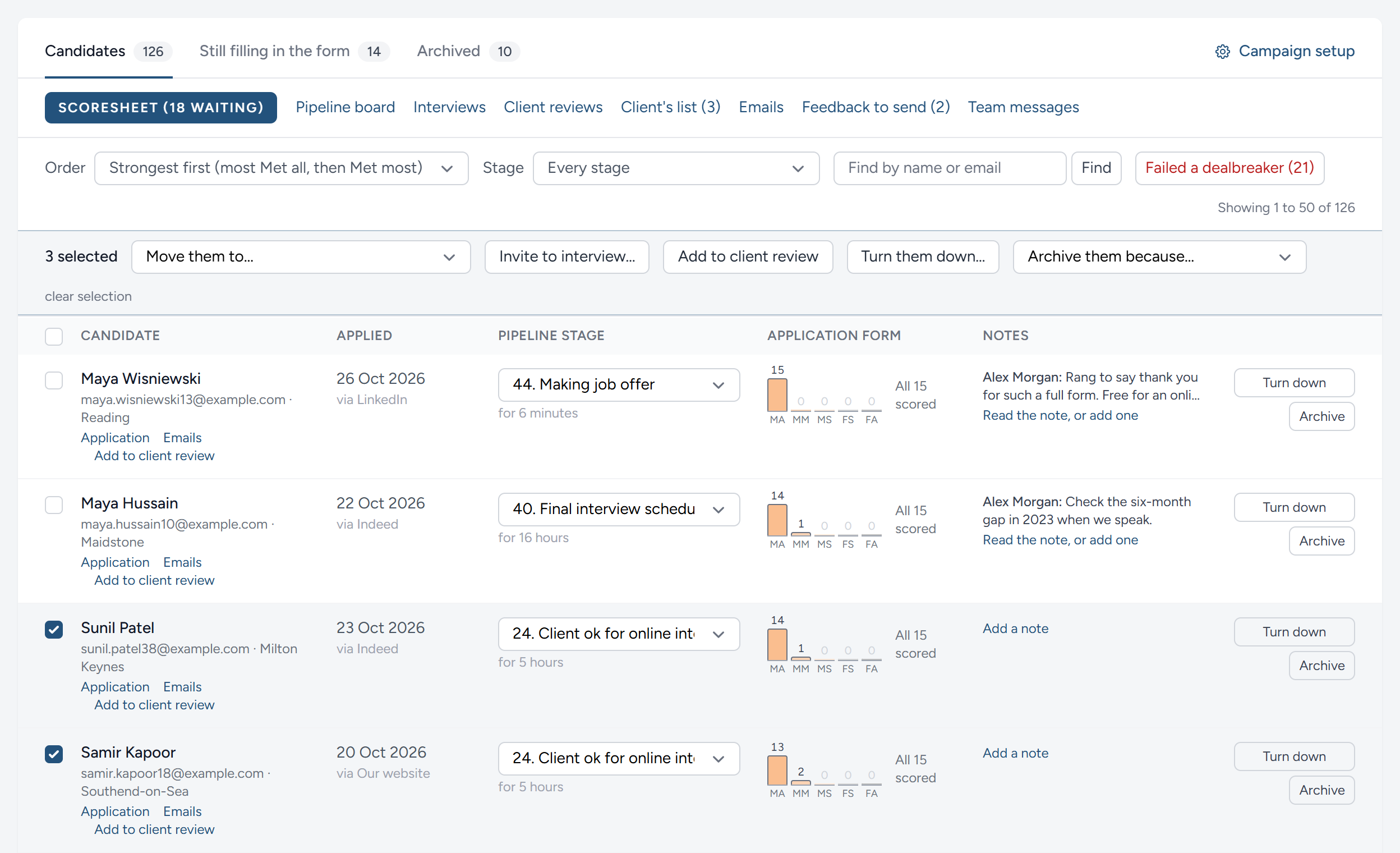
The same bar offers Invite to interview…, which checks that the interview is ready before anything is sent, and Archive them because…. See Interviews.
HiMatcher keeps a record of every move: Who made it, when, and whether it was a person, an email, a booking or a client's decision.
Notes for your team
A note is for anything a colleague picking up this candidate tomorrow would want to know: A telephone call, a doubt, something to ask at interview.
Click Add a note, or Read the note, or add one, in the candidate's row.

Type the note and click Save note. It is signed with your name and the time. The newest note shows in the candidate's row, and all of them are on their scoring page as well.
You can Edit or Remove a note you wrote. Admins and hiring managers can do so to anybody's. A note that has been changed is marked edited.
Setting people aside: Archiving
Archiving takes a candidate off your working lists without deleting anything. Use it for people who are out of the running, so that the people who are still in it are easy to see. Archiving tells the candidate nothing: To let someone know, turn them down first. See Turning candidates down, and feedback.
Click Archive at the end of their row and choose the reason from the list that takes its place, or tick several and use Archive them because…. Leave them puts the button back and archives nobody.
| Reason | For |
|---|---|
| Did not pass the application form | Their answers did not meet what the specification asks for |
| Not eligible for the role | No right to work, or cannot do the hours |
| Withdrew | They told you they are no longer interested |
| No response | They stopped answering |
| Duplicate application | The same person applied twice, from two addresses |
| Another reason… | You type it |
An archived candidate leaves the Candidates list, the scoresheet, the pipeline board, the list you choose from when suggesting candidates to a client, and the answers Digital Nancy is asked to read. Their application, bands, notes and emails are all kept.
Only admins and hiring managers can archive, or bring somebody back.
The Archived list
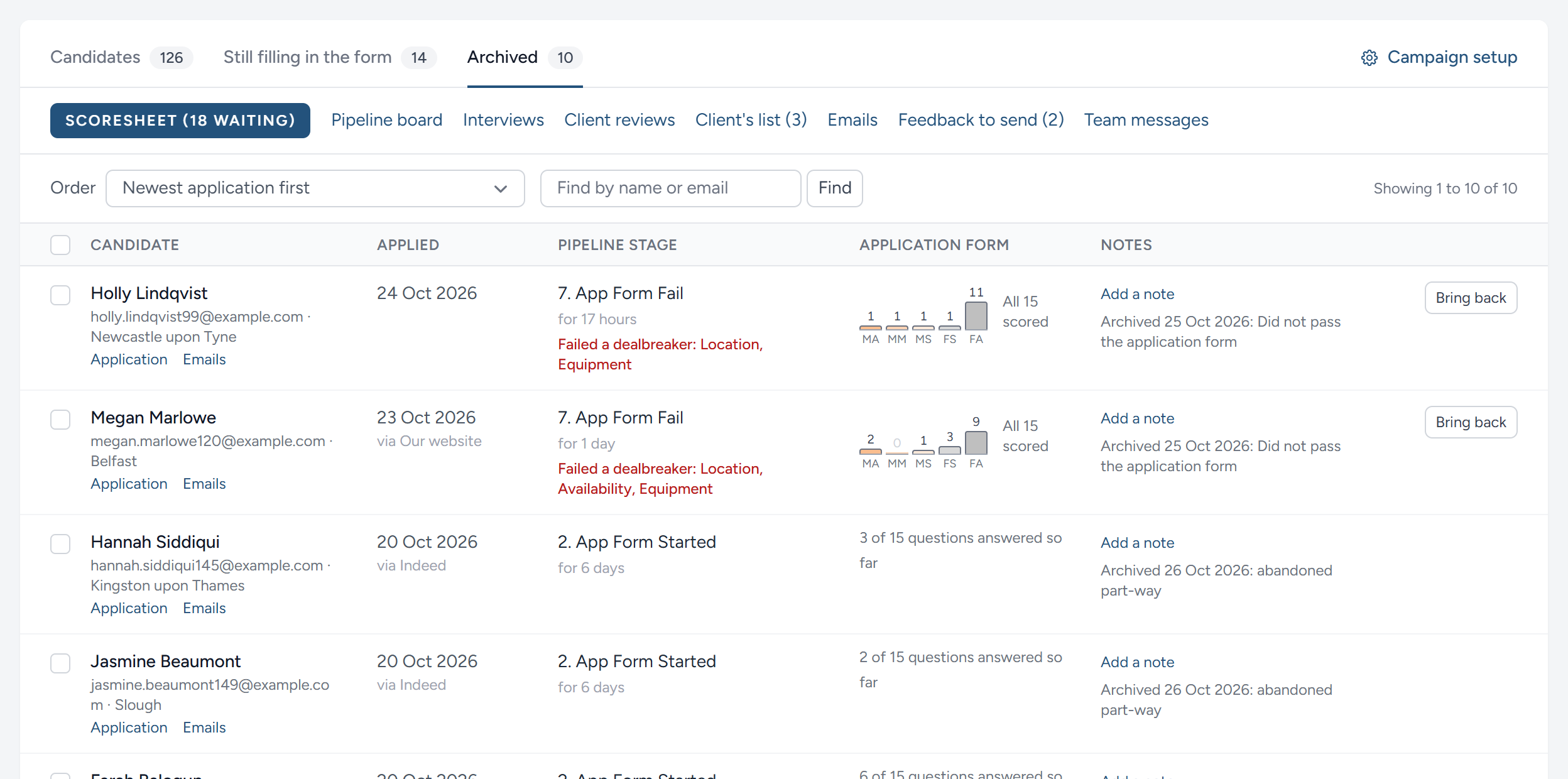
Each person shows when they were archived and why. Bring back returns them to Candidates, at the stage they were at, with everything as it was.
People marked abandoned part-way were archived by HiMatcher itself, because they started the form and did not finish it after a reminder. They have no Bring back button, because there is nothing to bring back: The form was never submitted. If one of them does finish and submit while their link still works, they rejoin Candidates by themselves. An application that is never submitted is deleted thirty days after it was archived. See The application form.
Earlier candidates
Someone who came close for one role may be just right for the next. Earlier candidates, beside Client reviews on the campaign page, finds the people who applied for your other roles and did well, so you can invite them to apply for this one. Admins and hiring managers use it.
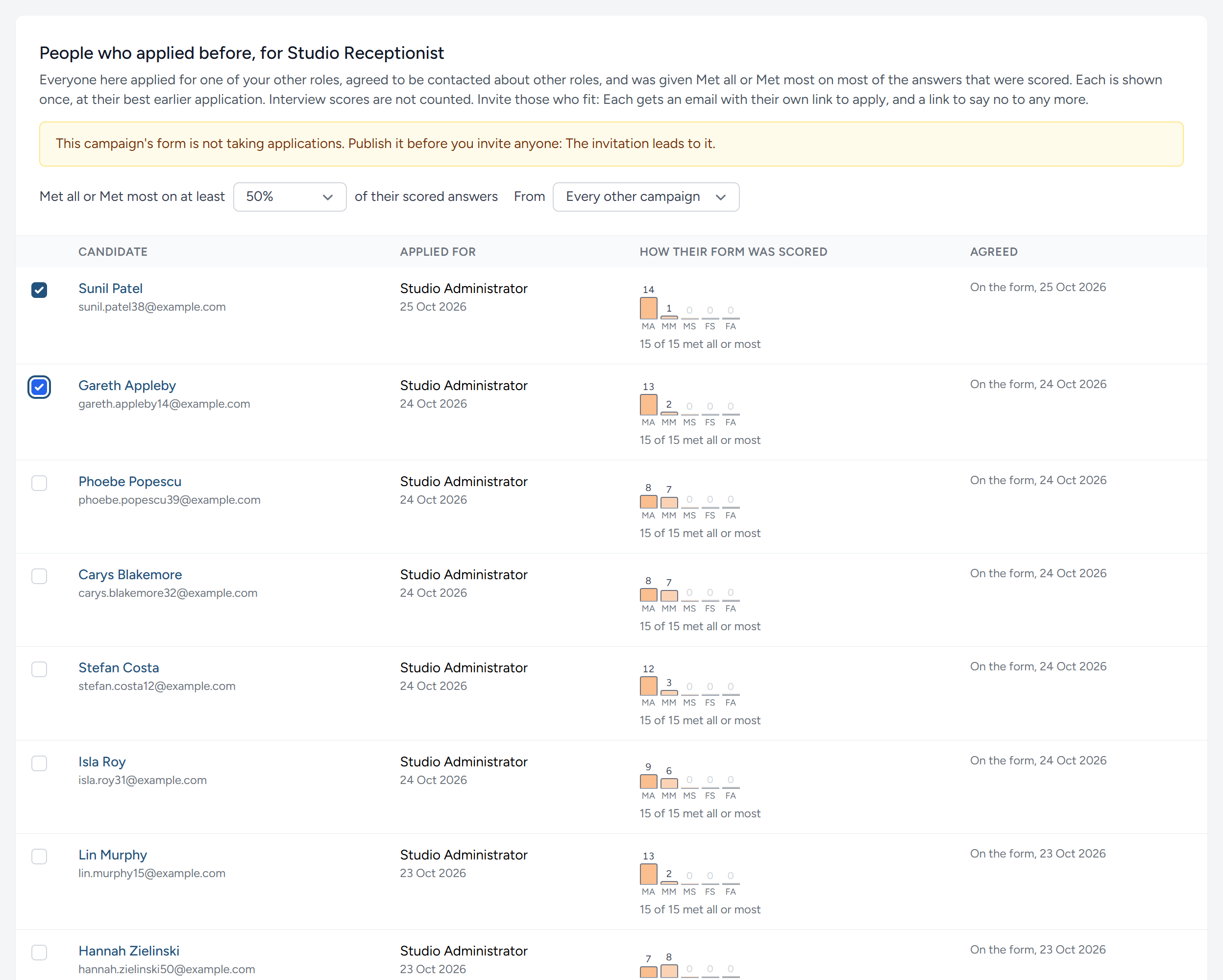
Who is found. Only people who agreed to be contacted about other roles. They are found when Met all or Met most was given to at least half of the answers on their form that were scored; choose three quarters, or every one, to see fewer. Bands brought in from a sheet count. Interview scores do not. Each person is shown once, at their best earlier application, with a link to their scoring page there. Nobody who has applied to this campaign is shown.
Inviting them. Tick the people you want, add a line of your own if you like, and click Invite. The campaign's form must be live. Each person gets an email from the campaign's address that says what they applied for before and what this role is, with their own link to apply and a link to say no to any more. Their link opens a page with Start my application, with their name and email filled in. Nothing starts until they click it. Each person can be invited once to each campaign. Anyone whose answer has changed to no since the page was opened is not sent the email, and the page says so.
How people agree
People agree to be contacted about other roles in one of three ways, and each answer is kept with how and when it was given, and the wording they saw:
- On the application form. At its foot, a box they may tick: "Keep my application on file, and contact me about other roles you recruit for." It is unticked to begin with, and leaving it unticked makes no difference to their application.
- From an email that asks them. See below.
- By telling you. On a candidate's application page, Other roles shows their answer. If they tell you by telephone or email, click They agreed or They said no.
Any email about other roles leads to a page where they can change their answer at any time, and saying no is as easy as saying yes.
Asking those who applied before
People who applied before the form had its box have never been asked. At the foot of the page, Ask those who applied before lists your other campaigns, each with how many people could be asked. Tick the campaigns, click Ask, and confirm. Each person gets one email from your organisation's address, naming the role they applied for (never a client you kept back from candidates), with a link to a page where they say yes or no. Nobody is asked twice, and nobody who does not answer is contacted about other roles.
People brought in from a sheet applied before HiMatcher and never saw its privacy notice, and the list says so beside their campaign.
The pipeline board
The campaign page is a list of people. The pipeline board is the same campaign seen as a list of stages, and it is the quickest way to see where everybody is.
Click Pipeline board on the campaign page.
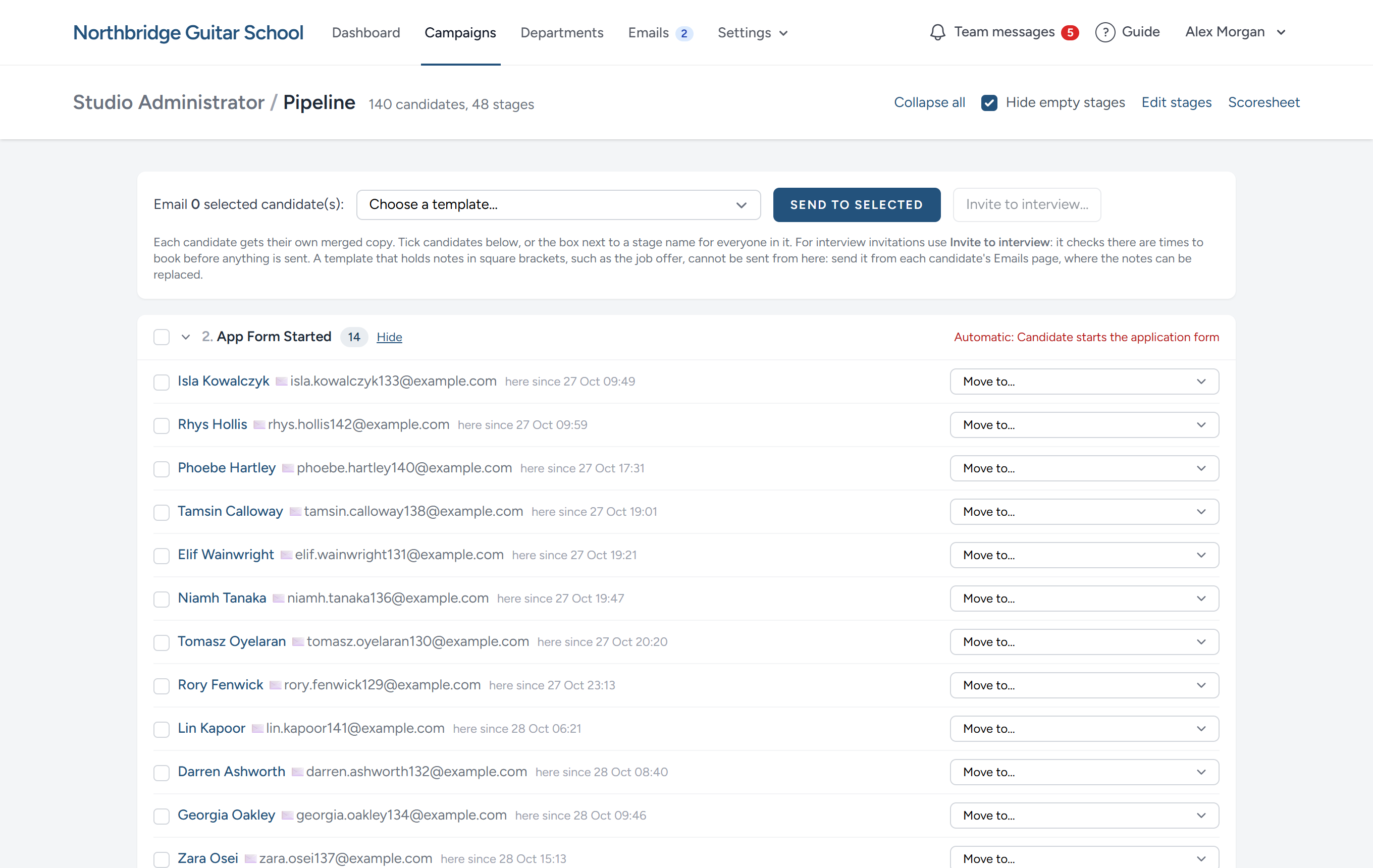
- Each stage shows how many candidates are in it. Click a stage, or Show, to open it. Collapse all closes them again.
- Hide empty stages leaves only the stages with somebody in them. With forty-eight stages in the standard pipeline, this is how the board stays readable.
- A line in red, such as Automatic: Candidate submits the application form, marks a stage people arrive at by themselves, and says what brings them.
- A stage can carry an amber or green marker down its edge, to pick out the ones your team watches.
- Inside a stage, each candidate has their bands in short, such as MA 13 · MM 2, how long they have been here since, an envelope that opens their emails, with a number if they have written and nobody has read it, and Move to….
- Tick candidates, or the box beside a stage's name for everybody in it, and the bar at the top will email them all from a template, or invite them to interview.
A candidate who has no stage at all is listed separately, under Not yet in the pipeline, so that nobody can fall off the board.
Changing a campaign's stages
Every campaign has its own copy of the pipeline, which you can change without affecting any other. Admins and hiring managers can do it.
On the pipeline board, click Edit stages.
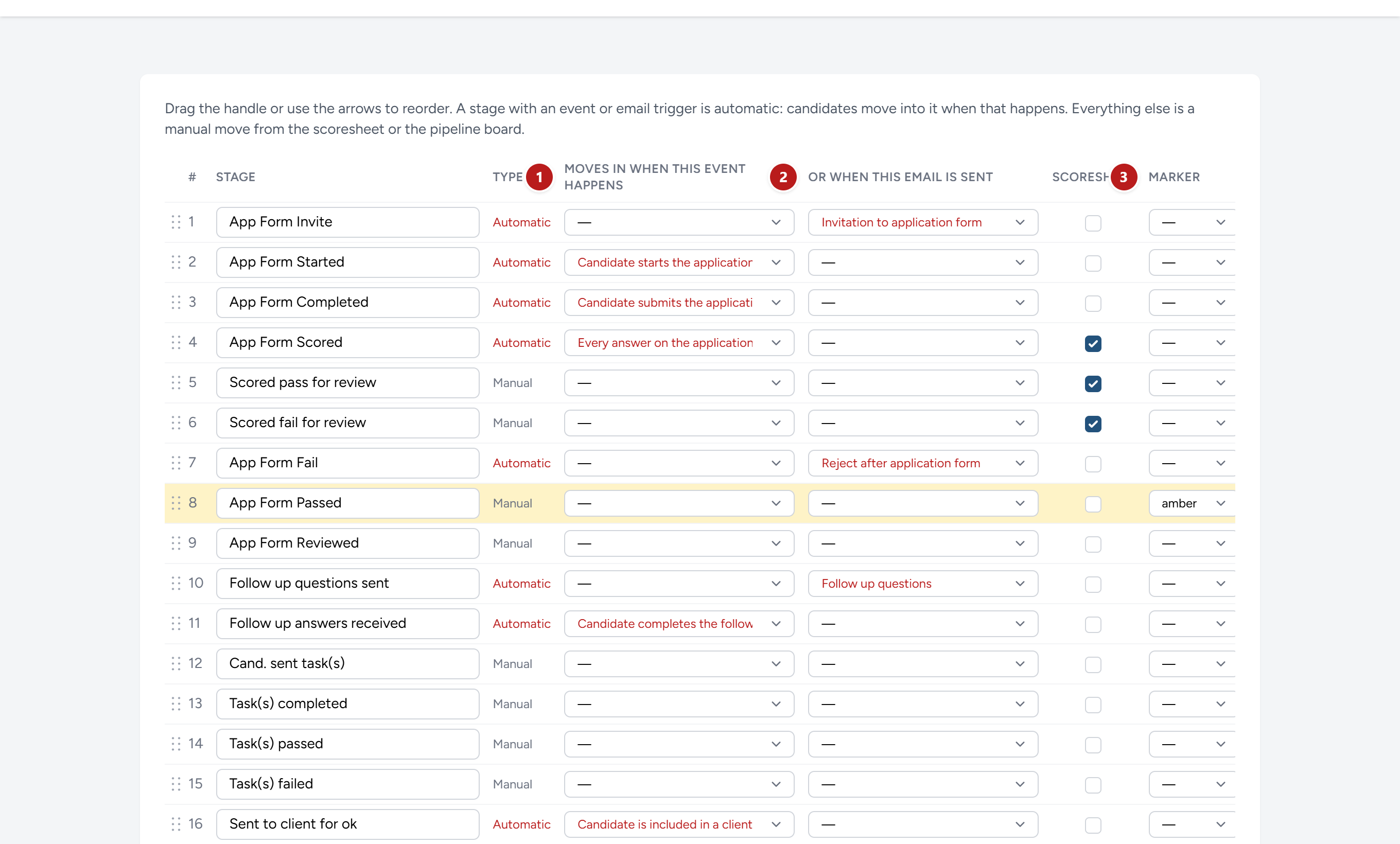
- An event that brings candidates in. Choose one, and the stage becomes automatic.
- An email that brings candidates in. Sending an email from a template with that role moves the candidate here.
- Marker. Amber or green, shown on the board.
For each stage you can also change its name, and tick Scoresheet to offer it in the list of stages on the scoresheet, so that scorers can move people there without leaving it.
At the end of each row are four small buttons: Move up, Move down, + to add a stage after this one, and ✕ to remove it. You can also drag a row by the dotted handle at its left. On a narrower screen, scroll the table to the right to reach the buttons. Add a stage at the end is under the table.
Click Save pipeline. Nothing changes until you do.
The stages new campaigns start with
Open Settings in the bar at the top and click Pipelines. Admins and hiring managers see it.
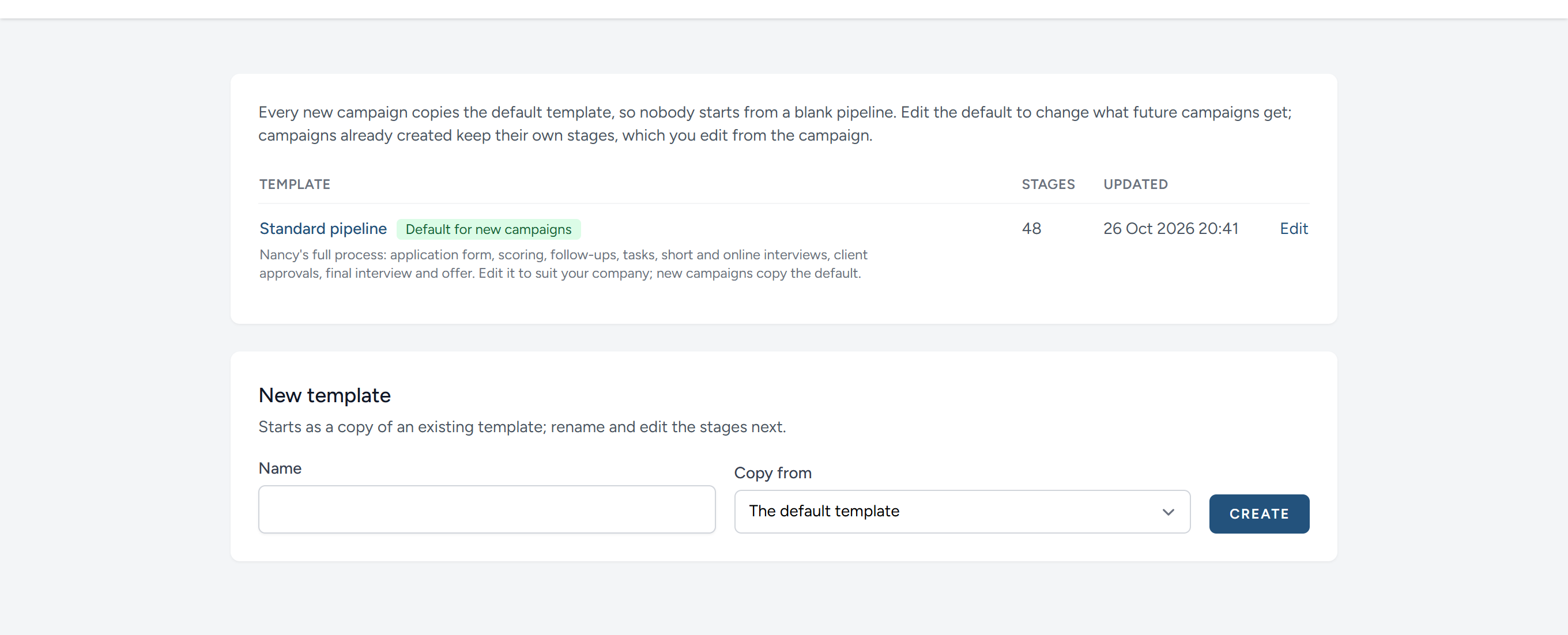
A template is a pipeline kept for copying. Your organisation starts with one, the standard pipeline of forty-eight stages, which follows the whole method from the invitation to apply to the confirmed start date. Most of its stages are there for you to use or ignore. A short campaign may touch a dozen of them.
- A new campaign is given a copy of the default template. Make default chooses which one that is.
- New template starts as a copy of one you already have. Give it a name, and then edit its stages exactly as you would a campaign's.
- Changing a template changes future campaigns only. Campaigns that already exist keep the stages they have.
This chapter was last revised on 30 October 2026.