Setting up · Chapter 16
Your clients, or your departments
One record for each client you recruit for, or each department you hire for, with its campaigns and its people; renaming, notes, and merging two records that were one all along.
In this chapter you will
One record each
Every campaign belongs to somebody: A client, if you recruit for clients, or a department, if you hire for your own organisation. Which of the two you are is set under Settings, and it decides the word you see on the screens. This chapter says "client"; read "department" if that is you.
HiMatcher keeps one record for each. Type "Acme Accounts" on one campaign and "acme accounts" on the next, and they are the same client: Capitals and spacing never make a second one. The record is what the campaign list, the client reviews and Digital Nancy go by, so a client's name is spelt one way everywhere.
Where they are
Click Clients (or Departments) in the bar at the top. Admins and hiring managers see it, as they do campaigns.
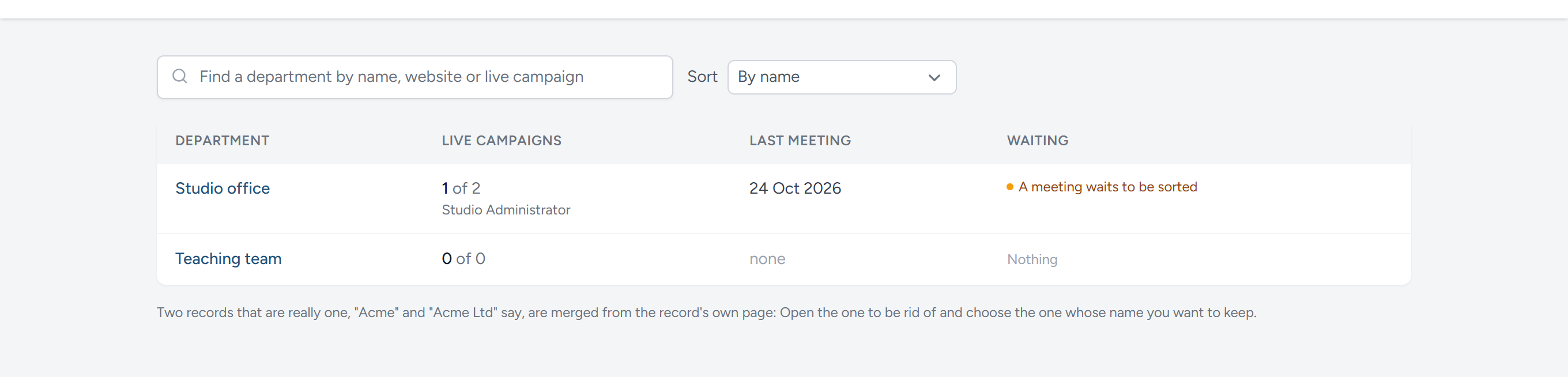
The page is a directory: One row for each record, with its website, how many of its campaigns are live and which, how many client viewers belong to it, when it last met you, and anything waiting on it, such as a meeting not yet sorted or a profile not yet read. Type in Find a client and the rows narrow as you type, by name, website or live campaign. Sort puts the most recently active first, or goes back to name order. A recruiter with fifty clients reads it as a list, not as fifty panels.
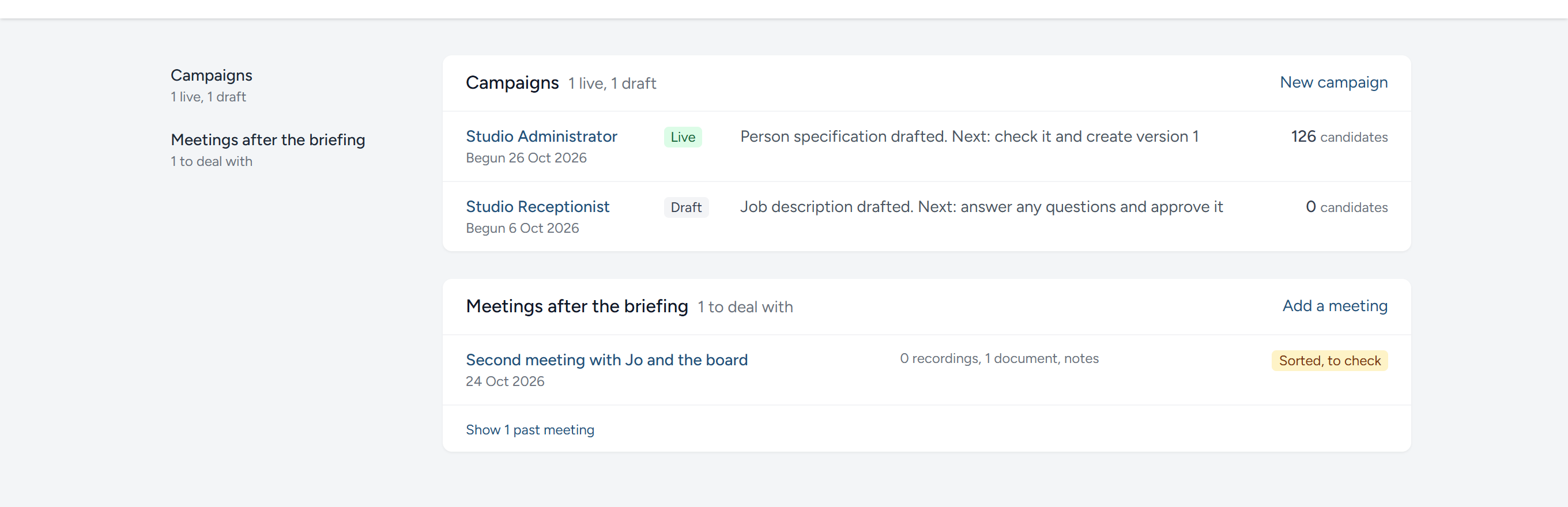
Click a row and the record opens on a page of its own, with its parts in a fixed order and a list of them down the left: Campaigns, Meetings after the briefing, and, for a recruiter, Client viewers and What the client is like to work for. Each part has its one action at the top right. Campaigns are listed live first, then drafts, with each one's briefing stage and how many have applied; closed ones are folded under Show closed. Meetings still to deal with come first, and past ones are folded likewise.
Adding one
There is nothing to add here. A client is made from the New campaign card, by typing a name the box has not seen. The box offers the ones you have used before as you type, so the usual thing is to pick, not to type. See The briefing: Before the conversation.
Renaming, a website and notes
On the record's page, click Rename and more at the top right, then Rename, website and notes. A new name reaches every campaign at once, because there is one record; the campaigns' email addresses and advert addresses stay as they were. The website is the client's own, starting https://, and is a link under the name. The notes are for your team: What the client is like to work with, who answers the telephone, what they said last time. Candidates never see them.
You cannot rename a record to a name another record already has. If that is what you meant, you have two records for one client, and the next section is for you.
Merging two records
It happens: "Acme" on one campaign in the spring and "Acme Ltd" in the autumn, and nobody noticed. HiMatcher never guesses that two different names are one company, so it leaves them as two records until you say.
- Open the record you want to be rid of, click Rename and more, then Merge into another.
- Choose the record whose name you want to keep.
- Click Merge, and confirm.
Its campaigns move to the record you chose and take its name, so do its client viewers, and the old name goes. Notes are not carried across, so copy anything worth keeping before you merge. There is no undo: If you merge the wrong way round, rename the survivor.
Client viewers and their client
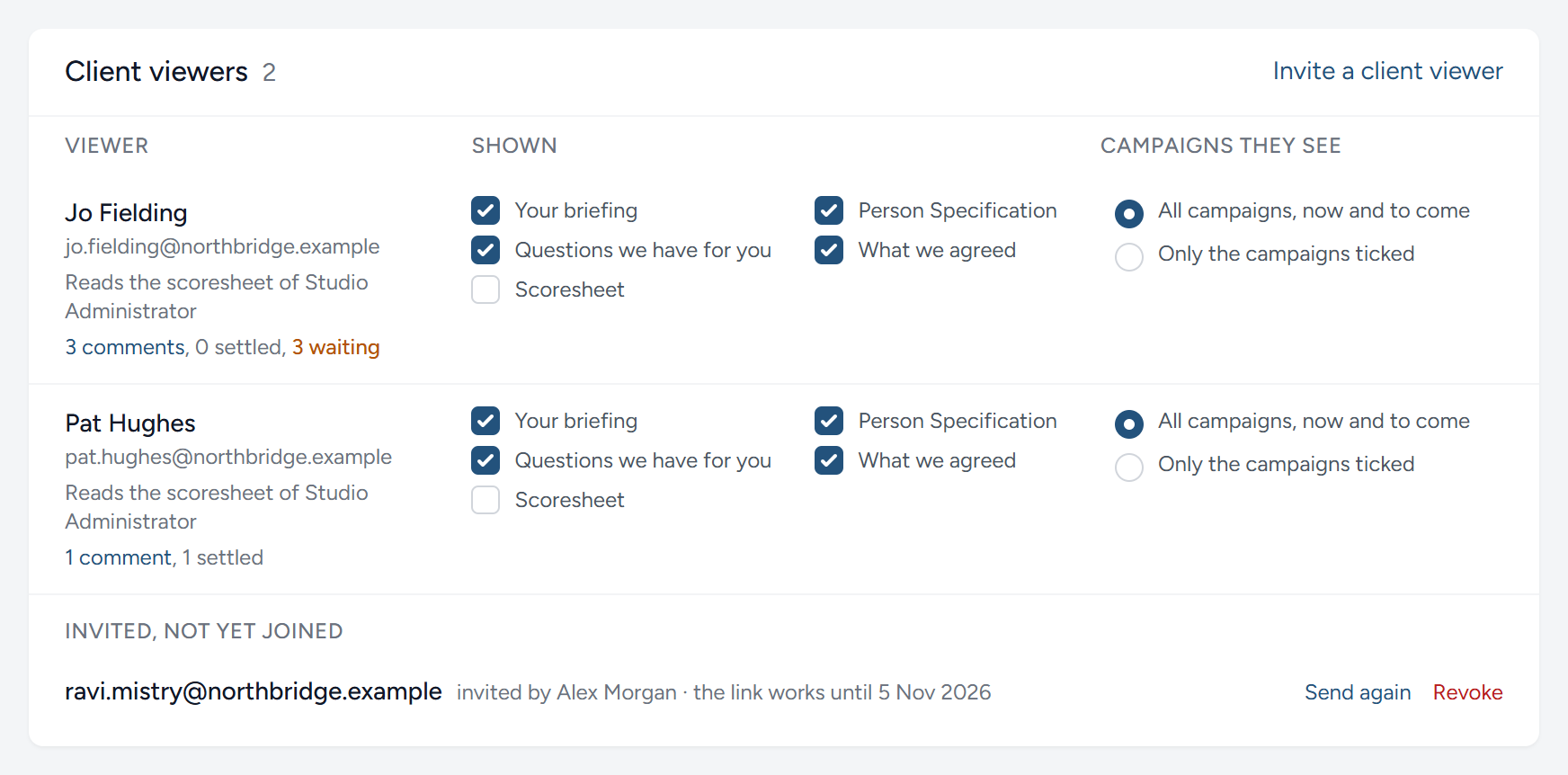
A client viewer is somebody at the client who signs in to say yes or no to the candidates you suggest. When you invite one from the Team page, you can say which client they belong to, and you can change it there later; Invite a client viewer on the client's page takes you there with the client already chosen. See Your team and who can do what. The client's page lists its viewers, and says which campaigns' scoresheets each may read.
It is a convenience, not a lock. A client viewer still sees only the suggested candidates they are named on. What belonging to a client does is put them first, already ticked, when you suggest candidates on that client's campaign, so that you do not have to remember who is who. Untick anyone who should not have it. See Suggesting candidates to your client.
Which campaigns they see
Not everyone at a client should see every campaign: The person who briefs you on one role need not see the others. Choose as you invite them, so that they arrive to the right campaigns (see Inviting a colleague), and change it later beside each viewer, under Campaigns they see. Either way, there are two choices:
- All campaigns, now and to come. Every campaign of the client's, including any begun later, without ticking each one. This is how every viewer starts, and the right choice for whoever runs hiring at the client.
- Only the campaigns ticked. The client's campaigns are listed, live, draft and closed, and the viewer sees the ones you tick and no other. A campaign begun later is not theirs until you tick it.
Either way, a shortlist they are named on, or a scoresheet a campaign lets them read, reaches them. The choice takes effect at once: A campaign they no longer see leaves their pages, and its conversations with them.
Invited, not yet joined
Under the viewers, Invited, not yet joined lists anyone invited as one of this client's viewers whose invitation is still open, each reminded by email two working days before their link stops, and their inviter told if it stops unused (see Your team): Who invited them and how long the link works. Send again sends the invitation once more, and Revoke takes it back. Once they join, they move up into the list of viewers.
What each viewer has said
Under each viewer's name is a count of the conversations they have begun, on any of their campaigns and about anything, not only the person specification: How many there are, how many are settled, and how many are still waiting for an answer. Click the count to read them all on Team messages, or waiting to read only the open ones, narrowed to that person; Everyone's there widens the list again.
What each viewer is shown
Beside each viewer, under Shown, are five ticks for five parts of their campaign pages, in the order those pages list them: Your briefing, Person Specification, Questions we have for you, What we agreed and Scoresheet. Your briefing and Scoresheet are unticked to begin with, for a new viewer and for those you already had; the other three are ticked. A viewer you invite from the Team page starts with the ticks you chose there.
Your briefing shows them the briefing questions on their campaign page, to answer there or by sending a document, and what they have sent. Tick it for the person who briefs you on the role. Unticked, the part is neither listed nor shown on their page, and they cannot answer the questions or send a briefing document. See Suggesting candidates to your client.
Questions we have for you asks the client for the plain facts the advertisement needs and anything the job description left open. It is there for writing the advertisement, so once the advertisement is live, or the campaign has moved past it (people applying, candidates suggested to the client, interviews, an offer), the part leaves their page of its own accord. Untick it to take it away sooner, or to stop asking this person at all: Where one viewer answers for the client and another only decides on the candidates you suggest, the second need not be asked.
Person Specification shows them the draft person specification you share with the client during the briefing, to agree row by row and comment on. Their page lists it as Person Specification too, the same as the tick. When you share a draft, you choose which of them are emailed about it. The same tick decides who reads their colleagues' comments on it: Everyone ticked reads the comments the others at the client make on it, except those kept to you, and sees under each row who else agreed it. Untick it for someone whose say on the specification you do not need, and they read none of it. See The person specification.
What we agreed shows them the job description as it was agreed and the link to the advertisement. Untick it for a viewer who should decide on candidates without seeing that page.
Scoresheet lets them read the scoresheet of every campaign of the client's that they see, now and to come: Every candidate who applied, veiled as the campaign has them, with the scores your team gave, to read and not to score. Without it, a single campaign can still let them read its own, from the campaign's page. The line under their name says which they read: Reads the scoresheet of every campaign they see, the campaigns that let them, or Suggested candidates only. See Letting a client read the scoresheet.
A tick takes effect at once, on every campaign of the client's. An admin or a hiring manager may change any of them.
What the client is like to work for
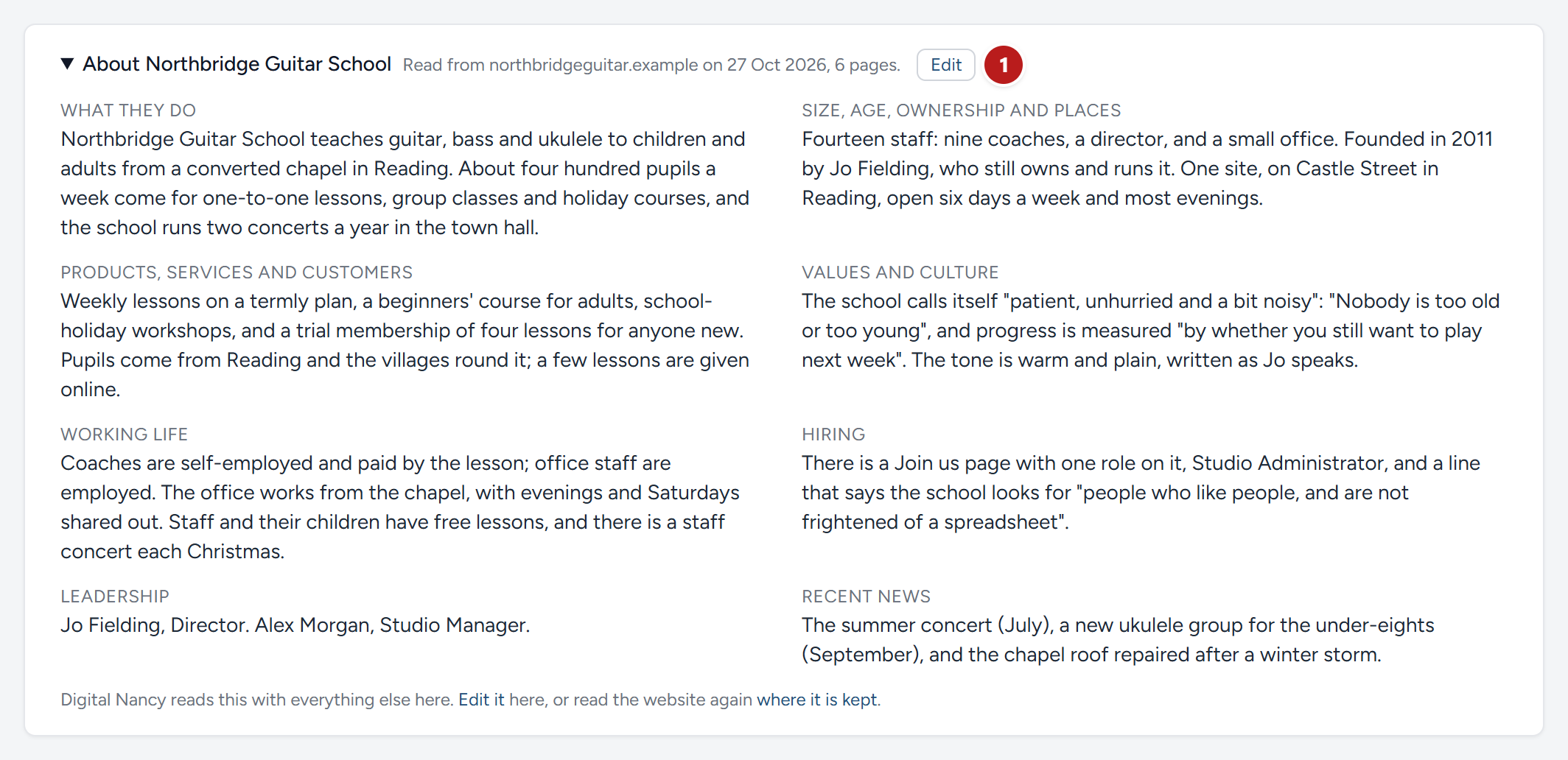
Open What (the client) is like to work for, the last part of the client's page, folded until you open it. Give the client's website, starting https://, and click Read the website. Digital Nancy reads the site, the home page, About, Team, Values, Careers, News and whatever else she finds about the organisation itself, and writes a profile under eight headings: What they do; size, age, ownership and places; products, services and customers; values and culture, in the client's own words; working life, from hybrid working to benefits and accreditations; hiring; leadership; recent news. It takes two or three minutes, and the panel says what she is doing meanwhile.
Under the headings comes without naming them: One phrase, such as "a family-run accountancy practice of about forty people in Leeds", for an advert that keeps the client's name back.
The profile is made from the client's own site and nothing else: Not review sites, not the press, not anything you did not point it at. It works with what the site says and leaves out the rest: A heading the site says nothing about is left empty and not shown, and nothing is guessed. What the site leaves out, such as pay and hours, is for the briefing, which asks the client. Read the profile before the first campaign uses it, and click Edit the profile to put right anything the site put badly, or to fill a heading from what you know: It is your words that reach the drafts from then on, and Read the website again replaces them.
Every campaign for the client reads the profile: The briefing sheet, the person specification and the job description are drafted knowing who is hiring, and the briefing page shows the profile at the top, folded, under About and the employer's name. Click Edit beside the name (1) to change it there and then, heading by heading, with the About paragraphs the advert carries: Save the profile keeps it where it is kept, on the client's page or under Settings, and every draft reads it from then on. A profile more than six months old is marked so on the panel; read the site again before the next campaign.
Meetings after the briefing
A client comes back with more: A second meeting about the role, a call that changes the hours, a document the board has agreed. Where the client has two campaigns running, one meeting may cover both. Rather than guess which campaign to put it on, add it once, at the client, and let it be sorted. A meeting about one role alone is added on that campaign's briefing instead, under Add a later meeting, and goes straight in with no sorting: See The briefing: The conversation. It is listed here with the rest, marked as added from its briefing.
- On the client's page, under Meetings after the briefing, click Add a meeting, say what it was and when, and click Make it. The meeting's own page opens.
- Add what you have: Record the call or upload a recording (it is transcribed as a briefing recording is), upload a transcript already written out, add documents or paste text, and type your own notes. Anything of them, in any number.
- Click Sort into campaigns. Digital Nancy reads the meeting against each of the client's live campaigns, their titles and their specifications as they stand, and sets out what concerns each role, with the passages it rests on quoted word for word, what was said of the client as a whole, and anything she could not place. A recording still being transcribed is waited for. A client with one live campaign needs no sorting: The whole meeting is that campaign's.
- Check it. Each campaign has a tick and its part of the meeting, which you can change. Untick a campaign the meeting did not concern, move a line Digital Nancy put in the wrong place, and read the quotes against the recording where it matters.
- Click Add to the campaigns. Each ticked campaign's briefing takes its part as a document marked Later meeting, with what was said of the client as a whole added to every part.
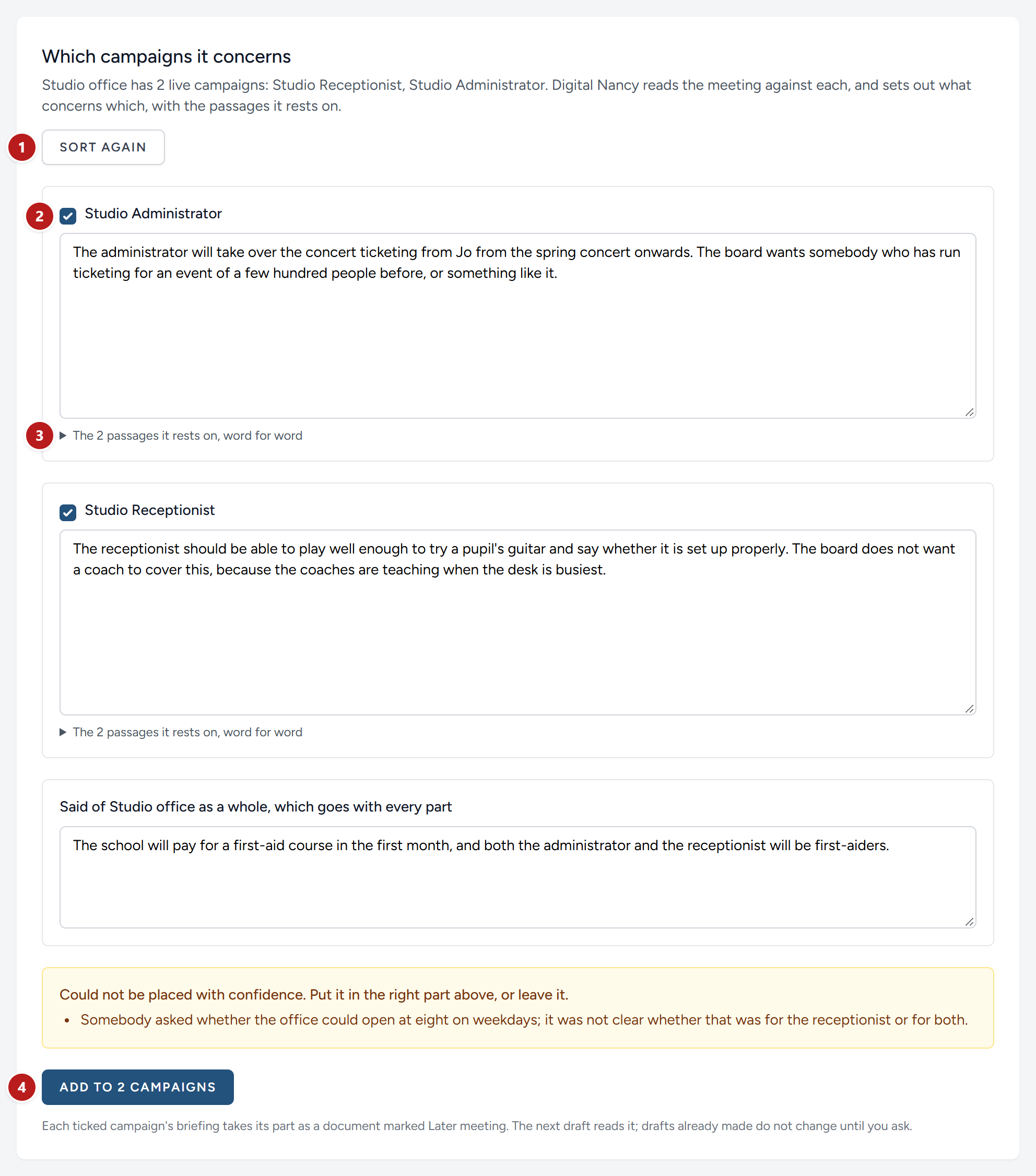
- Sort again, if you have added more since.
- The tick that says the meeting concerned this campaign, and below it that campaign's part, which you can change.
- The passages it rests on, word for word, to check against the recording.
- Add to the campaigns.
From then on the drafts read it as the later word: Where it changes what was said before, the next draft of the specification or the job description follows it, and says where it did. What is already drafted does not change until you ask for it to be redrafted.
The "About us" paragraphs
The profile is for your team and Digital Nancy. What a candidate reads is shorter: Two paragraphs under About us on the advertisement, in the client's own tone, saying what the organisation is, what it does and what it is like to work for. The reading writes them, in two versions, naming them and without naming them, and they are shown in the profile's panel under About us, for the advertisement. Read them as the client would, and edit them like any other section: Those words, and no more, are what the job description carries, whichever version the campaign asks for.
A profile read before the paragraphs were part of it has none, and the job description is drafted from the whole profile until it does. Click Write the About paragraphs on the panel and they are written from the profile on file, without reading the site again.
Keeping a client's name out of the advert
A recruiter sometimes cannot say who the client is: The person in the job does not know they are being replaced, or the client does not want its competitors reading its plans. On the campaign page, click Rename and untick Name the client to candidates; the advert's page shows the same switch. A client whose searches are usually confidential can be marked so under Rename, website and notes on their page, and each new campaign for them then starts with the name kept back. The advert then says you are recruiting for a client, search engines list your organisation as the hiring organisation, and every email to a candidate says the job is at your organisation. Digital Nancy writes the job description as "our client" from then on, describing the client in the words the profile gives under without naming them, so draft it again if it was written while the name was shown. Your team still sees the name, and so does the client, on the candidates you suggest to them. See The application form: Advertising the job.
This chapter was last revised on 30 October 2026.