Running a campaign · Chapter 11
Interviews
Setting up the interviews your pipeline calls for, inviting candidates to book their own time, recording the conversation, and scoring what you heard.
In this chapter you will
- see which interviews a campaign has, and why
- set an interview up and offer times for candidates to book
- invite candidates, knowing beforehand that the invitation will work
- follow who has booked, who has not, and what to do when a booking has to be cancelled
- record an interview, read the notes written from it, and score the candidate against the specification
- move the candidate on when the interview is over
Which interviews a campaign has
A campaign has the interviews its pipeline gives it, no more and no fewer. If the pipeline has a stage that is entered when an interview invitation is sent, or when a candidate books, then the campaign has that interview. The standard pipeline has three: A short interview, an online interview and a final interview. A pipeline with only a final interview gives a campaign one.
So you never choose the interviews on the Interviews page. You choose them when you shape the pipeline, and the Interviews page follows.
- Open the campaign.
- Click Interviews.
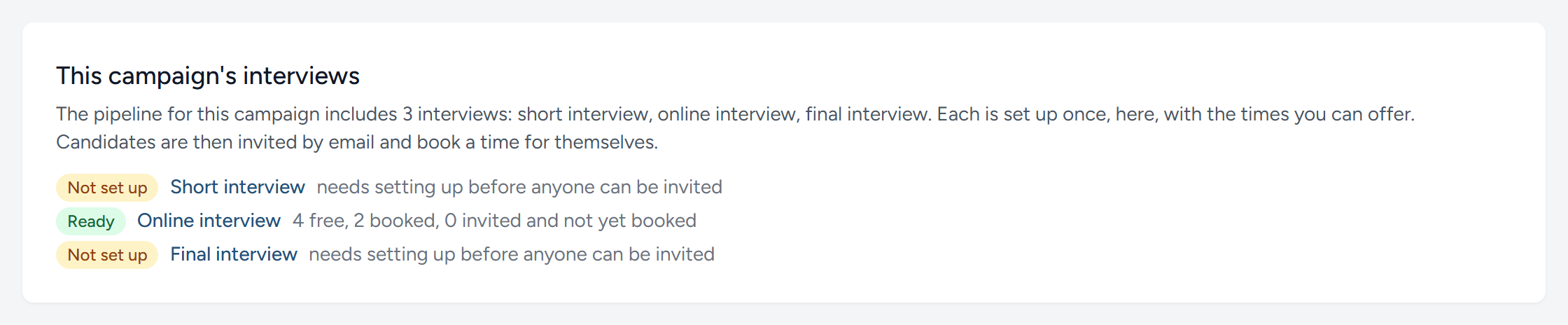
Each interview carries a label that tells you where it stands:
| Label | What it means | What to do |
|---|---|---|
| Not set up | The pipeline includes this interview, but nobody has described it yet. | Set it up, below. |
| No free times | It is set up, but every time has been booked or has passed. | Offer more times. |
| No invitation email | The email that invites candidates to it has been deleted. | Add a template for it under Emails. |
| Ready | Candidates can be invited. | Invite them. |
Setting an interview up
An interview that is Not set up shows a short form. You fill it in once for the campaign.
- Name shown to candidates. They see this in their email and on the page where they book.
- Length. Every time you offer will be this long.
- Where or how. A video link, "we will ring you", or an address. It is printed in the confirmation and in the calendar entry.
- Record and transcribe. Leave this ticked if you mean to record the interview. Candidates are then asked for their consent when they book.
- Instructions for the candidate. Anything they should have to hand, or expect.
- Click Set up the online interview.
A campaign holds one interview of each kind. To change any of this later, a new video link for instance, click Change details beside the interview's name. The new details go into everything sent from then on; anyone who has already booked has the old ones, so tell them yourself.
Offering times
An interview that is set up has a form for the times you can offer.
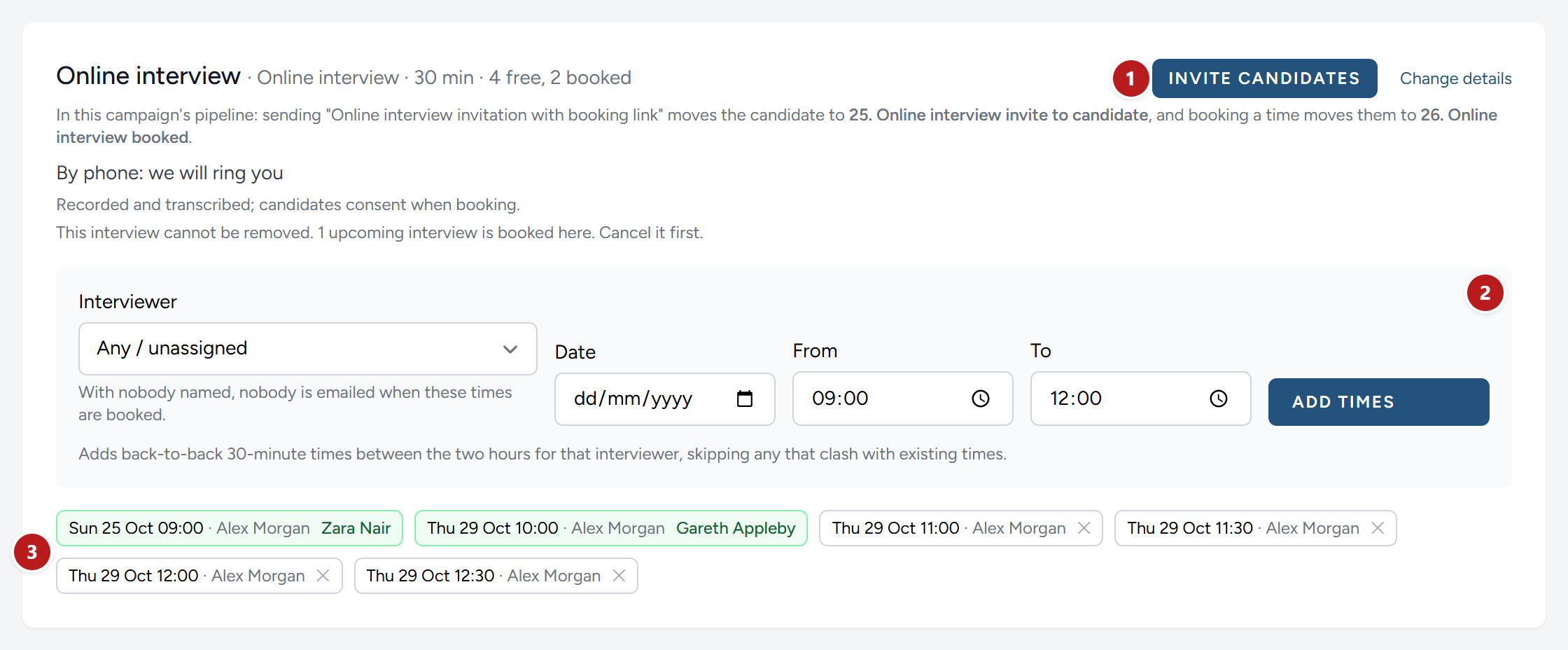
- Invite candidates appears as soon as the interview is ready.
- Choose the interviewer, the date, and the hours from and to. HiMatcher cuts that window into back-to-back times of the interview's length, and leaves out any that would clash with a time the same interviewer already has.
- The times. A green one has been booked, and the candidate's name opens that interview. A white one is free; the cross removes it.
Times are entered and shown in your organisation's time zone, which is set under Settings, Config, Interviews. Candidates are told which zone that is.
Offer more times than you have candidates. The last person to book should still have a choice.
Inviting candidates
You can start from three places, and all three lead to the same page:
- On the campaign page, tick the candidates and click Invite to interview
- On the pipeline board, tick them and click Invite to interview
- On the Interviews page, click Invite candidates beside the interview
Nothing is sent until you have seen that page and clicked the button at the bottom of it.
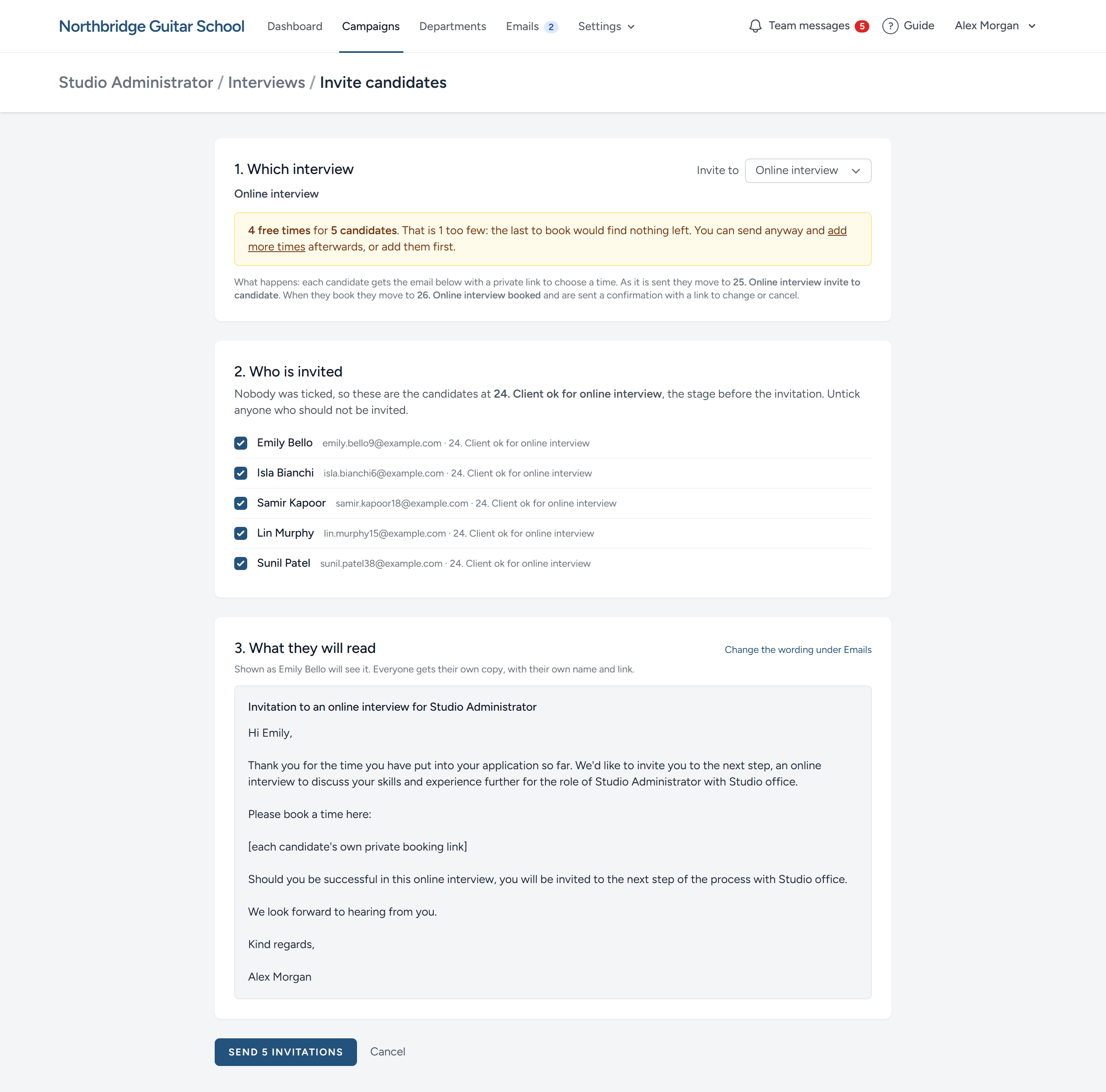
1. Which interview. HiMatcher picks the interview these candidates come to next, and you can change it. A green panel tells you there are enough free times. An amber one tells you how many too few there are. If the interview is not ready, the panel says why, links to the place where you put it right, and the button stays out of reach.
2. Who is invited. The candidates you ticked. If you ticked nobody, HiMatcher offers whoever is waiting at the stage just before the invitation, and says that it has. Some people are listed but cannot be ticked, with the reason beside them: Someone you have archived, someone who has not submitted their form, someone who has already booked. Anyone who has been invited before is marked, because sending again sends them the email again.
3. What they will read. The email itself, made out to the first person on the list. Everyone receives their own copy, with their own name and their own private link.
When you click the button at the bottom, Send 4 invitations in the picture, each candidate moves to the pipeline stage that belongs to the invitation. In the standard pipeline that is Online interview invite to candidate.
What the candidate sees
The link in the email opens a page made for that candidate. They choose a day and a time, and that is all.
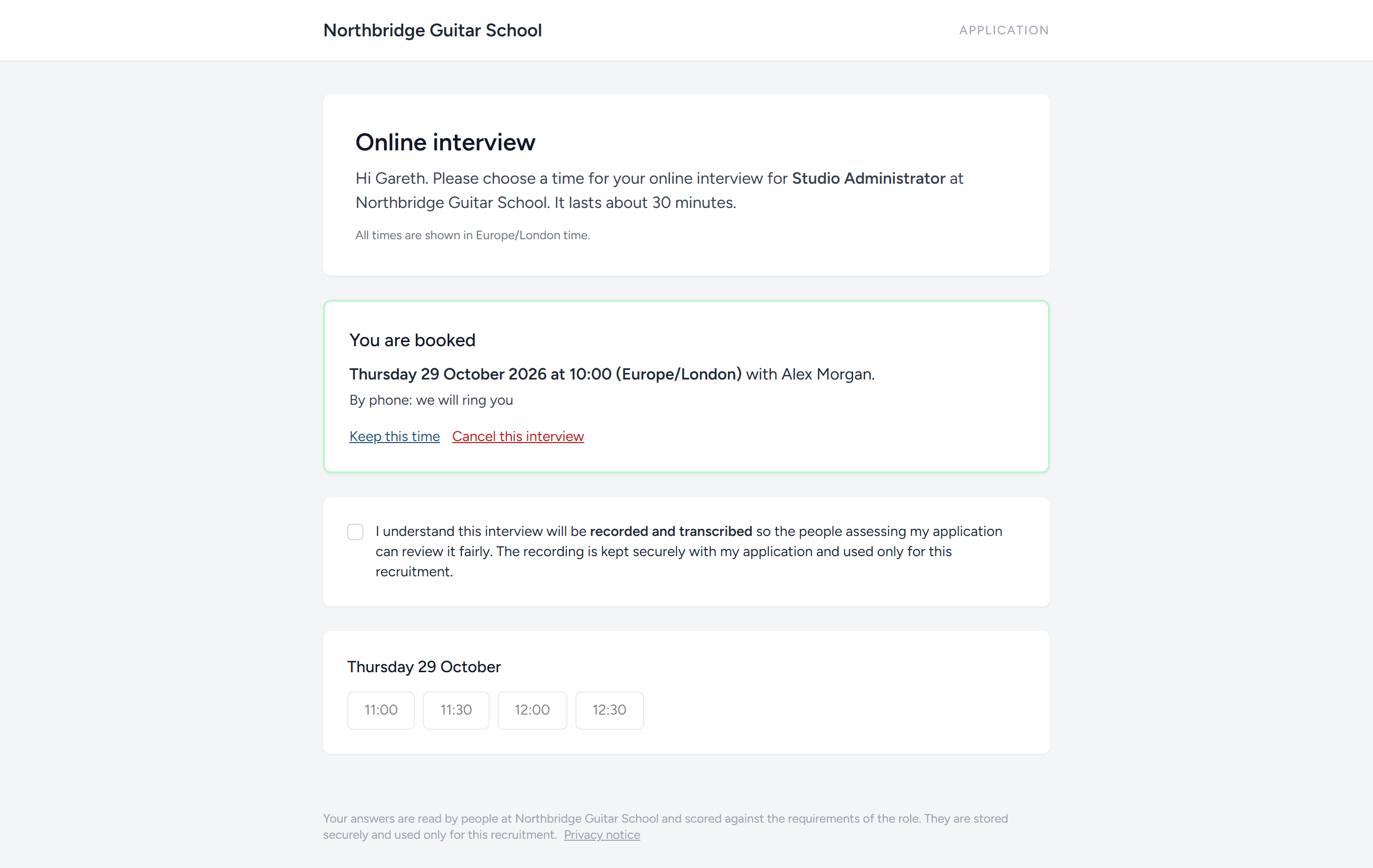
If the interview is to be recorded, they tick a box to say they understand before the times can be chosen. The date and time of that consent are kept with the booking.
As soon as they book:
- They are sent a confirmation, with the details, a calendar file, and their own link for changing or cancelling
- The interviewer is sent an email and a calendar file
- The candidate moves to the next stage, Online interview booked in the standard pipeline
- The time turns green on your Interviews page, and the interview joins Upcoming interviews at the top
The day before, the candidate is sent a reminder.
A candidate can choose a different time, or cancel, from the same link, until a set number of hours before the interview. After that the page asks them to reply to your email instead. The number of hours, the reminder and the emails to interviewers are all set under Settings, Config, Interviews.
Who has not booked
Under each interview, Invited, not yet booked lists the candidates who have had the invitation and done nothing with it, with the date they were invited. Click a name to open their emails. Send them the invitation again takes you back to the invitation page with those people already chosen.
When a booking has to be cancelled
Interviewers fall ill and diaries change. In Upcoming interviews, click Cancel booking.
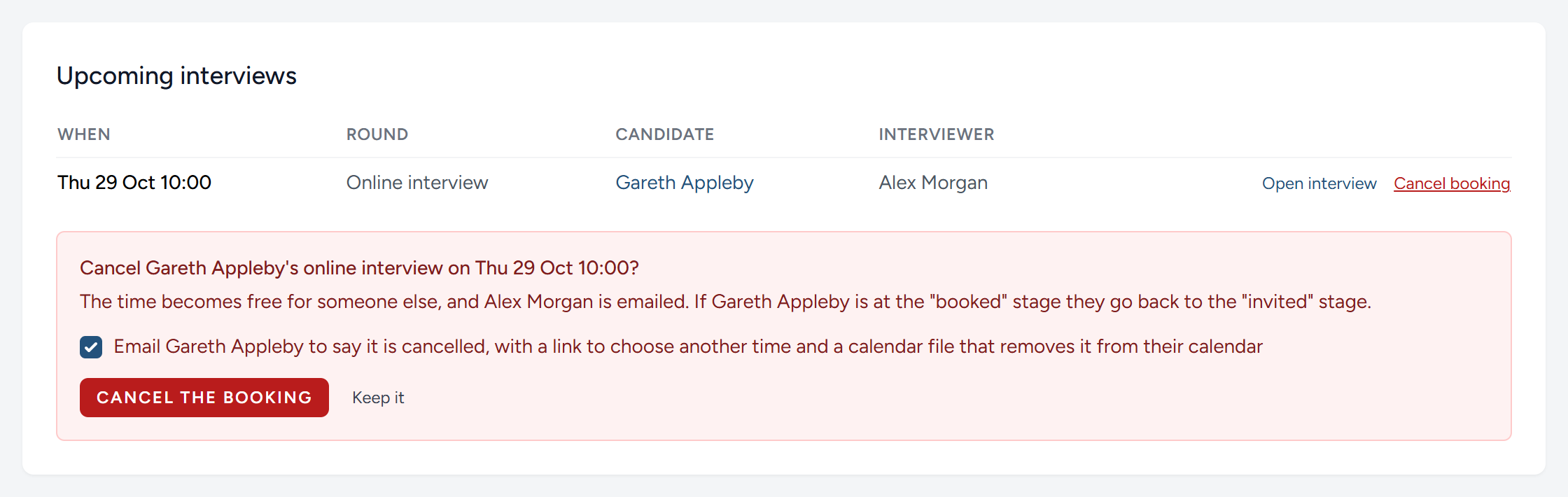
The panel tells you what will follow: The time becomes free for someone else, the interviewer is told, and the candidate goes back from the booked stage to the invited stage, where they are listed again as not yet booked.
Leave the box ticked and the candidate is emailed as well. The email says the interview is cancelled, carries a calendar file that takes it out of their calendar, and gives them their link to choose another time. Untick it only if you would rather tell them yourself. Either way, the message at the top of the page afterwards says plainly whether the candidate has been told.
A candidate who cancels for themselves is sent the same email.
Holding the interview
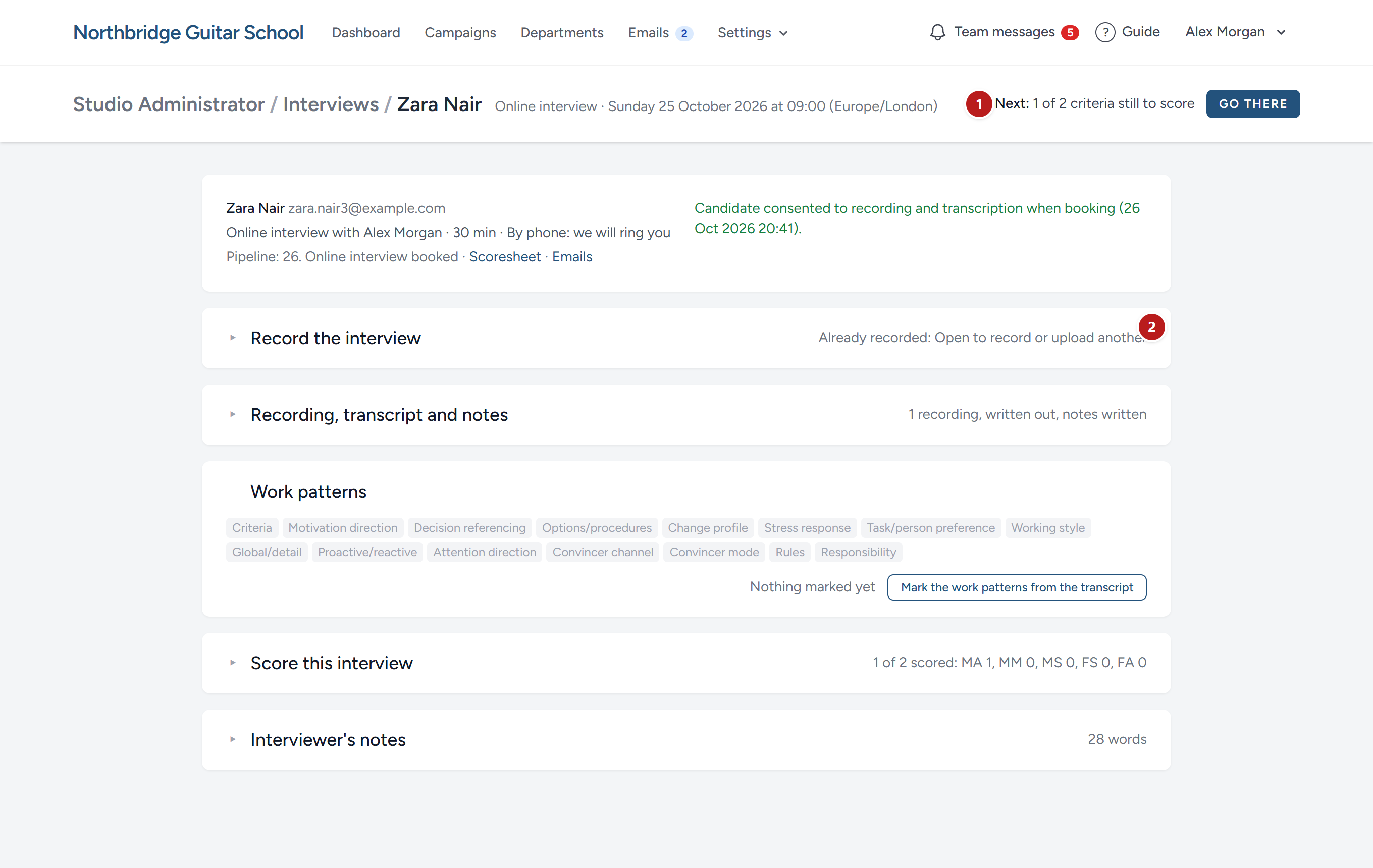
Click Open interview, in Upcoming interviews or on a green time. This page is where the interview is recorded, written out, and judged.
Start with the top of the page. Next, at the top right, is the one thing to do now, worked out from what has been done already: Record it, transcribe it, write the notes, band the criteria, or decide the outcome. Go there opens the part it is done in. Under it, the page says whether the candidate consented to being recorded when they booked. If they did not, ask them before you begin, and write their answer in your notes.
The page is four parts, each folded to one line until you open it: Record the interview, Recording, transcript and notes, Score this interview and Interviewer's notes. The line says what the part holds (how many recordings, how many criteria scored, how many words of notes), and the part the next thing is done in is open when the page loads. Once an interview is recorded, the recording part folds away, so the Start recording button and the upload box are not in the way.
Recording
You can record in either of two ways.
- Record as you talk. Click Start recording when the conversation begins, and Stop and save when it ends. The microphone of the computer you are using is what is recorded, so put a telephone call on speaker, or run the video call on the same computer with the sound turned up.
- Upload afterwards. If the call was recorded somewhere else, add the file here.
- Upload the transcript. If the conversation was written out somewhere else, upload the transcript itself under Or upload a transcript: A plain text file or a Word document. It is read at once, with no transcription service. Where each turn is headed with the speaker and the time ("Jo (00:03:21):"), it is read speaker by speaker, the interviewer told from the candidate by the names, so the work patterns can be read from the candidate's words; anything else is read as one block.
The recording is then written out, on the transcription that is included with the campaign, or on a service your organisation has chosen under Settings, Config. If it cannot be written out at the time, the recording is kept, says why, and can be written out later.
The notes
When the transcript is ready, click Write notes with Digital Nancy. She reads the transcript against the criteria this interview is there to test, and writes notes.
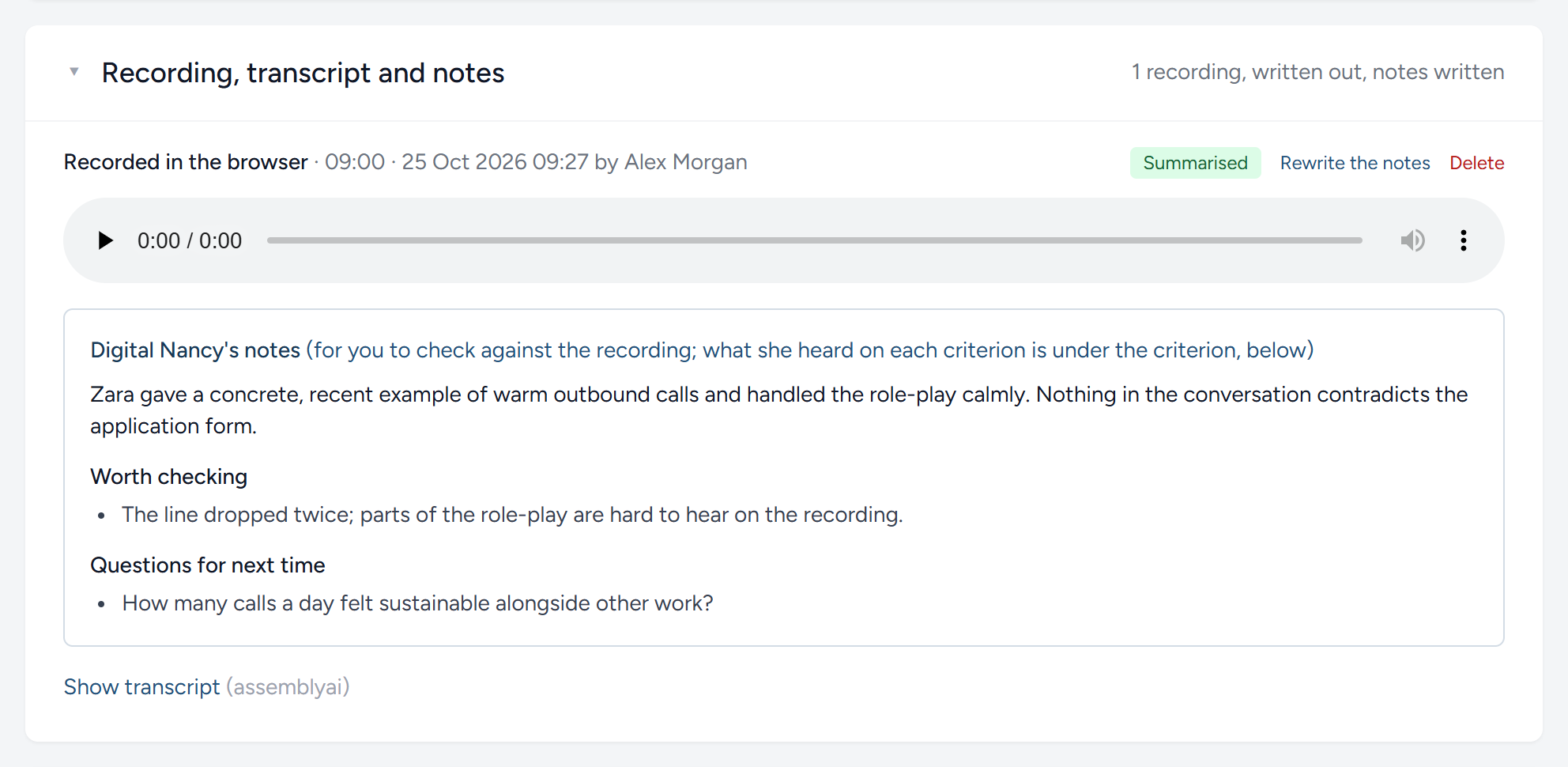
The notes open with Digital Nancy's summary of the conversation; Worth checking lists anything doubtful, such as a stretch of poor sound. What she heard on each criterion, which band that suggests, and how sure she is, are under that criterion in Score this interview, where you need them. Show transcript opens the whole conversation, with the time beside each turn, so that you can find the passage and listen to it.
Your own observations go under Interviewer's notes. Write them while the conversation is fresh.
Marking the work patterns
The long interview also tells you how a person goes about their work and what moves them: Whether they head towards a goal or away from a problem, judge their own work or look to others for the verdict, want options or a procedure, and so on, over fifteen traits. The specification carries the pattern the profile wants under each, in the recruiter's shorthand, and the Work patterns page of the interview is where you read the transcript against it. Open it with Mark the work patterns on the Work patterns bar of the interview page, which also sums up what has been marked so far. The page shows every transcript the candidate's interviews have, the short interview's beside the long one's, because one or two of the method's questions are sometimes asked at the short interview; a mark made on either counts. None of this appears until an admin or a hiring manager switches it on under Settings, Assessing the person.
The page is two halves. On the left, the patterns in the sheet's order, each with its question, what the profile wants, and its options in their colours: The first option of every pattern is yellow, the second green, the third blue, the fourth pink, as on a coloured transcript. On the right, the transcript, with the candidate's words in black and the interviewer's in grey.
To mark what you heard, select some of the candidate's words with the mouse. A small list asks which pattern they show, then which option: Click one and the words are painted in that option's colour, and the passage is listed under the pattern with its time. Cancel, or the Escape key, closes the list if you selected words by mistake. One sentence can show more than one pattern, so mark it as often as it earns. A painted passage, clicked, says what it shows and offers Take off.
The marks add up. Under each pattern the page counts the passages on each option: The option with the most is what the candidate mainly shows, and any other with a quarter or more of the marks is one they show some of, so three passages towards and one away read as Mainly Towards, some Away from. Where you read it differently, Read it yourself lets you say so, with a line on why, and Back to the counts takes your reading off again.
Each pattern then says how it fits the profile: Matches the profile when the main options are the ones the profile wants, Near the profile when they overlap what it wants at all, Apart from the profile when they do not, and Not marked yet until something is. There is no total, and no fit moves a candidate anywhere: It is one more thing to weigh, beside the bands, when you decide.
Mark where asked drops a pattern's question into the transcript at the line where you put it. That line is set in bold on an amber ground, so the questions can be found at a glance down the transcript, and the words below it are offered that pattern first when you mark them. Once a pattern has its question placed, its card offers Go to the question, with the time, which brings the transcript to that line and marks it out until you click elsewhere. Criteria, the first pattern, has no options: Mark the words the candidate used for what matters to them, and they are listed as they are.
Suggest marks with Digital Nancy has her read the transcript first and suggest the marks. She looks for where you asked each pattern's question, in whatever words you used, and reads the answer that followed as the first evidence for that pattern; anything said elsewhere in the interview is offered as second evidence, with less confidence, and the three patterns that are never asked (Global/detail, Proactive/reactive and Attention direction) are read across the whole interview, with a reading you can take as your own. Every quote is checked against the transcript, and a quote Digital Nancy cannot point to word for word is thrown away. Her suggestions are painted in the option's colour with a dashed line under them, and listed under each pattern with a line on why, so you can read them one at a time. Each is weighed by the question that drove it: Digital Nancy looks for the question as your specification sheet words it, grades how closely your words matched (the same question in other words, a close form of it, or only a related one), and the answer to the question stands first, marked From the answer; what was said elsewhere comes after it, marked Probably or Weak, and Digital Nancy offers at most two such passages a pattern. Nothing counts until you Accept it, one suggestion at a time, Accept the answers to take only the strong ones for a pattern or for the whole page, or Accept all under a pattern; Take off removes one you disagree with. Where Digital Nancy found a question, accept that too, and the words below it are offered that pattern first.
The values. Where the specification's profile block lists values as well as patterns, such as Congruence, Respect or Teamwork, the page becomes Work patterns and values, and the values follow the patterns on the left, each with the sheet's words for it. A value is not one of several options, as a pattern is: The profile wants it, and the question is whether the candidate's own account shows it. Mark the words that bear on it as you mark a pattern, choosing the value after the patterns in the small list, and say how clearly: Shown clearly, Some sign or Against it. The values are painted in violet, Against it in grey, so they are told apart from the patterns at a glance. The marks add up as a pattern's do, and the value reads Matches the profile when it is shown clearly, Near the profile at some sign or where the marks are mixed, Apart from the profile when the words go against it, and Not marked yet until something is. Read it yourself takes one reading, with a line on why.
Digital Nancy reads for the values too, when you ask for marks, and every quote is checked in the same way. The method asks about values at the short interview: Where the specification has a criterion under a values heading, Digital Nancy looks for where you asked its question and weighs the answer as an answer, so Accept the answers takes it with the patterns' answers. Evidence of a value said anywhere else is offered as Probably, for you to read one at a time.
The person against the profile
Everything the specification's profile asks for is set beside what the interviews have recorded, in one place: The person against the profile, on the candidate's own scoring page under the form's bands, for anyone who scores the campaign, and at the top of the Work patterns page for whoever holds the interview. A client never sees it.
It opens with a sentence that counts the fits, such as Matches the profile on 6 patterns, near on 2, apart on 1, and then names, in amber, every pattern the profile says something about and every value it lists that nobody has marked yet. Click one to go to the Work patterns page with that pattern brought into view, so the gaps are filled before anyone decides.
Under it is a table in the sheet's order: The pattern, what the profile wants, what the candidate shows, and the fit. Each pattern's options are drawn as a row of small squares in their colours. The options the profile wants are outlined, with a dashed outline for one it wants some of; the options the candidate shows are filled, paler for one they show some of. A filled square inside an outline is a match, so you can read the column down without reading the words. Criteria has no options, so its row gives the profile's words and the passages marked.
Two groups follow. On the telephone sets each of the five things noticed at the short interview beside the sheet's ideal: The word clicked there (Yes, Some or No) matches the profile when it is the word the sheet wants, is near it when one says Some and the other Yes, and is apart from it otherwise. An ideal in the sheet's own words, such as "Warm" under Voice quality, is read as wanting it. Values lists the rest of the profile block, such as Congruence or Teamwork, as the sheet words them, with the reading from the Work patterns and values page (Shown clearly, Some sign or Against it) and its fit, or Not read yet until a passage is marked.
On the Work patterns page the table is folded under the sentence, and a pattern clicked in it brings its card into view, as the strip below does.
Scoring the interview
An interview is judged in the same way as an application form: Against what the person specification said, in advance, that a good answer would contain.
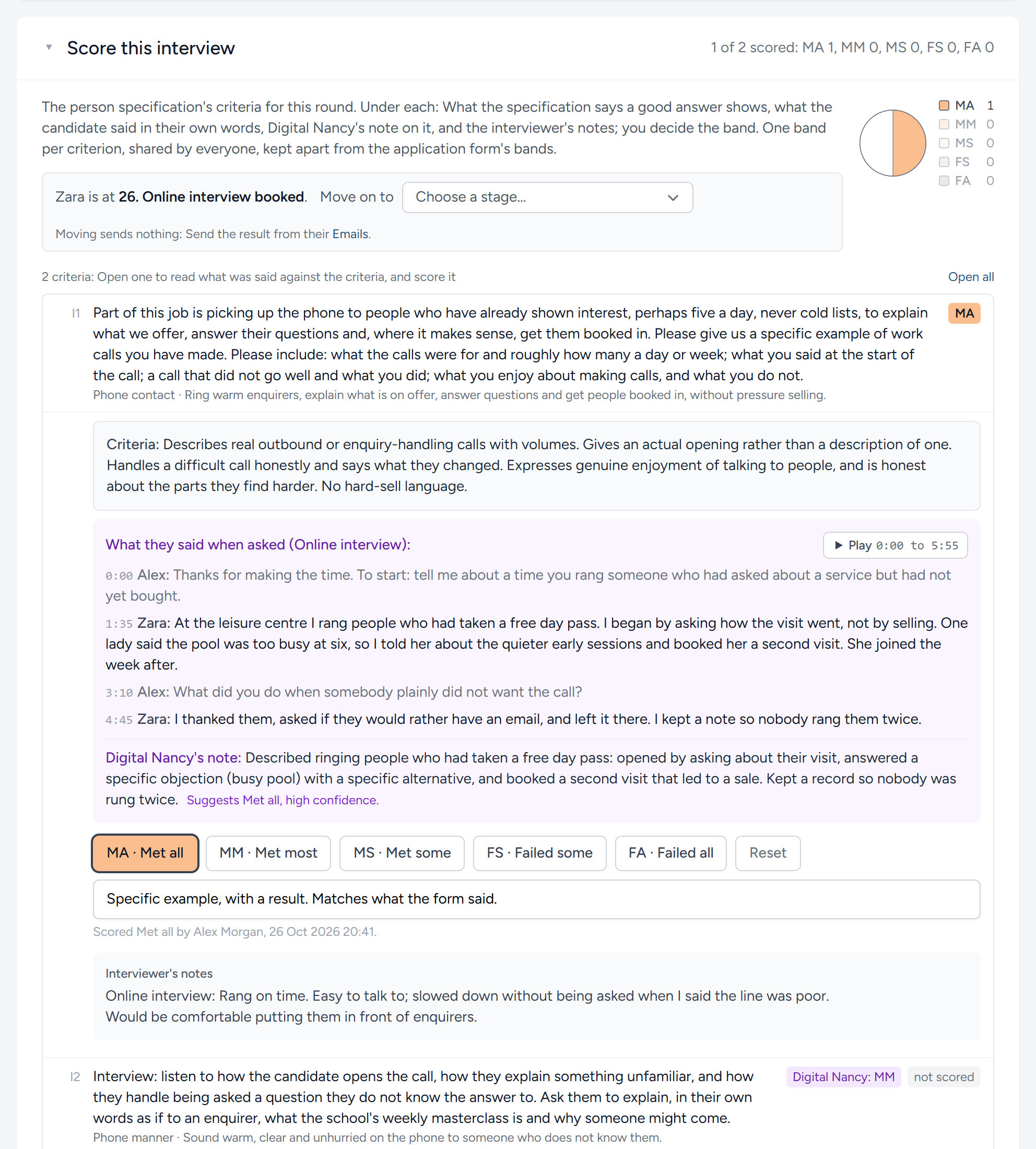
The criteria listed are the ones the specification marked to be assessed at this interview, in the order its questions are asked. What is only to be seen at the interview, and not asked, comes after them. Each is one line: Its number, the question it is asked as, in full, with the criterion under it in small type, and its band, or "not scored", with Digital Nancy's suggestion in purple where there is one.
Open a criterion and it reads from the top in the order the method scores. First, Criteria: What the specification said, before anyone was interviewed, that a good answer would contain. Where nothing is written there yet, the line says so and leads to the criterion on the specification. Then What they said when asked: The candidate's answer in the words they used, taken from the transcript turn by turn with the time of each, the interviewer's question in grey above it. Where the interview was recorded here, or the recording was uploaded, a Play button beside it plays that part of the recording and stops where the answer ends, so you can hear the answer and not only read it. A long answer shows its first turns, with the rest on a click. Under the words is Digital Nancy's note on the answer, with the band she suggests and how sure she is: The note is her reading of it, and the words above are what you score. From elsewhere follows: Anything said at another point of the interview that bears on the criterion, quoted the same way, each passage with its own Play button. Then the bands: Click one. The interviewer's notes for the interview are under the bands, their first few lines with Show more for the rest, so that long notes never stand between the criteria and the band. Open all and Close all do every criterion at once. You can add a note for the rest of the panel, which is saved with the band.
As on the scoresheet, a criterion has one band, shared by everyone, and the page records who gave it and when. Reset takes a band off again. The pie at the top of the section fills in as you go, and the part's own line counts the bands when it is folded.
Noticed on the telephone. The short interview's page opens with the five things the method notices as you talk and never asks: Voice quality, whether they build rapport quickly, respond to what you say, laugh, and ask you questions. Each is one click, Yes, Some or No, made during the call or straight after, with a word beside it if you want one, and the sheet's own ideal shown where the specification gives one. Underneath, the click is kept as a band (Yes is Met all, Some is Met some, No is Failed), so the candidate's page and the scoresheet count it like any other criterion; here the word is shown in the band's place.
These bands are kept apart from the bands on the application form. On the candidate's own scoring page the two are shown one after the other, so you can see whether the person you spoke to matches the person who wrote the form.
After the interview
The last thing to do is to record what happened, by moving the candidate on. The control for it sits at the top of Score this interview, beside the pie, so it is to hand when the last band goes on.

The list holds every stage that follows this interview in the campaign's pipeline, up to the next interview. In the standard pipeline it opens with Online interview completed, Online interview failed and Online interview passed. Your own pipeline may give you something different.
Who is told what, and when
| When | The candidate | The interviewer |
|---|---|---|
| You send the invitation | The invitation, with their private link | Nothing |
| The candidate books | A confirmation, a calendar file, and a link to change or cancel | An email and a calendar file |
| The candidate chooses a different time | A new confirmation. The calendar entry moves | An email. The calendar entry moves. If the new time is another interviewer's, the first is told it has gone |
| The day before | A reminder, with the calendar file | Nothing |
| The candidate cancels | A cancellation, which removes the calendar entry | An email, which removes the calendar entry |
| You cancel the booking | The same, if you leave the box ticked | The same, unless they cancelled it themselves |
Every email to a candidate is kept on their Emails page, where you can see whether a calendar file went with it. The wording of each can be changed: See Emails to candidates.
Removing an interview
An interview that nobody has ever booked can be removed, with all its times, by clicking Remove beside its name.
Once anyone has booked, Remove is no longer offered, and the page tells you why. While interviews are still to come, cancel them first. Once interviews have been held, the interview stays for good, because removing it would delete their recordings, transcripts and notes. Remove its free times instead, and no one else can book.
This chapter was last revised on 30 October 2026.