Running a campaign · Chapter 13
Turning candidates down, and feedback
Telling candidates kindly that they will not be going further, and giving feedback to anyone who asks for it, prepared for you from the person specification.
In this chapter you will
- see why every candidate who asks is told why
- know where the feedback comes from
- turn one candidate, or many, down in one step
- turn down those who failed a dealbreaker, and know what their feedback says
- know what is and is not sent when a candidate leaves another way
- put a candidate who asks for feedback on the list
- read, change, hold and send the letters
- set how your feedback sounds
Why every candidate who asks is told why
Candidates give a good deal of time to an application, and the method's rule is that anyone who wants feedback is given it. Good feedback reminds them of the question, says what was looked for, and lets them see where their answer fell short. It is about what they wrote, never about them, and it is never "you were just not the right fit": If the reason cannot be said, the criteria were not clear enough.
Because every answer on the form, and every criterion kept for the interview, is scored against the person specification, HiMatcher already knows what each candidate was missing. So feedback is a matter of minutes, not an afternoon:
- You turn the candidate down with one email, which thanks them and offers feedback to anyone who replies asking for it.
- When they ask, one click puts them on the campaign's Feedback to send, with their letter already prepared.
- You read it, change anything you like, and send it. It goes out signed with your name.
Where the feedback comes from
Every criterion on the person specification has a feedback line, written for the candidate whose answer falls short on it. You check these lines with the rest of the specification. See The person specification.
When a candidate asks, the letter is made from the feedback line of every question on their form, and every criterion at their interview, that they scored Met some or lower on, unless a dealbreaker decided it. Which kind of letter they get depends on what there is to draw on:
| What there is | The letter prepared |
|---|---|
| A dealbreaker scored Failed all, on the form or at the interview | That requirement's feedback line alone, and nothing else that fell short: Digital Nancy writes it up, or without Digital Nancy the template Feedback: A requirement of the role is used. See When a dealbreaker decided it |
| Points that fell short, and Digital Nancy is switched on | Digital Nancy writes them up as a short letter in your feedback style: The interview's points first, if they had one, then the form's. She may not contradict the feedback lines, mention scores or other candidates, say what anyone at the employer thought, or invent anything |
| Answers on the form that fell short, without Digital Nancy | The template Feedback: Lack of detail, which lists each question, their answer and its feedback line |
| Criteria at the interview that fell short, without Digital Nancy | The template Feedback: After an interview, which lists each interview question with its feedback line |
| They were scored, and nothing fell short: A strong candidate the client did not take forward, say | A short, honest letter that says so: Their answers showed what was looked for, and others matched the role more closely. Change it if that is not what happened |
| Nobody has scored them yet | A starter for you to finish, with a note in square brackets where the feedback goes. It cannot be sent until you have written it |
At an interview there is no written answer to quote back, and the interviewer's own notes are never used: Only the criterion's feedback line, or the description of the band they were given where a criterion has no line.
If Digital Nancy cannot write a letter, the template is used instead, with a line to say so, so nobody is kept waiting.
Turning candidates down
On the campaign page, tick the candidates and click Turn them down…, or click Turn down beside one candidate.

- The email. HiMatcher suggests Reject after application form; Reject after online or final interview for someone who has had an interview; or Feedback: Better candidates for someone your client has said no to. Choose another if it fits better.
- Then move them to. The stage the email already moves people to is chosen for you. Choose another, or Leave them where they are.
- Send it and turn them down. Each candidate gets their own copy, made out to them and signed with your name.
The emails you can choose from are these:
| When to use it | |
|---|---|
| Reject after application form | Their form did not show what the role needs |
| Reject after online or final interview | After an interview |
| Reject after no response | They stopped replying. It says so, and asks them to reply if they are still interested |
| Feedback: Better candidates | A strong application, but others matched the role more closely, or the client chose others to take forward |
| Position filled | The job has gone to someone else |
Each of them thanks the candidate. The two rejections and Feedback: Better candidates also offer feedback to anyone who replies asking for it. None of them says why the client decided as they did, and nor should yours: A candidate is told what the role needed, never what someone thought of them. You can change the wording of any of them, for every campaign or for one. See Emails to candidates.
Afterwards the candidate's row says Turned down and the date, and the email is on their Emails page.
When a dealbreaker decided it
A dealbreaker is a requirement the role cannot do without, such as the right to work, the hours or living within reach. An answer scored Failed all on one ends the application. See Scoring the application forms.
HiMatcher marks these candidates in red on the campaign page, Failed a dealbreaker, with the requirement's name. It does not turn them down for you, because someone should look first: A score can be mistaken, and a candidate may have read the question differently.
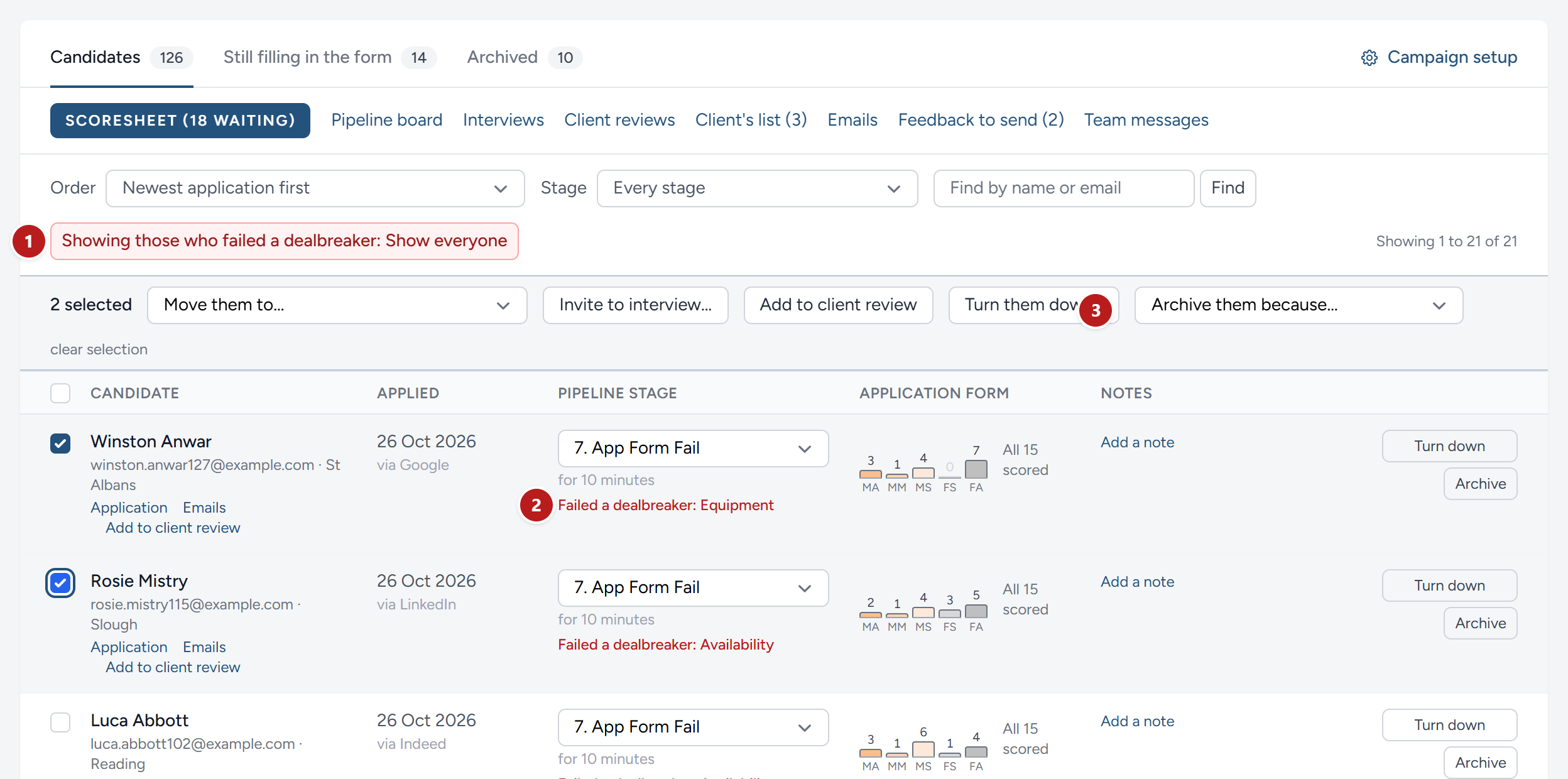
- Failed a dealbreaker, above the list, with the number waiting, shows only those who failed one and have not been turned down yet. Click it again to show everyone.
- The mark on each row names the requirement they did not meet.
- Tick them and click Turn them down…, as for anyone else.
If one of them asks for feedback, their letter gives that requirement's feedback line alone. It says the role cannot do without it, whatever else someone brings, and that it says nothing about the rest of their application. Other points that fell short are left out, because they did not decide it, and Digital Nancy is told the same. Without Digital Nancy, the letter is the template Feedback: A requirement of the role.
A candidate marked in amber, Dealbreaker in doubt, has not failed it. Ask them a follow-up question before deciding anything.
Other ways a candidate leaves
These send the candidate nothing. Use Turn down when the candidate should hear from you.
- Moving them to a stage by hand, such as Final interview failed, moves them and sends nothing.
- A client's Reject on a review moves them to the stage chosen for rejections, and tells your team, not the candidate. Turn them down afterwards, and Feedback: Better candidates is suggested. See Suggesting candidates to your client.
- Archiving sets them aside with a reason, for your team only. See Managing candidates.
- An unfinished form is archived by itself some days after the reminder.
When a candidate asks for feedback
A candidate who wants feedback usually replies to the email that turned them down. Their reply arrives on their Emails page, like any other. See Emails to candidates.
- Open their Emails page.
- Click They asked for feedback.

They go on the campaign's Feedback to send, and their letter is prepared at once. Digital Nancy takes a minute or so. If they asked on the telephone, the same button does the same. If they ask twice before you have answered, they still get one letter.
Feedback to send
The campaign page shows Feedback to send among its links, with the number waiting, as soon as anyone has asked.
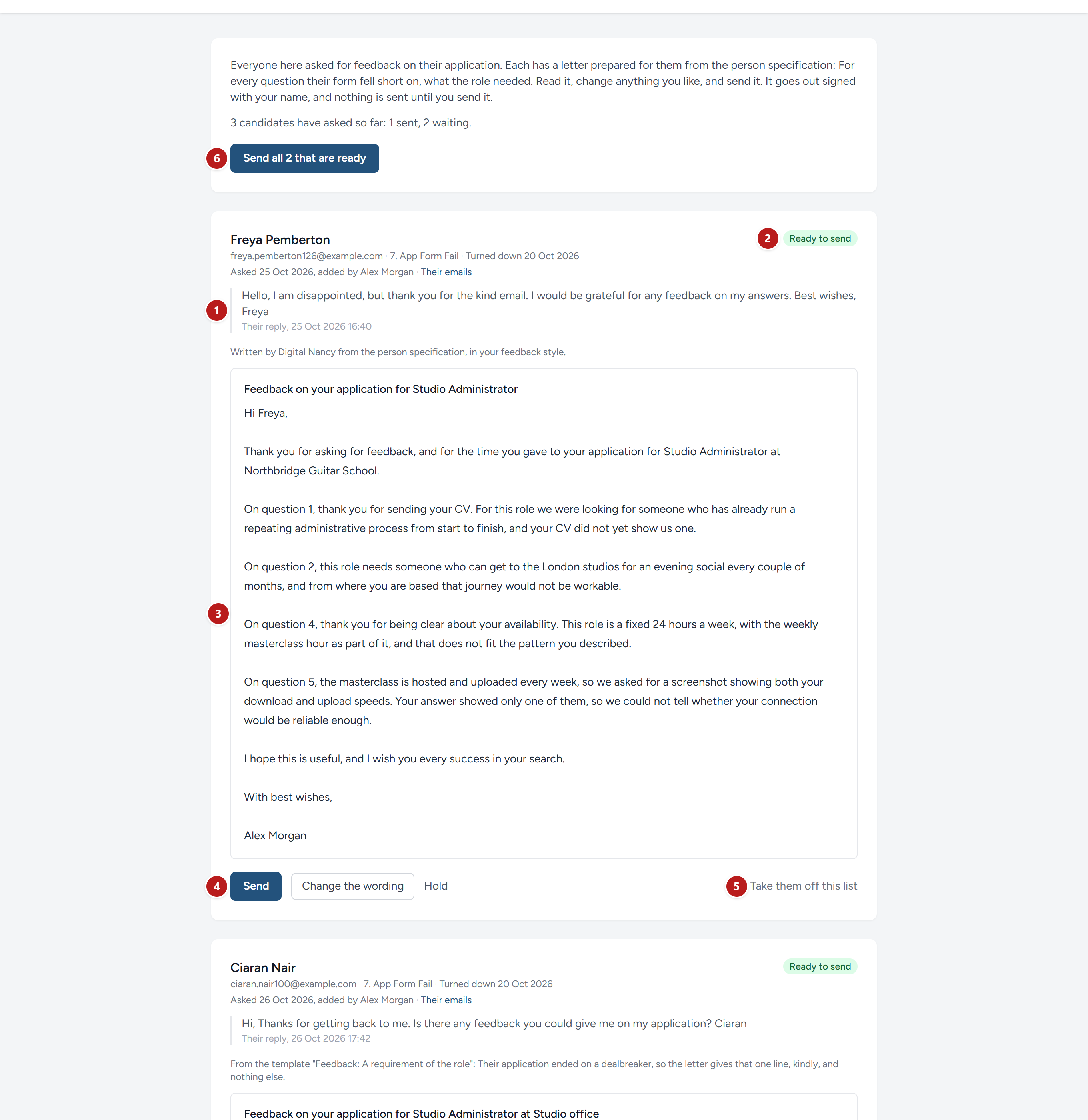
- Who asked, when, and the reply they asked in.
- How it stands: Being prepared, Ready to send or Held.
- The letter as it will read: Made out to them, and signed with your name, because whoever sends it signs it.
- Send sends this one. Change the wording opens it for you to edit. Words in double curly brackets, such as
{{me}}, are filled in as it goes. - Take them off this list removes someone added by mistake, and nothing is sent to them. Hold, beside Change the wording, keeps a letter here and leaves it out of Send all until you take it up again.
- Send all sends every letter that is ready, and leaves the held ones.
A letter that still has a note in square brackets, or a gap HiMatcher cannot fill, is not sent. It stays on the list with the reason beside it. Letters that have gone are listed at the foot of the page, with who sent them and when, and each is on the candidate's Emails page.
Your feedback style
How the letters sound is yours to set: The tone, anything every letter must include, and the sign-off words. Write it under Feedback style in your House notes. See Digital Nancy and your own key.
For example: "Warm and brief. Thank them for asking. End with 'With best wishes'."
Digital Nancy follows it in every letter she writes. The name at the foot is always that of whoever sends the letter.
This chapter was last revised on 30 October 2026.