Running a campaign · Chapter 9
Scoring the application forms
Reading each answer against the description you wrote in advance, and placing it in one of five bands.
In this chapter you will
- find your way around the scoresheet
- band an answer, change your mind, and take a band off again
- read the pie chart that sums up each candidate
- look at uploaded CVs, spreadsheets and pictures without leaving the page
- ask Digital Nancy for a first opinion, and accept or overrule it
- talk to your team about a candidate as a whole, not only one answer
- give a band again where the criteria or the bands have changed since
- put a follow-up question to a candidate, and use their reply
Before you start
You can score as soon as one person has submitted the form. Anyone on your team with the role of scorer, hiring manager or admin can do it.
An answer has one band, shared by everyone. If a colleague has scored an answer you will see their band, and if you click a different one yours replaces it. The page always shows who gave the band and when, so two people can split a long list between them without treading on each other.
Opening the scoresheet
- Open the campaign.
- Click Scoresheet. The number beside it tells you how many forms nobody has touched yet.
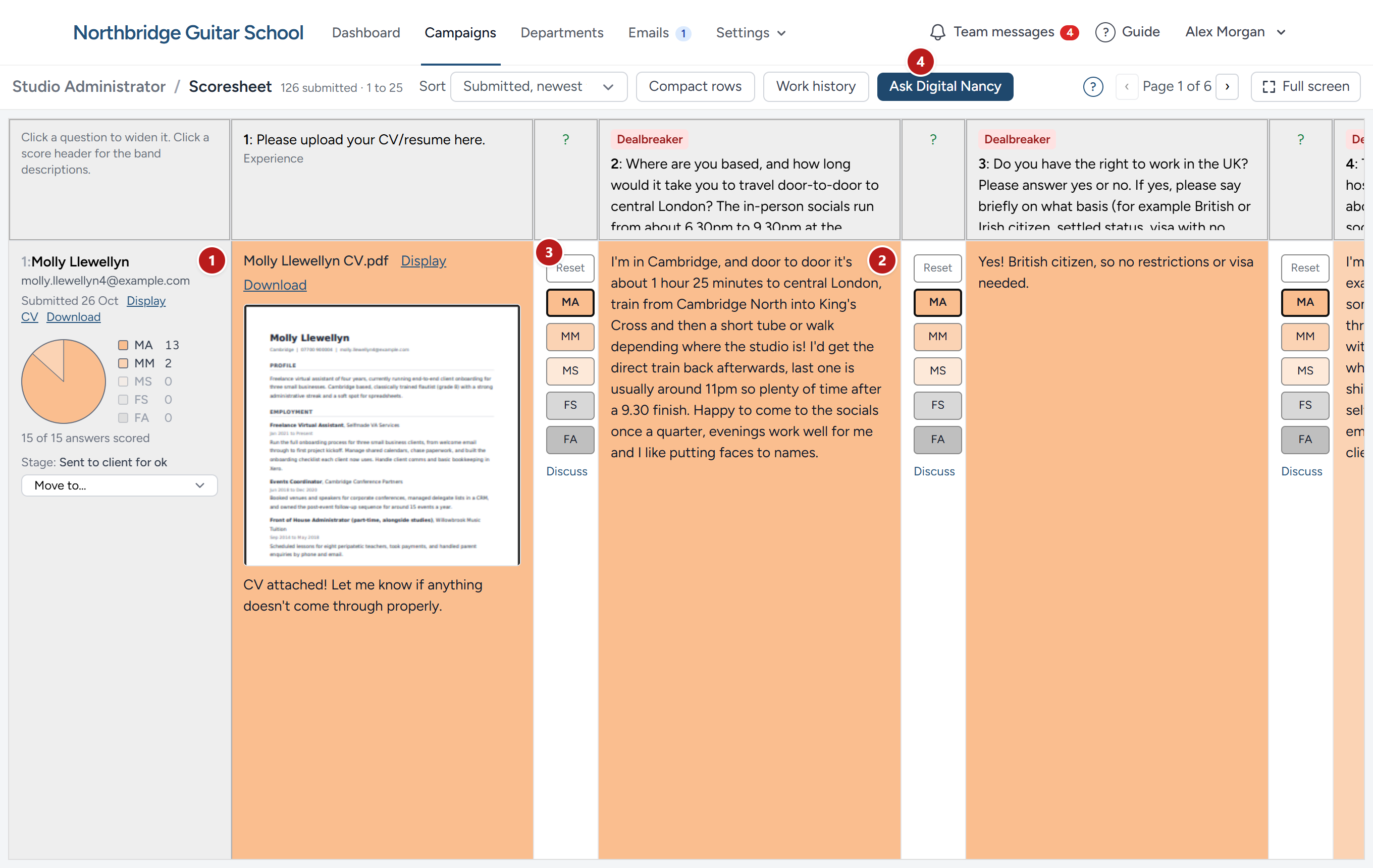
- The candidate: Their name, links to their CV, the pie chart of their bands so far, and their place in the pipeline.
- The answer to one question. The column heading above it carries the question.
- The band buttons for that answer.
- Ask Digital Nancy, described later in this chapter.
Every candidate is a row and every question is a column. Most scorers find it best to take one question and read it all the way down the page before moving to the next: You hold one standard in your head, and you are less swayed by a candidate's other answers.
Giving the scoresheet the whole window
The scoresheet is where the reading is done, so it takes all the room there is. Its controls sit in one slim bar across the top, and the grid fills the rest of the window, however large or small that is. The page itself never scrolls. Only the grid does, with the questions and the candidates' names staying in view as you move.
For more room still, click Full screen at the right-hand end of the bar. The menu bar is put away and the scoresheet has the window to itself. Click Exit full screen, or press Esc, to bring the menu back. HiMatcher remembers which you prefer.
Two other buttons in the bar change how much you see at once. Compact rows clamps every answer to one line, so that a whole page of candidates fits on the screen, and a row opens when you click its arrow. Work history adds columns beside each name with the candidate's recent jobs.
Scoring an answer
- Read the answer.
- Click the ? at the top of the narrow column beside it. The column opens to show what Met all, Met most, Met some and Failed all look like for this particular question, exactly as the person specification describes them.
- Decide which description the answer matches, and click that band.
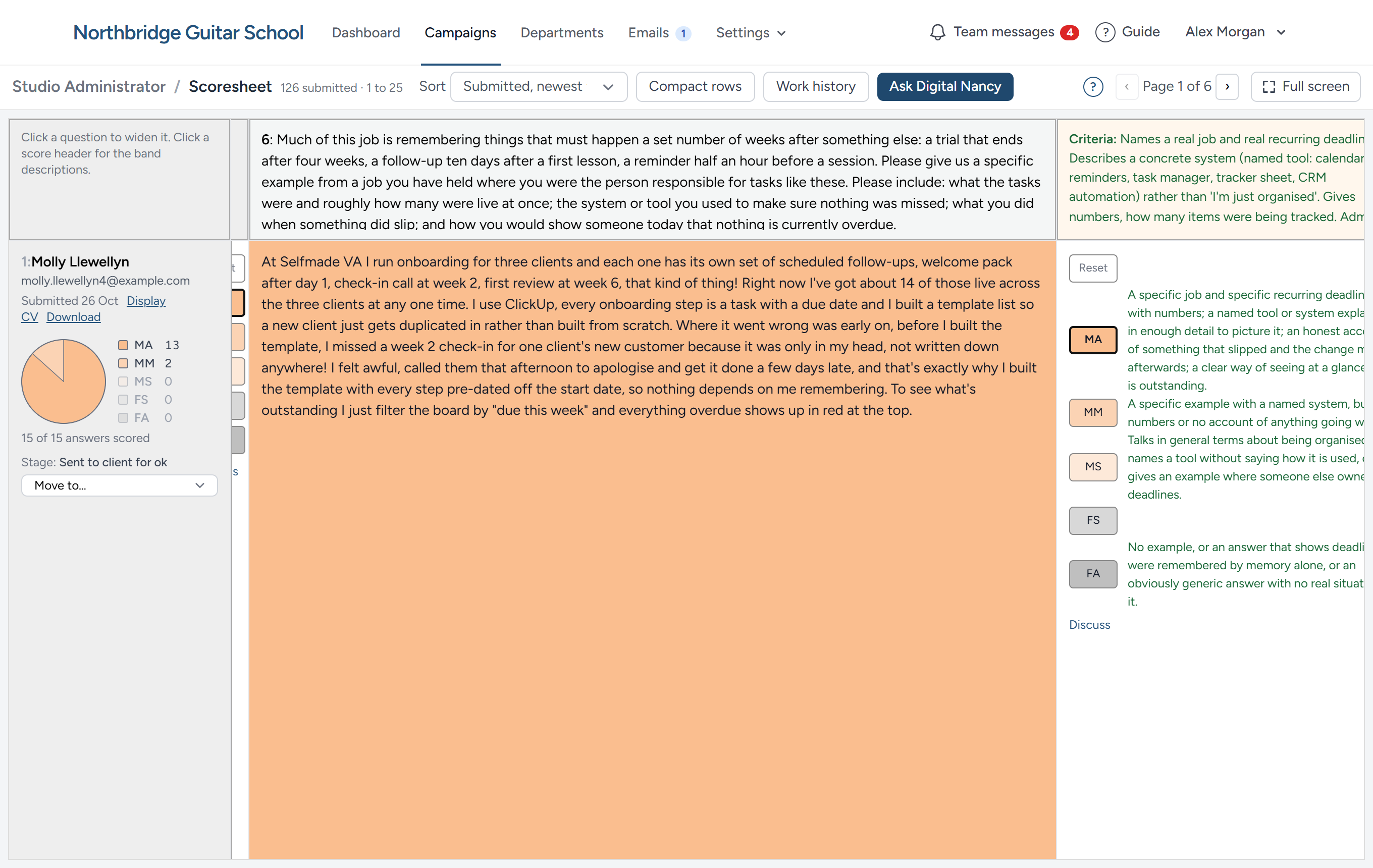
The answer's background takes the colour of the band, so a scored form can be read at a glance, and the candidate's pie chart changes at the same moment.
| Button | Band | Choose it when |
|---|---|---|
| MA | Met all | The answer contains everything the criteria ask for. |
| MM | Met most | Nearly everything is there, and the gap does not worry you. |
| MS | Met some | Part of what was asked for is there, with real gaps. |
| FS | Failed some | The candidate tried, but nothing in the answer meets the criteria properly. |
| FA | Failed all | There is no answer, or nothing to the point. |
Changing your mind
Click a different band and it replaces the first. To take a band off altogether, click Reset above the buttons: The answer goes back to white and drops out of the pie chart. If the candidate's form had been fully scored, it no longer is, and that can move them back a stage, as the end of this chapter explains.
When the list is sorted
The Sort box at the top orders the candidates: By when they applied, newest first (how the page opens) or oldest first (the order they arrived in, for working through them as a queue), by surname, or with the most Met all first. Scoring never shuffles the rows while you work, even when a new band would change someone's place in the order. When bands have changed since the list was sorted, a Re-sort now button appears, and the order is only taken afresh when you click it.
Reading the pie chart
Each candidate's pie shows how many of their answers fall in each band, with a white slice for answers nobody has scored yet. The numbers are written beside it.
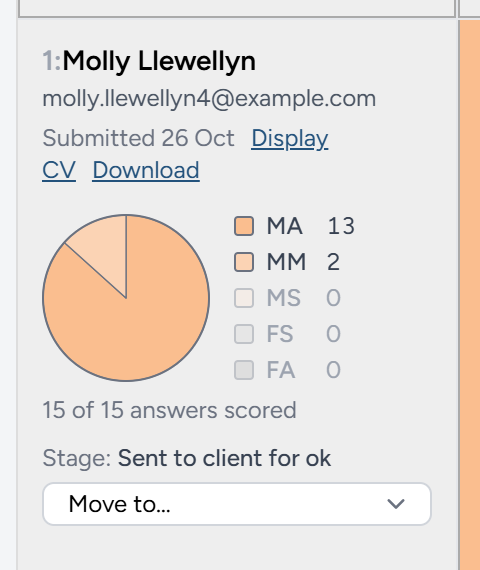
There is no total and no pass mark, on purpose. A number would hide the difference between a candidate who is solid everywhere and one who is brilliant in places and hopeless in others. The pie keeps that difference in view. When you come to decide who goes forward, look for pies that are mostly Met all and Met most, then look at where the weaker bands fell: A Met some on something that would only have been a bonus costs little; a weak band on the heart of the job costs a great deal.
Dealbreakers
A few questions are not a matter of degree. They test a requirement that nothing else makes up for: The right to work, the hours, or living within reach. At Northbridge the administrator must be able to get to an evening social in London, so a candidate who lives too far away cannot do the job, however good the rest of their form is.
On the scoresheet such a question carries a red Dealbreaker label above it, at the top of its column. Score the answer as you would any other, against the descriptions. The difference is in what a fail means: An answer scored Failed all on a dealbreaker ends the application, whatever the rest of the pie looks like. That is one reason there are no points. Points would let ten good answers buy back the one that cannot be bought.
If a dealbreaker answer leaves you in doubt, a travel time "a little over" the limit for instance, do not guess in either direction. Ask the candidate a follow-up question.
On the campaign page, a candidate whose dealbreaker answer was scored Failed all is marked in red, Failed a dealbreaker, with the requirement's name. One scored Met some or Failed some on a dealbreaker is marked in amber, Dealbreaker in doubt, with a link to ask the follow-up question. Neither moves anyone or sends anything: A person decides. See Turning candidates down, and feedback.
Looking at files
When a question asks for a file, the file is shown inside the answer, above anything the candidate typed.
- A CV or any other PDF opens in a small reader.
- A picture, such as a screenshot, is shown as it is. Click it to see it full size.
- A Word document is turned into a PDF the first time it is needed and shown the same way.
- A spreadsheet is shown as a table. Cells worked out by a formula are tinted, and the formulas are listed underneath.
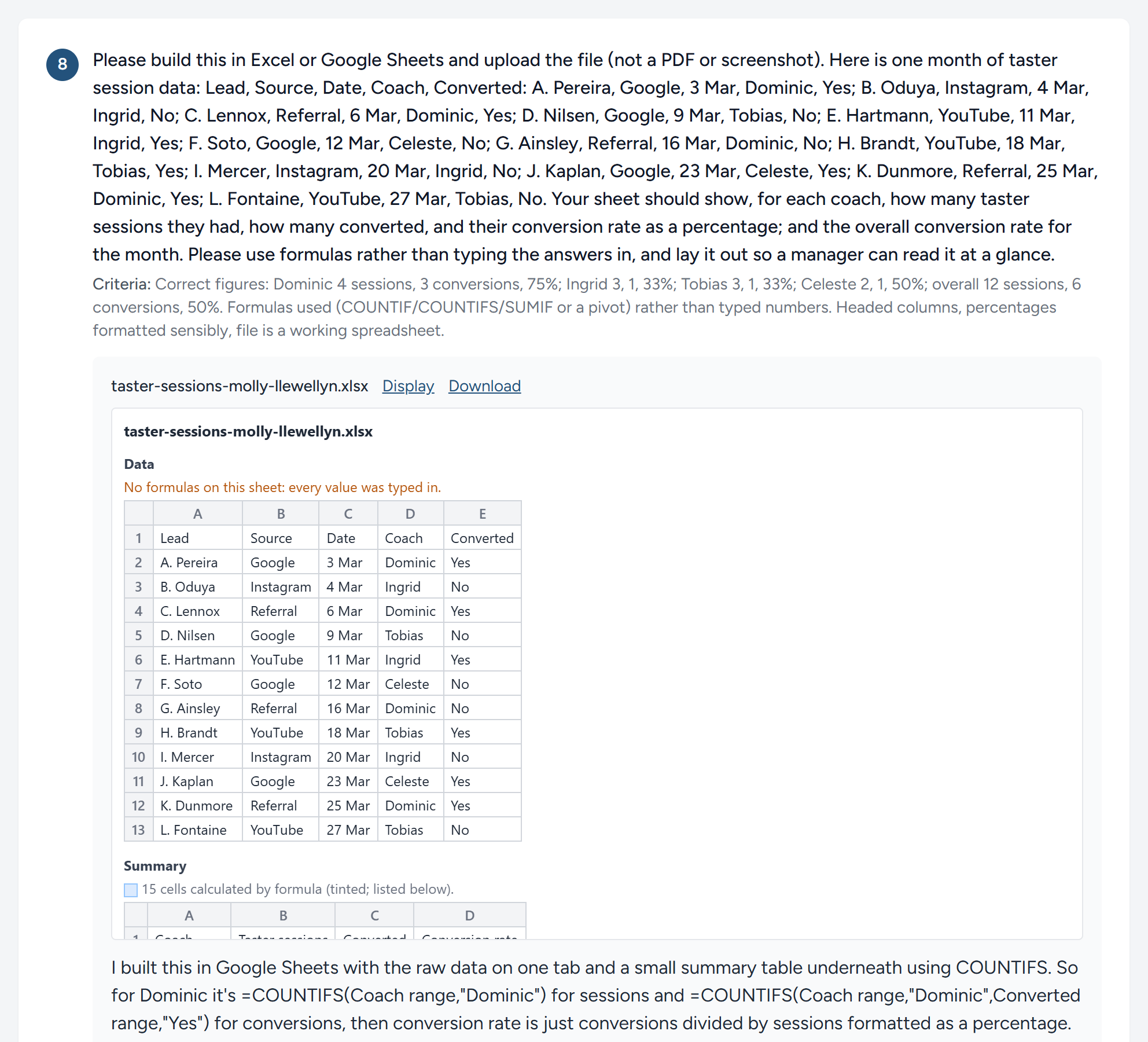
Display opens the file in a tab of its own, and Download saves the original. Files never leave HiMatcher to be shown: Nothing is sent to an outside viewer.
Asking for a first opinion
HiMatcher has state-of-the-art AI built in, called Digital Nancy, used the way best practice says it should be: She advises and a person decides. If your organisation has switched her on (see Digital Nancy and your own key), she can read answers before you do and propose a band for each.
- Click Ask Digital Nancy.
- Choose This page or The whole campaign. Each choice shows how many answers would be read, about how long it will take, and about what it will cost your organisation.
- Carry on working. A blue bar shows how far Digital Nancy has got, and her proposals appear as they arrive.
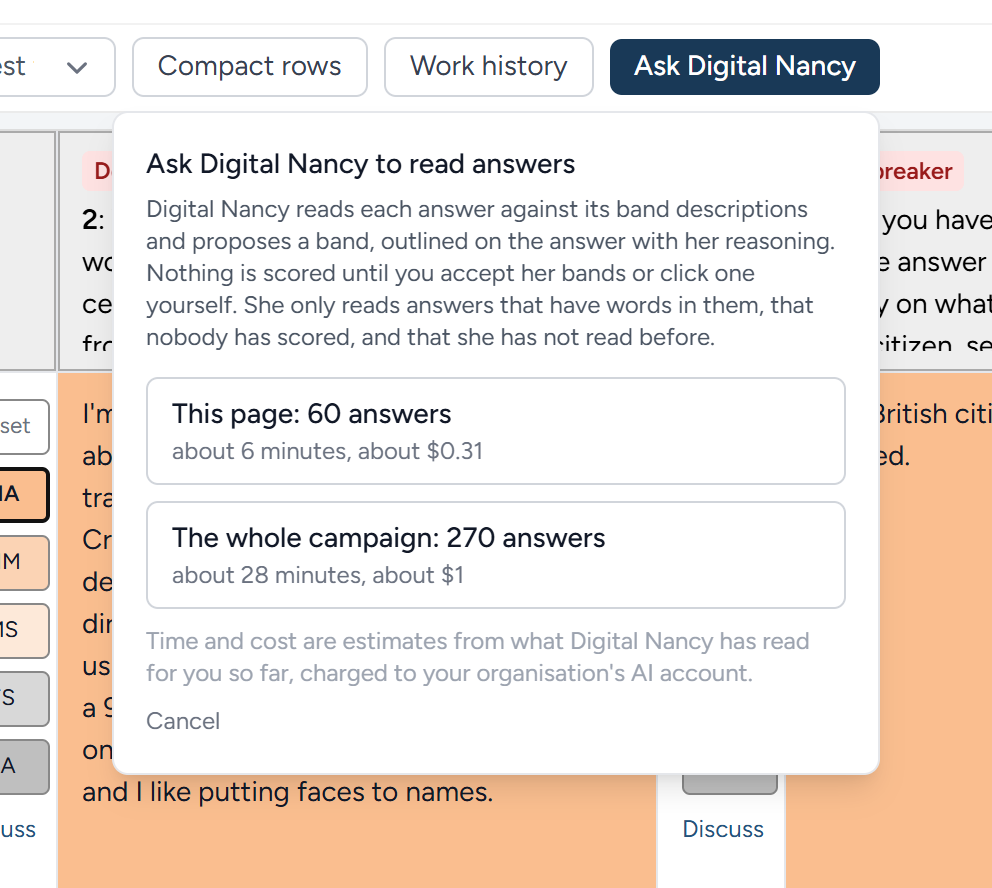
Digital Nancy only reads answers that have words in them, that nobody has scored, and that she has not read before. So asking twice costs nothing extra.
A proposal shows as an outline round one of the band buttons. Open the score column to read Digital Nancy's reasons. Then either:
- Click a band yourself, which accepts or overrules the proposal for that answer, or
- Click Accept Digital Nancy's bands under a candidate's pie, or Accept Digital Nancy's bands on this page at the top, to take every outstanding proposal at once.
Accepted bands are ordinary bands in your name. You can change or reset any of them.
One candidate at a time
Click a candidate's name to open their own scoring page. It has the same answers and the same band buttons, laid out down the page with more room, together with the team's notes on the candidate and any follow-up questions you have asked them. Follow-up questions are the next section.
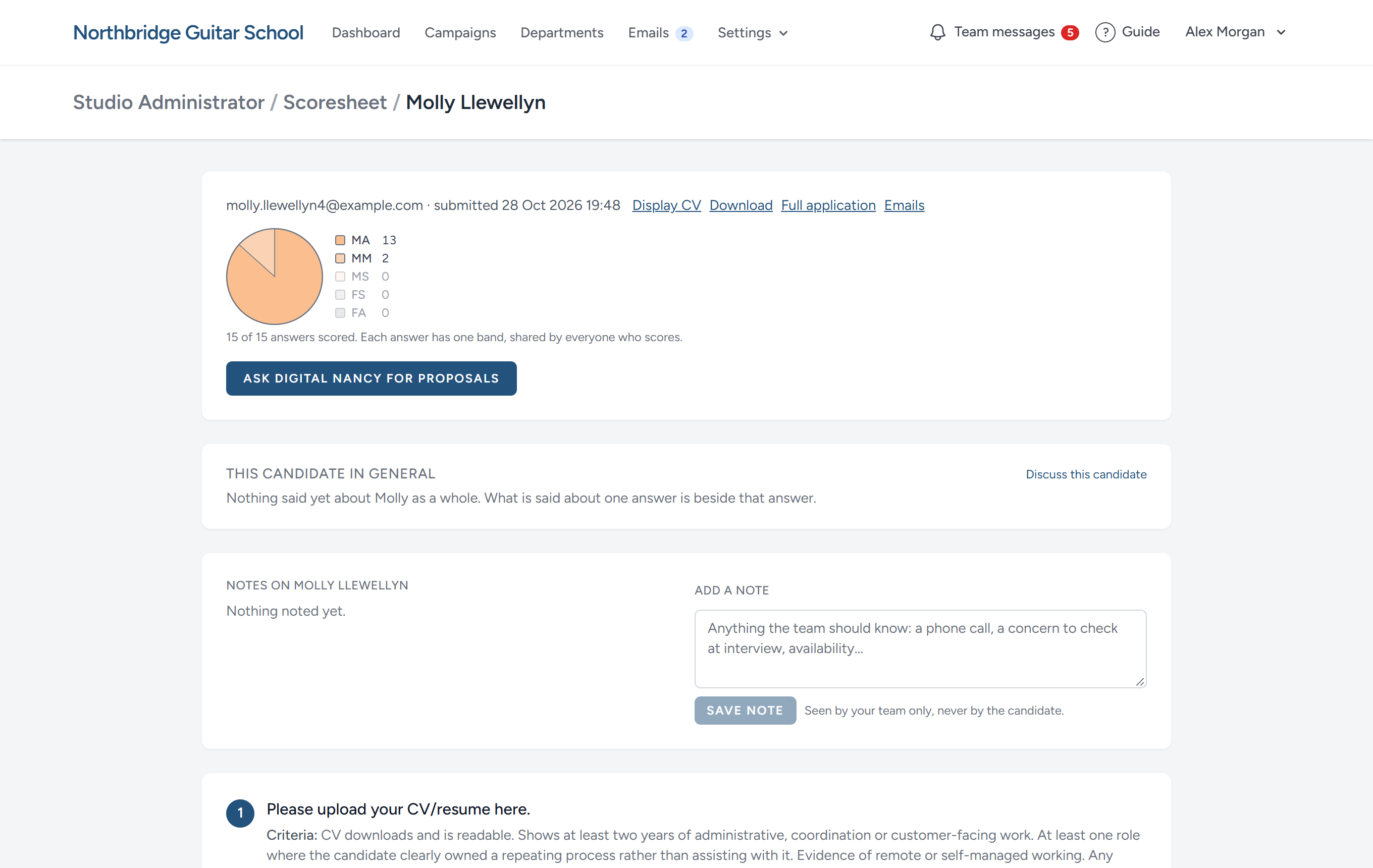
Use whichever view suits the moment: The scoresheet for reading one question across many people, the candidate's page for reading one person from top to bottom.
Talking about a candidate as a whole
Some things are about the person, not one answer: How they come across, whether to meet them first, something you heard when you rang them. Near the top of the candidate's scoring page, and of their application, This candidate in general holds what your team has said about them as a whole. On the campaign page, Discuss beside each candidate opens the same conversations without leaving the list, with how many comments there are and how many you have not read (see The campaign page).
- Click Discuss this candidate. A panel opens over the page with the candidate already linked.
- Write to the colleagues you want, or to everyone on the campaign, and send it.
- The conversation is listed under This candidate in general, newest first, with who began it and the latest thing said. Click one to open the whole conversation.
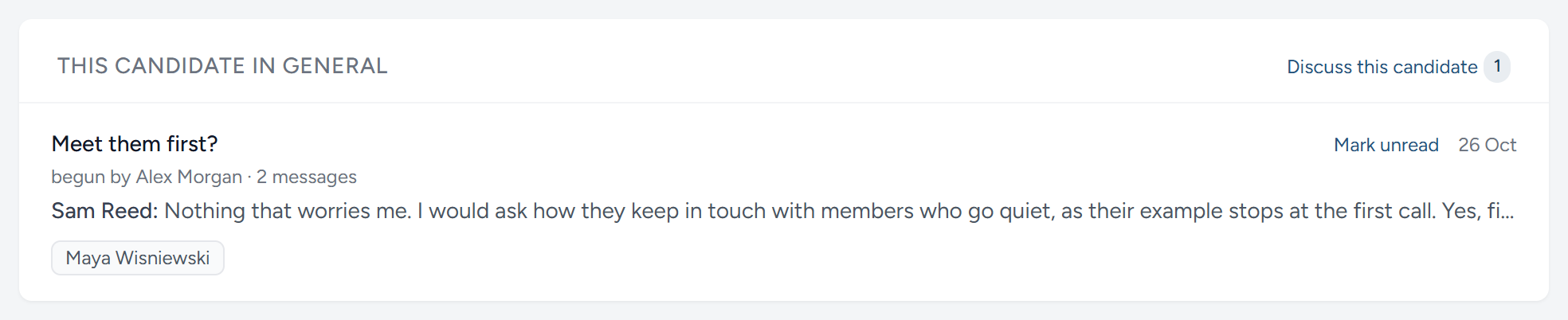
What is said about one answer stays beside that answer, under Discuss with the team, and is not listed here. A link to the candidate in a message lands on this list. See Team messages.
Scoring again
The criteria and the bands are written, and tightened, once the first answers are in (see The first answers). A band given before they changed was given against something else, so it is marked to be given again.
- On the scoresheet, the bar says how many answers there are to score again. Choose To score again, first under Sort to bring the candidates with such answers to the top.
- Each such answer has Score again under its band.
- On a candidate's own page, the answer says when the criteria or the bands changed.
Read the answer against the criteria and the bands as they are now, and click a band. Where the band still holds, click the same one: That says the answer has been read again, and the mark goes. Digital Nancy's proposals for answers not yet scored are dropped when the bands change, as she wrote them against the old ones. Ask her again for new ones.
Asking a follow-up question
Sometimes an answer is nearly enough. The candidate names a number and not the tool, or says something you would like to hear more about before you decide. You do not have to guess, and you do not have to wait for an interview. Ask them.
A follow-up question goes to one candidate, after their form is in. Anybody who can score forms can ask one.
Writing the question
- Open the candidate's own scoring page, by clicking their name.
- Under the answer you want to know more about, click + Ask a follow-up about this answer.
- Type the question, and click Add.
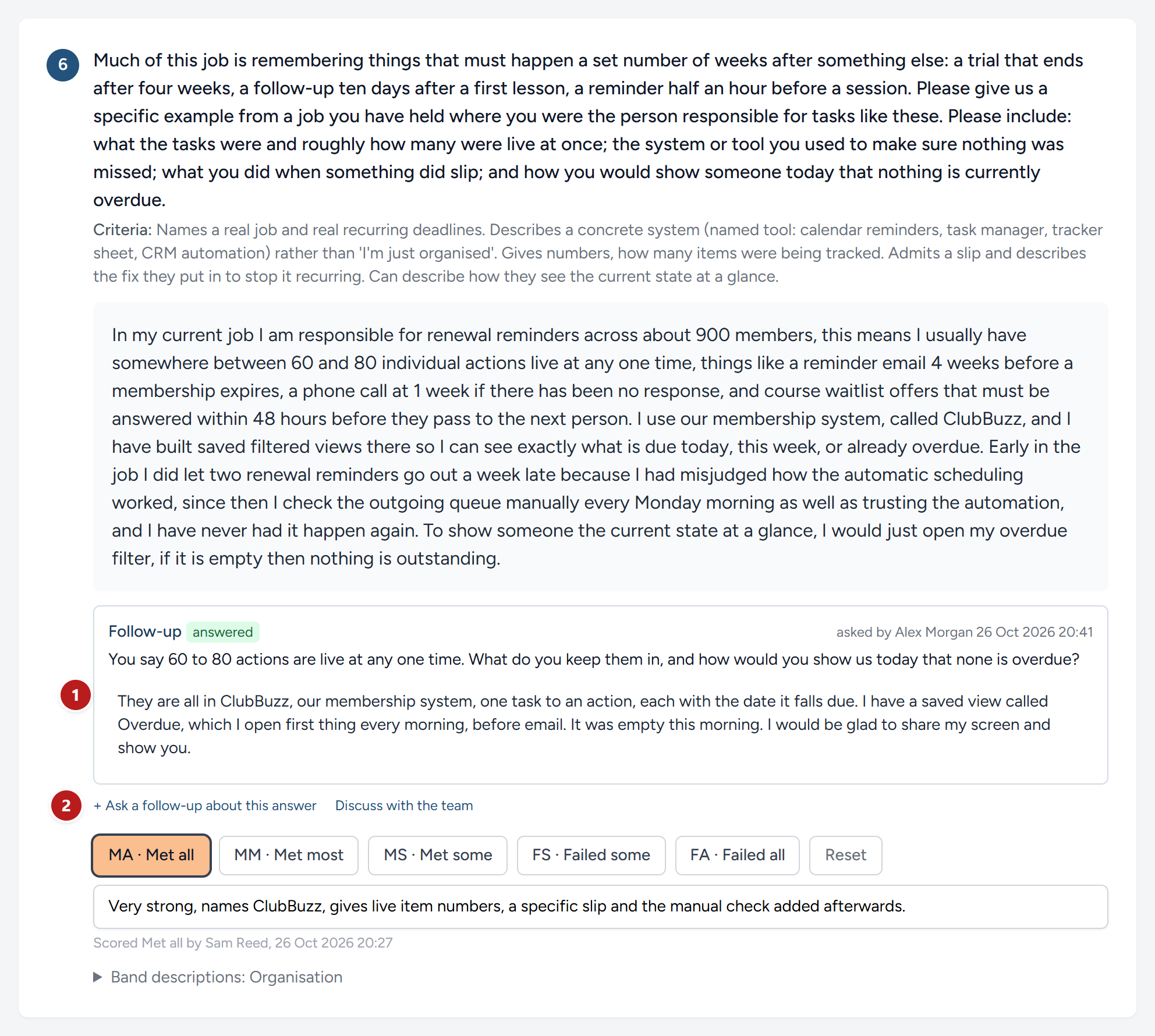
- The follow-up, with who asked it and when. The candidate's reply appears in the white box beneath the question.
- Ask a follow-up about this answer. You can ask more than one.
A question that is not about any one answer goes at the foot of the page, under General follow-up questions. The gap in an employment history is a typical one.
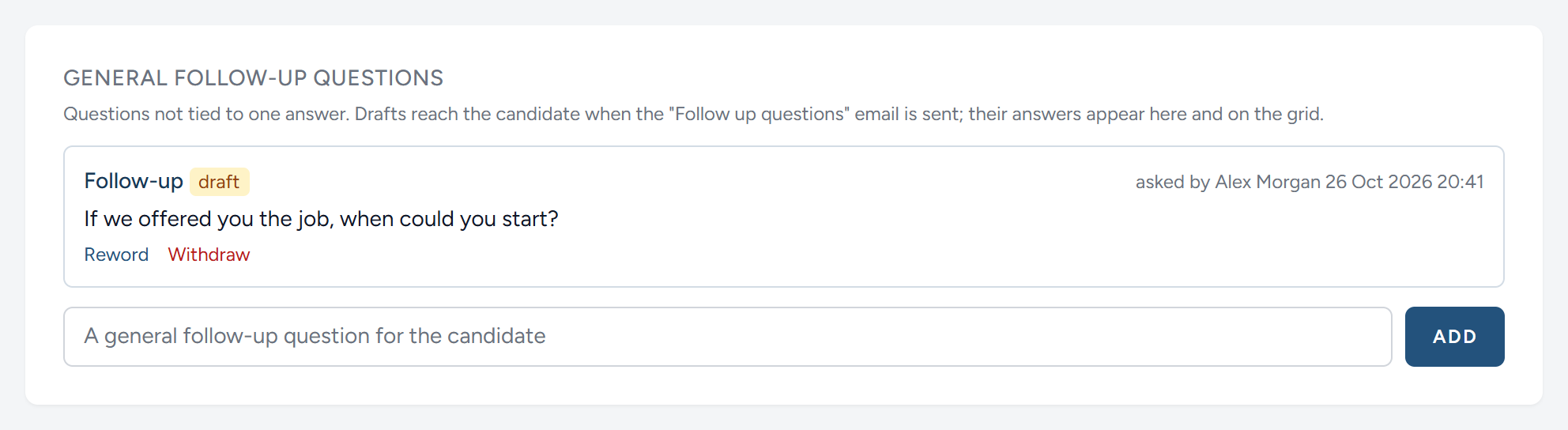
Every follow-up carries a label.
| Label | What it means |
|---|---|
| draft | You have written it. The candidate has not been sent it |
| sent | It has gone to the candidate, who has not yet replied |
| answered | Their reply is on the page |
You can Reword or Withdraw a follow-up until it has been answered. After that it is part of the record, and stays as it is.
Sending the questions
Writing a follow-up sends nothing. The questions go when you send the email that carries them.
- At the top of the candidate's scoring page, a line counts their follow-ups, such as 1 drafted, 0 awaiting answers, 1 answered. Click Send the "Follow up questions" email beside it.
- On the candidate's Emails page, choose the template Follow up questions, read it through, and click Send.
Every draft for that candidate goes at once, and turns to sent. In the standard pipeline the candidate moves to Follow up questions sent. See Emails to candidates.
What the candidate sees
The email holds a private link to a page of their own.
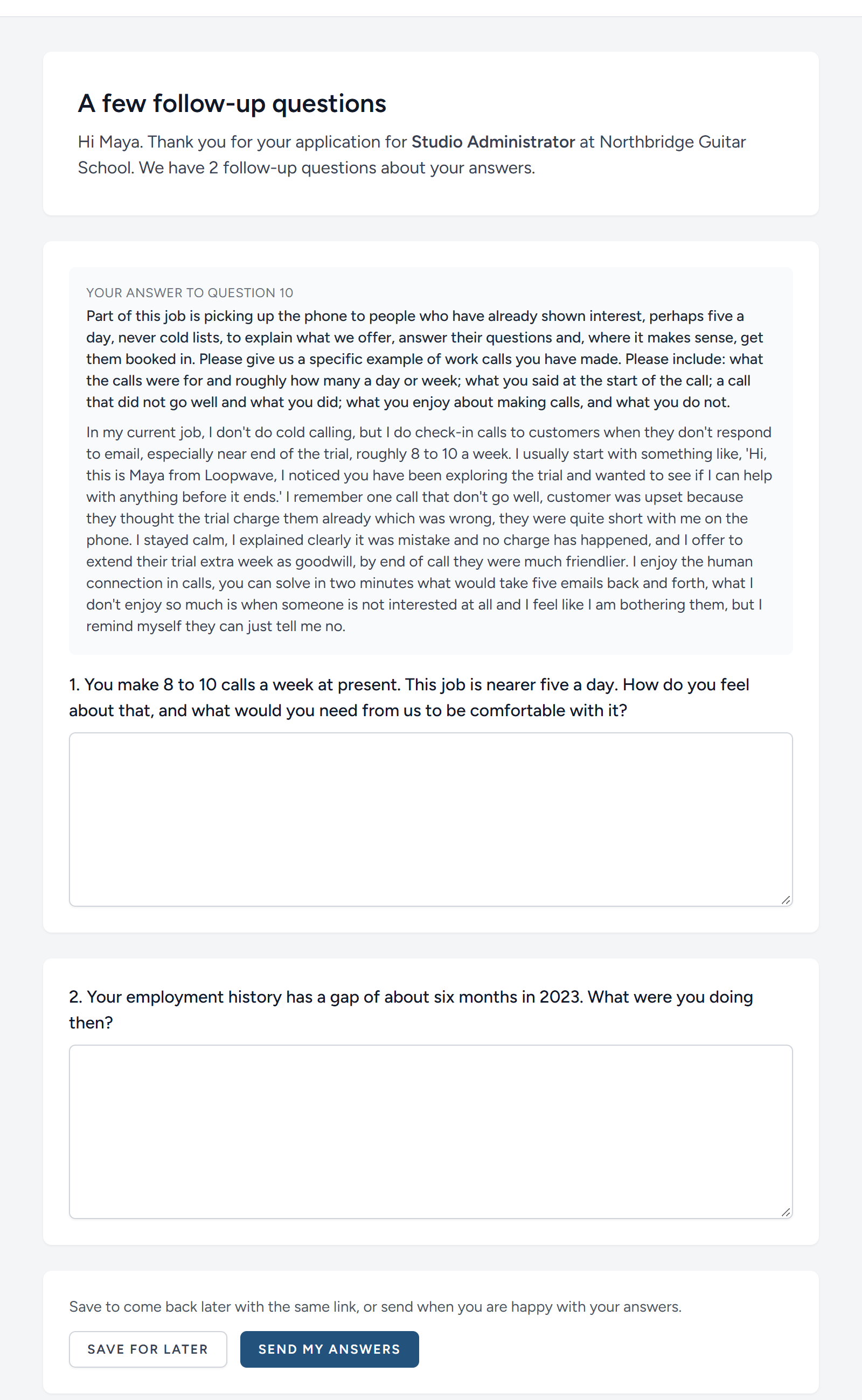
They can Save for later and come back with the same link. Send my answers is refused until every question has something in it. When they send, three things happen by themselves.
- They are thanked by email.
- They move to Follow up answers received, in the standard pipeline.
- Each reply appears under the question on their scoring page, and in the same square of the scorecard.
Using the reply
A follow-up has no band of its own. It is there to help you judge the answer it belongs to. If the reply settles your doubt, change that answer's band, and say why in the note beside it.
If you think of another question after the email has gone, add it in the same way. It waits as a draft, and the candidate is not shown it, until you send the Follow up questions email again. That starts a second round: They see their earlier replies, and answer only what is new.
This is also the way to put a question to somebody who applied before you added it to the form. See The application form.
When the forms are scored
When the last of the answers a candidate is to be scored on has been given a band, they move to App Form Scored in the pipeline by themselves. It makes no difference what the bands are: The stage says that the form has been read and judged from end to end, not that it was a good one. Until then they wait at App Form Completed, and the campaign page shows how far their scoring has got, such as 9 of 15 scored.
The questions that count are the ones the candidate was asked that have a criterion behind them in the specification. A question with no criterion, such as "Where did you see this advertisement?", has nothing written down to judge an answer against. Its column says No criterion: Needs no band. You may band it if you wish, but nobody waits for it, and it is left out of the count and the pie. A form that has no criterion behind any of its questions is scored when all of them are scored.
If a question is added to the form after they sent theirs in, it shows on their scoring page with no answer, it needs no band, and the campaign page does not count it against them. Candidates who apply after it was added are asked it, and are scored on it like any other.
If a band is later taken off with Reset, the form is no longer fully scored. A candidate who is still at App Form Scored goes back to the stage they came from, and returns when the answer is scored again. A candidate your team has already moved on is left where they are.
What happens next is your decision, and it is the subject of Managing candidates and the pipeline.
This chapter was last revised on 30 October 2026.