Setting up · Chapter 18
Settings: Email, interviews, words, transcription, styling, job boards and who you recruit for
Choosing how your email is sent, setting the rules for interviews, what your team calls a dealbreaker, what writes out your recordings, making HiMatcher look like your organisation, giving the job boards your feed, and saying whether you recruit for yourselves or for clients.
In this chapter you will
- find the settings, and know who can change them
- decide whether to send candidate email through HiMatcher or through a mail service of your own
- send from your own domain through HiMatcher mail
- connect your own mail service, and test it
- choose how often the team is told what clients write, and in which hours
- put your own name on your emails, with your own sign-off and reply notes
- set your time zone and the rules for interview bookings
- call a dealbreaker by your own word, such as quick fail
- know that your recordings are written out as part of the campaign, and when to connect a service of your own
- put your logo and your colours on every page, the candidates' pages included
- give each job board the address it collects your jobs from, and LinkedIn what it asks for
- say whether your campaigns belong to departments or to clients, and so who is named as the employer
- have Digital Nancy read your own website, so that every draft knows who is hiring
- know which settings live somewhere else
Where the settings are
Settings, in the bar at the top of any page, opens a short list of the pages that set your organisation up:
- Config: The settings this chapter is about, on tabs.
- Team: Who is in your team, and what each of them may do. See Your team and who can do what.
- House notes: What your hiring runs on, and your house notes: The facts about your organisation Digital Nancy drafts with. An organisation that works on the method with its author sees the method itself here, and the entry is called Rubric. See Digital Nancy and your own key.
- Pipelines: The stages new campaigns start with. See Managing candidates.
- AI runs: Every request made to Digital Nancy, what it cost, and why one failed. See Digital Nancy and your own key.
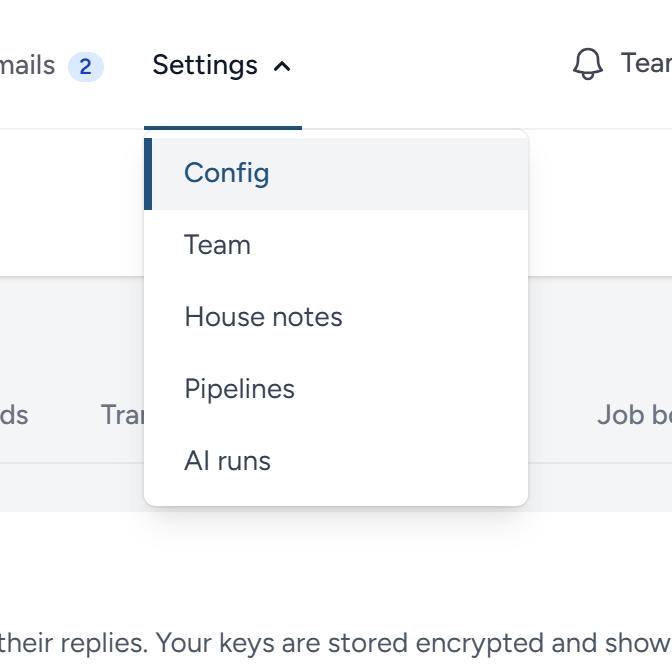
Every page in the list is for admins and hiring managers, who may change everything on it. The list holds only the pages you may open, so anyone who may open none of them has no Settings in the bar. While you are on one of its pages, Settings is underlined, and that page is marked in the list. From the keyboard, move to Settings and press Enter: The arrow keys move along the list, and Esc closes it.
Click Config.
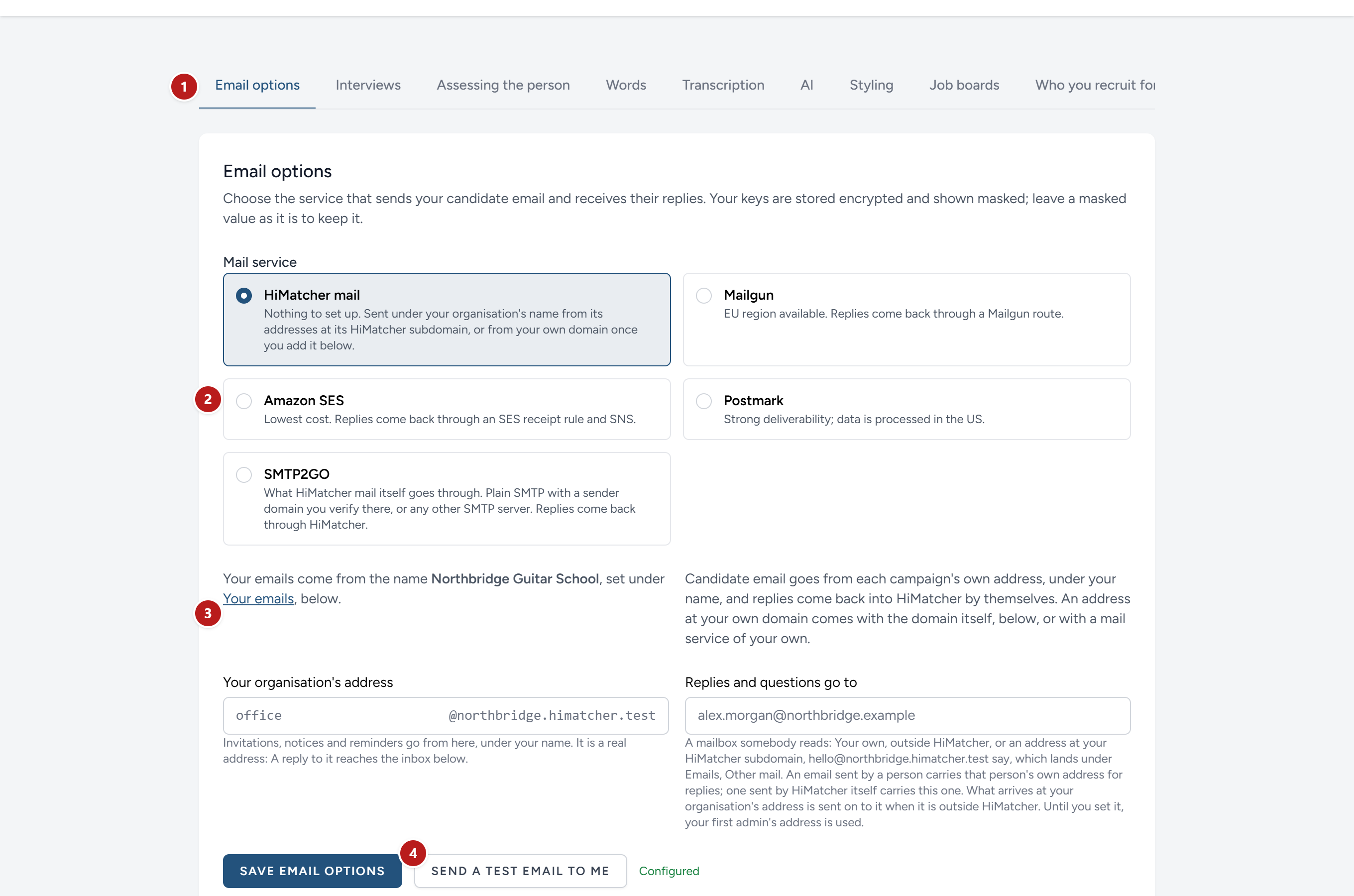
- The tabs. Each one is a separate subject.
- The mail service in use.
- The name your emails come from, set under Your emails further down.
- Send a test email to me.
Email options
The mail service
Every email to a candidate has to be handed to a mail service, which delivers it. You have a choice of five.
HiMatcher mail is what every organisation starts with, and there is nothing to set up. Candidates see your organisation's name as the sender, above the campaign's own address, such as administrator@yourorganisation.himatcher.com. When they reply, the reply comes back into HiMatcher and is filed with their application, and someone new who writes to that address becomes a candidate (see Emails to candidates). For most organisations this is all that is ever needed.
The other four are services your organisation holds an account with. Choose one if any of these matters to you. Once one is set up, everything HiMatcher sends for you goes through it, not only candidate email, from the address you give it.
- You want candidates to see an address at your own domain.
- Your organisation requires email to go through a supplier it has approved.
- You want the record of what was delivered, bounced and complained about to be in your own account.
| Service | Worth knowing |
|---|---|
| Mailgun | Can keep your data in the EU. Files attached to replies are kept |
| Postmark | Very good at reaching the inbox. Data is processed in the US. Files attached to replies are kept |
| Amazon SES | The cheapest. Set up as the page describes, it cannot pass on a reply larger than 150 KB, so a reply with a file attached is lost |
| SMTP2GO | What HiMatcher mail itself goes through. The simplest to set up: Verify your domain there, make an SMTP user, and give the From address. It sends only, so candidates' replies come back through HiMatcher's own reply address, and files attached to them are kept. Any other SMTP server works in its place |
The sender's name and address
The name your emails come from is set under Your emails, at the foot of Email options. Until you change it, it is your organisation's name.
Your organisation's address is where everything that is not candidate email goes from: Invitations, the notices a client or a colleague gets, reminders, and the start page's emails. It is at your organisation's own HiMatcher subdomain, office@yourorganisation.himatcher.com, and you can change the word before the @. It is a real address, not a noreply: A reply to it reaches the inbox below. Nothing HiMatcher sends for you comes from an address nobody reads.
Replies and questions go to is that inbox: A mailbox somebody reads. Either your own, outside HiMatcher, or an address at your HiMatcher subdomain, hello@yourorganisation.himatcher.com say, in which case what goes to it lands under Emails, Other mail, and the count on the Emails entry in the bar says it is waiting. It is where a reply lands when the email was sent by HiMatcher itself, such as the note that an invitation has run out. An email sent on behalf of a person, an invitation, a reminder, times offered for the briefing conversation, a message, carries that person's own address instead, so the reply lands with them. Anything that arrives at your organisation's address is sent on to this inbox as well, and kept under Emails, Other mail (see Other mail). Until you set it, the address of whoever joined first as an admin or a hiring manager is used.
From address and Reply domain belong to a mail service of your own, and the page shows them only when you have chosen one, with one exception: On HiMatcher mail the From address appears once your own domain is verified, below. The From address must be at a domain that service has verified. With a reply domain set, each campaign's own address is at that domain, administrator@jobs.yourcompany.com, and it is the sender as well as where replies come back to. Without one, email goes out from the From address and replies come back by way of HiMatcher's reply domain.
Your own domain through HiMatcher mail
You can have your email come from your own domain, hello@yourorganisation.co.uk say, without a mail service of your own. HiMatcher mail sends through a service that signs for the domains it has been shown, so your domain is shown to it, and it says which records to put in the domain's DNS. Once it has seen them, your From address can be at that domain. Everything but candidate email then goes from it: Invitations, notices, reminders, the start page's emails. Candidate email keeps each campaign's own address, so replies still come back into HiMatcher and are filed with the application.
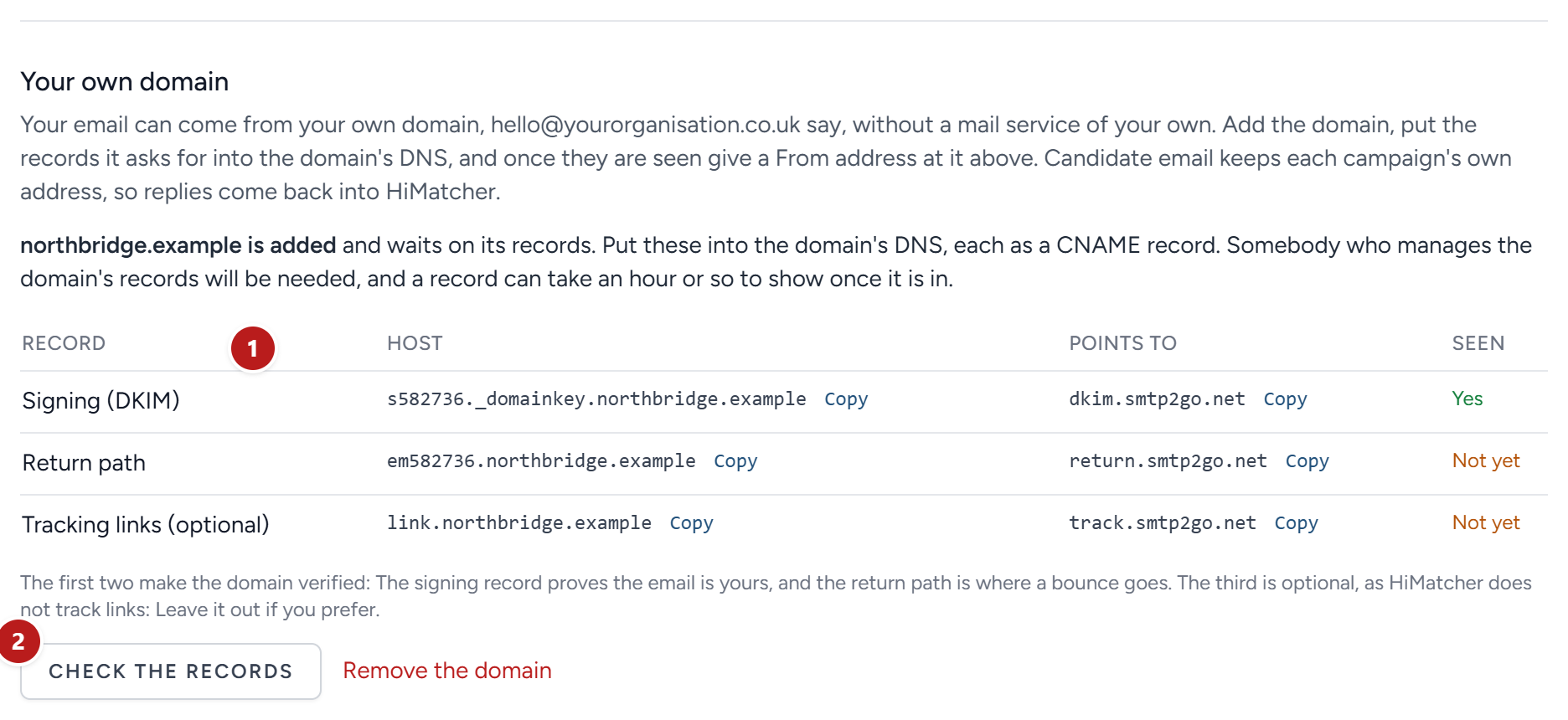
- Under Your own domain, type the domain as it is after the @ in your email addresses, and click Add the domain. The page shows three records (1).
- Put them into the domain's DNS, each as a CNAME record, with the host and what it points to exactly as shown. Copy beside each saves retyping. Somebody who manages the domain's records will be needed. The first two make the domain verified: The signing record proves the email is yours, and the return path is where a bounce goes. The third, for tracking links, is optional, as HiMatcher does not track links: Leave it out if you prefer.
- Click Check the records (2). A record can take an hour or so to show once it is in, so if the page says a record is not seen yet, check again later. When the first two are seen, the domain is verified.
- Give a From address at the domain, in the box that has appeared above, and click Save email options.
If your organisation stops using the domain, click Remove the domain: Everything goes from your address at your HiMatcher subdomain again. One domain per organisation, and never one another organisation on HiMatcher has. If Your own domain says it is not switched on, the platform has not been given what it needs for this yet: Ask us.
Connecting your own mail service
Choose the service, and the page grows the boxes that service needs.
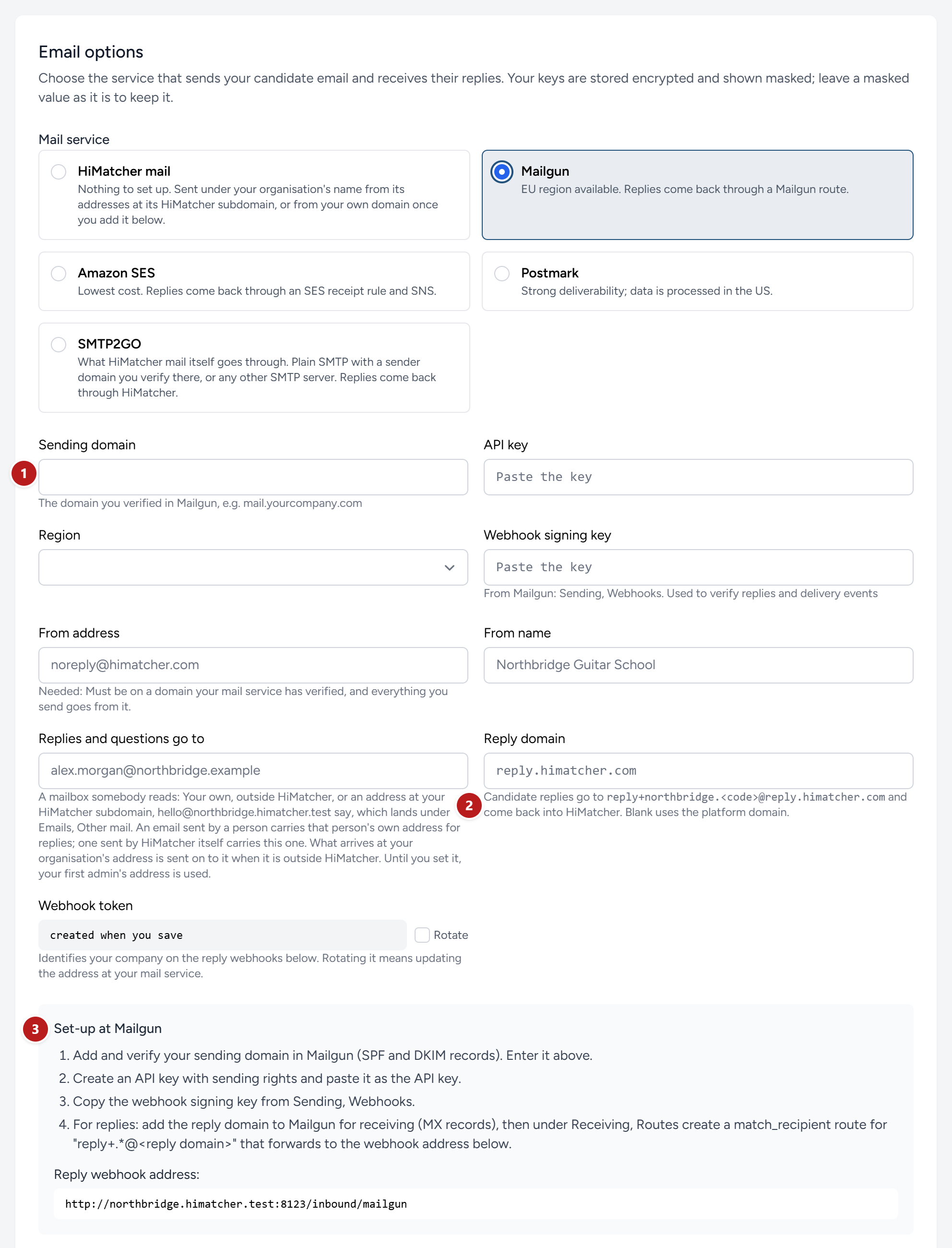
- What the service gave you. A sending domain, keys, a region. The boxes differ from one service to another.
- The reply domain, for Mailgun, Postmark and Amazon SES. Candidates' replies are sent to a private address at this domain, and the mail service hands them back to HiMatcher. It is usually a subdomain kept for the purpose, such as
reply.yourcompany.com. SMTP2GO has no reply domain: Replies come back through HiMatcher's own reply address, and there is nothing to set up for them. - Set-up at the service. The steps to carry out in your account with the service, in order, and the reply webhook address to paste in there. Somebody who manages your domain's DNS records will be needed for the first of them.
Then:
- Fill in the boxes, and click Save email options.
- Carry out the steps under Set-up.
- Click Send a test email to me. A green message says it has gone, and to which address. A red one gives the service's own reason for refusing it.
- Reply to one of your own candidate emails, and see that the reply arrives on the candidate's Emails page.
Beside the buttons, a line tells you where you stand.
| It says | It means |
|---|---|
| Not saved yet | You have changed something on this tab and not clicked Save email options. It names the service that is still in use |
| Configured | The service you saved has everything it needs |
| Not fully configured | Something is missing. Until it is put right, your candidate email goes out through HiMatcher mail, from HiMatcher's address, so nothing is ever held up by a half-finished set-up |
Keys
A key is a password for a machine. HiMatcher stores every key encrypted. Once saved, a key is shown masked, as dots and its last few characters, and can never be read back.
- To keep a key, leave the masked value exactly as it is.
- To change a key, clear the box and paste the new one.
The webhook token identifies your organisation when your mail service hands a reply back. Tick Rotate and save if you think it has been seen by someone it should not have been. The reply webhook address then changes, and you must paste the new one in at your mail service, or replies stop arriving.
Client comments
When a client comments to everyone on a campaign, or sends answers or a document from their own page, your admins and hiring managers are told. Client comments, at the foot of Email options, decides how.
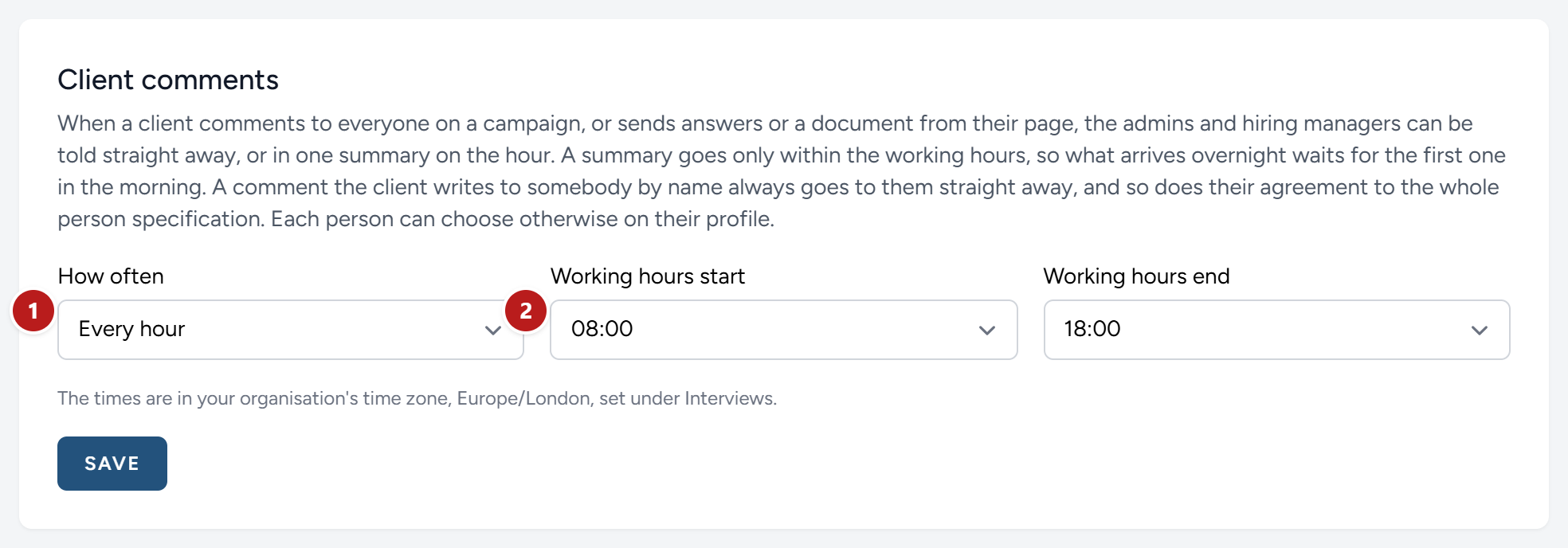
- How often: Straight away sends an email for each one, as it happens. Every hour, Every 2 hours and Every 3 hours gather everything into one summary, sent on those hours. Once a day sends one summary at the start of the working hours. Every hour is where every organisation starts.
- Working hours: The hours a summary may go in, 08:00 to 18:00 to begin with, in the time zone set under Interviews. Summaries go on the hour counted from the start, and once more as the hours end: Every three hours from 08:00 to 18:00 is 08:00, 11:00, 14:00, 17:00 and 18:00. What arrives after the end waits for the first summary of the morning.
A comment a client writes to somebody by name always reaches them straight away, and so does a client's agreement to the whole person specification. Each admin and hiring manager can choose their own frequency and working hours on their profile, under Client comments; until they do, the organisation's stand. See Team messages: What a client writes.
Your emails
Your emails, at the foot of Email options below Client comments, sets the few words at the edges of the emails your organisation sends. Everything else in each email stays as it is, and the emails to candidates are under Emails, Templates (see Emails to candidates).
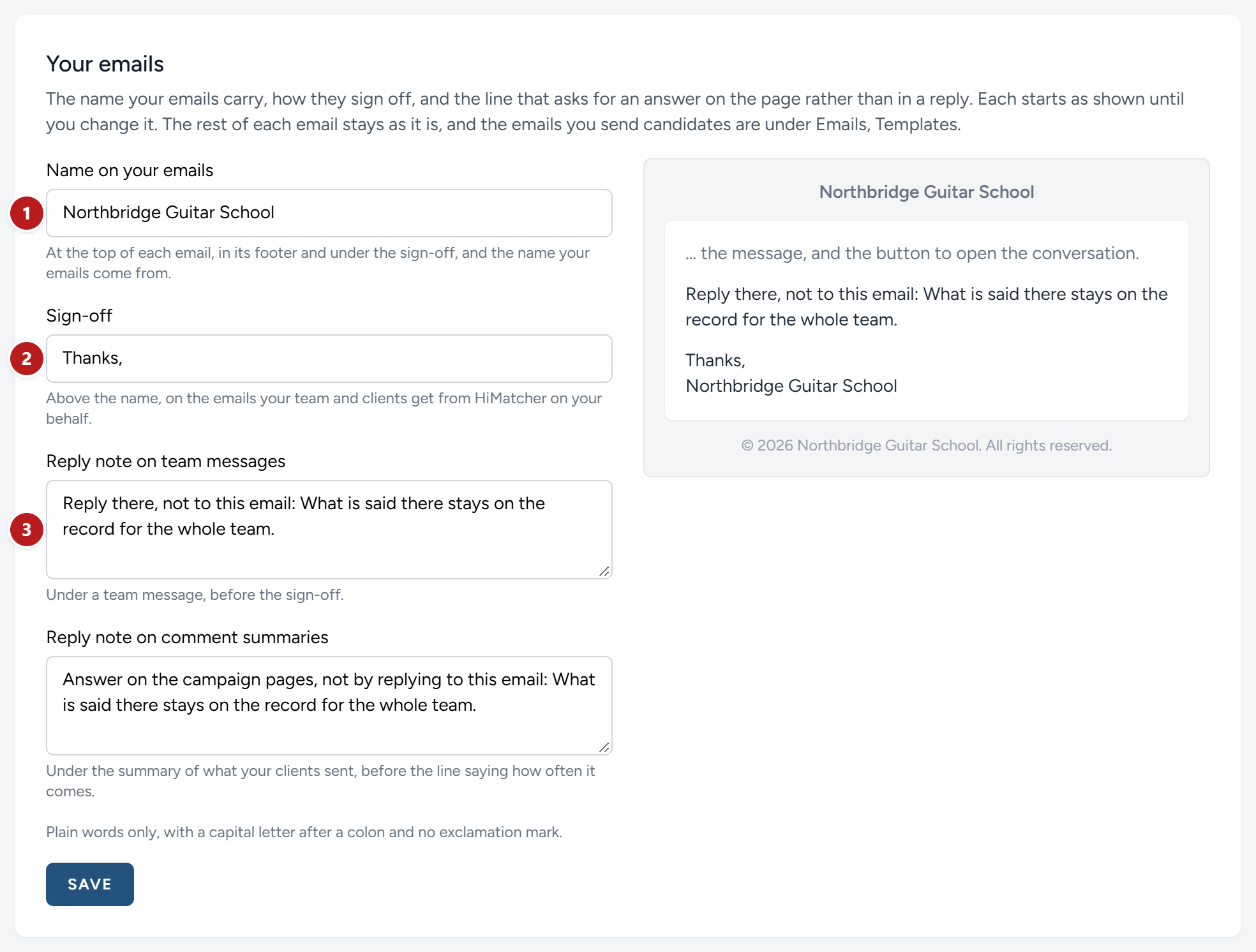
- Name on your emails: At the top of each email, in the footer, under the sign-off, and the name your emails come from, candidate email included. Until you change it, it is your organisation's name.
- Sign-off: The line above the name, Thanks, to begin with, on the emails your team and your clients get about a campaign: Team messages, the summary of what your clients sent, a client's decisions, an interviewer's booking and an invitation to join the team.
- Reply note on team messages: The line under a team message that asks for the answer in the conversation, not in a reply to the email, since a reply by email reaches nobody.
- Reply note on comment summaries: The same line under the summary of what your clients sent.
As you type, the box beside the fields shows how the end of a team message reads. Go back to under a field puts back the wording it started with. Each line is plain words: No exclamation mark, a capital letter after a colon, and none of the marks that would turn words into a link or a heading.
The emails HiMatcher sends as itself, such as the record of a payment, keep HiMatcher's name.
Interviews
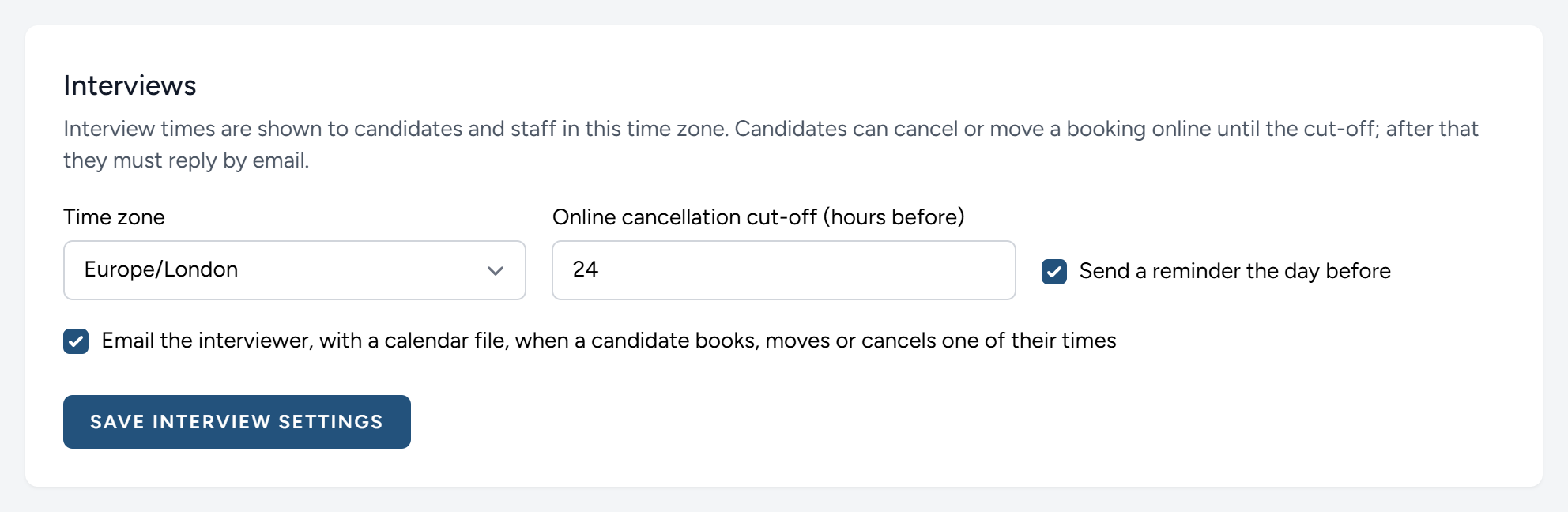
Time zone. Every time HiMatcher shows, to your team and to candidates, is shown in this zone: Interview times, when a form was submitted, when an email was sent. Candidates are told which zone it is on the page where they book. Set it once, to where your organisation works.
Online cancellation cut-off. A candidate can move or cancel their own booking from their private link until this many hours before it starts. After that, their page asks them to reply to your email instead, so that nobody vanishes from your diary an hour beforehand without your knowing. It starts at 24.
Send a reminder the day before. The candidate is emailed a reminder, with the calendar file, in the last 24 hours before their interview.
Email the interviewer. Whoever a time belongs to is emailed, with a calendar file, when a candidate books it, moves away from it or cancels. Untick it if your interviewers would rather look at the Interviews page.
What these emails say is set elsewhere: See Emails to candidates. How interviews work is in Interviews.
Assessing the person
Every interview is scored against the criteria on the person specification. Beside that, an interview can be read for how the person goes about their work, and this tab is where that is switched on. Nothing of it is on until you switch it on: With nothing chosen, the specification carries no work patterns block, the interview pages carry no strip, and interviews are scored against the criteria alone.
Work patterns is the one method available: Nancy Slessenger's reading of the Language and Behaviour method, fifteen traits read from the candidate's own words at interview against the pattern the profile wants. It relies on a transcript of the interview (so a service under Transcription), on the method's questions being asked, and on the specification carrying the pattern the profile wants under each trait. How it is marked is in Interviews.
Ask for another method. If your organisation assesses with another method, say which and how you use it, and we will look at what it would take to bring it in, licence permitting. The request is kept here, and we come back to you.
Words
A requirement that nothing else makes up for, such as the right to work or living within reach of the office, is called a dealbreaker in HiMatcher and in this guide. Your organisation may know it by another name: Nancy Slessenger calls it a quick fail, and marks it QF. The Words tab is where you give it your own.
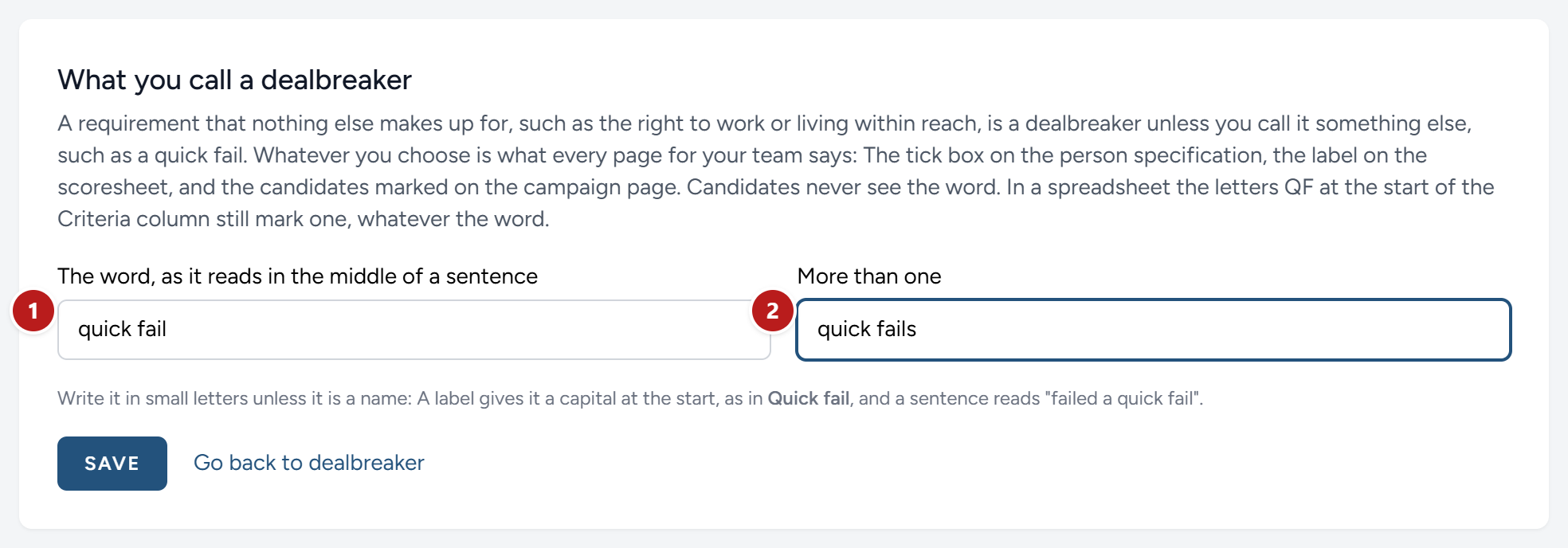
- The word, as it reads in the middle of a sentence:
quick fail. Write it in small letters unless it is a name. A label gives it a capital at the start, so the tick box reads Quick fail. - More than one:
quick fails.
Click Save. From then on every page for your team says your word: The tick box under a criterion on the person specification, the label above a question on the scoresheet, Failed a quick fail on the campaign page, and the plain fact the client is asked about on the briefing. Go back to dealbreaker puts the method's word back.
Transcription
When you record a briefing or an interview, the recording is written out by a transcription service, and Digital Nancy then works from the written version. That is included with every campaign: HiMatcher's own account with AssemblyAI does it, in AssemblyAI's EU region, so the recording and the words stay in the European Union, and it tells the speakers apart. There is nothing to set up. What it costs counts towards the campaign's allowance, about ten cents an interview, as Digital Nancy and your own key explains.
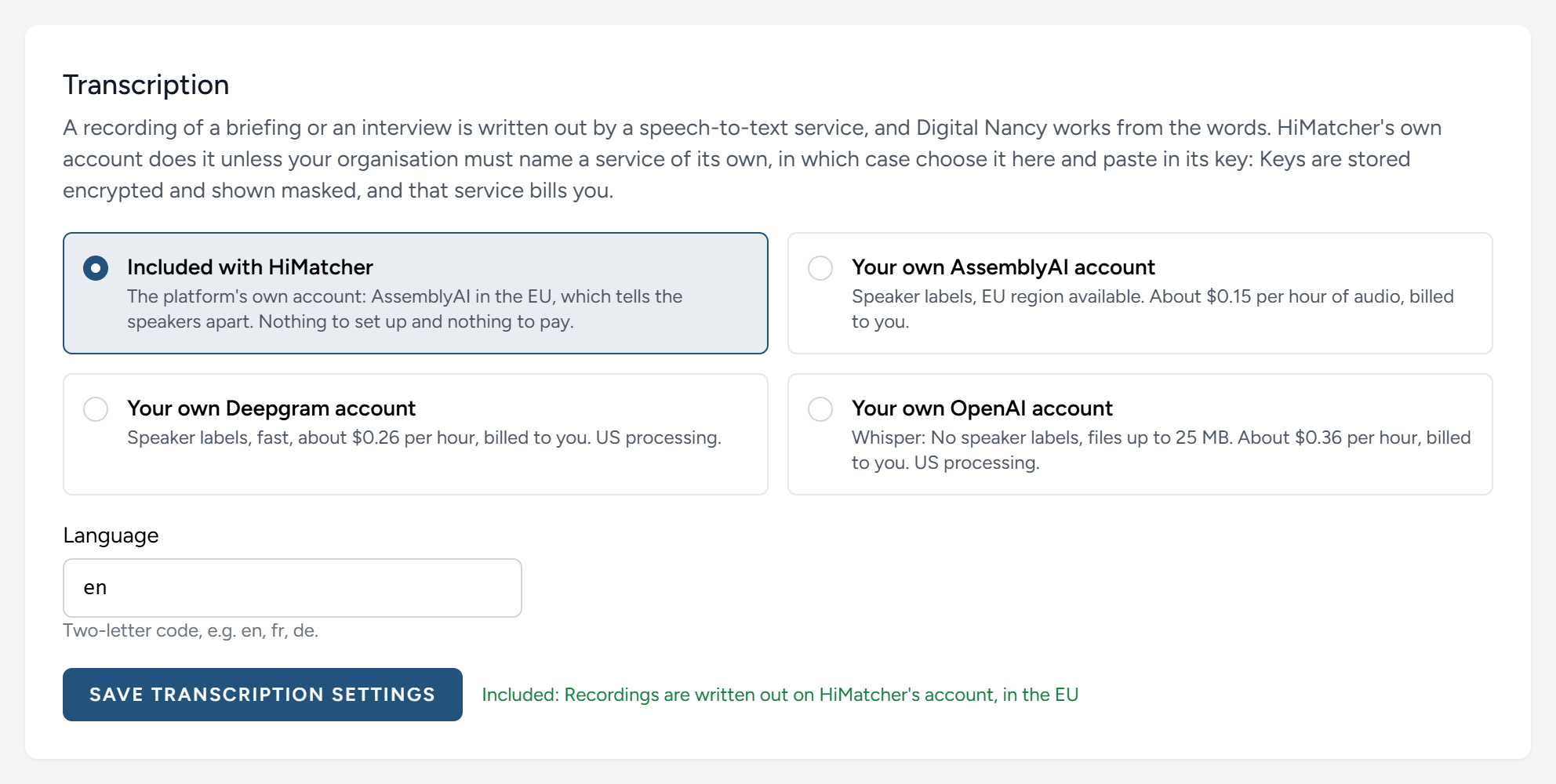
The one thing to set is the language your interviews are held in, as a two-letter code: en for English, fr for French, de for German. Click Save transcription settings.
A service of your own
Some organisations must name the processor of a candidate's voice themselves, under their own contract, or already hold an account they want used. Choose it here, paste in its API key, choose a region or a model if it asks for one, and save. That service bills you directly, by the hour of sound, and nothing of it counts towards the campaign's allowance.
| Service | Worth knowing |
|---|---|
| AssemblyAI | Tells the speakers apart. Can keep your data in the EU. The cheapest of the three |
| Deepgram | Tells the speakers apart, and is quick. Processed in the US |
| OpenAI Whisper | Does not tell the speakers apart, and takes files up to 25 MB only, so a long interview may be refused. Processed in the US |
To go back to the included service, choose Included with HiMatcher and save. Your own key stays stored, masked, in case you choose that service again.
Nothing is ever lost. A recording that cannot be written out at the time, because a campaign has reached its allowance or a key of your own has stopped working, is kept, says why on the page it was recorded on, and can be written out from there once the way is clear.
AI
The AI tab shows that Digital Nancy is included with every campaign, what she and the transcription have cost this month, and the box for a key of your own if your organisation needs one. It has a chapter to itself: Digital Nancy and your own key.
Styling
Styling puts your organisation's look on every page: Your team's pages, and also the pages candidates and clients see, where it matters most. The application form, the page where an interview is booked, the candidates suggested to a client and their PDF all carry your logo and your colours.
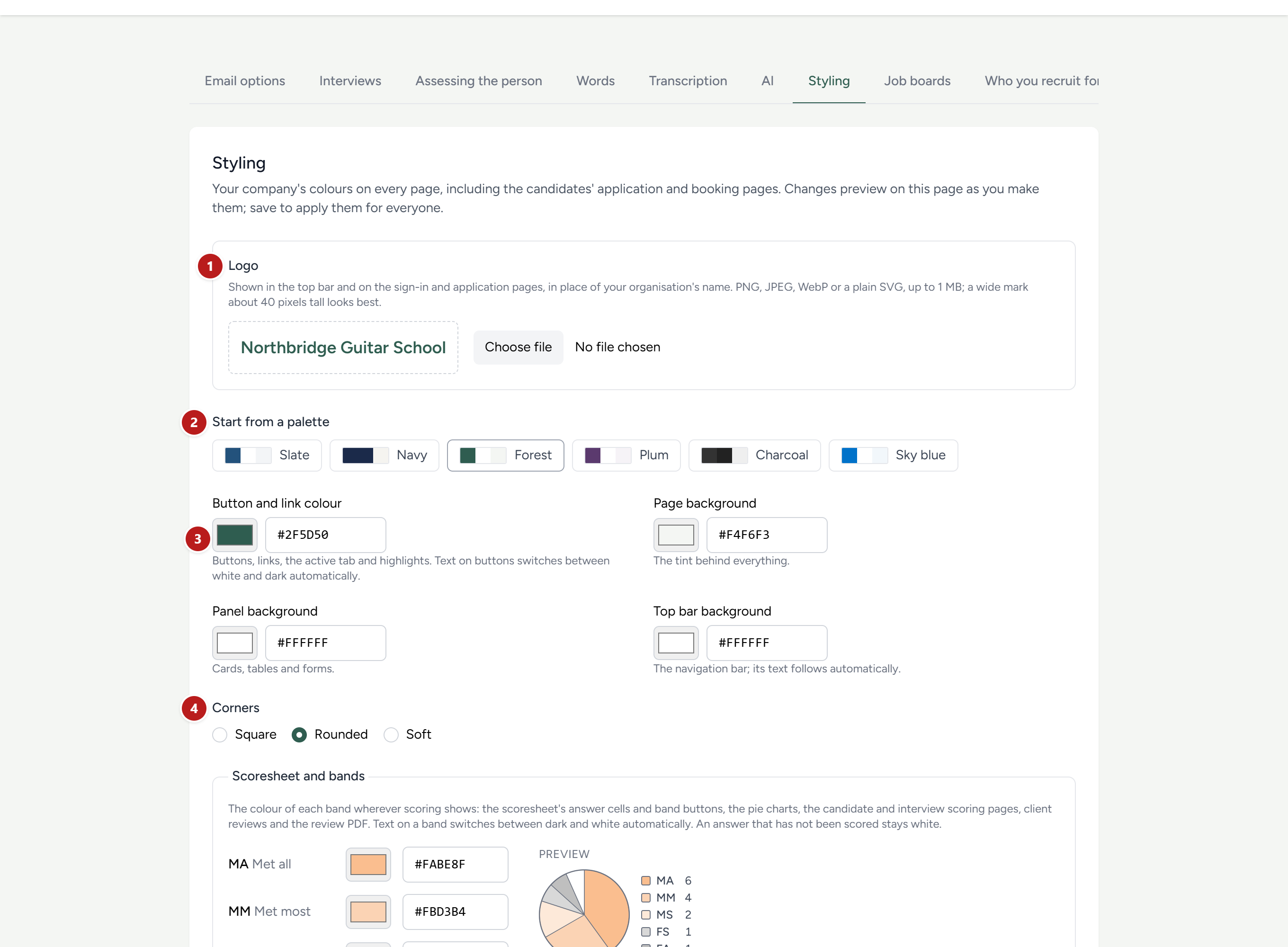
- Logo. Click Choose file. It is uploaded at once, with no Save to click, and takes the place of your organisation's name in the top bar, on the sign-in page and on the candidates' pages. Use a PNG, JPEG or WebP picture, or a plain SVG, of up to 1 MB. A wide mark about 40 pixels tall looks best. Remove brings the name back.
- Start from a palette. Six ready-made sets of colours. Click one to try it on.
- The four colours, which you can set yourself. Click the coloured square to pick by eye, or type the colour's six-digit code, such as
#23527C, from your brand guidelines. - Corners. Square, rounded or soft, for buttons, boxes and panels.
| Colour | Where it shows |
|---|---|
| Button and link colour | Buttons, links, the tab you are on, and highlights. The words on a button turn white or dark by themselves, whichever can be read |
| Page background | The tint behind everything |
| Panel background | Cards, tables and forms |
| Top bar background | The bar at the top. Its words follow by themselves |
As you change a colour, the page you are looking at changes with it, so you can judge the effect. That preview is yours alone. Nobody else sees anything until you click Save styling. Leave the page without saving and everything goes back as it was.
Reset to defaults puts every colour back to HiMatcher's own, ready for you to save.
The colours of the bands
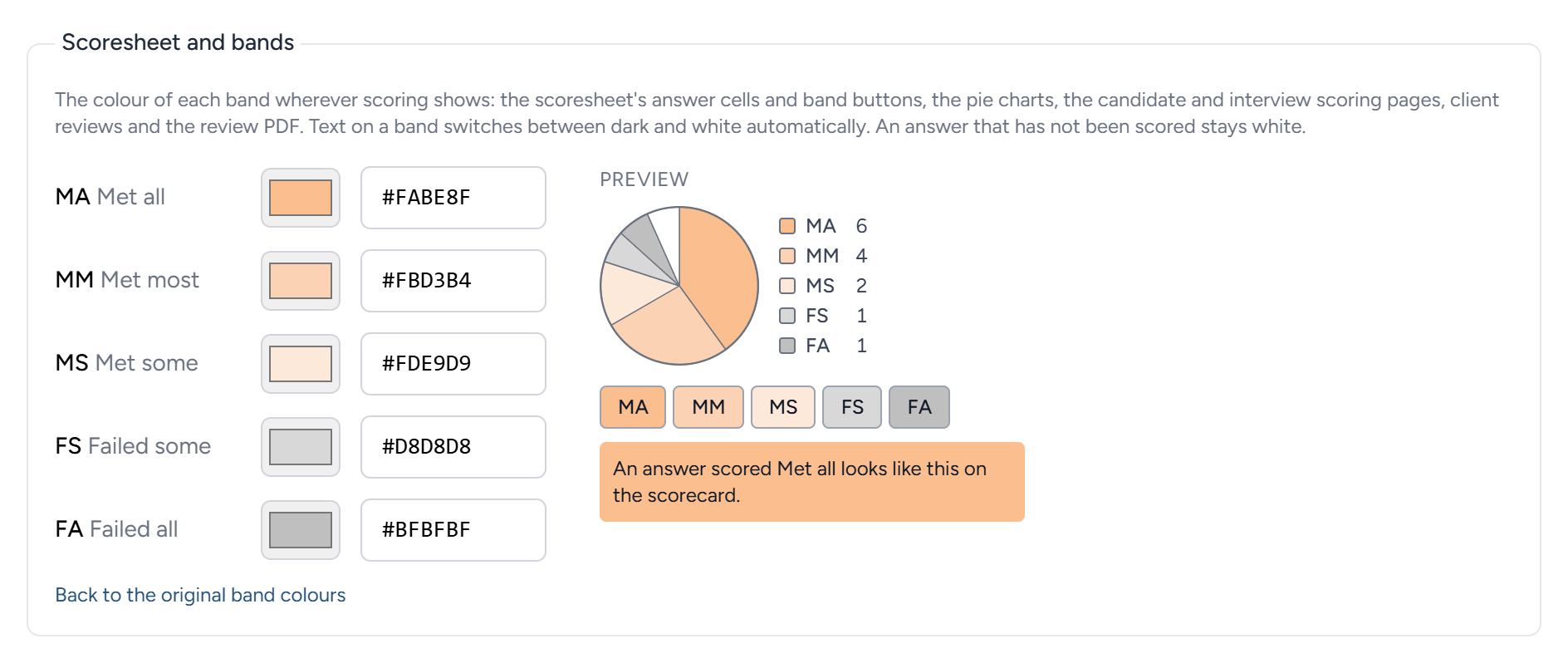
Each of the five bands has a colour, used wherever scoring is shown: The scoresheet's answers and band buttons, the pie charts, the scoring pages, the candidates suggested to a client and their PDF. The preview beside them shows a pie, the five buttons and a scored answer as they will look.
The colours HiMatcher starts with run from a warm orange for Met all, through paler shades, to grey for Failed all, so that a strong candidate's row stands out and a weak one recedes. Change them if your organisation has colours of its own for this. Back to the original band colours undoes it.
Job boards
Some job boards collect your open jobs by themselves, from a feed: A list of every public advert that is listed on search engines, in the layout the board reads. The tab shows one address for each board that does: Indeed, LinkedIn, ZipRecruiter, Adzuna, Jooble and Talent.com. Give a board its address once, where it asks for your jobs "by XML feed", and from then on it collects every campaign's advert, unless the advert's page keeps that job off it (see The application form). Nothing is posted by hand and nothing is paid. A board that sells a better place for a job will offer it to you itself.
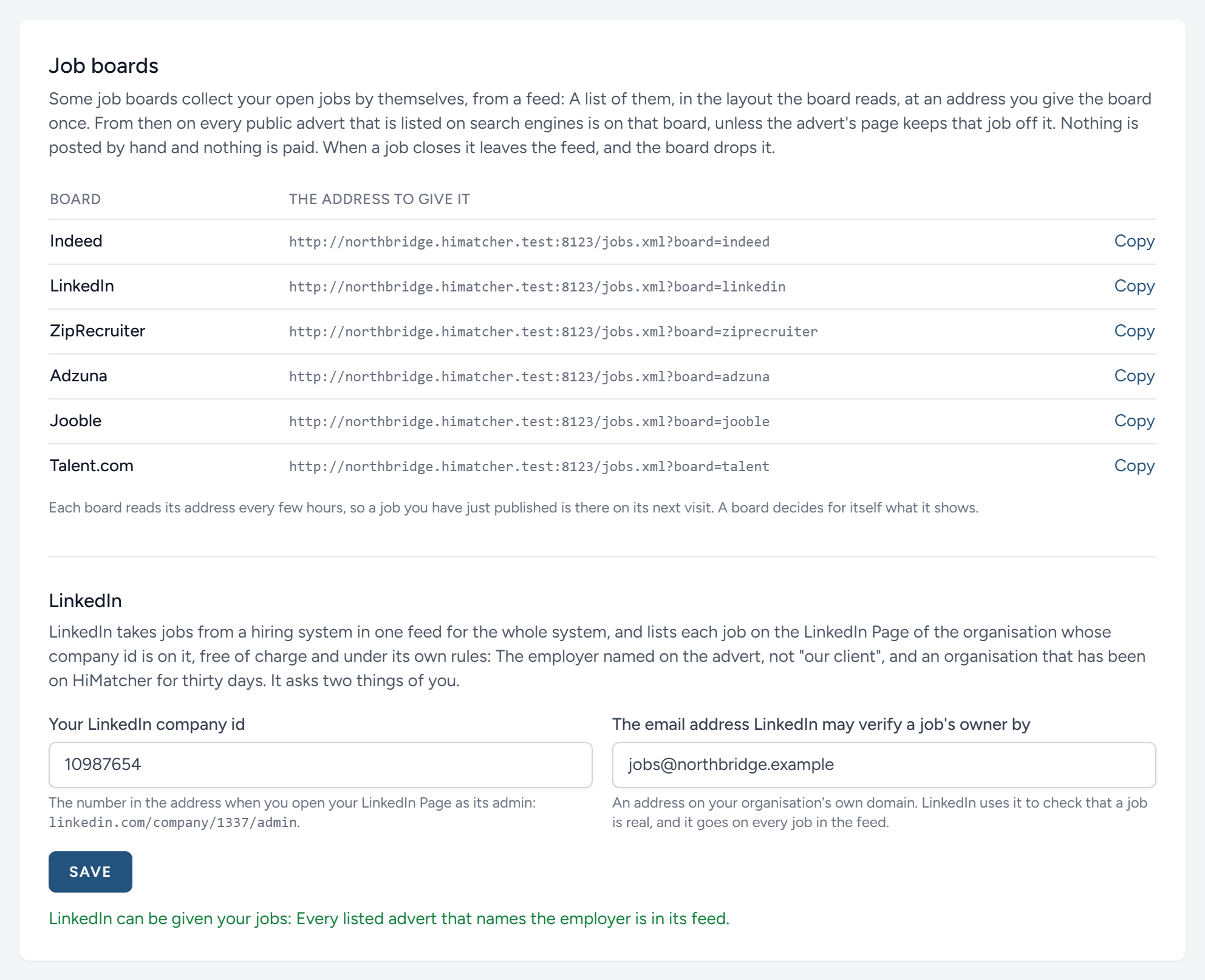
LinkedIn is the one that needs something from you. It takes jobs from a hiring system in one feed for the whole system, and lists each job on the LinkedIn Page of the organisation whose company id is on it. Give the id, which is the number in the address when you open your Page as its admin, and the email address LinkedIn may verify the owner of a job by, on your organisation's own domain. LinkedIn has rules of its own besides: The employer must be named on the advert, so a confidential search is left out, and an organisation must have been on HiMatcher for thirty days before its jobs go in. The tab says what is still wanted, and the advert's page says the same beside LinkedIn.
Who you recruit for
The last tab begins with Your organisation's name, as it appears on every page, in every email to a candidate, and on the advertisement where you are the employer. Change it here; the address your team and your candidates use stays as it is.
Then it asks one question: Does your organisation hire for itself, or for clients? The answer decides whose job each campaign is, and who is named as the employer wherever a candidate reads.
Beneath it, How clients see you is the name a client viewer reads under your organisation's name on every page of theirs, and on the suggested candidates shared with them: Your own name, if that is who they know, or the organisation's. A contact line goes beneath it. Until it is set, clients see the organisation's name.
Your start page
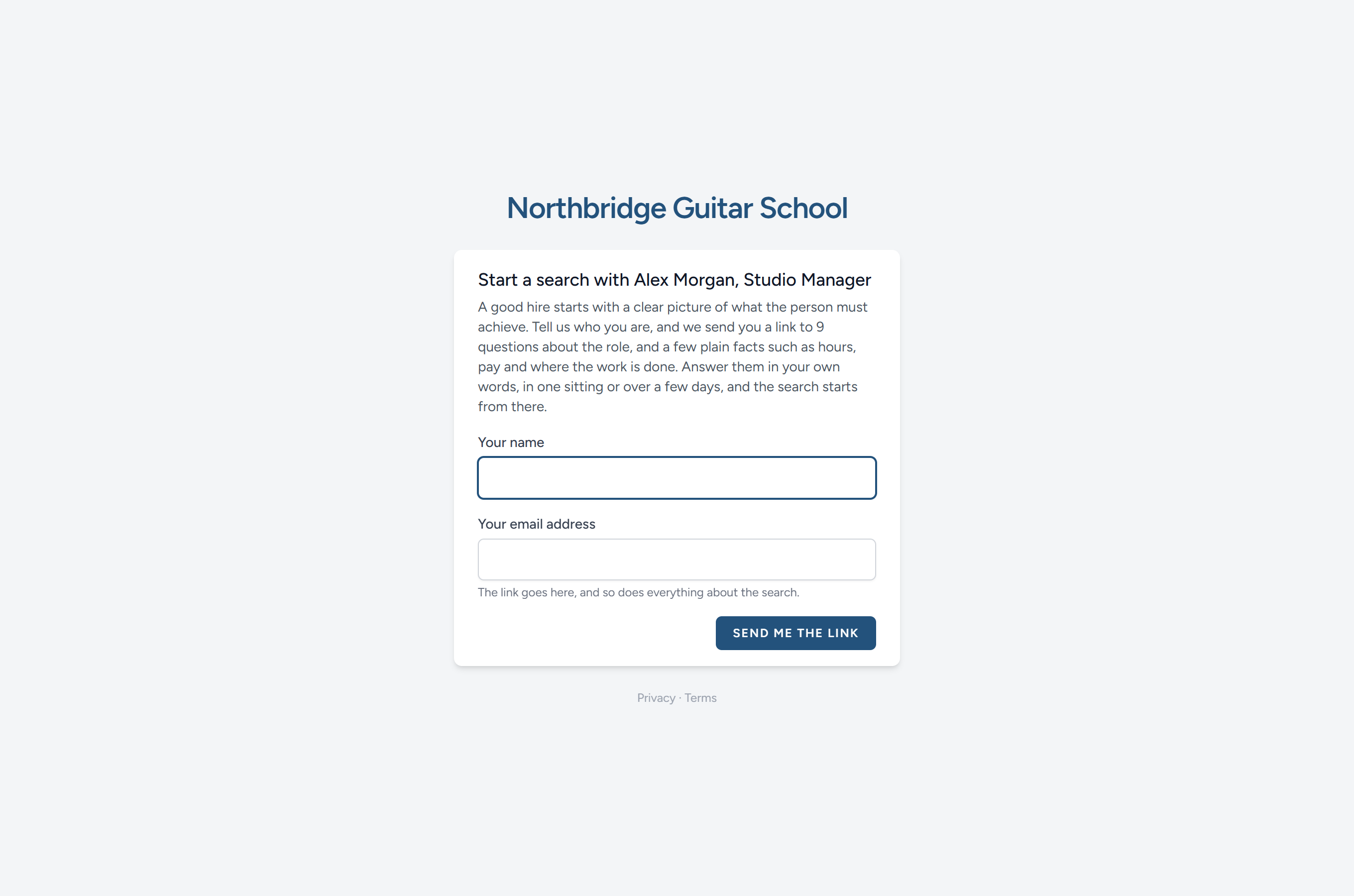
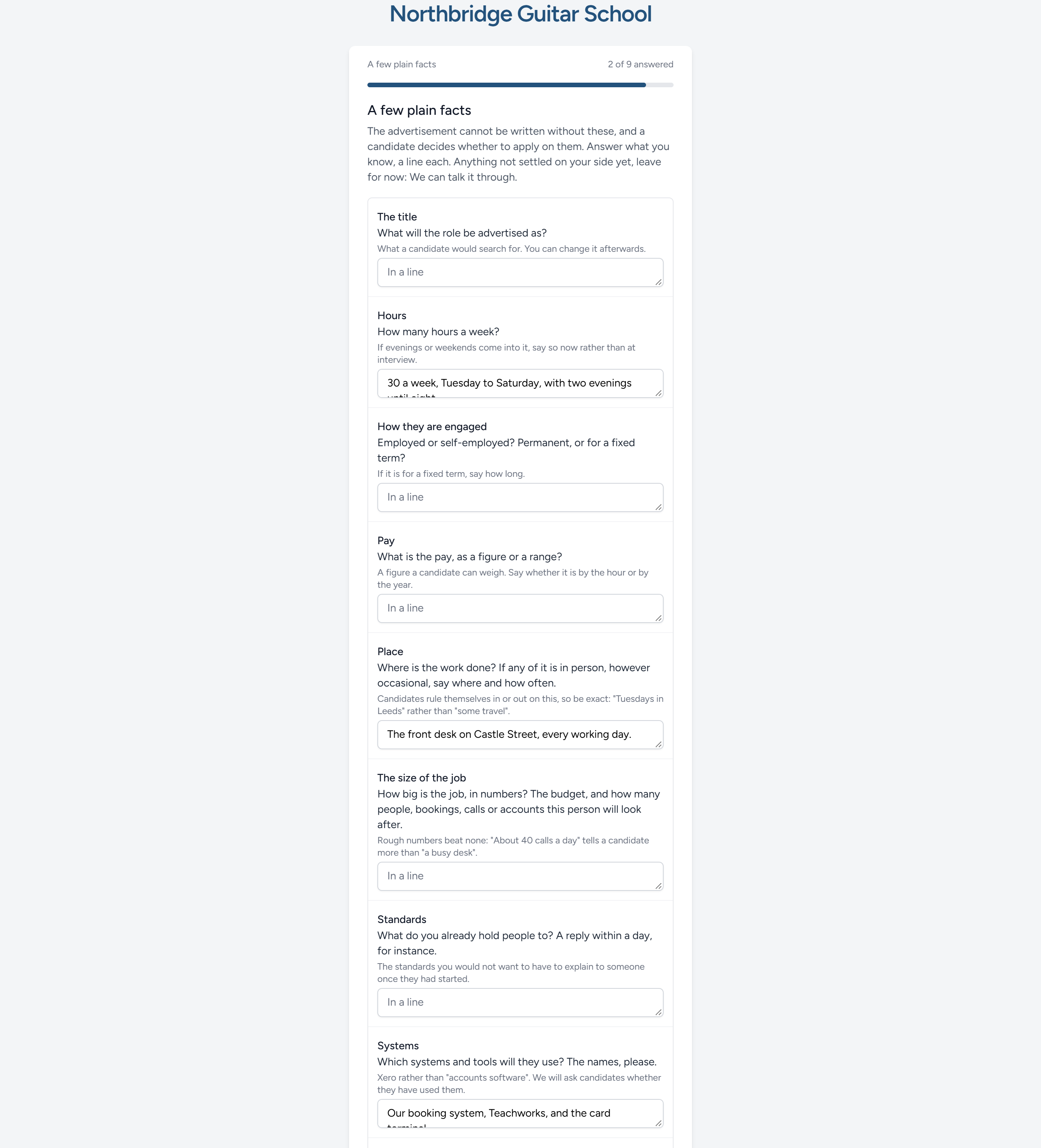
An operator can switch on a start page for your organisation, at /start on your address: The settings tab says so, with the address, once it is on. Link to it from your own website, at the end of the page that says what you do. A new client types their name and email there and is emailed a link; the link opens the opening questions one at a time, with the company and the role first, then the plain facts the advertisement needs on one screen, each optional, saved as they go, so they can finish over a few days. When they send, the client is added to your clients, the campaign is made with their answers on its briefing, they have a client viewer's account with their briefing shown, and your hiring managers are emailed. The next thing to do is what it always is: Read what they wrote, prepare the briefing sheet, and offer them times for the conversation. See Starting a campaign.
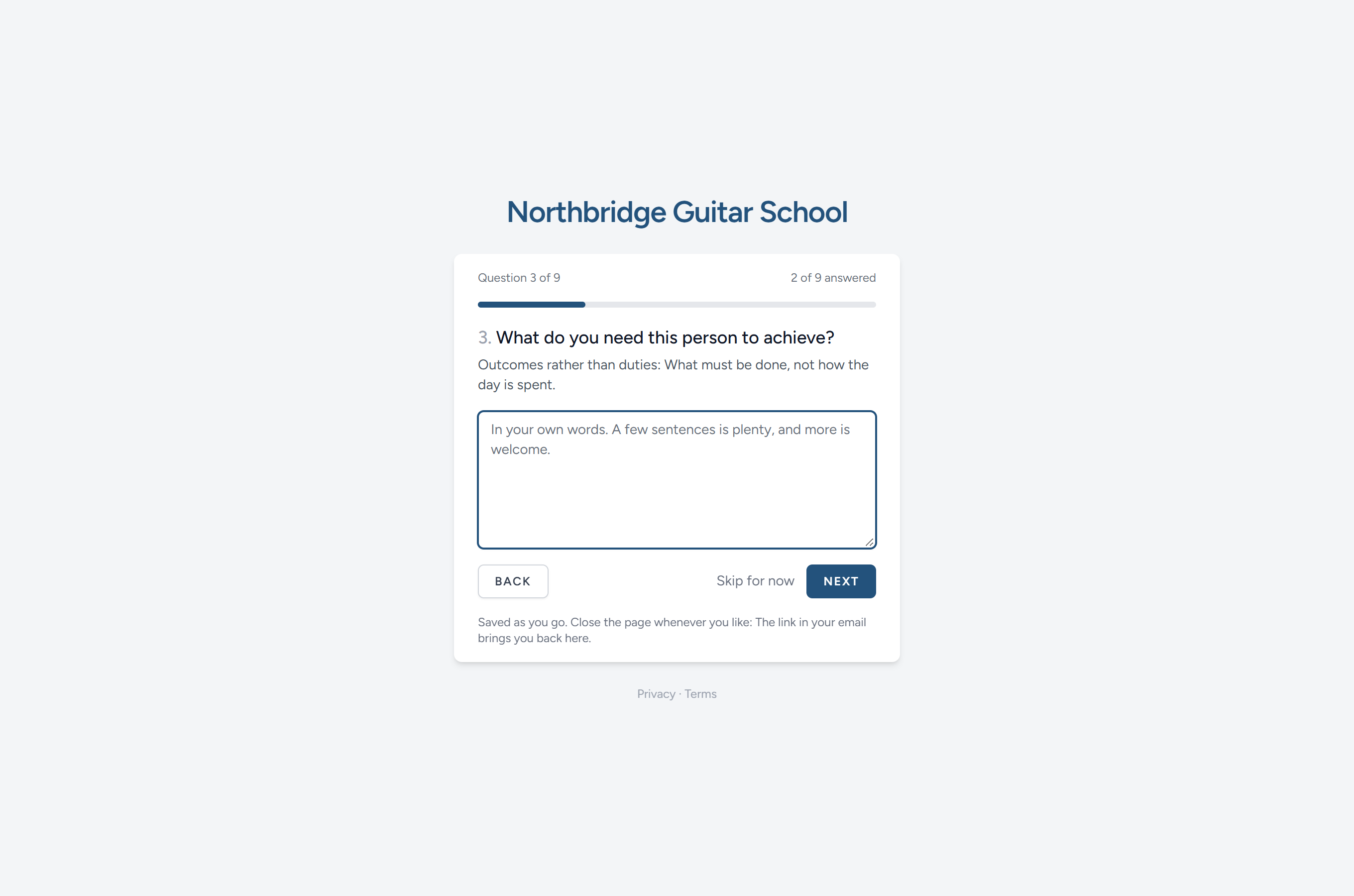
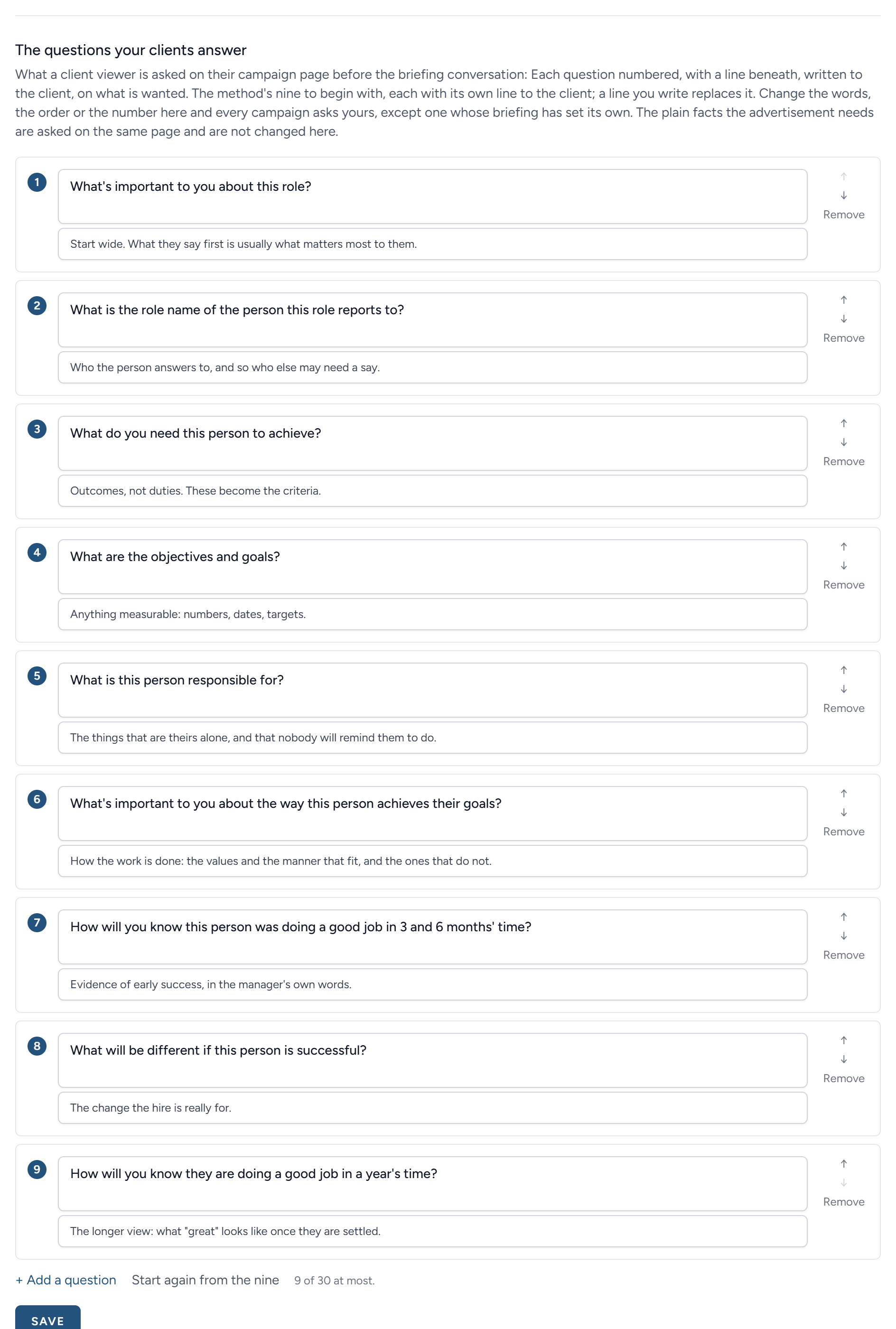
The questions your clients answer is the list a client viewer is asked on their campaign page before the briefing conversation, the method's nine to begin with (see The questions to send the client). Change the words, the order or the number, and every campaign asks your list, except one whose briefing has set its own. Each question takes a line the client reads beneath it, written to them, on what is wanted; the method's nine carry one each, and a line you write replaces it. Start again from the nine puts the method's back. The plain facts the advertisement needs are asked on the same page of the client's and are not changed here.
| You choose | Each campaign belongs to | Named as the employer |
|---|---|---|
| Our own organisation | A department, such as Finance | Your organisation, on every advertisement, in the job description and in every email to a candidate |
| Our clients | A client, such as a school you are recruiting a teacher for | The client. Your organisation signs as the recruiter, and candidates still apply on your pages |
A recruitment consultancy chooses Our clients. A company or a charity with an HR team chooses Our own organisation, as does a group whose recruiters hire for its own divisions. An operator may have set it for you when your organisation was made; change it here if it is wrong.
The names already on your campaigns are kept whichever you choose: They are read as clients under one setting and as departments under the other. What changes is the advertisement and the emails: Under Our clients, a job is "at" the client; under Our own organisation, it is "at" you. Digital Nancy is told the same, so a job description written for a client names the client, and never your consultancy.
What your organisation is like to work for
Under Our own organisation, the same tab holds a profile of you as an employer. Give your website and click Read the website: Digital Nancy reads it and writes what you do, your size and places, your values in your own words, working life and how you hire, from what the site says, leaving out what it does not. Read the result and edit it; from then on every briefing sheet, person specification and job description is written knowing who is hiring, and the briefing page shows it at the top. It works exactly as it does for a recruiter's clients: See Your clients, or your departments.
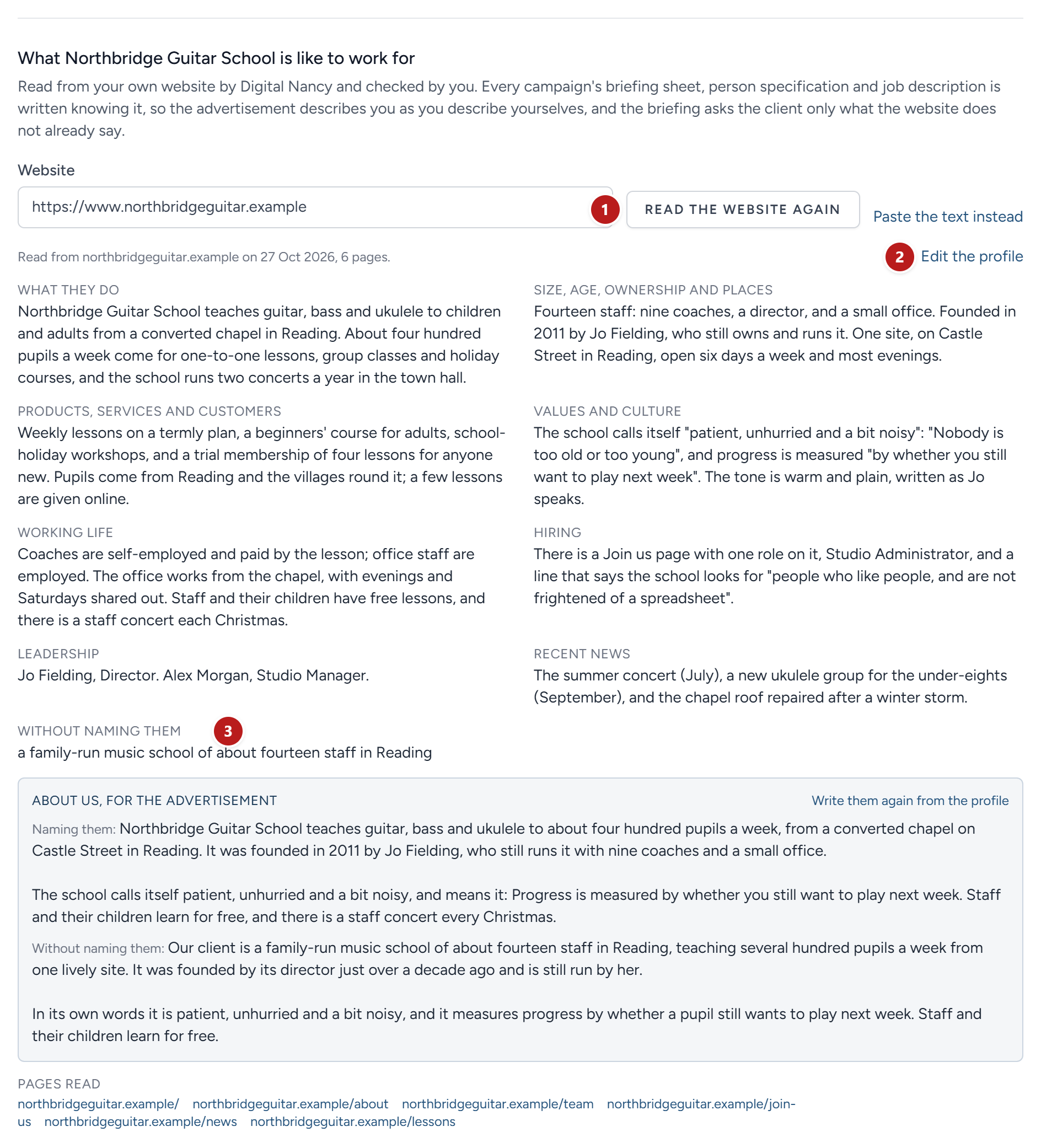
- Read the website again, which replaces the profile; the panel says when it was last read, and from how many pages.
- Edit the profile, section by section. Your words are what the drafts read from then on.
- Without naming them: How the advertisement describes you when it keeps your name back.
Settings that live elsewhere
Some settings sit beside the thing they govern.
| To change | Go to |
|---|---|
| The wording of any email, and the emails that send themselves | Emails. See Emails to candidates |
| Whether everyone must use two-step sign-in, and who is in your team | Settings, Team. See Your team and who can do what |
| The stages new campaigns start with | Settings, Pipelines |
| What Digital Nancy should know about your organisation when she drafts | Settings, House notes. See Digital Nancy and your own key |
| Your own name, password and two-step sign-in | Your name at the top right, then Profile |
| Telling Google about adverts the moment they are published | On the server, not on any page: A Google service account's key in the setting GOOGLE_INDEXING_CREDENTIALS, with the account made an owner of the domain in Search Console. Whoever runs the server can prove it is set up with the command php artisan indexing:check --url= and the address of any advert |
This chapter was last revised on 30 October 2026.