Running a campaign · Chapter 4
The briefing: Before the conversation
Starting a campaign, sending the hiring manager the right questions in writing, and drawing the briefing sheet from their answers before you talk.
In this chapter you will
- start a campaign, give it the title your team uses and the title it is advertised under, and ask the people at the client to answer the briefing
- find your way round the briefing: Its parts, and the next thing to do
- send the client the nine opening questions and the plain facts, add the documents they send back, and read what each person at the client answered on their page
- have the briefing sheet drawn from their answers, check it, and download it in the method's layout
- write your own questions for this role, ready for the conversation
Why the briefing matters
A hire goes wrong long before the first interview, at the moment somebody writes "must be organised and a good communicator" without asking what those words mean in this job. The briefing is where you find out. It is a conversation with the hiring manager: The person who will work with whoever is hired, and who will live with the result.
It has three parts, and HiMatcher keeps all three in one place:
- In writing, beforehand. You send the client the opening questions, and they send back their answers. From those answers the briefing sheet is drawn: The first draft of the person specification, with the question to ask about every line.
- Your own questions. Having read the answers and the sheet, you write what else this role needs asking.
- The conversation. You ask them, and the conversation is recorded and written out.
Everything else in a campaign is made from what is written and said here. Forty minutes spent well at this point saves weeks later. This chapter covers the first two parts; the conversation, the person specification and the job description each have a chapter of their own.
Starting a campaign, and its two titles
Click Campaigns in the bar at the top, and fill in the New campaign card.
| Field | What it is | Who sees it |
|---|---|---|
| Working title | What your team calls this piece of hiring, such as "Development Director 1" | Your team only |
| Advertised title | The job's name as the world reads it, such as "Development Director" | Candidates and clients |
| Client or Department | Whose job it is | Your team. A client is also named as the employer to candidates; a department never is |
| Who answers the briefing? | The email addresses of the people at the client who know the role | Each of them, by email, as the campaign is made |
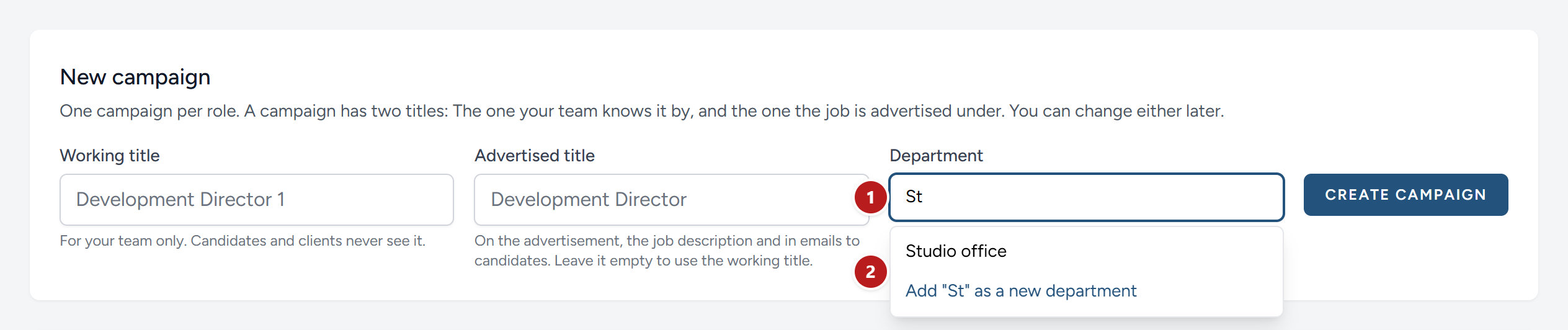
Whether the third box says Client or Department depends on who your organisation recruits for, which an admin or a hiring manager sets under Settings, Config. A recruiter's campaigns belong to clients, and the client is named as the employer on the advertisement, in the job description and in every email to a candidate. An organisation hiring for itself puts its campaigns under departments, and it is the employer everywhere. Start typing and the box offers the clients, or departments, you have used before: Pick one, and the campaign joins the others under the same name. Type a name it has not seen and it says so, and keeps the name for next time. Capitals and spacing make no difference: Acme Accounts and "acme accounts" are the same client.
The two titles are there because they do different work. You may run the same job twice in a year, or for two clients at once, and your team needs to tell the campaigns apart. A candidate needs only the name of the job.
The advertised title is what appears on the advertisement, the job description and the application form, in every email to a candidate, and on the candidates suggested to a client. Digital Nancy writes the job description and the person specification for the job under that title. Leave it empty, and the working title is used for everything.
To change either title later, open the campaign and click Rename, beside its name.
Who answers the briefing? is where the search really starts. Type the addresses of the people who know the role, separated by commas: The person it reports to, and anyone who will work beside it. The moment the campaign is made, each of them is emailed, in your name, and asked to answer the opening questions on their own page. Someone who already has a client viewer's account for this client is shown Your briefing and sent the page's link; someone new is invited, and the invitation takes them to the questions as soon as they have chosen a name and a password. Leave the box empty and ask later, from the briefing: See Who answers the briefing below.
The questions to send the client
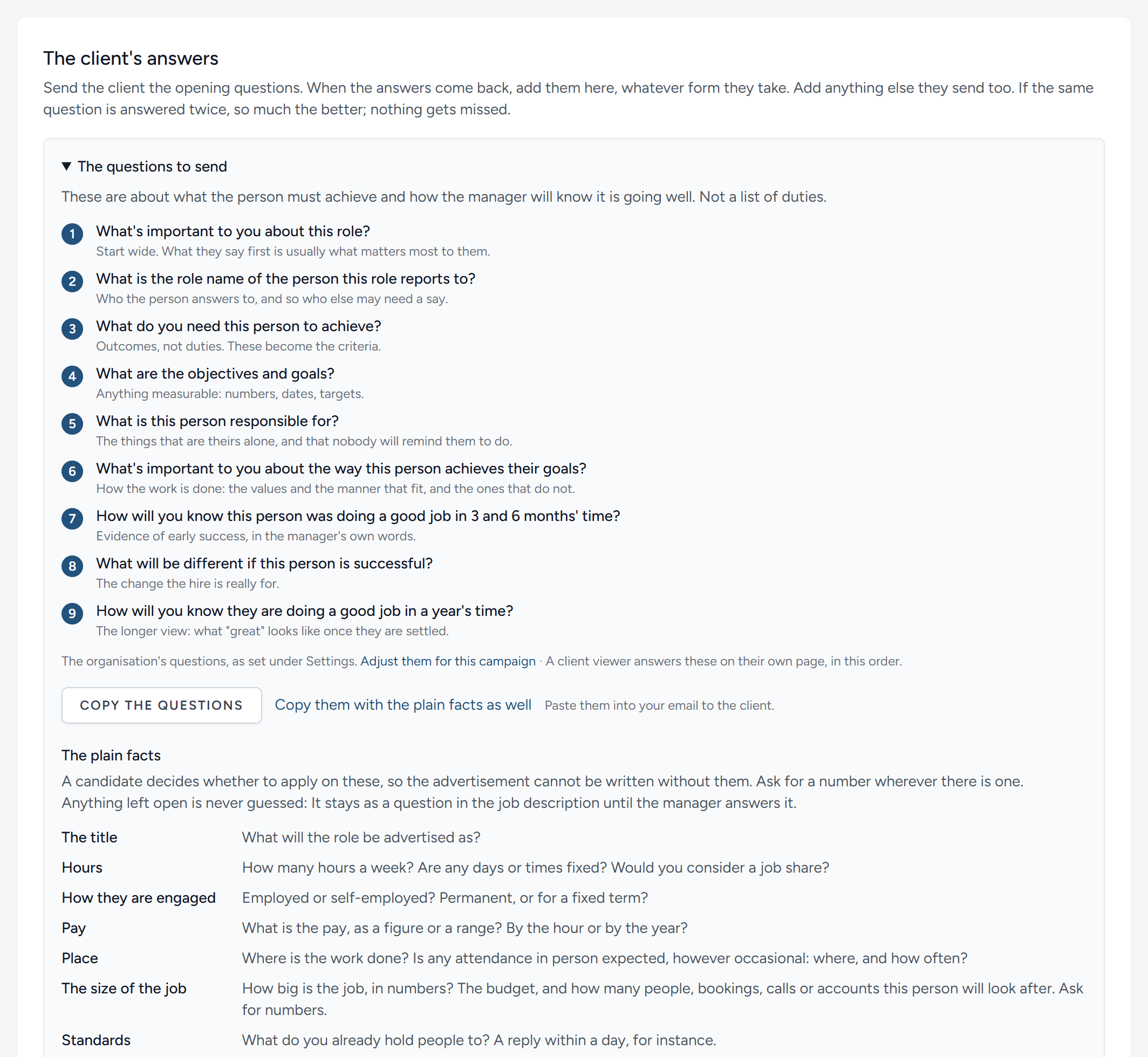
You are not asking for a list of duties. You are asking what this person must achieve, how the manager wants it done, and how they will know it is going well. These are the questions to begin with. Send them to the client before you talk, so that the conversation can start from their answers.
- What's important to you about this role?
- What is the role name of the person this role reports to?
- What do you need this person to achieve?
- What are the objectives and goals?
- What is this person responsible for?
- What's important to you about the way this person achieves their goals?
- How will you know this person was doing a good job in 3 and 6 months' time?
- What will be different if this person is successful?
- How will you know they are doing a good job in a year's time?
| Question | What it gives you |
|---|---|
| 1 | What matters most. People say the most important thing first. |
| 2 | Who the person answers to, and who else may need a say. |
| 3 and 4 | Outcomes and anything measurable. These become the criteria. |
| 5 | What is theirs alone, and that nobody will remind them to do. |
| 6 | The manner and values that fit, and the ones that do not. |
| 7, 8 and 9 | Evidence of success in the manager's own words: At three months, six months and a year. |
They are a way in, not the whole of it. The detail comes from what you ask next, in the conversation: "What happened last time?", "Can you give me an example?", "What would you not put up with?". When Jo Fielding, the director of Northbridge Guitar School, was asked what the administrator would be responsible for, the useful part of her answer was the last sentence: The previous person was lovely, things slipped, and she only found out when a member complained. That sentence became a criterion, a question on the form, and a description of what a good answer looks like.
The nine questions are also the headings of the person specification. Every criterion the campaign ends up with sits under the question it grew out of, on the briefing sheet, on the draft, and on the spreadsheet.
The plain facts
The nine questions are about what the person must achieve. But the job description is the advertisement a candidate will read, and it cannot be written without a handful of plain facts. A candidate decides whether to apply on them. So the client is asked them with the nine, not after: On their campaign page they sit directly under Your briefing, headed A few plain facts, until the specification is shared with them; on your start page they are one screen after the questions; and the email that asks someone to brief you says they are there. Each has a line to answer in and a word on what is wanted, and anything the client has already said in a document is shown rather than asked again. Make sure each is settled before the conversation ends, and ask for a number wherever there is one.
| The fact | What to ask |
|---|---|
| The title | What will the role be advertised as? |
| Hours | How many hours a week? Are any days or times fixed? Would a job share be considered? |
| How they are engaged | Employed or self-employed? Permanent, or for a fixed term? |
| Pay | A figure or a range, by the hour or by the year. |
| Place | Where is the work done? If any of it is in person, however occasional, where and how often? |
| The size of the job | How big is the job, in numbers? The budget, and how many people, bookings, calls or accounts the person will look after. |
| Standards | What does the manager already hold people to? A reply within a day, for instance. |
| Systems | Which systems and tools will they use, by name? |
| People | Who do they report to and work with most, with job titles? |
| Experience | The least that would do, in years or in scale, and what would be a bonus. |
| Dealbreakers | What would rule someone out, however good they were? Get the line as a number: Not "near London" but "no more than three hours away". |
| The organisation | How it describes itself, in its own words, and whether the advertisement may name it. |
Beside the facts the client is asked to send an organisation chart, a picture or a PDF, which says who reports to whom better than a line can. It lands here among the client's documents, marked Organisation chart. A PDF's words are read with everything else; a picture is kept for you to open, and Digital Nancy does not read it.
Managers often leave pay and hours until last, or leave them out. Anything left open is never guessed. It comes back later as a question for the manager, and as a visible gap in the job description, until it is answered.
The nine are the method's, and every organisation starts with them. If yours asks something else, or asks in other words, an admin or a hiring manager changes the list once under Settings and every campaign asks it. One campaign can differ: Under The questions to send, Adjust them for this campaign opens the list to edit, reorder, add to or cut, and Save for this campaign keeps it for this one alone. Saving the organisation's list as it is goes back to it. A client viewer answers whichever list the campaign asks, on their own page, in that order; an answer they have already given keeps to its question's words when the list is reordered. See What the client sees.
Finding your way round the briefing
Open the campaign and click Start the briefing. The briefing is one page in seven parts, and one part is on the screen at a time.
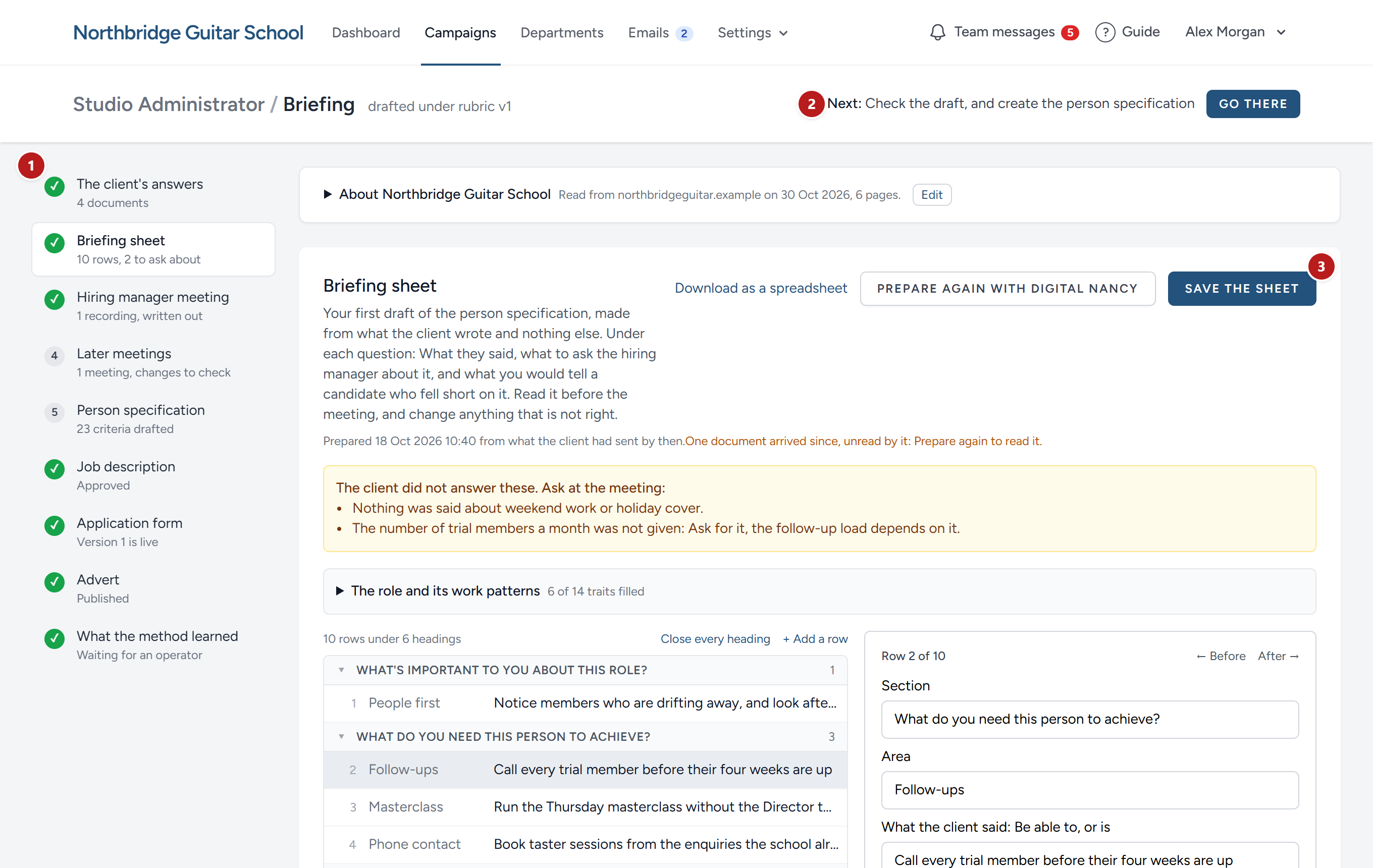
Above the parts sits About and the employer's name, folded up: The profile read from the employer's website, if there is one, which Digital Nancy reads with everything on this page. See Your clients, or your departments.
- The parts, down the left, in the order the work is done: The client's answers, Briefing sheet, Hiring manager meeting, Person specification, Job description, Application form and Advert. The specification comes before the job description, as it does in the method: The job description is the advertisement for the role the specification tests, so it is written from the specification, not the other way round. Each says in a line where it has got to. A green tick means it is done. A part that is waiting for an earlier one says what it waits for. Click any part to open it.
- Next, at the top right, is the one thing to do now. Go there opens the part it is done in.
- The part itself. Its buttons are always in the same place, at its top right.
Moving between the parts loses nothing you have typed. A part with something typed and not yet saved says Not saved yet in amber under its name, and HiMatcher asks before you leave the briefing with anything unsaved.
Each part has an address of its own, so a colleague can be sent straight to one. The briefing opens on the part where the next thing to do is. Once the form is live, that is the Advert until it is published: Nobody finds a form without it. See The application form: Advertising the job.
Add what the client sends back
A document marked Later meeting came from a meeting after the first briefing: Added at the client and sorted into what concerns this role, or added from this briefing for this role alone. See Your clients, or your departments and The briefing: The conversation.
The first part, The client's answers, is for what the client sends.
Who answers the briefing
At the top of the part, Who answers the briefing lists everyone at the client you have asked, and where each has got to: Sent 3 answers, 8 Oct 2026, Has begun, and not sent yet, Nothing sent from their page yet, or Invited 10 Oct 2026, not yet joined, with the day the invitation's link stops working. Beside anyone who has not sent is Remind, which emails them again with the page's link; beside anyone who has not yet joined, Send the invitation again, which gives them a fresh link and kills the old one.
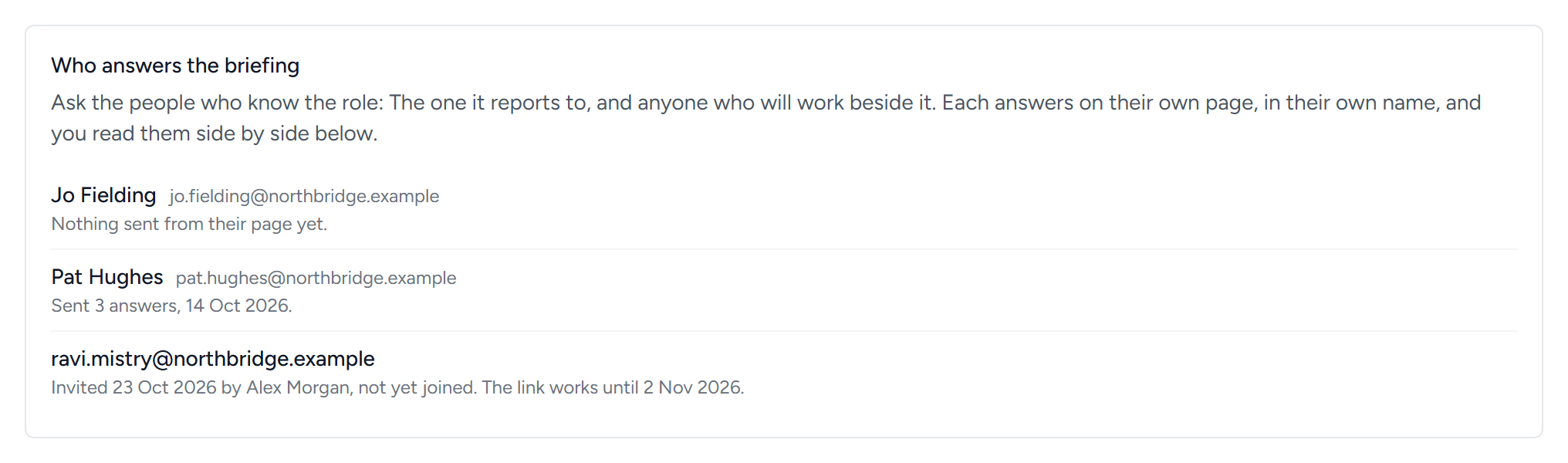
To ask more people, type their addresses in the box beneath the list and click Ask them. Up to ten at a time, separated by commas. Each is emailed as they would have been from the campaign card. The box says so if an address belongs to a member of your own team, who reads the briefing here, or to a viewer of another client; and if an email cannot be sent, the asking stands and the link is shown for you to pass on by hand.
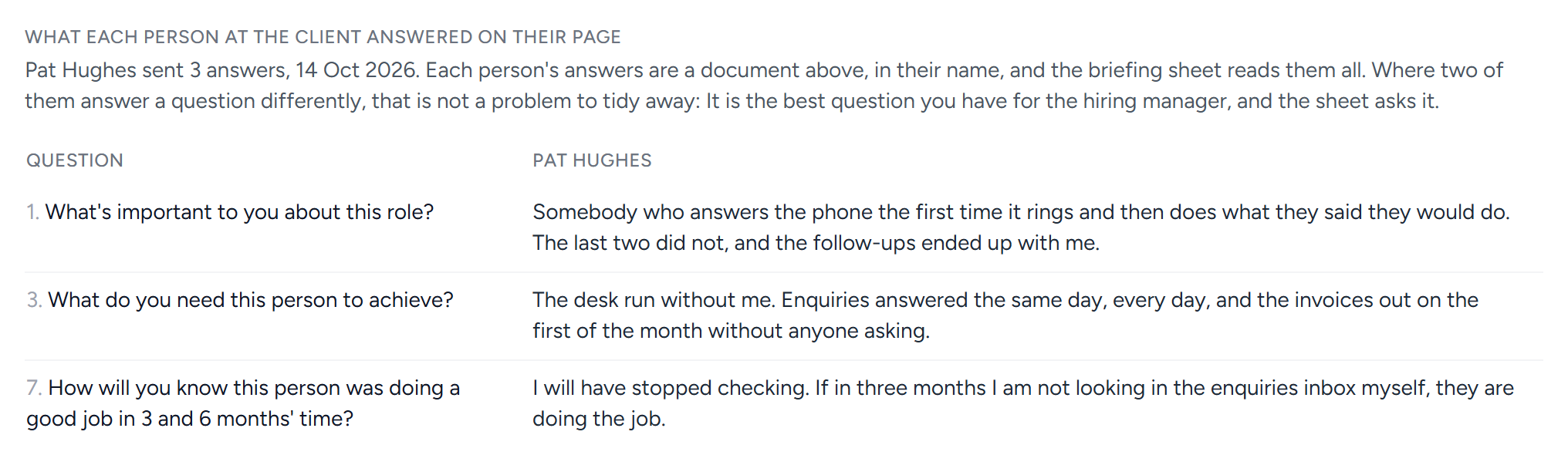
Tick Your briefing for more than one person at the client and each answers in their own name: The owner and the office manager, say, or the hiring manager and the person the role will sit beside. Each sends their own answers, and each sending is a document here in their name. Under the documents, What each person at the client answered on their page sets the questions down the side and the people across, so you can see at a glance where two of them differ. Someone who has begun and not sent is named too, so you know who to chase. On their own pages they read each other's answers once sent, and never before.
Clients answer in whatever they have to hand: A Word document, a spreadsheet, a PDF, or the body of an email. All of them can be added.
- Click Choose the client's documents, or drop the files onto the box. You can add several at once.
- For an email, click Or paste text, say what it is, and paste it in.
Each document is kept exactly as it came, and HiMatcher reads the words out of it. The page tells you how many words it read. Click Show what was read to check that it read them properly. You are shown all of it, from the first line to the last, in a box that scrolls. A table of questions and answers is read a row at a time, with the question beside its answer.
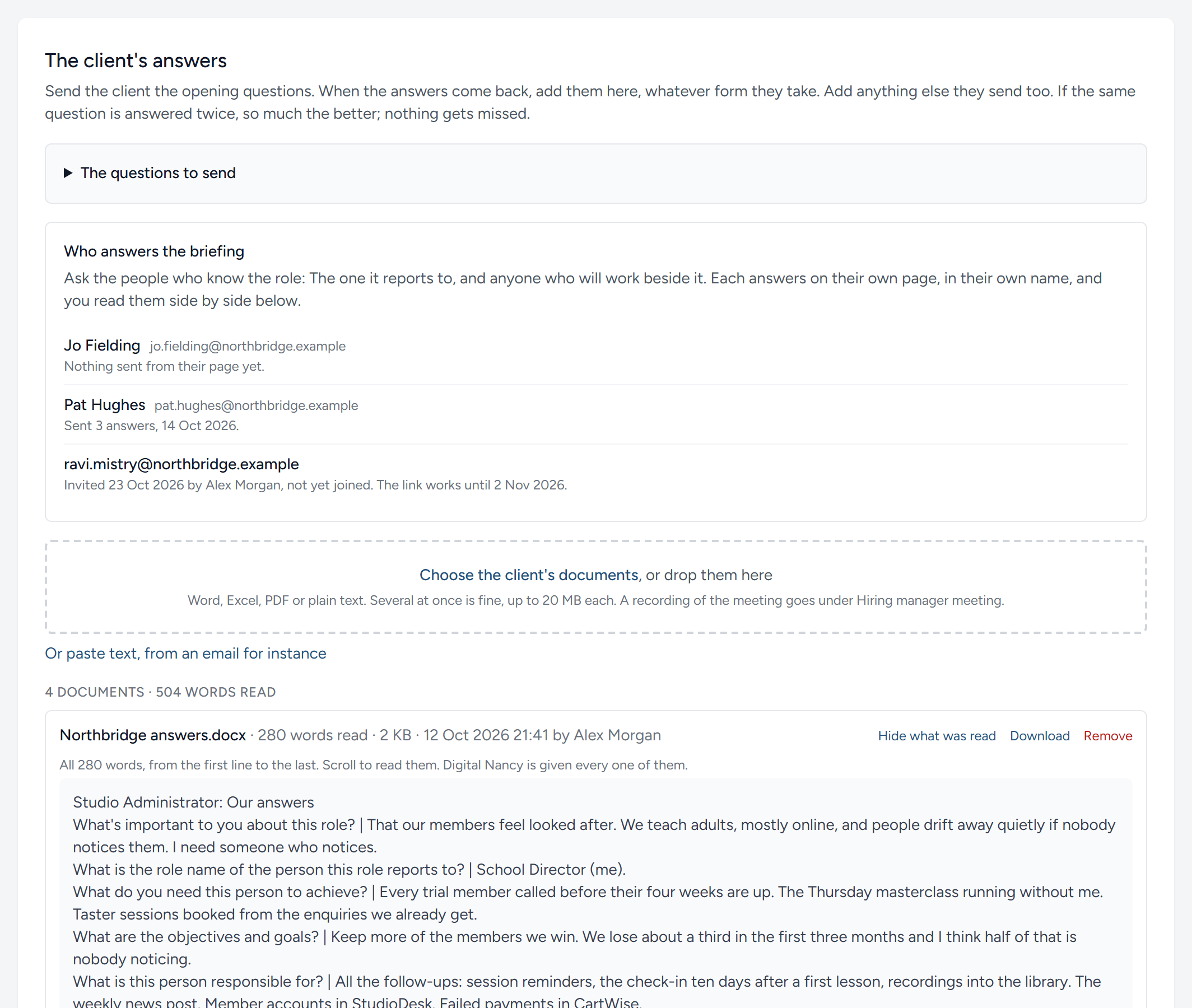
Above the words, the page tells you how much of the document Digital Nancy is given. For anything a client is likely to send, that is every word. Only a document of more than about ten thousand words is cut, and the page says so.
| What you add | What is read |
|---|---|
| Word (.docx) | Every paragraph and table, in order |
| Excel (.xlsx, .xls) and .csv | Every sheet, a row to a line |
| The words, where the PDF holds words | |
| Plain text, or pasted text | All of it |
| Older documents (.doc, .rtf, .odt) | The words, where they can be converted |
It does not matter if the same question is answered in two documents, or in a document and again in the conversation. Everything is read, and nothing said in only one place is missed. Where two answers disagree, Digital Nancy does not choose between them quietly: She goes by what was said most recently, and raises the disagreement as a question for you. Where two people at the client disagree, she keeps both, by name, and the briefing sheet asks the hiring manager which is right.
Prepare the briefing sheet
The briefing sheet is what a recruiter has always drawn up by hand before the conversation: The first draft of the person specification, in the specification's own layout, made from the client's answers alone. Once their documents are in, open the Briefing sheet part and click Prepare with Digital Nancy. When the client books the briefing conversation from their page it is prepared for you, from what they had sent by then, and a line under the heading says when: See Booking the conversation. A blue line at the top of the part says what Digital Nancy is doing and how long she has been at it, and the sheet appears beneath it when it is ready, usually in a minute or two: Stay on the page, or come back to it, but you never need to reload it. If you ask for the sheet again later, the old one stays on screen, greyed, until the new one replaces it. If Digital Nancy cannot finish, the blue line turns red and says why, and you can ask again.
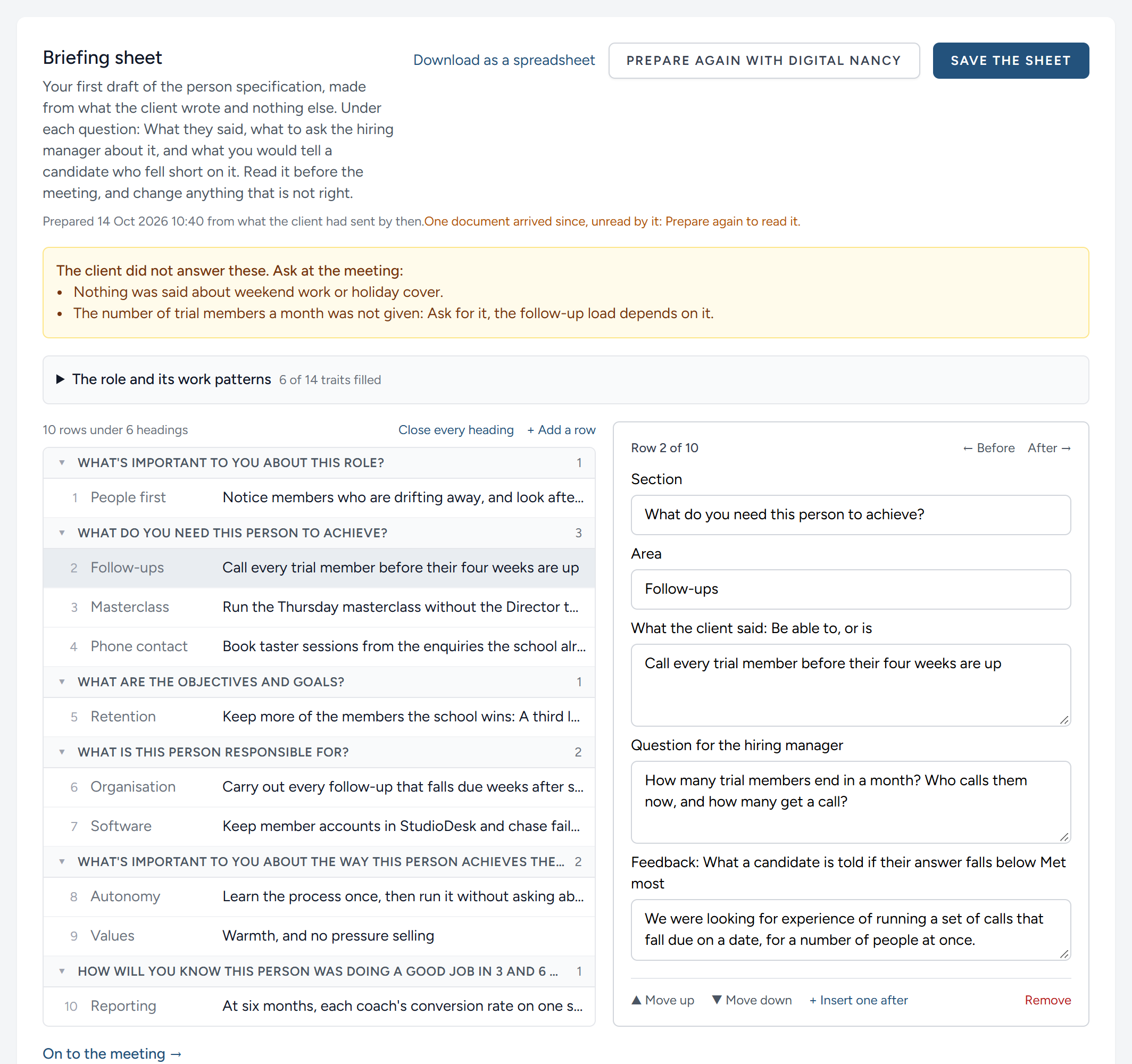
The sheet is a list, one line to a row, under the opening question each row belongs to. Click a row, and its fields open beside the list. Each row has:
| Column | What is in it |
|---|---|
| Area | Two or three words naming what the row is about |
| What the client said | One thing the person must be able to do or be, in the client's own terms, with any number they gave |
| Question for the hiring manager | What to ask at the meeting to make it something you can assess: For a particular example, for the number where none was given, for how the manager would know it done well or badly, or for what lies behind a word like "proactive" |
| Feedback | The sentence a candidate would be sent who fell below Met most on it, saying what was looked for |
Above the list, where your organisation reads the work patterns (switched on under Settings), The role and its work patterns opens to show the pattern this role wants under each of the method's fifteen traits, such as Towards / away or Mainly data (some external), filled where the client's words gave grounds and left empty where they did not. What the client left unanswered is listed first, in amber, to ask about.
Check every row before the conversation. Before and After, at the top of the open row, step through them one at a time. Under the fields, Move up and Move down change a row's place, Insert one after adds a row, and Remove takes it out. A heading can be closed to put its rows out of the way. When you have finished, click Save the sheet, at the top right. Download as a spreadsheet gives you the sheet in the method's own layout, with the assessment columns waiting for the interview.
The sheet does two jobs. Its questions are read from during the conversation, on the Hiring manager meeting part, before your own. And it goes to Digital Nancy with the transcript when the job description and the specification are drafted: Its headings, areas and feedback lines carry through, and the answers to its questions become the evidence and the bands.
Where two people at the client answered a question differently, the sheet gives both, by name, and the question for the hiring manager asks which is right, or whether both are. Do not smooth that over before the conversation: A difference between the people who will work with this person is the best question you have.
Write your own questions
The sheet asks about what the client wrote. Open the Hiring manager meeting part, and write under Your own questions for the meeting what else this role needs asking: What the answers left open, and what you want to dig into. One question to a line; click Save the questions. A list you have written somewhere else can be pasted in whole.
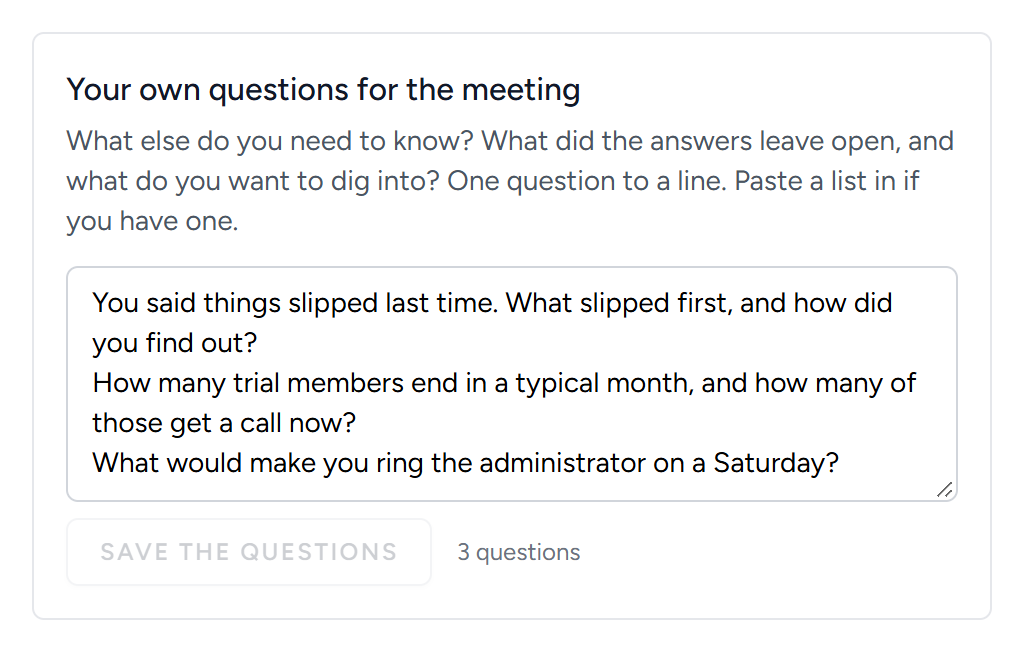
Both sets are then in front of you for the conversation, which is the next chapter: The briefing: The conversation.
This chapter was last revised on 30 October 2026.