Running a campaign · Chapter 15
Team messages
Writing to your colleagues about a campaign, inside HiMatcher. Each message goes to the people it is for, links to the candidate, answer, question or criterion it is about, and stays on a record you can search.
In this chapter you will
- write to one colleague, several, or everyone on a campaign
- name somebody with an @ as you type
- begin a conversation from the very thing you want to talk about
- follow a link in a message straight to the answer, question or criterion
- agree with what a colleague or a client wrote in one click, and see who else did
- tell what was written to you from what went to everyone, and clear a busy campaign in one click
- be told what your clients write in one summary on the hour, rather than an email each time
- settle a conversation with one line that says what was decided
- find anything that was ever said, by its words, its people, its campaign or its date
What team messages are for
Hiring is full of small questions. Is this answer a pass? Should question 3 ask about adults as well as children? Did anybody ring this candidate back?
Asked in a chat somewhere else, those questions lose their place. Nobody can tell, a month on, which answer was being talked about or what was decided. Team messages keep the question beside the thing it is about, and keep the decision with it.
Three things make them different from a chat:
- Every message is to somebody. The people you address are emailed, and have the message as unread until they open it. Nobody else is interrupted.
- Every message can link to what it is about. One click takes your colleague to that candidate's answer, that question on the form or that criterion of the specification.
- Everything stays on the record. A conversation is settled with a line saying what was decided, and can be found again by anybody on the team.
Who takes part
Everyone who can see a campaign takes part in its messages: Admins, hiring managers, scorers and interviewers. A client viewer is a guest, and reads only the conversations that are the client's, as the next part sets out.
Nothing needs switching on, and nobody needs adding to a campaign: A colleague takes part from the moment they join your team. See Your team and who can do what.
Who reads a conversation
Who reads a conversation is settled when it is begun, by who begins it and what it is about, and it does not change afterwards.
| The conversation | Who reads it |
|---|---|
| Begun by your team | Everyone on the team who can see the campaign, and nobody at the client |
| Begun by a client viewer, about the scoresheet, the briefing or a candidate | That client viewer, your admins and your hiring managers |
| A client's comment on the specification you shared | Everyone at that client who is shown the specification, your admins and your hiring managers |
| A client's comment on the specification, kept to you | That client viewer, your admins and your hiring managers |
Scorers and interviewers never read a client's conversations, another client's people never read them, and no candidate ever reads any conversation at all. Who at the client is shown the specification is the Person Specification tick beside each viewer on the client's page, so the same tick decides who reads their colleagues' comments. See Your clients, or your departments.
A client's comment on the specification is shared unless they tick Only to as they begin it, which keeps it between them and your admins and hiring managers. A comment made before comments were shared stays as it was, between the person who wrote it and your team. See The person specification.
A shared conversation says so. Its page reads A comment on the specification shared at, the client's name, then Seen by everyone there who reads the specification, the admins and the hiring managers, and by nobody else. In the Discuss panel it is tagged Shared with and the client's name. When you answer in one, To offers the client's colleagues who read the specification as well as the person who began it, so you can write to whoever at the client should have the answer.
Beginning a conversation
The best place to begin is beside the thing you want to talk about. Look for Discuss with the team:
| Where | What the message links to |
|---|---|
| A candidate's scoring page or application, Discuss this candidate near the top | The candidate, as a whole |
| The scoresheet, under the bands beside an answer | That candidate's answer, where it sits on the scoresheet |
| A candidate's scoring page, under an answer | That candidate's answer to that question |
| The application form's page, under a question | The question |
| The person specification, at the end of a row | The criterion |
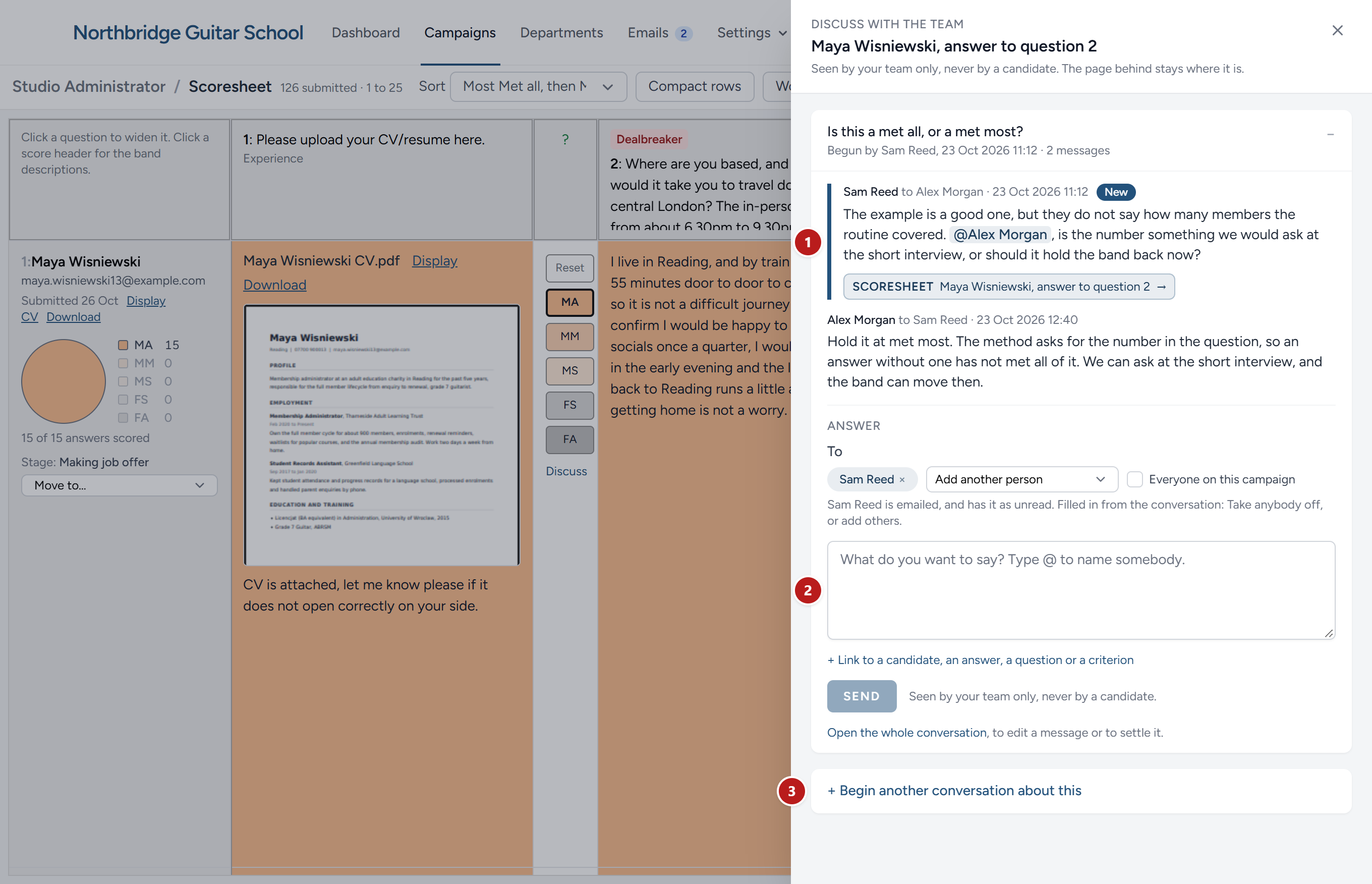
Click it, and a panel opens over the page, with the link already made and the subject filled in. It comes in from the right, except on the person specification, where it comes in from the left so that the criterion you are writing about stays readable on the right. The page stays where it is, so when the panel closes you are still at the row you were reading. A number beside Discuss with the team tells you how many conversations there have been about that thing already. They are in the panel, the newest open and the rest a line each: Read what was said, answer in the panel, or click Begin another conversation about this to raise something new. Open the whole conversation takes you to its own page, which is where a message is edited or a conversation settled.
You can also begin from the Team messages page: Choose a campaign beside Begin a conversation about and click Begin.
Writing a message
A message has three parts.
To. Pick a person from the list, then another if you wish. Or tick Everyone on this campaign. Each person you address is emailed, and the message waits for them as unread. Those you pick or name have it as written to them; the rest of everyone have it as one of many (see For you, and to everyone).
What you want to say. Type it as you would say it. To name somebody as you go, type @ and the start of their name, then choose them from the list that appears. They are added to To for you. You can name several people in one message.
Links. Click + Link to a candidate, an answer, a question or a criterion to add one, and as many as ten. A conversation begun with Discuss with the team has its link already.
Then click Send.
Reading what is sent to you
The bell at the top of every page shows what you have not opened, in two numbers. Click it to open Team messages.
| List | What is in it |
|---|---|
| For me | Every conversation in which something was written to you by name: You were picked, or named with an @. Unread ones are marked in blue |
| To everyone | Every conversation in which something went to everyone on a campaign, you among them. Unread ones are marked in grey |
| From me | Every conversation you have written in |
| Everything | Every conversation in the organisation that you may see |
Open a conversation to read it. What is new to you is marked New. Opening it counts as reading it: The number beside the bell falls, and the colleague who wrote to you sees Read by with your name under their message.
Reading is your own. When a message is addressed to two of you, your opening it reads it for you alone: It waits for your colleague, marked unread with its own count beside the bell, until they open it themselves.
If you open something and want it to wait for you again, Mark unread on its line in the list puts it back: Its count returns to the bell, and the next time you open it, what came back is marked New once more. It is put back for you alone; a colleague who has read it has still read it. The line offers it only when something in the conversation was addressed to you, since otherwise there is nothing of yours to put back.
Click a link in a message to go straight to what it is about. The page you land on opens at the thing itself, the answer, the question, the criterion or the briefing question, brought into view and outlined, with the latest of what was said in a card beneath it and a link back to the conversation. The outline stays until you close the card, or, where there is no card, until you click somewhere else. That is the rule for every link in every message, to the team and to the client alike: Nobody trawls a page for what was meant. Where the thing has since gone from the page, the card says so at the top instead.
To answer, write under Answer, exactly as above. To is filled in for you with whoever wrote last and the people they wrote to, so the conversation stays among those in it. Take anybody off with the cross beside their name, or add others. A message that was sent to everyone is answered to its writer alone, unless you tick Everyone on this campaign again.
Agreeing without a reply
Under every message someone else wrote is I agree. Click it when you agree and have nothing to add: It turns green, and the line beside it names everyone who agrees, You and Pat Hughes agree say, for everyone who reads the conversation. Click it again to take your agreement back. It is there wherever the message is read: On the conversation's page, in the panel that Discuss opens, and under the rows of the Person Specification, where a client's colleagues use it to back a comment rather than repeat it.
- Each person agrees once, in their own name. A message of your own has no I agree, but you read who agreed with it.
- Where more than three people agree, the line names two and counts the rest. Click the number for every name.
- Nobody is emailed, nothing is added to the bell, and the conversation does not move up the list. An agreement is read when the message is next read. Anything that needs an answer still needs writing.
- A message that is reworded loses its agreements, since they were with the words as they stood. A settled conversation keeps its agreements as they were, and no more can be added or taken back until it is reopened.
For you, and to everyone
A message written to you and a message written to everyone on a campaign are not the same thing, and the bell does not count them as if they were.
- The red number is the conversations with something unread that was written to you by name. This is what you should not miss.
- The grey number beside it is the conversations with something unread that went to everyone on a campaign, and nothing unread to you by name. A conversation with both is counted once, in red.
So when a client leaves thirty comments for everyone on one campaign, the grey number climbs and the red one stays as it was. A colleague who then writes to you by name still turns it red, and you see it at once.
The person working on that campaign goes through them under To everyone. The rest of you can leave them there, or clear them: Mark all as read, above the list, reads everything the list is showing, on every page of it, for you alone. Under To everyone it reads only what went to everyone, so anything in the same conversations written to you by name still waits for you. Narrow the list first, to one campaign say, to clear only that campaign's. A colleague's reading is theirs, and nothing you clear is cleared for them.
What a client writes
A client who comments on a draft specification, or asks about an answer on the scoresheet, writes to your admins and hiring managers. A client with a lot to say can write a dozen comments in an hour, and an email for each one, to each of you, soon fills everybody's inbox.
So what a client writes to everyone on this campaign waits for your next summary: One email, on the hour, with every comment since the last one, grouped by campaign. Its subject says what is in it, 7 comments from Chris Client on Piano Coach say, and each comment in it has its own link, which opens the conversation at that comment. The answers and documents a client sends from their own page wait for the summary in the same way, as one line each with a link to the briefing.
- A comment the client writes to you by name, picking you or naming you with an @, comes to you straight away, as any other message does, and counts in the red number beside the bell. A comment to everyone counts in the grey one.
- A comment you have already read in HiMatcher before the hour is left out of the summary. If you have read everything, no summary is sent.
- A summary goes only within the working hours, the last as they end. What arrives in the evening waits for the first summary of the morning.
- The client's agreement to the whole specification comes straight away, as it always has.
Your organisation chooses how often, from straight away to once a day, and the working hours, under Settings: Email options, in Client comments. Each admin and hiring manager can choose their own on their profile, under Client comments: How often, and their own working hours if they keep different ones. The profile also says when your next summary goes.
Changing or removing what you wrote
Under a message of your own, Edit lets you reword it. It is then marked edited, and anyone who had agreed with it is cleared, to agree again with the new words if they still do. Nobody is emailed a second time.
Remove takes a message out. Whoever wrote it can remove it, and so can an admin or a hiring manager. Its words and its links go. Its place in the conversation stays, saying who removed it and when, so the record never has a silent gap.
Settling a conversation
When the question is answered, click Settle this conversation, write in one line what was decided, and click Settle.
A settled conversation shows its outcome at the top, with who settled it and when. The outcome appears in the lists too, so a colleague looking for the decision need not read the whole conversation to find it.
Nothing more can be added to a settled conversation. If the question comes up again, click Reopen. The earlier outcome is kept until the conversation is settled again.
Finding what was said
Everything your team has written stays on the record. On the Team messages page:
- Words to look for searches the subject, what was written, the outcome, the names of the people and the names of the things linked to. Type several words to find conversations that hold all of them.
- Campaign narrows the list to one campaign.
- To or from narrows it to one colleague.
- Open or settled shows one kind or the other.
- The counts under a client viewer on their client's page open the list narrowed to what that person began (see Your clients, or your departments); Everyone's widens it again.
- From and To narrow it to the days between two dates.
To search the whole record, and not only what was addressed to you, click Everything first.
In the order of the Person Specification
Once you have chosen a campaign, Order offers Newest first or By Person Specification row. By row, the list follows the specification instead of the calendar, so you can go through what the client said and change the specification a row at a time.
- A group to each row. Each row with conversations about it has a heading, Row 4 · Availability say, with every conversation about that row beneath it, so several comments on one row are read together. Open this row to edit takes you to the row on the specification's own page, opened for editing.
- Numbered as the specification is now. The rows are in the order of the newest version of the specification, and numbered as that version numbers its criteria. A conversation's subject keeps the number the row had on the draft the client read, which counts the section headings and can change from one draft to the next, so row 8 in a subject may sit under Row 7.
- The rest follows. After the rows come The specification as a whole, then Rows no longer in the specification for comments on a row that has since gone, then Not about the specification, newest first: Candidates, answers, the briefing and anything else.
The other boxes still apply. Choose Everything to see what was addressed to your colleagues as well as to you, and Open under Open or settled to see only what is still to be dealt with.
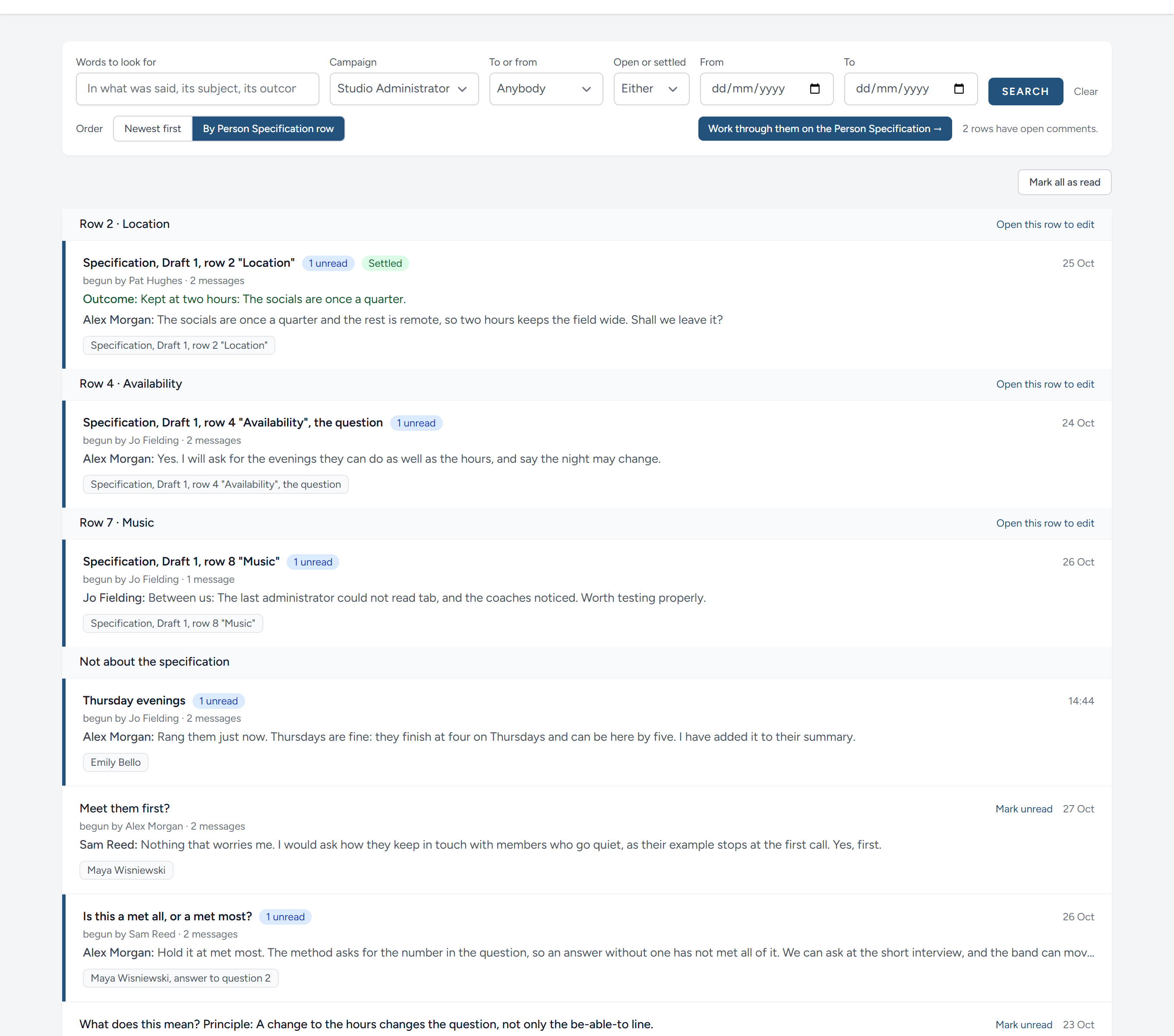
Work through them on the Person Specification, beside the order, says how many rows have open comments and takes you to the specification's own page to go through them, a row at a time. See The person specification.
When you have followed Discuss with the team from a candidate, an answer, a question or a criterion, the conversations about that one thing are in the panel that opens.
The conversations about a candidate as a whole are also listed on the candidate's own pages, under This candidate in general, and a link to the candidate lands there. See Scoring the application forms.
Team messages and notes on a candidate
The notes on a candidate are still there, and still work as they did. See Managing candidates and the pipeline.
| Use | When |
|---|---|
| A note | You are recording a fact about one candidate for anybody who looks at them later: A telephone call, their availability, something to check at interview |
| A team message | You need a colleague to read something, answer a question or make a decision |
This chapter was last revised on 30 October 2026.