Getting started · Chapter 1
Welcome: Your sign-in and your dashboard
Accepting your invitation, signing in, and reading the dashboard that tells you where each role has got to and what is waiting for you.
In this chapter you will
What to do first
If you have just signed in for the first time, this is the whole of it:
- On your dashboard, find the role and click Open the campaign.
- The campaign's page lists its parts down the left. The part most likely waiting for you is Person Specification: What the person must be able to do, row by row, for you to agree or comment on. Person Specification walks you through it.
- Whenever you want this guide, click Guide at the top of any page. It opens, in a new tab, at the chapter for the page you are on.
Everything below explains the pages in full, but nothing on them needs learning first: Every page says on it what it wants from you.
What HiMatcher is, for you
Your recruiter uses HiMatcher to run the hire from start to finish: Working out what the role needs, advertising it, reading every application the same way, interviewing, and suggesting the strongest candidates to you. You see one part of that, the part that needs you.
- Before anyone applies, you say what the role must achieve, in your own words, and answer the plain questions the advertisement needs.
- Once people have applied, you read about the candidates your recruiter suggests to you and say yes or no to each of them.
- Along the way you can read what was agreed, and talk to your recruiter's team about any of it without leaving the page.
Nothing here needs setting up and nothing needs learning beyond this guide. Every page says on it what it wants from you.
Your invitation
Your recruiter invites you by email. The email has a link; click it and a page headed Join, with your recruiter's name, asks for your name and a password. Type them and click Accept and sign in. That is the whole of it: You are signed in, and your dashboard is in front of you.
Often the invitation is the start of a search: Your recruiter has asked you to answer a few questions about a role before anyone applies. Then the email says which role, and the link takes you straight to the questions once you have chosen your name and password. See Your briefing.
The invitation names the email address it was sent to, and that address is the one you sign in with from now on. If it is wrong, ask your recruiter for a fresh invitation rather than accepting this one.
Signing in
Go to the address your recruiter gave you and sign in with your email address and password. If you forget the password, click Forgot your password? on the sign-in page and a link to choose a new one is emailed to you.
Your recruiter may have asked that everyone sign in with a second step, a code from an app on your telephone. If so, the sign-in page asks for the code after your password. See Your account.
Your dashboard
You arrive on your dashboard, and come back to it from Dashboard at the top of any page. Here it is as the example school's director sees it, with each part numbered.
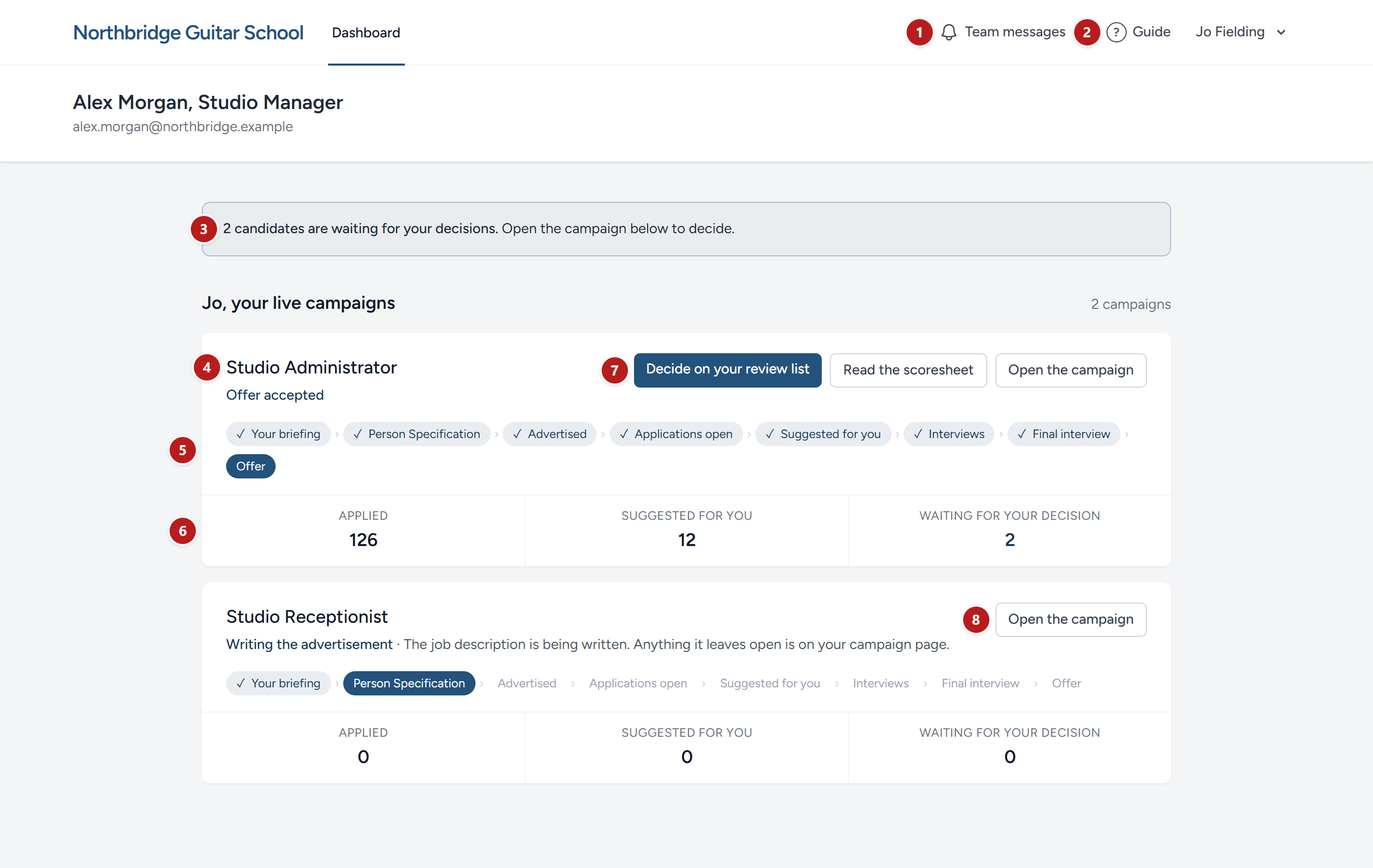
- Team messages, with a bell. Your conversations with your recruiter's team: Everything you have asked and everything they have answered. A red number on it is how many you have not read that were written to you by name; a grey one beside it, those that went to everyone on the campaign. See Discuss, and your messages.
- Guide opens this guide in a new tab, at the chapter for the page you are on. Beside it is your name: Click it for your account, your password, and Sign out.
- A line saying what is waiting for you, when anything is. It is the first thing to read: One candidate is waiting for your decision. Open the campaign below to decide. No line means nothing waits.
- A card for each role being recruited for you, newest first, headed with the role's name. Beneath the name, a line says where it has got to, in plain words, and often why.
- The eight steps every campaign goes through, from Your briefing to Offer. A tick marks each step passed and the current one is highlighted. The next section says what each means.
- Three counts: How many people have applied, how many are suggested for you, and how many are waiting for your decision.
- Decide on your suggested candidates, or Decide on your review list where your recruiter keeps a list for you, is there while candidates wait for you. It becomes Open once you have decided, and Read once they are closed. Read the scoresheet appears beside it where your recruiter has let you read the scorecard.
- Open the campaign is on every card, and opens the campaign's own page, described below.
Above the cards is your recruiter's name, with a contact line beneath it where they have given one. Finished roles sit under Completed, folded; click the heading to open them. Each still opens, so you can look back at what was decided.
Where a campaign has got to
The eight steps are the same for every campaign. The line beneath the role's name says which step it is on, and often why.
| Step | What is happening |
|---|---|
| Your briefing | Your recruiter is gathering what the role needs: Your answers, and a conversation with whoever the person will report to. Your part is in Your briefing |
| Person Specification | Your recruiter is writing down, from your briefing, what the successful person must be able to do. Every application is read against it |
| Advertised | The advertisement is live. You can read it under What we agreed |
| Applications open | People are applying. The card counts them |
| Suggested for you | Your recruiter has suggested candidates to you. The line reads Suggested candidates waiting for your decisions while they wait, and Suggested candidates decided once you have said yes or no to each. See Deciding on your suggested candidates |
| Interviews | The people you approved are being interviewed |
| Final interview | The last round, usually with you in it. From here on you see candidates by name |
| Offer | An offer has been made, or accepted |
A campaign's own page
Open the campaign opens a page for that role alone. Nothing happens when you open it, and nothing is sent: It is a page to read, with a part for each thing that is yours to do, and each part says on it what it wants. Here it is as it opens.
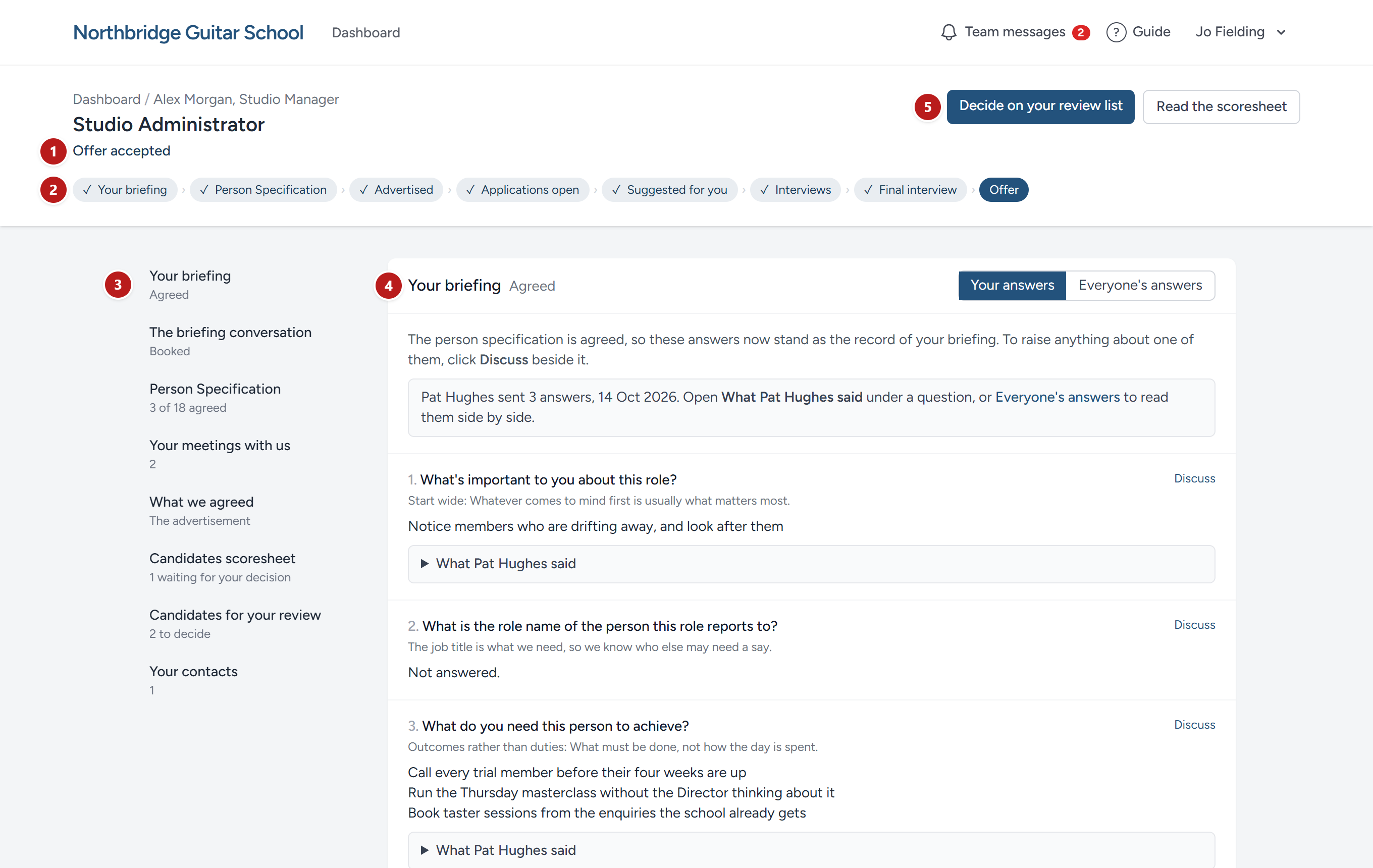
- The same line as on the card, saying where the role has got to and why.
- The same eight steps, so you can see at a glance which one you are at.
- The list of the page's parts, down the left. Under each is a word or two on its state: 3 of 7 answered, Agreed by you, 2 to decide. Click a part to go straight to it. On a telephone the list sits across the top instead.
- The first part, Your briefing here, where your recruiter has given it to you. Each part below it is laid out the same way: Its name, a word on its state, and what it asks of you.
- Across the top, where candidates have been suggested to you, the same Decide and Read the scoresheet buttons as on the dashboard.
The parts, in the order the page lists them, with a word on each:
- Your briefing, where you answer the questions the role rests on, if your recruiter has asked you to. See Your briefing.
- Person Specification, the draft of what the successful person must be able to do, to agree row by row. See Person Specification.
- A few plain facts, the plain facts the advertisement needs, asked beneath your briefing while that is still yours to answer; headed Questions we have for you once the draft job description has questions of its own, and then listed after the Person Specification. See Questions we have for you.
- Your meetings with us, the later meetings that concerned this role.
- What we agreed, the job description once it is agreed and the advertisement once it is live.
- Candidates scoresheet, all the candidates suggested to you and, where you are let, the scorecard.
- Candidates for your review, the list your recruiter adds to one candidate at a time.
- Your contacts, the people at your recruiter to write to, by name and email.
The last five are in What we agreed, your meetings and your contacts and Deciding on your suggested candidates.
Your recruiter chooses which of Your briefing, Person Specification, Questions we have for you and What we agreed each person sees, so a colleague's page may list fewer parts than yours, or more. A part you have not been given is not listed.
What to expect at each step
The page changes as the role moves on, and so does what it asks of you. Nothing arrives without a word on the page saying so, and the Guide link at the top opens the chapter for whichever part is waiting.
| Where the role is | What the page asks of you | The chapter |
|---|---|---|
| Your briefing | Answer the questions the role rests on, or send a document, where your recruiter has asked you to; give the plain facts beneath them | Your briefing, Questions we have for you |
| Person Specification | Read the draft row by row; agree each row, or comment on any part of it; agree the whole | Person Specification |
| Advertised | Give the plain facts the advertisement needs, where it still asks for any; read the job description as it was agreed | Questions we have for you, What we agreed |
| Applications open | Nothing yet. The card counts the people applying | |
| Suggested for you | Say yes or no to each candidate suggested to you, and read the scoresheet where you are let | Deciding on your suggested candidates, Reading the scoresheet |
| Interviews to Offer | Nothing on the page. Your recruiter arranges the rest, and writes to you about it | Discuss, and your messages |
At any step, Discuss beside a question, a row or a candidate writes to your recruiter's team about that one thing, and the bell at the top brings you their answers.
This chapter was last revised on 30 October 2026.