Before anyone applies · Chapter 4
Person Specification
Reading the draft specification row by row, agreeing each row or commenting on any part of it, reading what your colleagues said, and agreeing the whole.
In this chapter you will
- read what the person must be able to do, and the question or task that tests it
- agree a row, or comment on its area, what the person must be able to do, its question or its criteria
- see who else at your organisation agreed each row, and read the comments under it
- agree with a comment, or an answer to it, in one click rather than writing to say so
- keep a comment between you and your recruiter, or email your colleagues about it
- answer a comment, or comment on the specification as a whole
- agree the specification as a whole
- know who reads what you say, and what happens when a new draft comes
Your part, in three steps
This is the part most of you are asked to read first, and it is the one that matters most: Everything that follows is tested against it. Your part is short:
- Read each row: What the person must be able to do, and the question or task that tests it.
- Click Agree beside a row that is right, or Comment on any part of a row you would change or want to ask about.
- When you are content with the whole, click I agree with this specification at the foot.
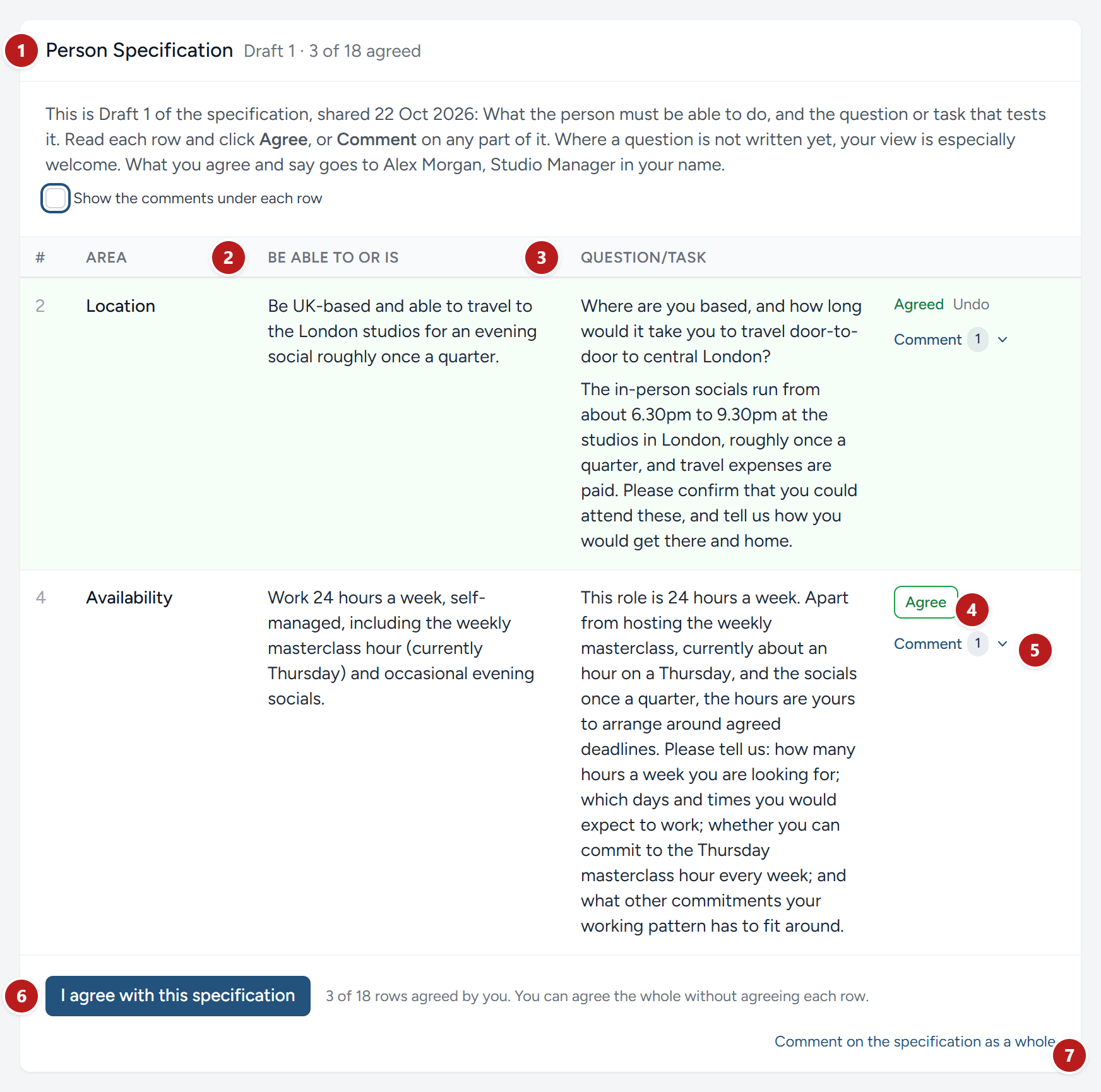
- The heading says which draft this is and when it was shared, and beside it how far you have got: 3 of 12 agreed, or Agreed by you.
- Be able to or is: What the person must be able to do, or be. The heart of each row.
- Question/task: The question asked, or the task set, that tests it. Not written yet here is where your view helps most.
- Agree records that the row is right, in your name. It becomes Agreed, with Undo beside it.
- Comment asks what the comment is about, then opens a panel to write in. See Commenting, step by step.
- I agree with this specification agrees the draft as a whole. You need not agree every row first.
- Comment on the specification as a whole, for anything that is not about one row.
What it is
From your briefing, your recruiter writes the Person Specification: Row by row, what the person must be able to do, or be, and the question or task that tests it. Every application, every interview and every decision about a candidate is tested against it, so it is worth getting right before anyone applies.
While it is being refined, your recruiter shares it with you, and may email you when a draft is ready, with the subject "Person Specification: Draft 1 for" and your campaign's name. It appears on the campaign's page under Person Specification, with the draft's number beside the heading. The list down the left of the page, and the step across the top while the specification is being written, use the same name.
Reading it
Each row has three columns:
| Column | What it says |
|---|---|
| Area | A short name for the row, such as Planning or Building |
| Be able to or is | What the person must be able to do, or be |
| Question/task | The question asked, or the task set, that tests it |
Where a question is not written yet, the row says Not written yet. Those rows are where your view helps most.
What a good answer shows is your recruiter's to settle, once you have agreed what is asked: The best way to know is to read the first answers that come in, and a good candidate can show something better than anyone expected.
Agreeing and commenting
Beside each row:
- Agree says the row is right. It is recorded in your name, and Undo takes it back while the draft is open. Beneath Agree and Comment, the row names anyone else at your organisation who has agreed it, Agreed by Jo Fielding say, or Also agreed by once you have agreed it too.
- Comment is for anything in the row you would change, or want to ask about. It goes to the people who run your campaign, in your name, and you read their answers under the row. How it works is in Commenting, step by step, below.
At the foot of the sheet, I agree with this specification says you are content with the draft as a whole. You need not agree every row first. Your recruiter is told when you do, and under the sheet Agreed as a whole by names everyone at your organisation who has.
Several people at your organisation may read the same sheet. Each person's agreement is their own, and the sheet says who agreed what, so you need not ask a colleague whether they have read it. Your recruiter sees everyone's, by name.
Commenting, step by step
- Click Comment beside the row. A short list asks What is your comment about?, with the row beneath it, Row 8, Music say. Choose The area, What they must be able to do, The question or task or The row as a whole. Under each of the first three are the row's own words for that part, so you can see which you are choosing, or Not written yet where there are none. Where the row has comments already, a line at the foot of the list says that whichever you choose, what has already been said about the row is shown first.
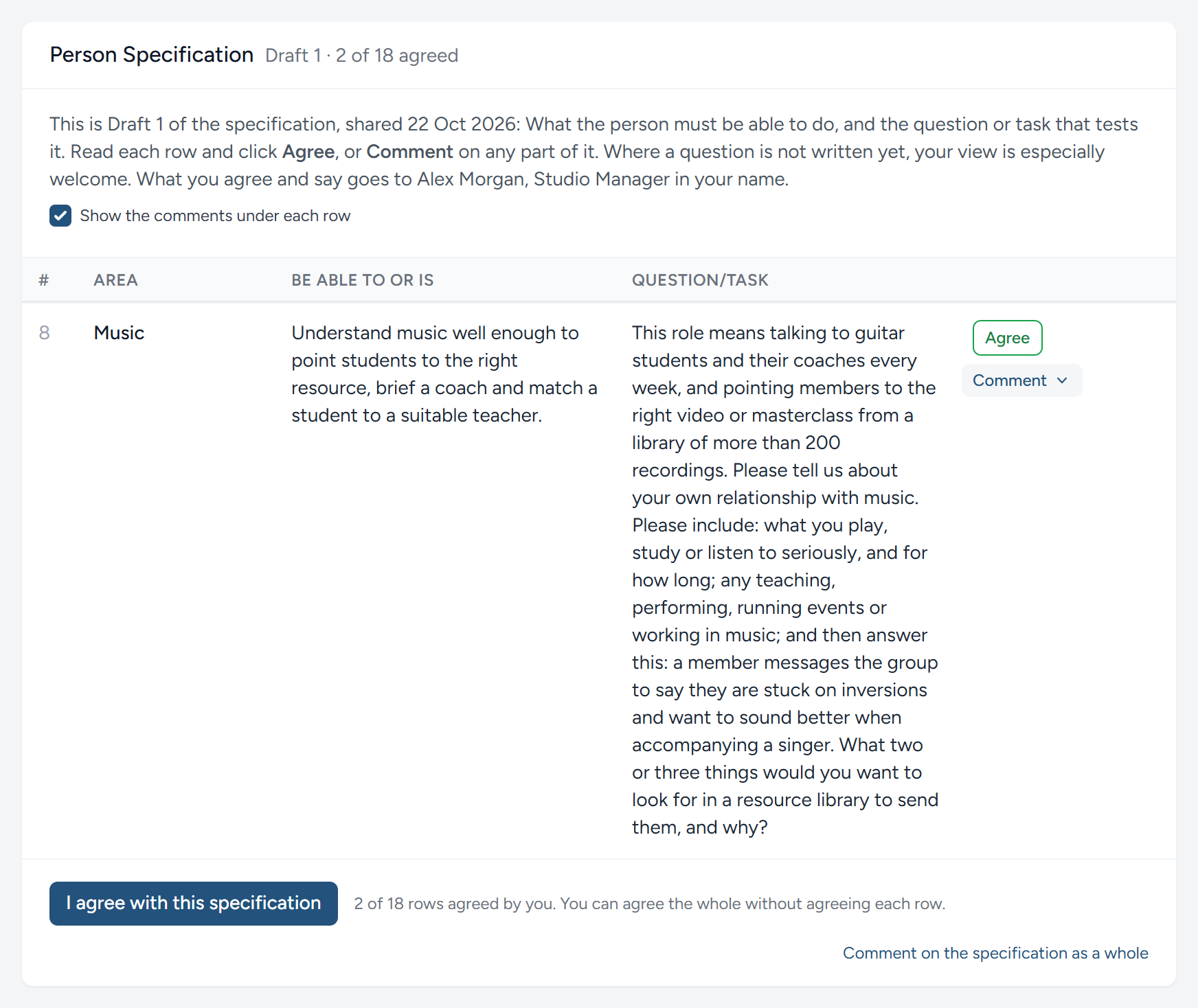
- A panel opens from the left of the screen, so the row stays readable on the right. It is headed with the row and the part, Specification, Draft 1, row 8 "Music", the question say. You need not say what your comment is about: Under A new conversation, What it is about, in a line is filled in already, and the link to the row and the part is made already, beneath the text box.
- Under To, pick the person you are writing to, or tick Everyone on this campaign, and write what you want to say. To name somebody in the text, type @ and their name. Two ticks sit above the text box. Only to Alex, with the first names of the people you picked, keeps the comment between you and the people recruiting for you: See Who reads your comments. Email my colleagues at Studio office too, with your own organisation's name in it, emails your colleagues as well.
- Click Send. The comment appears under the row, and the number beside Comment goes up by one: It counts the conversations about the row. The people you wrote to are emailed, and their answers come back to the same place.
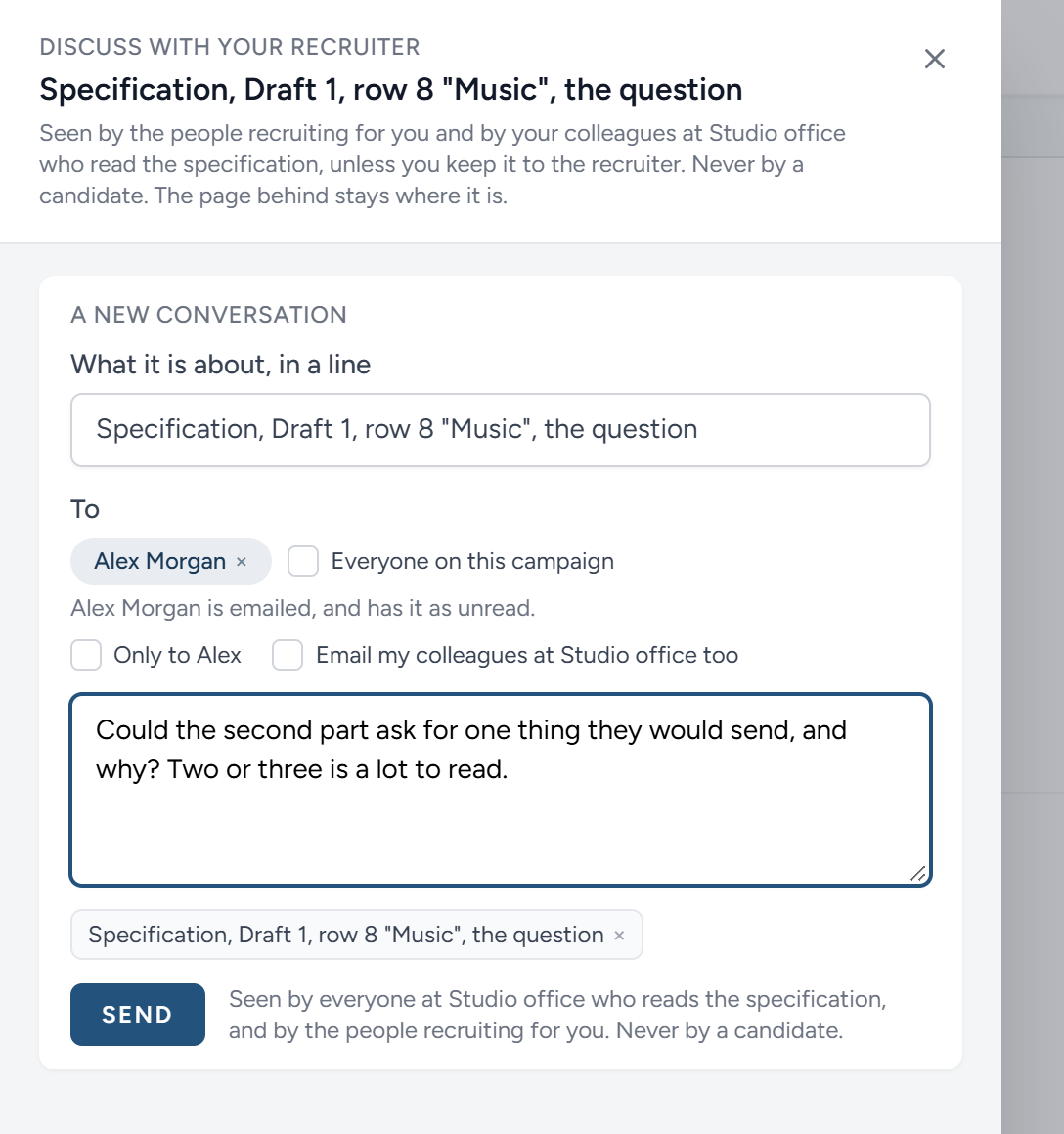
- To answer, or to add to a conversation already going, click Answer, or comment again under the row's comments. The panel opens with the row's conversations, each with an Answer box of its own, and beneath them + Begin another conversation about this for something new.
- For anything that is not about one row, click Comment on the specification as a whole, at the foot of the sheet. It opens the same panel, and those comments sit under the sheet.
Who reads your comments
A comment you make on the specification, on a row, on one part of a row or on the specification as a whole, goes to the people recruiting for you. It is also read by your colleagues: Everyone at your organisation whom your recruiter has given the specification to. They are reading the same sheet, and it saves the second person making the point the first has made already. Nobody at any other organisation reads it, and no candidate ever does.
The panel says so under its heading: Seen by the people recruiting for you and by your colleagues at your organisation who read the specification, unless you keep it to the recruiter. Never by a candidate. It names your organisation where this says "your organisation".
To keep a comment between you and your recruiter, tick Only to as you begin it. The tick carries the first names of the people you are writing to, Only to Alex say, or reads Only to the people recruiting for you if you have not picked anybody. Ticked, the comment and everything said in answer to it stay between you and the people recruiting for you, and your colleagues do not see it. The line beside Send says who will read what you are about to send: Shared, everyone at your organisation who reads the specification and the people recruiting for you; kept, you and the people recruiting for you, and never your colleagues. Either way, never a candidate.
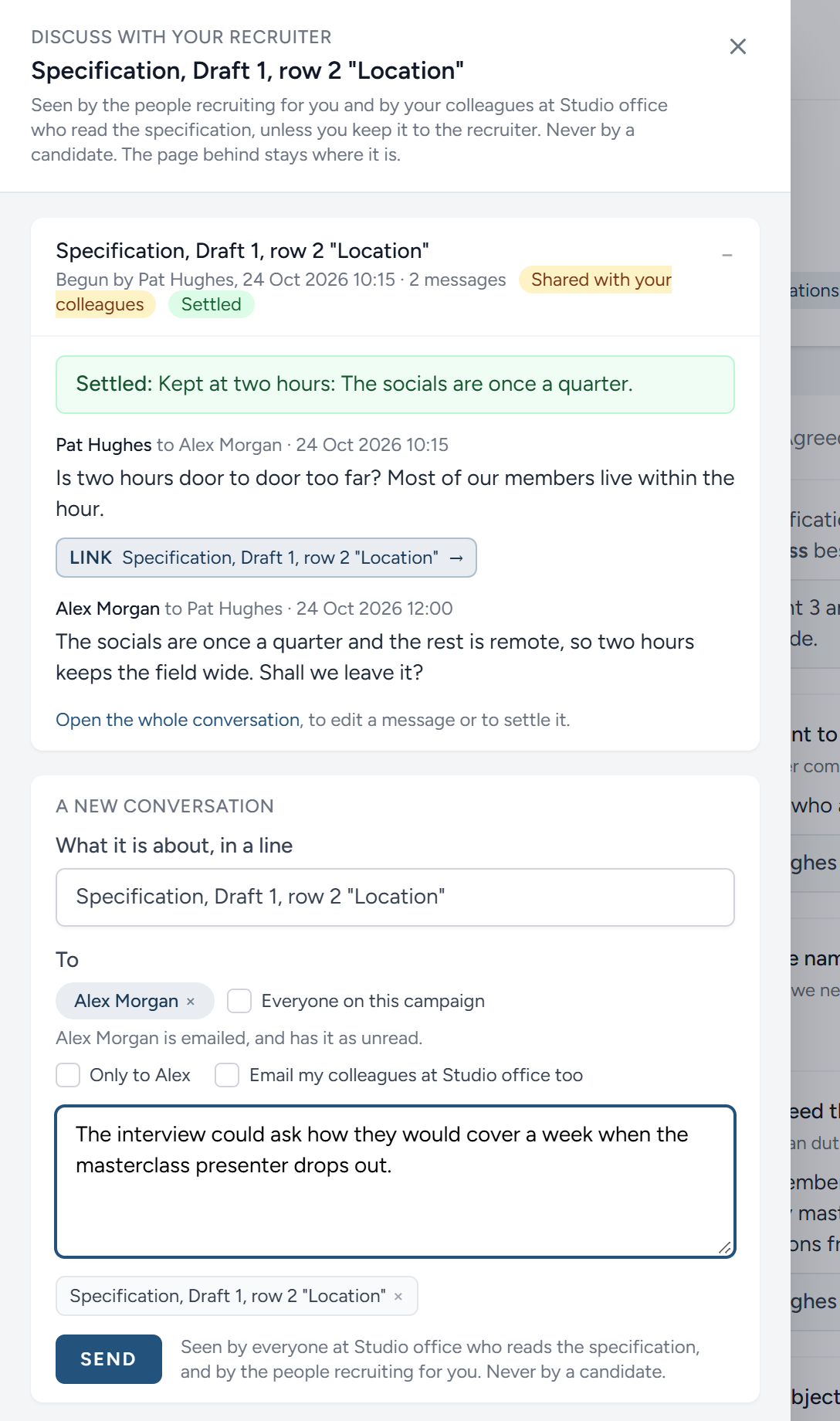
Only the people you write to are emailed. Your colleagues find a shared comment on the page, under its row. To email them as well, tick Email my colleagues at your organisation too, when you begin a shared comment or answer in one.
A comment made before your colleagues could read one another's stays as it was: Between the person who wrote it and the people recruiting for you. So does anything you write about another part of your campaign's page, such as the scoresheet or your briefing.
Comments under the rows
Every comment you may read sits under the row it is about, so the sheet and what has been said about it are read together: Your own, and your colleagues' that were not kept to the recruiter.
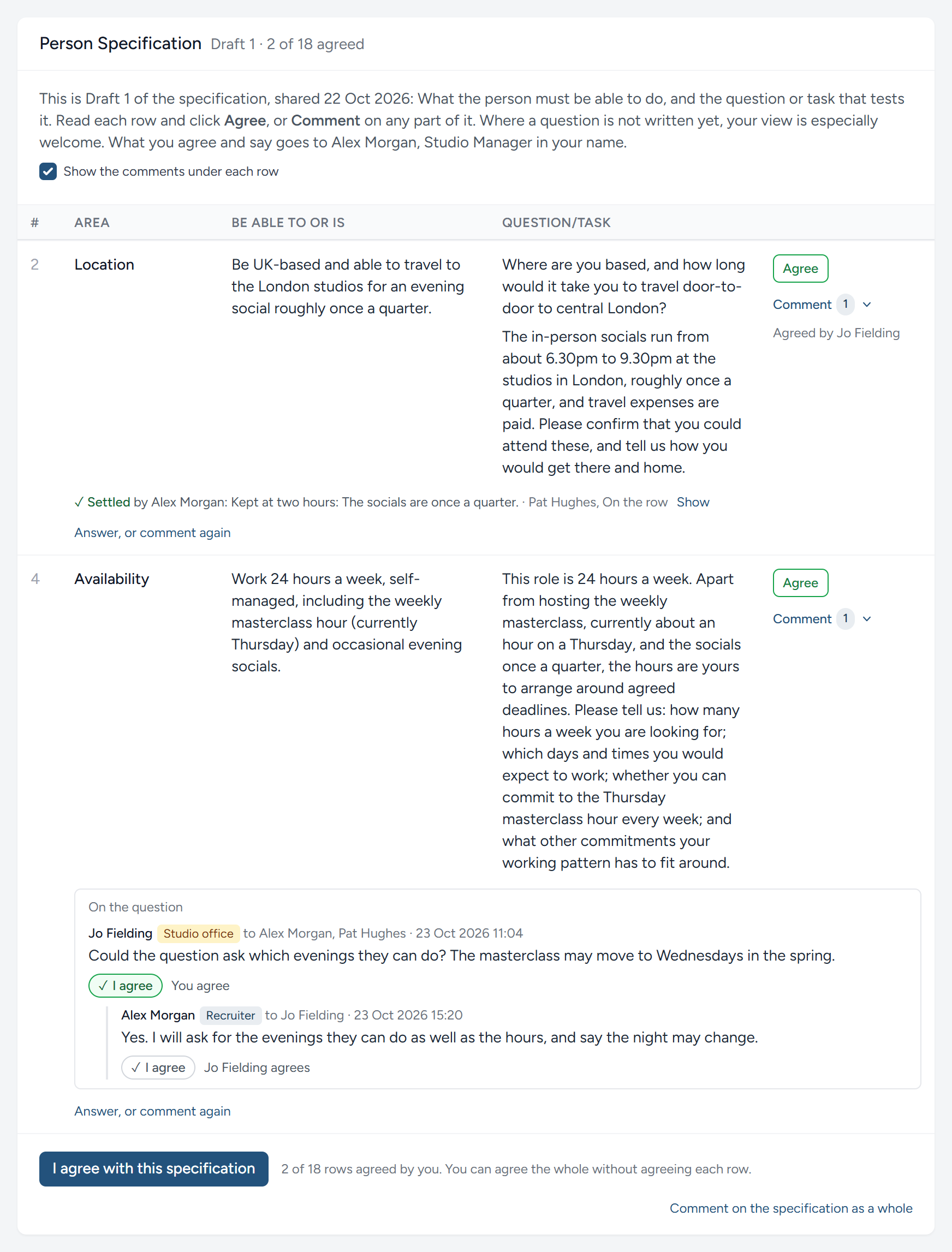
- What it is about. Each comment begins with the part of the row it is about, On the question say, and Draft 1 if it was made on an earlier draft.
- Each message shows who wrote it, a tag with your organisation's name or Recruiter for the side they are on, whom it was to, and when.
- Kept to the recruiter. A comment of yours that you kept to them is marked Only to the people recruiting for you.
- Settled. A comment that has been settled folds to one line: Settled by, the name of the person who settled it, and what was decided. Show opens it, and Fold closes it again.
- I agree, under a message someone else wrote, says you agree with it without writing a reply, and the line beside it names everyone who does. See Agreeing with a comment.
- Answer, or comment again, under the comments, opens the panel on that row.
To read the sheet on its own, untick Show the comments under each row, at the top of the sheet. Every comment folds away until you tick it again. Comments on the specification as a whole are under the sheet, headed Comments on the specification as a whole.
In the panel, a conversation your colleagues read is tagged Shared with your colleagues, and one you kept to the recruiter Only to the recruiter.
Agreeing with a comment
When a colleague has already said what you would say, there is no need to say it again. Under every comment, and under every answer to it, is I agree. Click it and it turns green, and the line beside it says who agrees, You and Jo Fielding agree say. Everyone who reads the comment reads that line: Your colleagues, where the comment is shared with them, and the people recruiting for you, who then know it is not one person's view. Click I agree again to take your agreement back.
- Once each. However often you click, your agreement counts once, in your name.
- Your own messages have no I agree, but you read who agreed with them.
- A long list names two people and counts the rest, Jo Fielding, Pat Hughes and 2 others agree say. Click the number to read every name.
- Nobody is emailed when you agree. If you have something to add, write an answer instead.
- A reworded message loses its agreements, since they were with the words as they stood. Agree again if you still do.
- A settled comment keeps its agreements as they were, and no more can be added or taken back.
The same I agree is under each message in the panel, and on the conversation's own page.
When a new draft comes
A new draft takes the place of the last. A row that is word for word the same keeps your agreement. A row that has been reworded is marked Changed since you agreed, so you can read it again. Comments follow their row from draft to draft; a comment on a row that has gone is listed beneath the sheet, under Comments on rows no longer in the draft, with your colleagues' shared ones beside your own. Agreeing the whole is asked again of each new draft.
When it closes
Once the specification is settled, your recruiter closes the draft to comment. It stays on the page for you to read, with what you agreed. To raise anything after that, write to one of your contacts.
This chapter was last revised on 30 October 2026.