Choosing the person · Chapter 9
Discuss, and your messages
Writing to your recruiter's team about one question, one answer or one band without leaving the page, and reading what they write back.
In this chapter you will
- open Discuss beside anything on your pages and read what has been said about it
- write to your recruiter's team, and know who reads it, your colleagues included
- find your conversations again from the bell at the top of the page
- agree with something said in one click, rather than writing to say so
- follow a link in a message back to the thing it is about
What Discuss is
Beside every briefing question, beside every candidate suggested to you or on your review list, and beneath every band on the scoresheet, is a link that says Discuss. It is for a conversation about that one thing: A question you are not sure how to answer, a candidate you want to ask about before you decide, an answer you read differently from your recruiter. Click it and a panel opens over the page, so you lose nothing you were reading.
A candidate you know only as a number is still one person to your recruiter: Write about Candidate 7 and the people who run your campaign are led straight to that person on their side, while on yours the conversation keeps to the number until their name is shown.
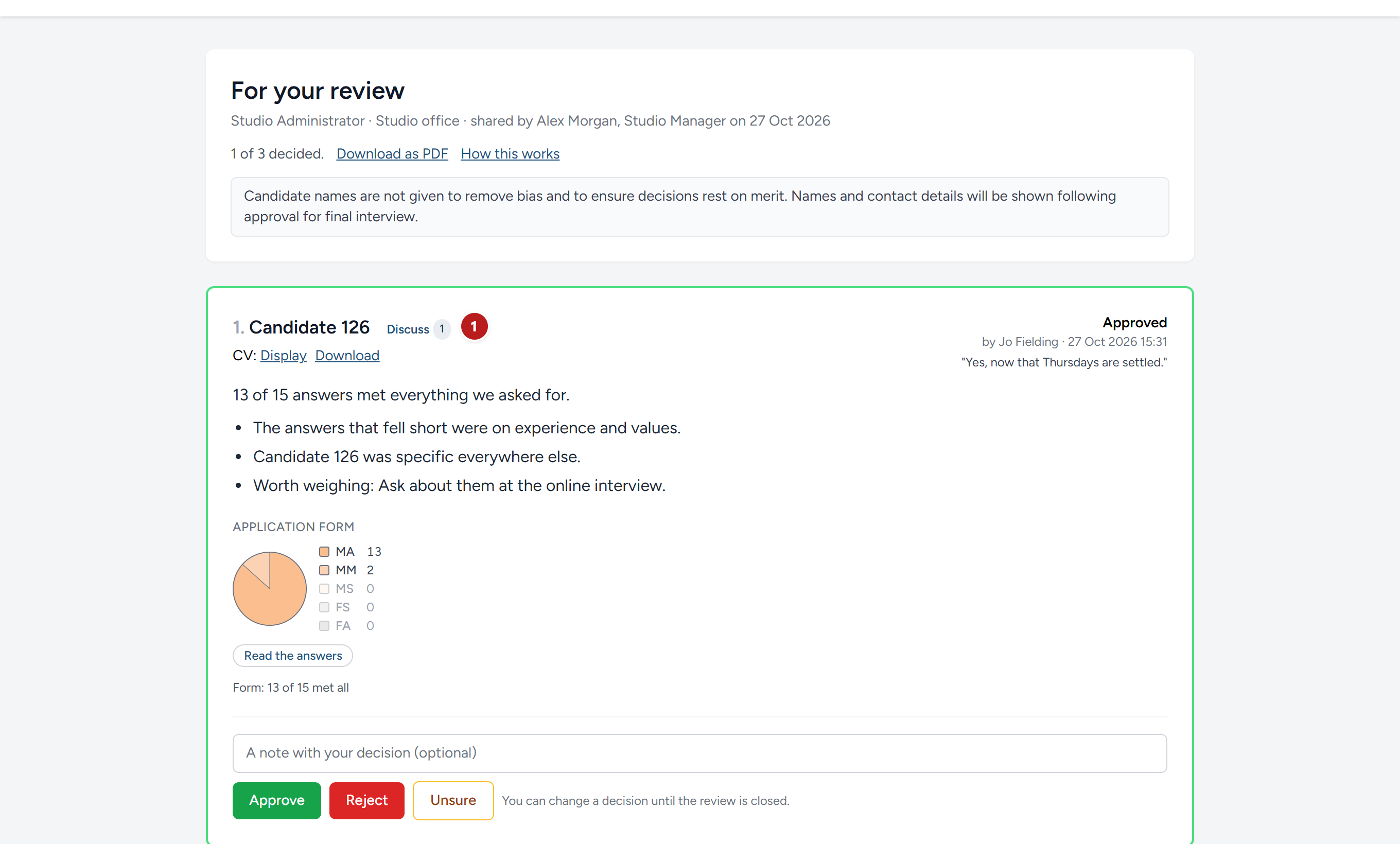
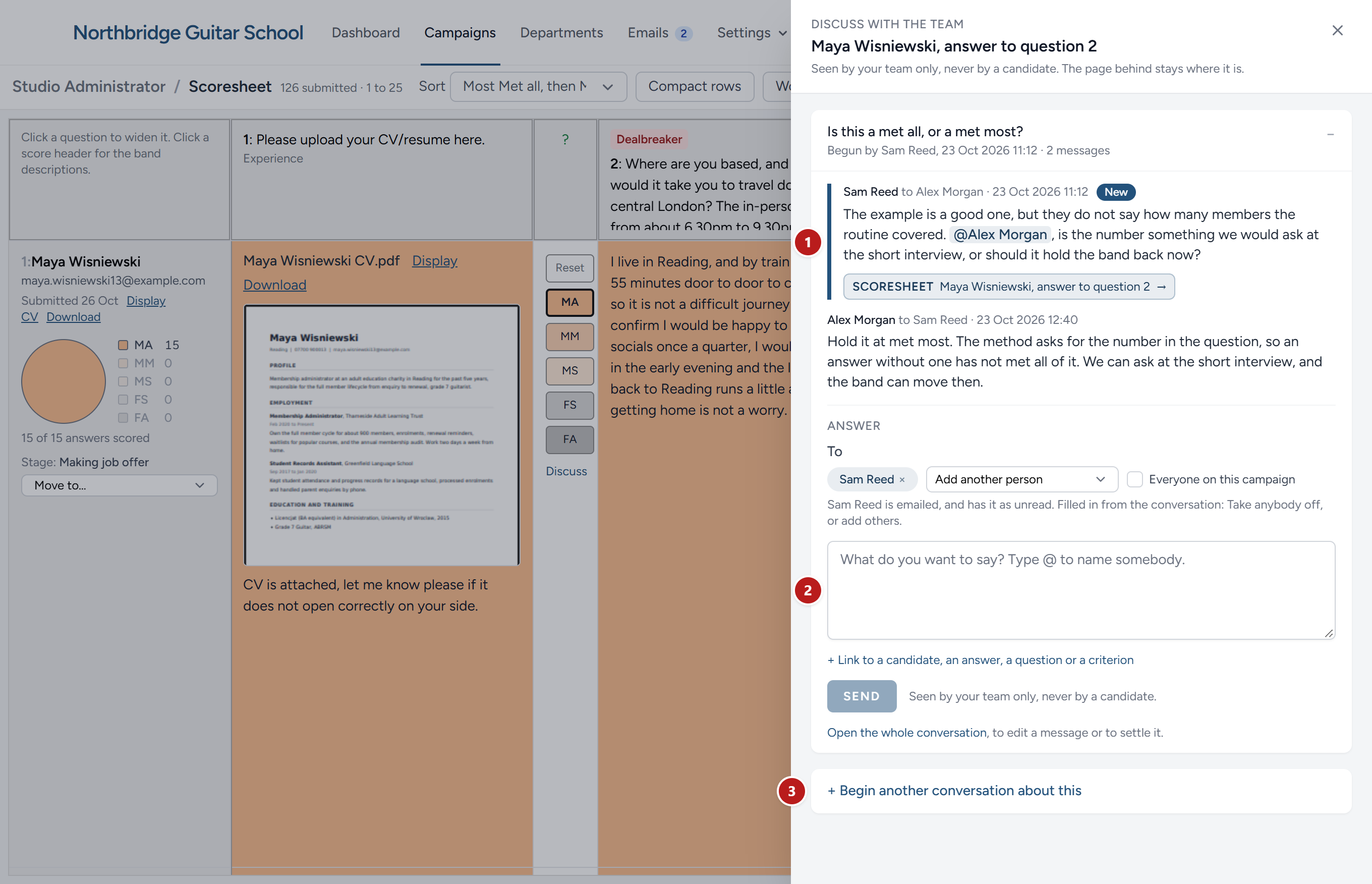
- What has been said already about this thing, each conversation with its subject, who began it and when, and every message with who wrote it. A number on the Discuss link tells you before you click that there is something to read.
- A box to write in. Above it, To lists who will receive what you write; add someone from the list or tick Everyone on this campaign. Write, and click Send. For a new conversation, give it a subject first.
- Begin another conversation about this, where the thing has been discussed before and yours is a different point.
What you write goes to the people who run your campaign, your contacts at the foot of the campaign's page; Everyone on this campaign means all of them. They are emailed with what you wrote and a link that opens it: At once when you pick them or name them; when it goes to everyone, in their next summary of what their clients have written. A conversation you begin is marked With the client on their side, and is seen by them and you, and by nobody else at your recruiter. Open the whole conversation takes you to it as a page of its own.
A comment on the Person Specification is the one conversation your colleagues read too: Everyone at your organisation who is given the specification, unless you tick Only to as you begin it and keep it to your recruiter. In the panel it is tagged Shared with your colleagues, or Only to the recruiter. See Person Specification. Everything else you write, about the scoresheet, your briefing or a candidate, stays between you and the people recruiting for you.
Your messages
The bell at the top of the page, Team messages, lists every conversation you are part of, with a count of what you have not opened: In red, what was written to you by name; in grey, what went to everyone on the campaign. Mark all as read above the list reads everything it is showing, for you alone. Click a conversation to read it in full and reply. The page says who began it and when, and that it is a conversation with you.
You see only the conversations you are in: Those you began, those your recruiter's team began with you, and the comments your colleagues shared on the specification, where you are given it. Nothing else your recruiter's team write to one another is there.
Agreeing without a reply
Under each message someone else wrote is I agree. Click it to say you agree, without writing an answer that only says so; click it again to take it back. The line beside it names everyone who agrees, You and Pat Hughes agree say, for everyone who reads the conversation. Nobody is emailed when you agree. How it works on the specification, where it is most use, is in Person Specification.
Links in a message
A message often carries a link to what it is about: Briefing question 3, say, a candidate, or a candidate's answer. Click it and you are taken to that thing on your own pages, the question on your campaign's page, the candidate among those suggested to you or on your review list, or the answer on the scorecard. The page opens at the thing itself, outlined, with the latest of what was said in a card beneath it and a link back to the conversation, so you never have to hunt for what was meant. The outline stays until you close the card. If the thing has since gone from the page, the card says so at the top.
This chapter was last revised on 30 October 2026.